
In today’s fast‑paced media landscape, the ability to quickly slice and trim audio is essential for podcasters, musicians, and video creators alike. Whether you’re removing unwanted silence, creating a ringtone, or preparing a soundtrack for a video, a reliable audio cutter can save hours of manual editing while preserving audio quality.
In this article
- Understanding Audio Cutters for Precise Editing and Improved Sound Quality
- Top 5 Audio Cutter Options for Fastest & Easiest Trimming/Cutting
- How to Use the Audio Cutter & Video Editor [Filmora]
Understanding Audio Cutters for Precise Editing and Improved Sound Quality
Audio cutting involves selecting a segment of a file, removing the rest, and exporting the result in a chosen format. A good cutter offers:
- Accurate, sample‑level start and end points
- Non‑destructive editing so original files remain untouched
- Optional fades, normalization, and silence detection to polish the final clip
- Support for common formats such as MP3, WAV, M4A, and more
Choosing the right tool depends on your workflow, file size, and whether you need advanced features like batch processing or spectral editing.
Top 5 Audio Cutter Options for Fastest & Easiest Trimming/Cutting
1. Filmora
Filmora blends robust video editing with a comprehensive audio toolkit, making it ideal for users who need both functions in one interface.
Key Features
- Split and trim at the playhead with a single click or shortcut (S key)
- Mark‑In/Mark‑Out markers for precise start/end selection
- Trim in‑timeline by dragging clip edges
- Audio effects, normalization, and fade‑in/out controls
- Cross‑platform support: Windows, macOS, iOS, Android
2. Audacity
Audacity remains the industry standard for free, open‑source audio editing, offering powerful multi‑track capabilities and a broad range of effects.
Key Features
- Multi‑track editing with independent volume and pan controls
- Noise suppression, equalization, and vocal removal tools
- Cross‑platform: Windows, macOS, Linux
- Extensible with third‑party plug‑ins (VST, LADSPA)
3. MP3Cut
MP3Cut is a lightweight online cutter that requires no installation, making it perfect for quick, on‑the‑go edits.
Key Features
- Supports MP3, WAV, WMA, M4A, and more
- Browser‑based—no download needed
- Drag‑and‑drop interface with real‑time waveform preview
- Export trimmed clip directly to your device
4. Audio Trimmer
Audio Trimmer is a free, online tool that focuses on speed and simplicity, letting users trim any audio file in seconds.
Key Features
- Instant, browser‑only trimming without software installation
- Supports MP3, WAV, WMA, AAC, and other formats
- Instant processing and download of trimmed clips
5. Adobe Audition
Adobe Audition is a professional DAW that excels in podcast production, audio restoration, and complex multi‑track projects.
Key Features
- Multitrack session editor with unlimited tracks
- Spectral frequency display for precise noise removal
- Advanced restoration tools: Click & Pop, De‑Hum, De‑Click
- Seamless integration with Adobe Creative Cloud
6. WaveLab by Steinberg
WaveLab offers industry‑class mastering tools, making it a favorite among audio engineers who need meticulous control over their cuts.
Key Features
- Sample‑accurate cutting and splicing
- Comprehensive mastering suite: EQ, compression, limiting
- Batch processing for handling multiple files
- High‑resolution support up to 32‑bit/384 kHz
7. Sound Forge Pro by MAGIX
Sound Forge Pro blends an intuitive interface with powerful editing capabilities, ideal for music production and post‑production workflows.
Key Features
- Event tool for non‑destructive timeline editing
- High‑quality plug‑ins for effects and mastering
- Supports 32‑bit/384 kHz audio for pristine quality
- Advanced noise reduction and restoration modules
How to Use the Audio Cutter & Video Editor [Filmora]
Step‑by‑Step Guide to Cutting Audio in Filmora
Step 1: Install Filmora
Download the latest version from the official website, run the installer, and follow the on‑screen prompts.
Step 2: Start a New Project
Launch Filmora, click New Project, and import your audio file via the Import button.

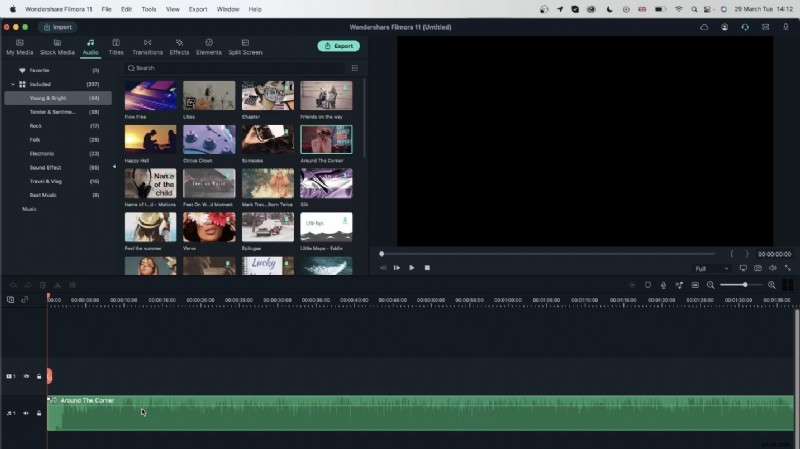
Step 3: Drag Audio to Timeline
Select the audio in the Media panel, then drag it onto the timeline.
Step 4: Make Precise Cuts
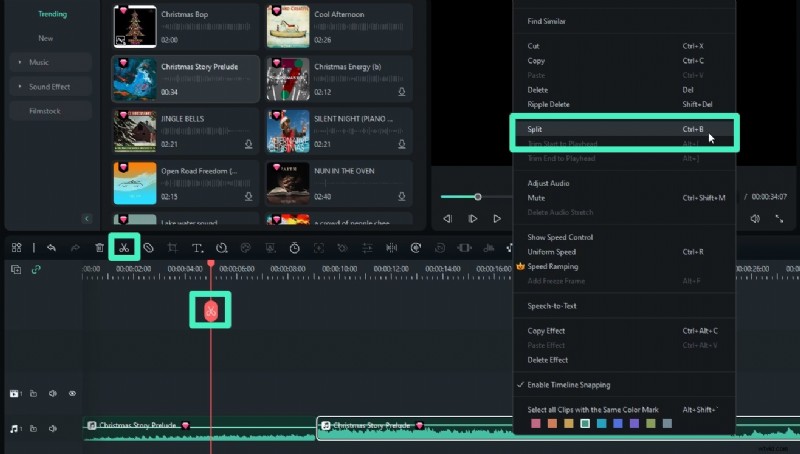
Position the playhead at the desired start point, click the Scissor icon or press the S key to split. Repeat for the end point.
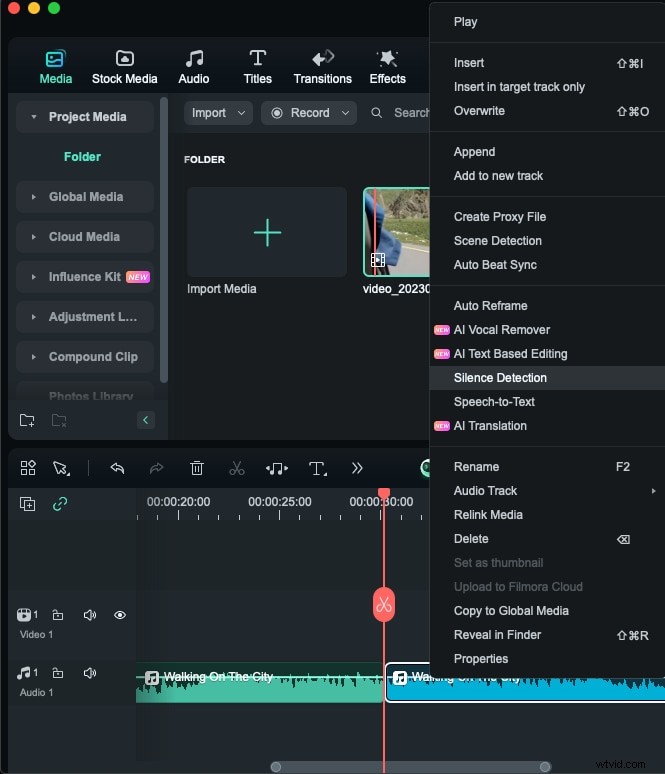
Use the Silence Detection feature (right‑click a clip, select Silence Detection) to automatically remove silent gaps.
Step 5: Export Your Trimmed Audio
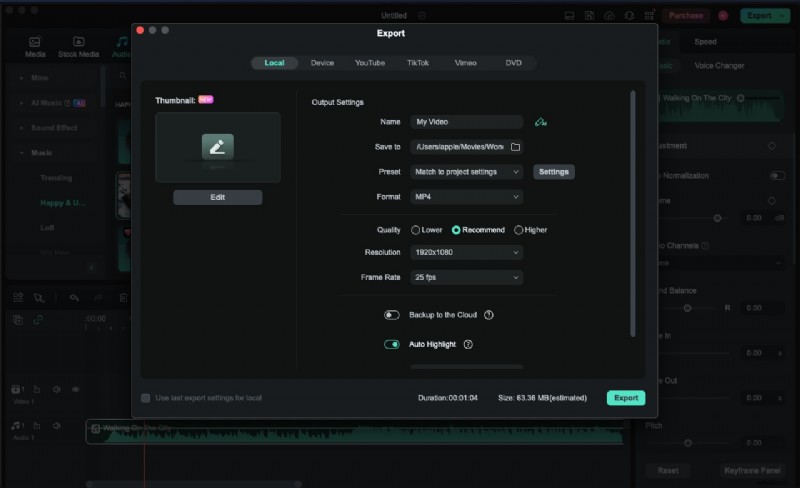
Click Export in the upper right corner, choose your desired format, and click Export again to save.
Conclusion
Whether you’re a podcaster, musician, or video creator, selecting the right audio cutter can streamline your workflow and elevate the quality of your final product. From free, web‑based tools like MP3Cut to professional suites such as Adobe Audition and Steinberg WaveLab, there’s a solution for every need and budget. With Filmora’s all‑in‑one platform, you can seamlessly edit audio and video without juggling multiple applications.