
In today’s digital landscape, high‑quality audio recording is essential—whether you’re producing podcasts, streaming live, or capturing system sounds. Audio Hijack, crafted by the respected Mac software developer Rogue Amoeba, delivers a versatile, professional‑grade solution that’s become a staple for audio enthusiasts and content creators alike.
Overview
Audio Hijack is a macOS‑only application that records audio from virtually any source on your machine—web browsers, video‑chat apps, system audio, external devices, or the built‑in microphone. Its intuitive workflow, coupled with powerful features, makes it a go‑to tool for podcasters, musicians, and video producers.
Key Features
- Multi‑Source Recording: Capture audio from several apps or devices simultaneously, perfect for interviews or live streams.
- Scheduling: Set recordings to start automatically at a specified time, ensuring you never miss a live event.
- Audio Processing: Built‑in equalizers, gain controls, and noise‑reduction filters let you polish your sound in real time.
- Built‑in Editor: Trim, split, and merge clips directly within the app—no external editor required.
- Automatic Triggers: Start or stop recordings based on app launches, system audio activity, or audio thresholds.
- Bulletproof Recording: Robust crash‑resistance protects your sessions against data loss.
- One Session, Many Recorders: Configure multiple recorders in a single session, each with its own format, sample rate, and destination.
- Export Flexibility: Save in AAC, AIFF, Apple Lossless, MP3, or WAV.
Getting Started on macOS
Follow these simple steps to set up a recording session:
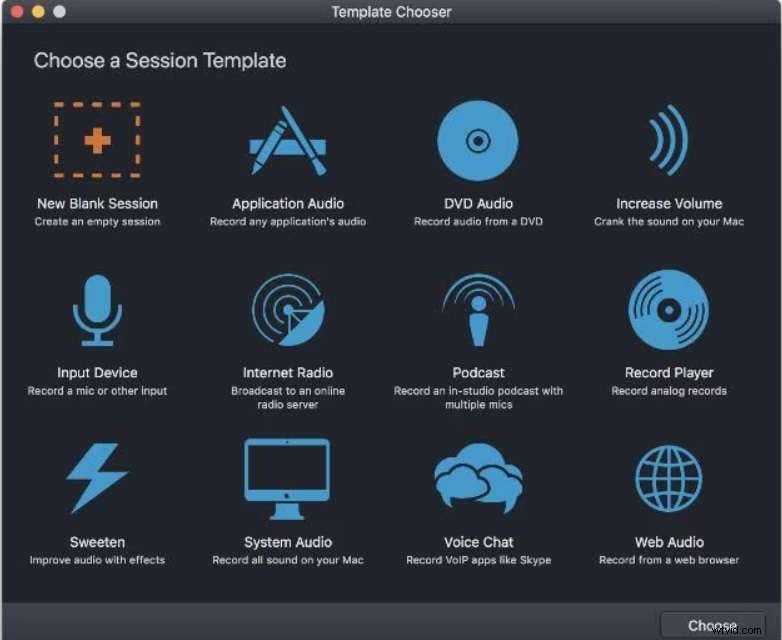
- Create a new session by clicking New Session → New Blank Session. Rename it to reflect your project.
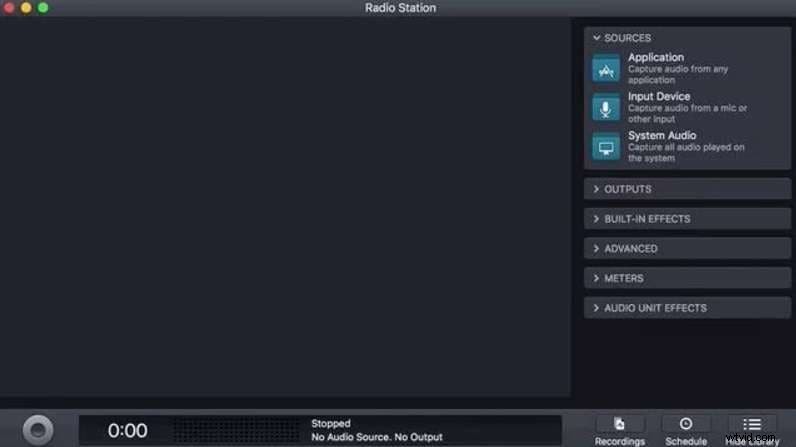
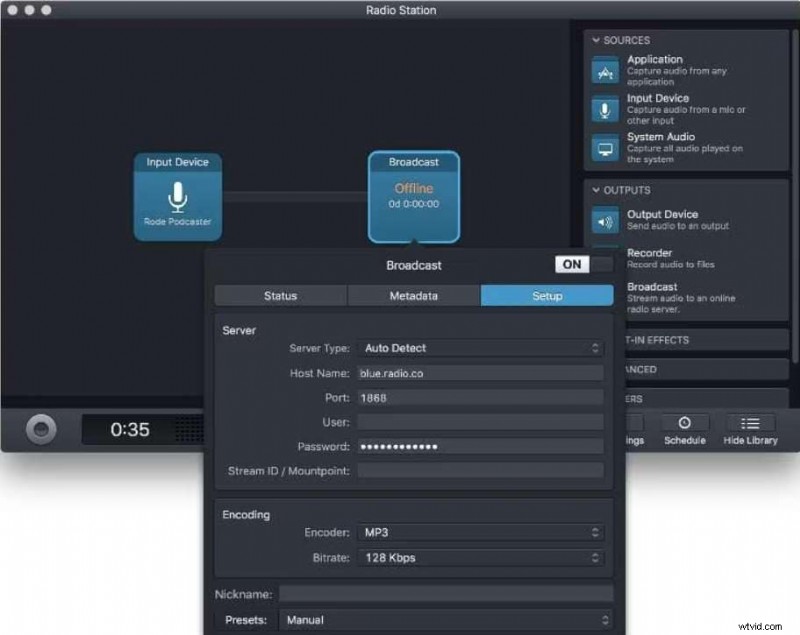
- Drag an Input Device block from the Sources panel into the session area and choose your microphone.
- Drag a Broadcast block into the Outputs area, then click Setup to enter the host, port, and password of your radio station or streaming service.
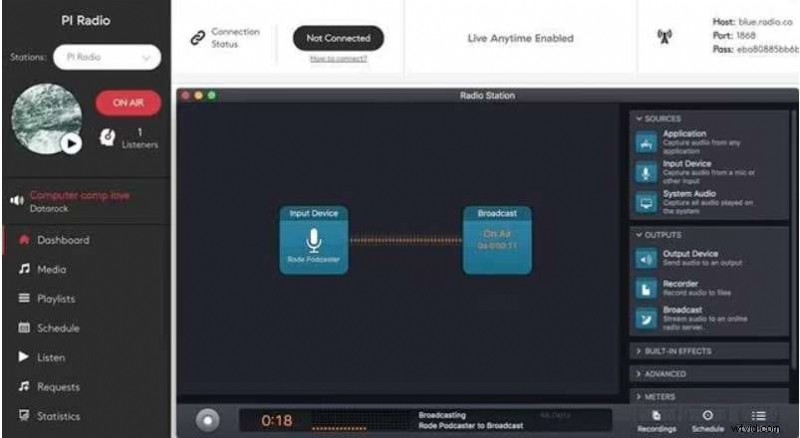
- When everything is configured, press Start Broadcasting. A green On Air indicator confirms the connection.
Best Alternative for Windows: Wondershare Filmora
Audio Hijack is exclusive to macOS, but Windows users can turn to Wondershare Filmora—a cross‑platform suite that offers both audio and video editing.
- Available on Windows and macOS.
- Intuitive, beginner‑friendly interface.
- Multi‑source audio recording (system audio, mic, external devices).
- Advanced editing tools: trim, split, merge, apply effects.
- Video editing and screen recording features.
Step‑by‑step audio capture with Filmora:
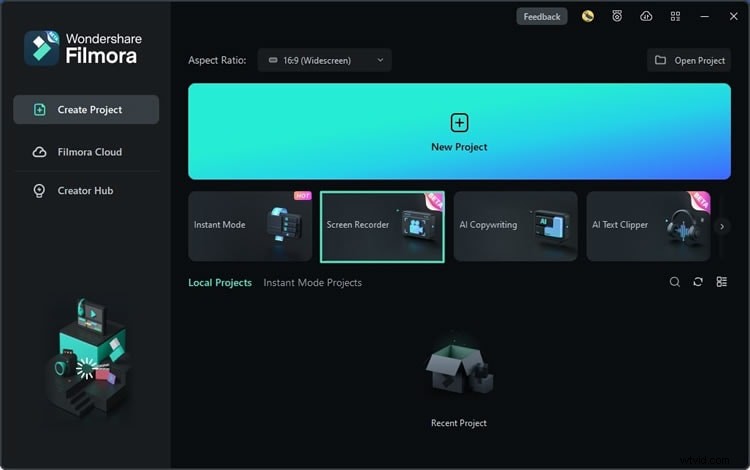
- Install Filmora, launch it, and select Record Screen Recorder from the start screen.
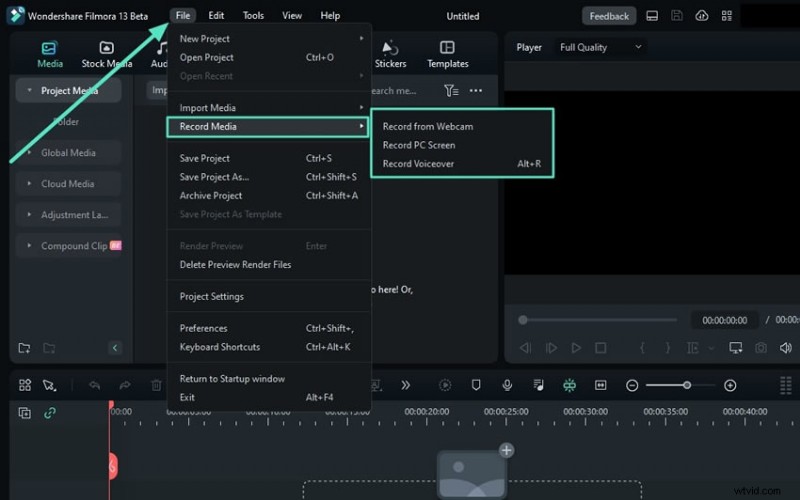
- Navigate to File → Record Media and choose your source: Webcam, PC Screen, or Voiceover.
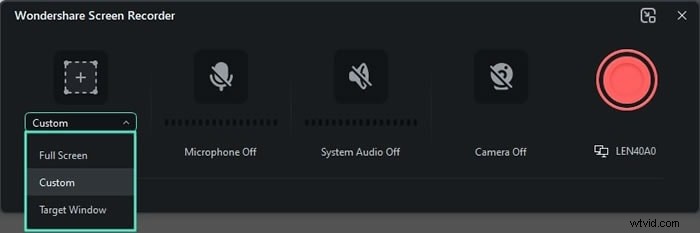
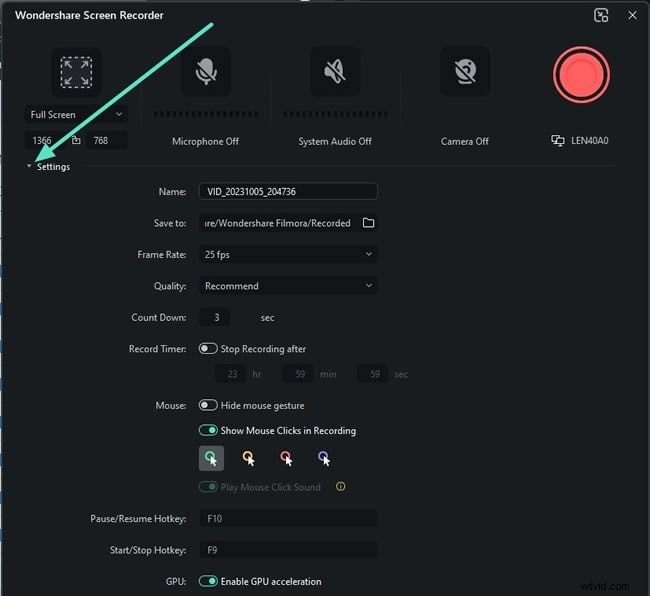
- Set resolution: Full Screen, Custom, or Target Window.
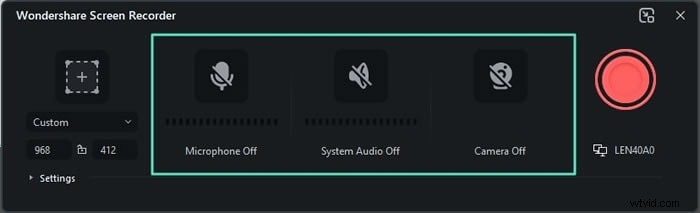
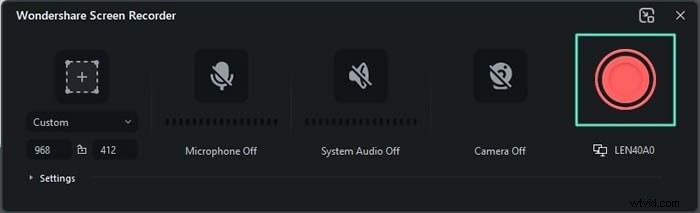
- In the recorder window, toggle Microphone, System Audio, and Camera as needed.
- Adjust additional settings via the Settings panel.
- Press the red record button to start; use Pause or Stop controls as required.

Tips for Seamless Audio Recording
- Choose a quiet, acoustically treated space.
- Invest in a high‑quality condenser mic.
- Eliminate background noise by closing doors, windows, and turning off fans.
- Use a pop filter to tame plosives.
- Monitor with headphones to catch issues live.
- Schedule recordings to avoid interruptions.
- Consider soundproofing for professional results.
Conclusion
Audio Hijack stands out as a powerful, feature‑rich recorder that meets the needs of Mac professionals. Its multi‑source capture, scheduling, and robust editing tools make it ideal for podcasters, streamers, and musicians. For Windows users, Wondershare Filmora offers a comparable experience with added video capabilities, making it a versatile alternative.
FAQ
- Is Audio Hijack available for Windows? No. It’s Mac‑only, though it can run on Windows via virtual machines or remote desktop solutions.
- Can Audio Hijack record system and application audio simultaneously? Yes—simultaneous multi‑source recording is a core feature.
- Does Wondershare Filmora support multi‑source audio recording? Yes, it captures system audio, microphones, and external devices.
- Can I edit recordings within Audio Hijack or Filmora? Both offer built‑in editors: Audio Hijack for trimming and merging; Filmora for advanced audio and video editing.