
Videos captivate, inform, and entertain—yet background hiss, wind, or static can undermine even the best footage. Fortunately, a variety of software solutions can remove unwanted noise, leaving your audio crisp and clear.
Part 1: Why Denoising Matters
- Crystal‑Clear Sound – Removing hiss and ambient noise sharpens dialogue and music, improving overall listening pleasure.
- Effective Communication – Clean audio ensures viewers grasp every spoken detail, enhancing the impact of your message.
- Professionalism & Trust – Background disturbances can make content look unpolished; denoising signals quality and credibility.
- Higher Engagement – Audiences stay focused when sound is free of distractions, increasing watch time and retention.
- Accessibility – Clear audio supports subtitles and captions, making videos inclusive for diverse audiences.
- Editing Flexibility – A noise‑free track simplifies volume adjustments, effects, and other post‑production tweaks.
- Consistency – Uniform audio quality across scenes creates a seamless viewing experience.
- Audio Restoration – Denoising can rescue older recordings, preserving valuable content for future use.
Part 2: Denoising with Wondershare Filmora
Filmora offers an intuitive workflow for both beginners and seasoned editors. Follow these steps to clean your audio:
1. Import Your Media
Launch Filmora, click New Project, then use the Import panel to add your video or audio file. Drag the clip onto the timeline.

2. Open Audio Settings
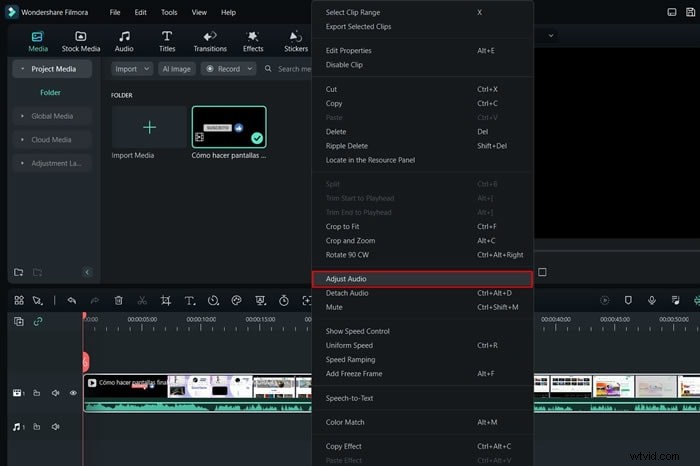
Right‑click the clip, choose Adjust Audio, and the audio panel will appear.
3. Apply Denoise Features
In the Denoise tab, toggle AI Speech Enhancement, Wind Removal, and Normal Denoise. Fine‑tune the sliders for DeReverb, Hum Removal, and Hiss Removal as needed.
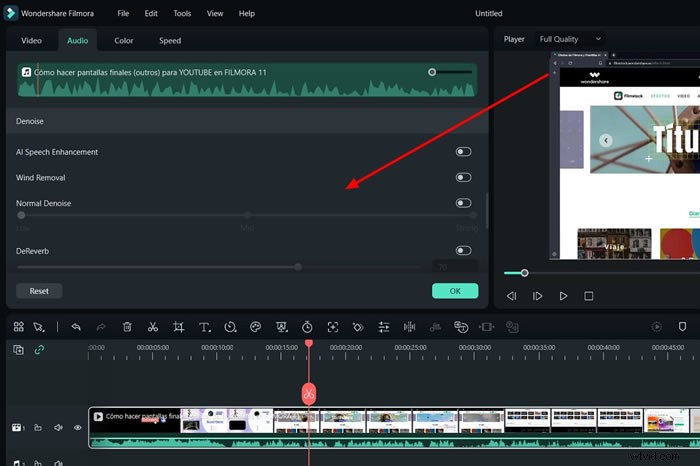
When satisfied, hit Export to save the cleaned audio track.
Part 3: Free Online Noise‑Removal Tools
If you prefer a cloud‑based solution, the following platforms offer robust denoising without any software installation.
1. Veed.io
Veed.io’s intuitive editor allows you to strip background noise with a single click.
- Navigate to veed.io and click Clean your audio now.
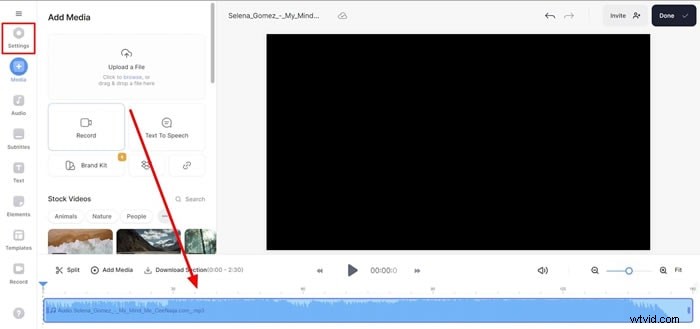
- Upload your media, then go to the Audio settings in the left sidebar.
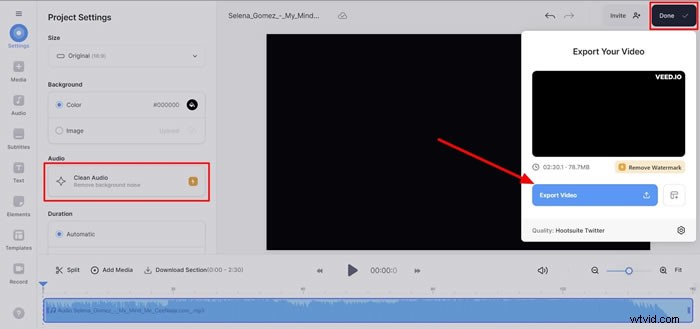
- Press Clean Audio, hit Done, and export the result.

2. Kapwing
Kapwing’s AI tools also provide a straightforward audio‑cleaning workflow.
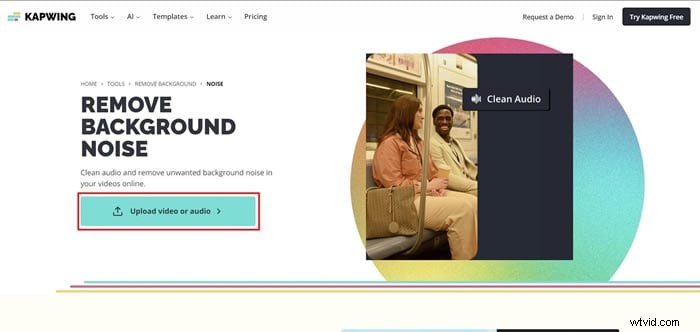
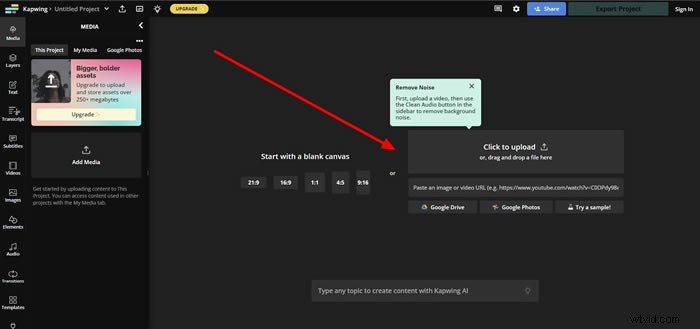
- Open kapwing.com and click Upload video or audio.
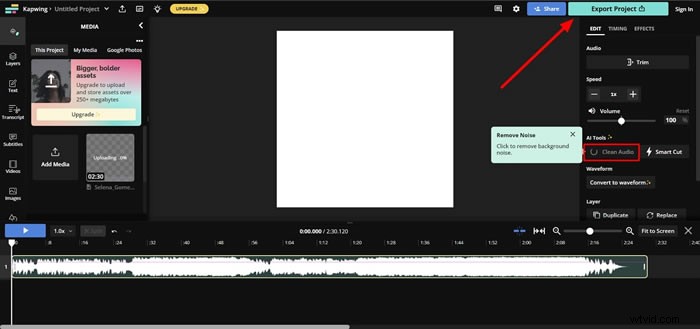
- Once the file loads, the editor appears on the right.
- Find Clean Audio under the AI Tools section, run the process, then click Export Project to download.
Conclusion
Whether you choose a robust desktop editor like Filmora or a convenient online service such as Veed.io or Kapwing, removing background noise transforms your videos into polished, professional productions. Clean audio not only enhances viewer enjoyment but also reinforces the credibility and accessibility of your content.