
How to Download YouTube Audio Safely: An Expert Guide
Below is a concise, expert‑approved walkthrough that covers everything from online converters to dedicated desktop tools, ensuring you stay within legal boundaries.
Note: This guide is intended for downloading audio from videos that you own or have permission to use. We strongly discourage any form of copyright infringement.
In this article
Part 1: Key Considerations Before Downloading Audio from YouTube
Before diving into the step‑by‑step instructions, let’s address the most common questions that arise when you want to extract audio from YouTube.
01 What Is an Online YouTube Music Downloader?
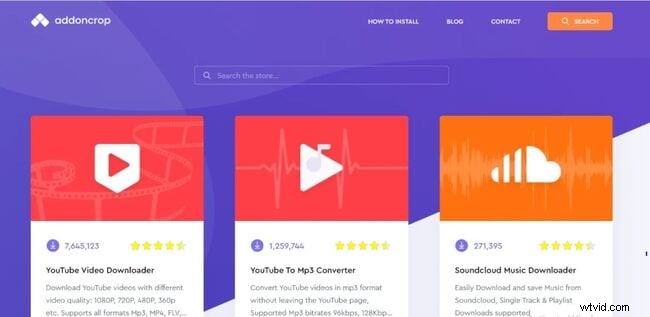
An online YouTube‑to‑MP4 or MP3 converter allows you to paste a video URL and receive a downloadable audio file in minutes. For example, using Addoncrop you can convert any YouTube video to MP3 without installing additional software.
02 Why Use an Online YouTube MP3 Downloader?
Online converters eliminate the need for a local installer, making the process quick and convenient. However, always verify the site’s reputation—some free services may host malware or unwanted ads.
03 Can You Convert YouTube Videos to Other Formats?
Yes. Most converters support a range of formats, including MOV, MPEG, MP4, FLV, and others, giving you flexibility for different use cases.
04 Is Downloading YouTube Videos Illegal?
Downloading content you do not own is against YouTube’s terms of service and may violate copyright law. For personal, non‑commercial use of your own videos, the practice is generally acceptable.
05 Is It Safe to Use a YouTube MP3 Music Downloader?
Safety depends on the source. Reputable services with transparent privacy policies are typically safe, but always scan downloads with up‑to‑date antivirus software.
Part 2: How to Download YouTube Audio
Below are several reliable methods, from browser extensions to desktop applications, each tailored to different operating systems.
01 Using the Addoncrop Browser Extension
Addoncrop is a popular extension that integrates directly into YouTube, adding a “Download MP3” button above the subscribe link.
Steps:
- Visit addoncrop.com and search for the YouTube‑to‑MP3 converter.
- Select the extension for your browser (Chrome, Edge, or Brave) and click Download.
- Follow the on‑screen prompts to install the extension.
- Navigate to the YouTube video you wish to download.
- Click the newly added Download MP3 button.
- Choose the desired bitrate (up to 320 Kbps) and optional trimming.
- Confirm to start the download. No pop‑ups or redirects will occur.
02 Downloading on Windows with 4K YouTube to MP3 Downloader
The 4K YouTube to MP3 Downloader is a free, ad‑free tool that supports multiple formats (MP3, M4A, OGG) and playlists.
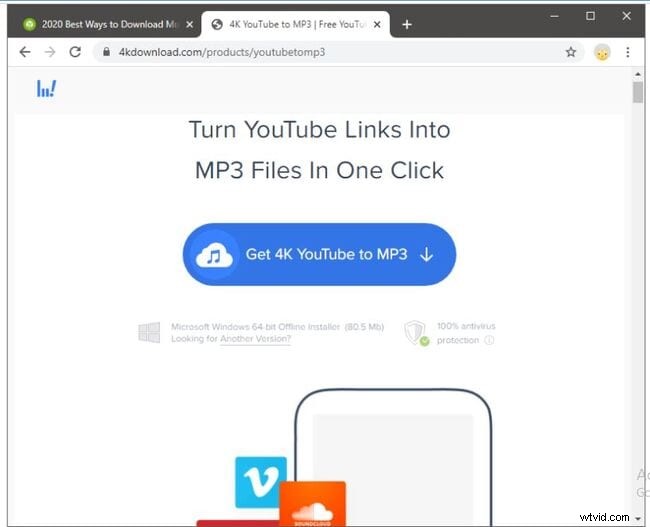
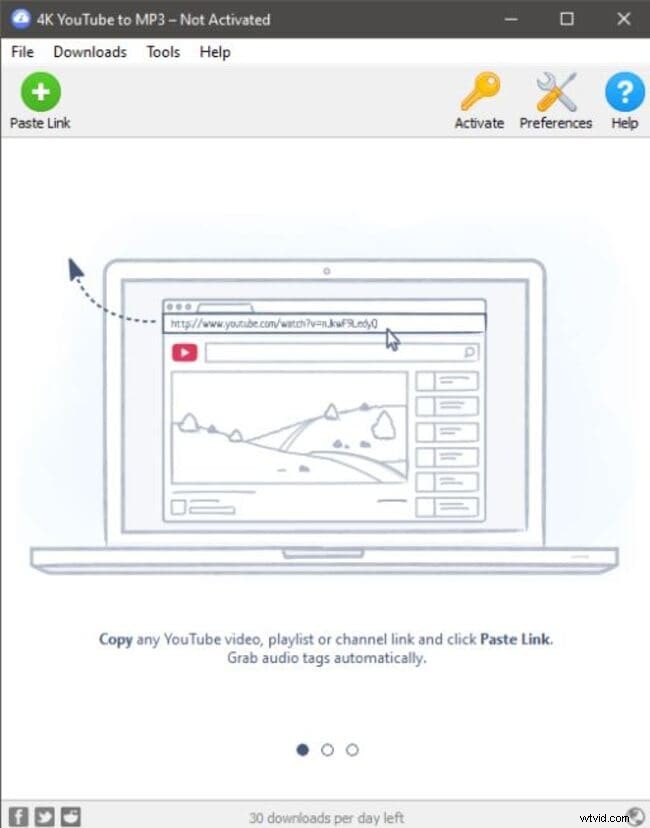
- Install the 4K YouTube to MP3 Downloader from the official website.
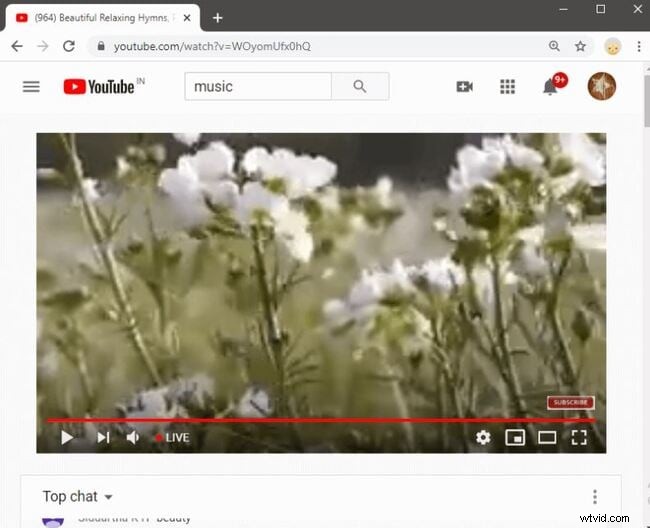
- Open the application and launch YouTube in your browser.
- Find the video or playlist you want to save.
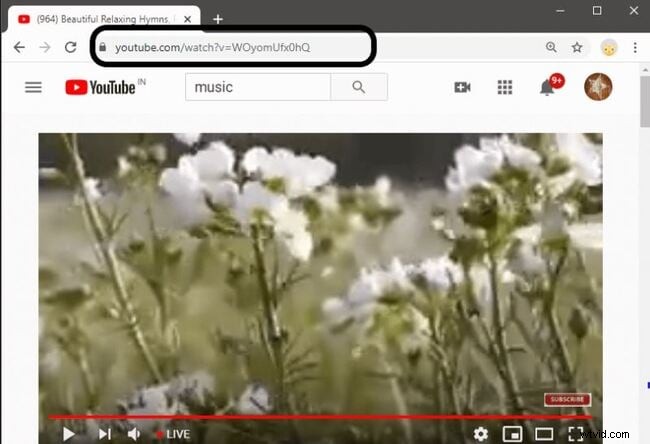
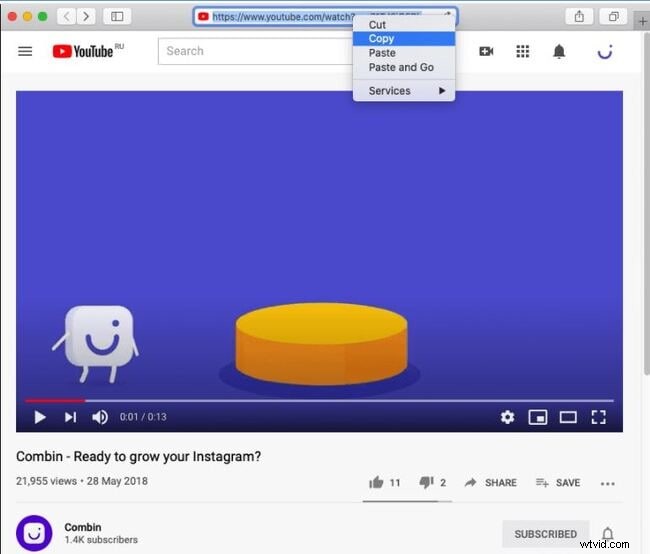
- Copy the URL from the address bar.
- Paste the URL into the downloader using the Paste URL button.
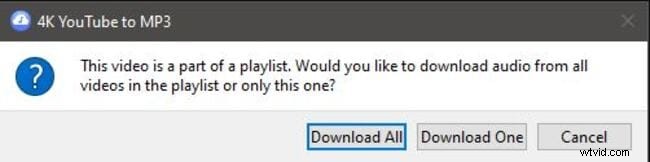
- If prompted, choose to download the entire playlist or a single video.
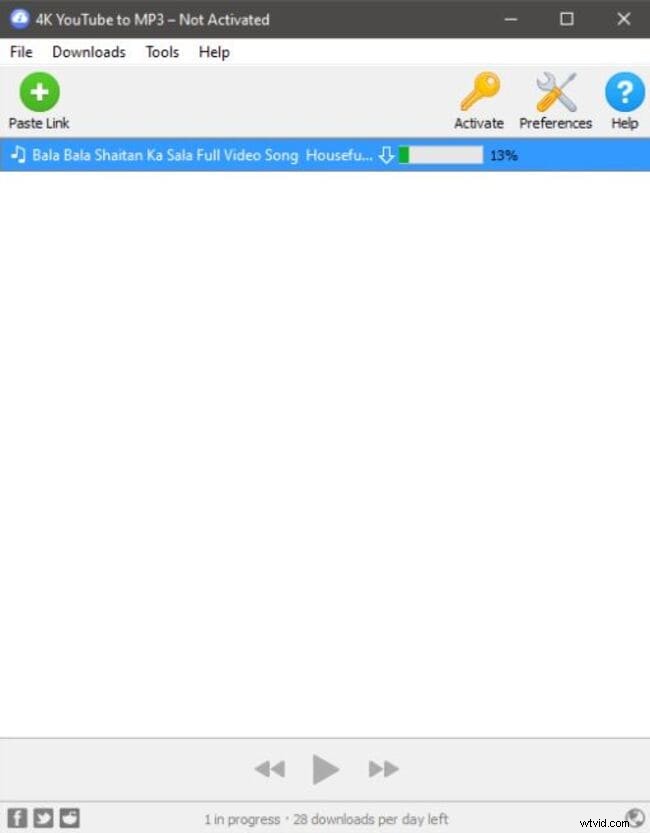
- Wait for the download to complete; files are saved to your chosen folder.
03 Extracting Audio on macOS with 4K Video Downloader
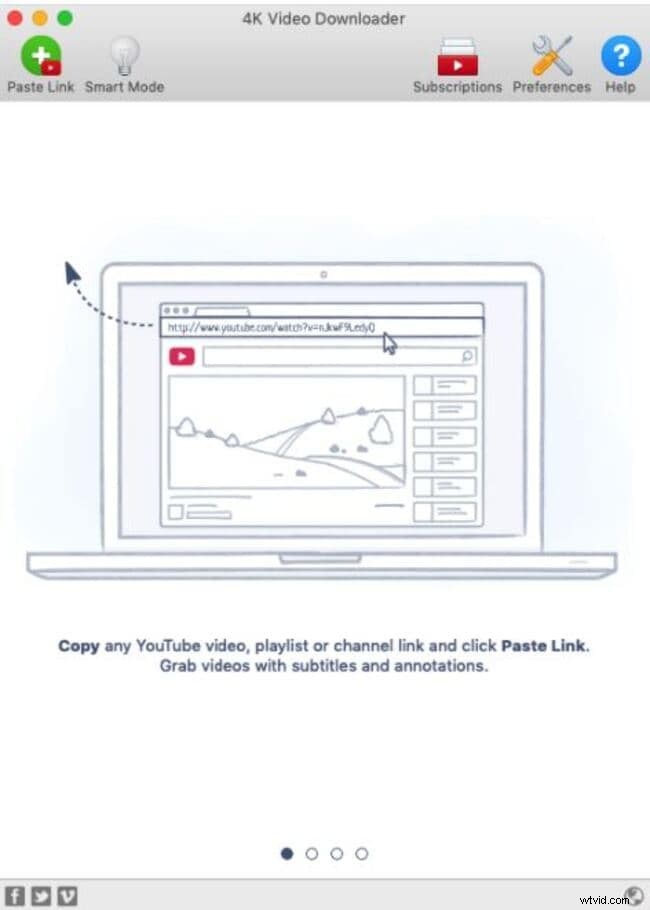
- Launch 4K Video Downloader on your Mac.
- Open YouTube and copy the link of the desired video, playlist, or channel.
- Paste the link into the downloader’s Paste Link field.
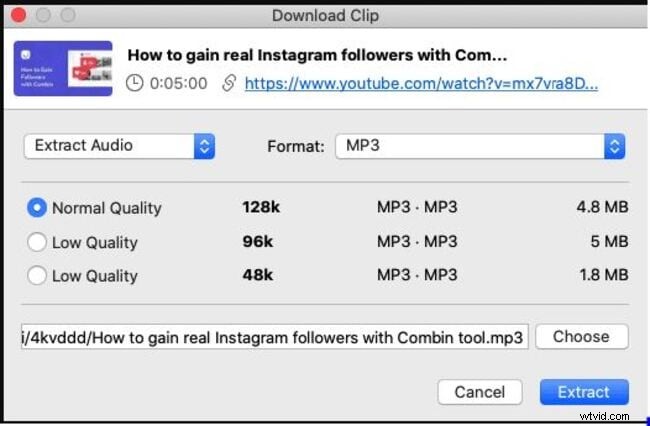
- Select Extract Audio, choose the M4A format, and click Extract.
- Once extraction finishes, right‑click the file and choose Show in Finder to locate it.
- Import the audio into iTunes via File > Add to Library or drag‑and‑drop.
- Enjoy the music on your Mac or transfer it to iOS devices.

04 Using Parallels Toolbox to Download Audio
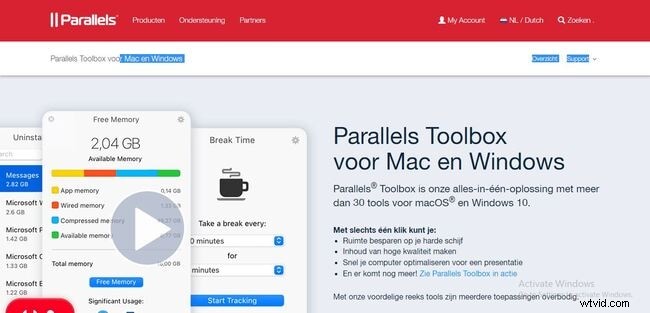
Parallels Toolbox offers a unified app for macOS that can capture audio from any online source, including YouTube.
- Open Parallels Toolbox from the menu bar.
- Select Audio > Download Audio from the Library menu.
- Drag the YouTube URL into the pop‑up window.
- After the download completes, review the list and tick only the files you want.
- Click Download Selected to save them locally.
05 Enhancing Your Downloads with Wondershare Filmora
Filmora’s latest version offers robust audio editing tools—trim, adjust volume, apply equalizers, and more—ideal for refining YouTube audio before use.
Features include:
- Real‑time voice‑over recording with a 3‑second prep time.
- Multi‑track mixing, fade‑in/out, and pitch control.
- Built‑in equalizer and speed adjustment.
- Free music library for background tracks.
Get started quickly with Filmora’s intuitive interface and expand your audio projects effortlessly.
Wondershare Filmora
Experience powerful performance, an easy‑to‑use interface, and a wide range of effects.

Filmora also lets you record live voice‑overs by pressing the record button, providing a brief countdown before capture starts. The editor’s timeline makes it simple to split, mute, or trim sections of audio.