
Remove Audio from Any Video: Step‑by‑Step Guide for Desktop, Mobile, and Online
Whether you’re polishing a short clip for social media or refining a long‑form documentary, most creators find themselves asking how to remove sound from a video. The answer is simple—every major platform offers a built‑in solution or a trusted third‑party tool. Below, we break down the process for Windows, macOS, Android, iOS, and the web, and we highlight a powerful all‑in‑one editor: Filmora.
Why Remove Audio?
- Replace background music or add a voice‑over without interference.
- Correct audio distortion after speed‑adjustments.
- Separate audio for non‑destructive editing.
- Produce silent cuts for intros, transitions, or overlays.
- Avoid copyright issues by removing embedded tracks.
Using Filmora – The All‑Rounder
Wondershare Filmora combines a user‑friendly interface with advanced AI features. It’s ideal for both beginners and seasoned editors who need to mute, detach, or edit audio tracks effortlessly.
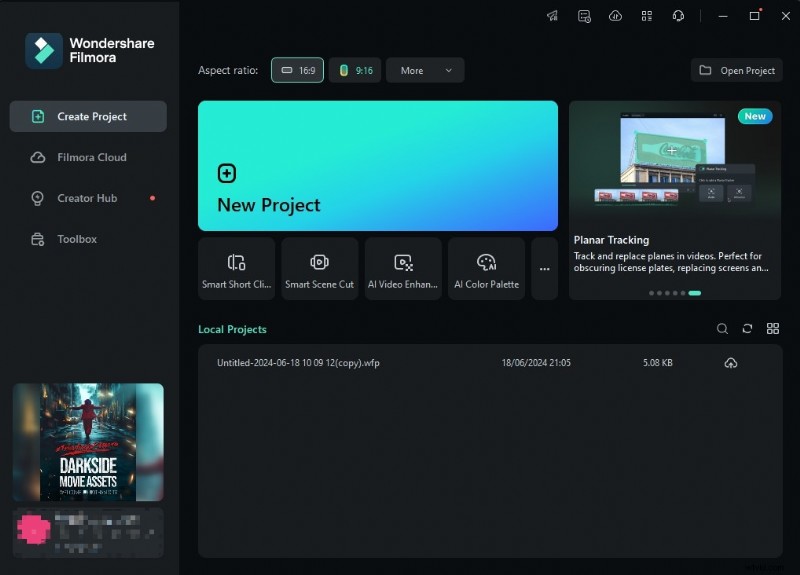
- Launch Filmora and choose Create Project > New Project.
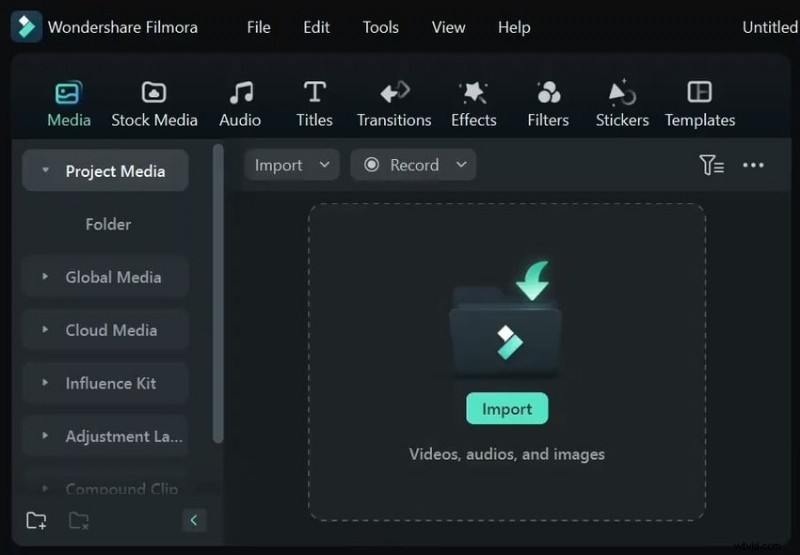
- Import your video via Import and drop it onto the timeline.
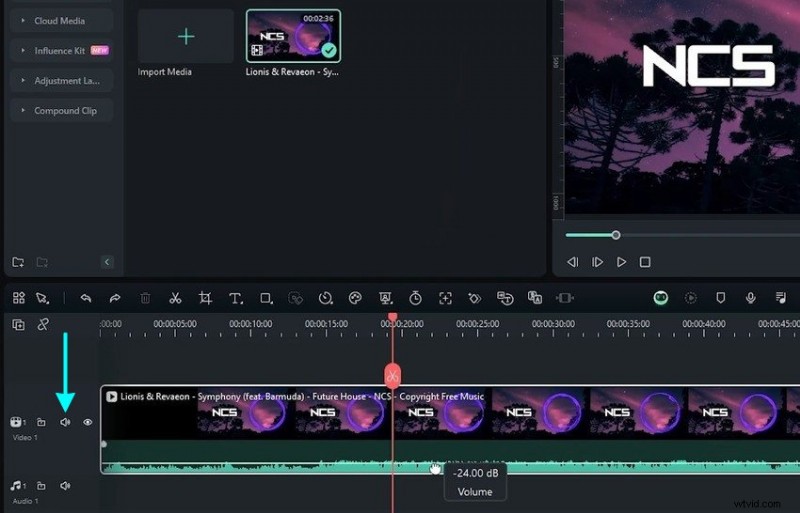
- Mute the entire clip: drag the volume bar to the bottom or click the speaker icon on the left. Keyboard shortcuts: Ctrl + Shift + M (Windows) or Shift + Command + M (macOS).
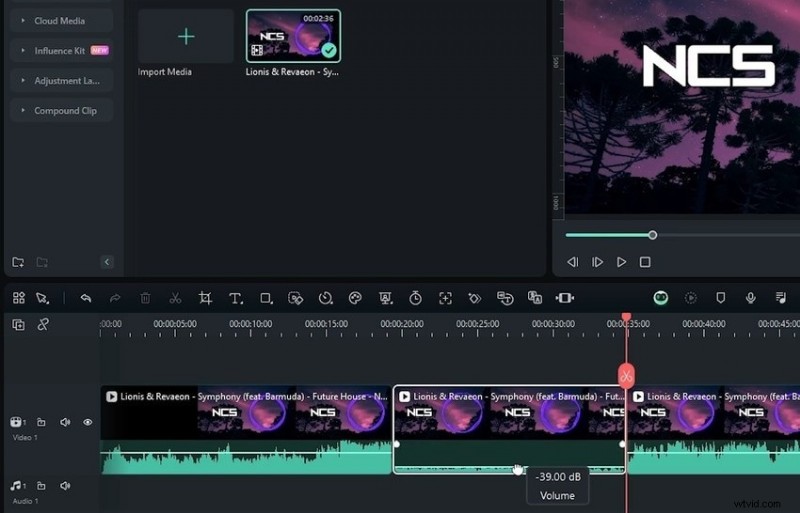
- For selective silence, use the Scissors tool to cut the clip, then mute the desired section.
- To detach audio entirely, right‑click the clip and select Detach Audio. The context menu also offers the AI Vocal Remover if you need to strip vocals while keeping the music.
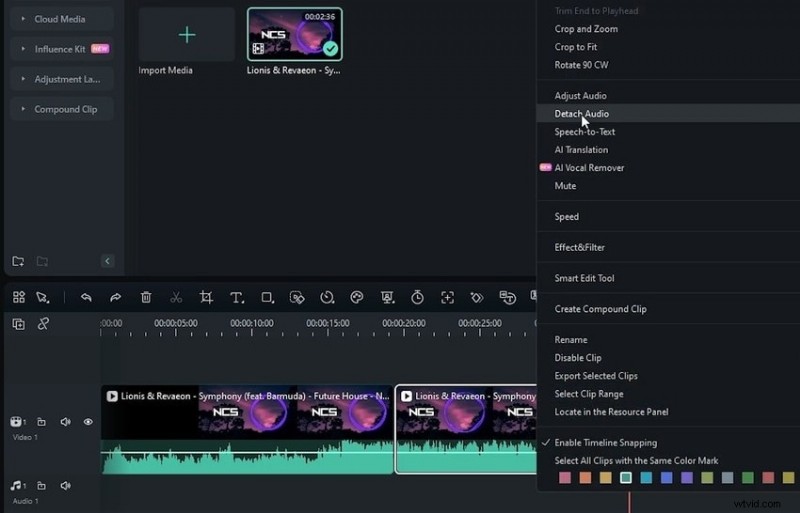
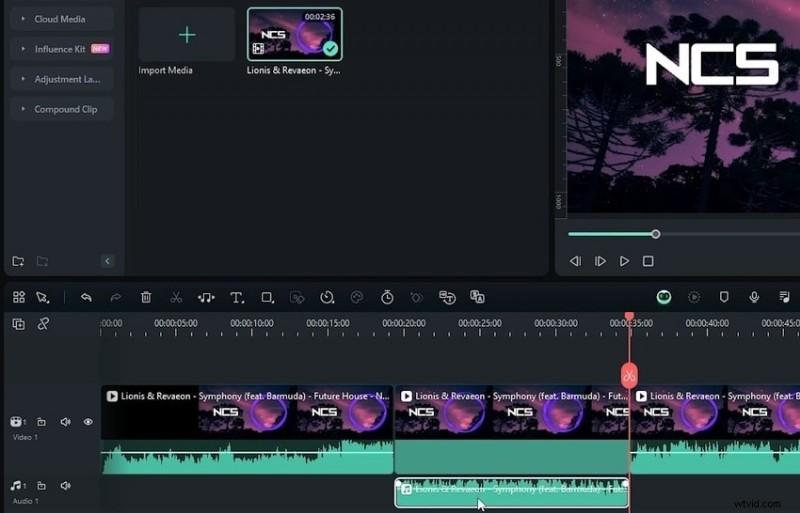
- Delete the detached track by pressing Delete, or edit it in the Audio panel (fade, pitch, etc.).
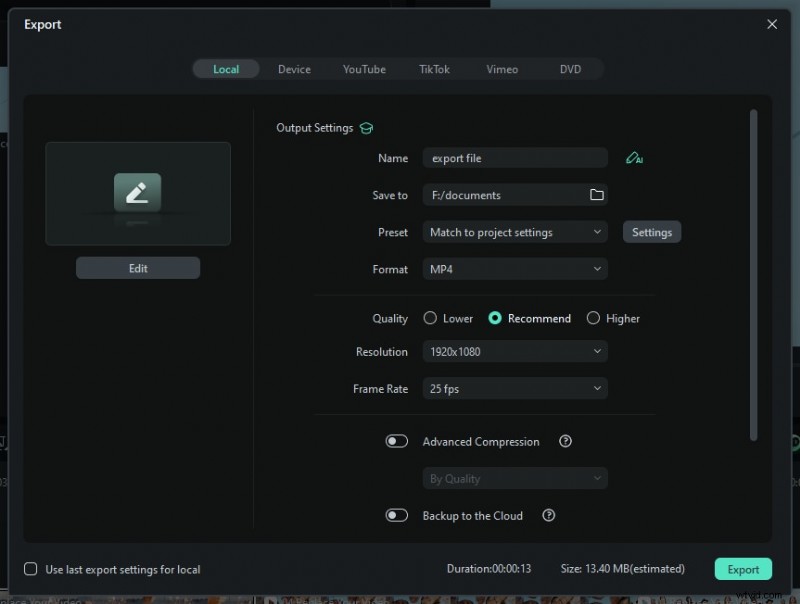
- Export your mute‑audio video: choose format, quality, and location, then click Export.
Filmora 14 introduces a new, streamlined workflow for precise audio manipulation—perfect for creators seeking a professional finish.
Windows – Quick Solution with VLC
VLC media player, a free and open‑source staple, can strip audio from any video file without a complex setup.
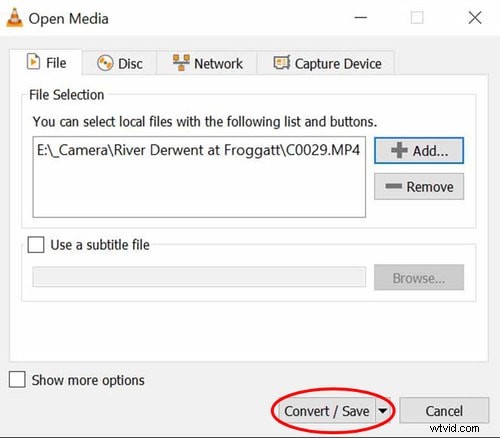
- Open VLC, navigate to Media > Convert/Save.
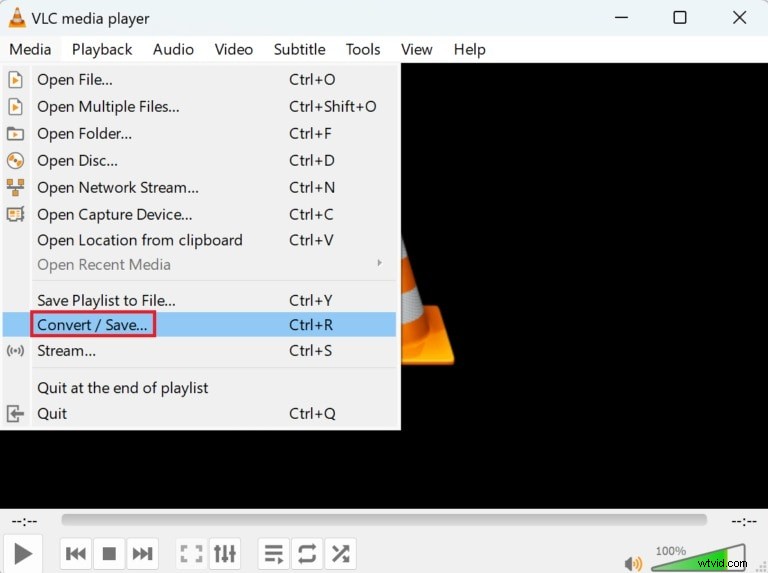
- Click Add to select your video, then hit Convert/Save.
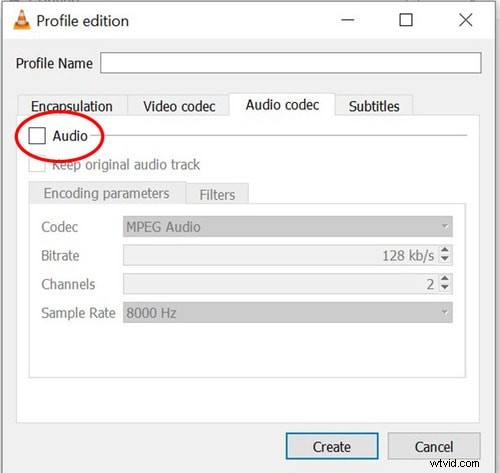
- Press the Wrench icon to edit the profile, uncheck Audio under Audio Codec, and click Create.

- Choose a destination folder, name your file, and hit Start. Your audio‑free video will appear in seconds.
macOS – Two Straightforward Paths
macOS users can choose between iMovie’s robust editing suite or QuickTime Player’s quick mute feature.
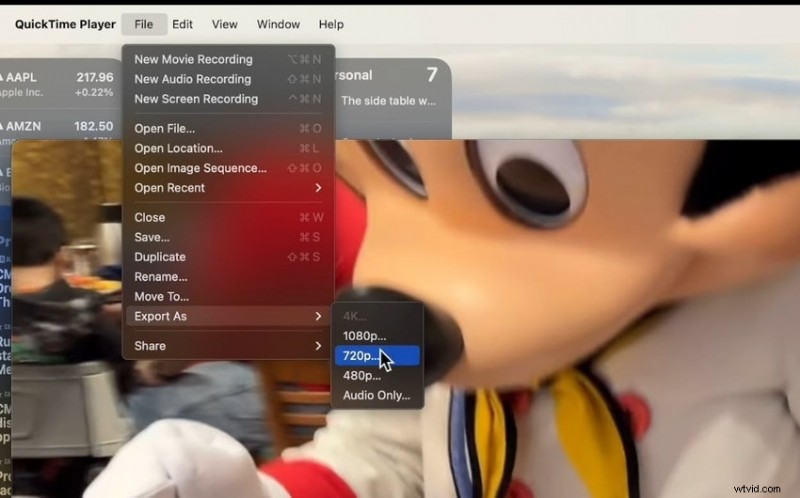
Using QuickTime Player
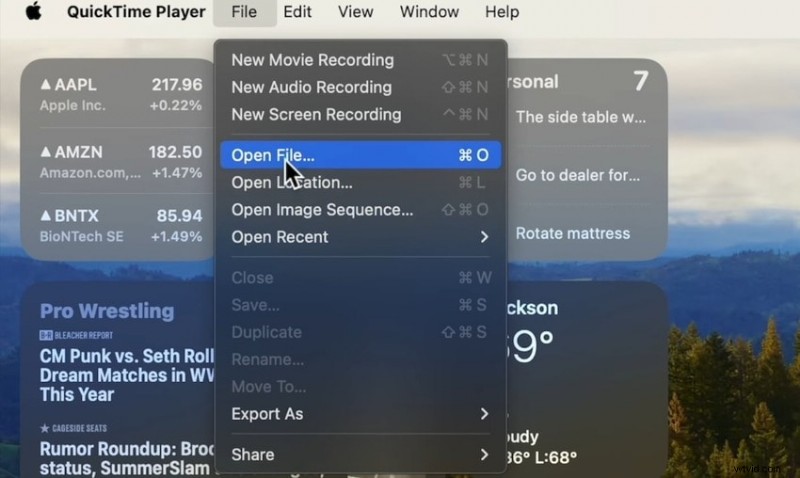
- Open the video in QuickTime, then go to File > Open File.
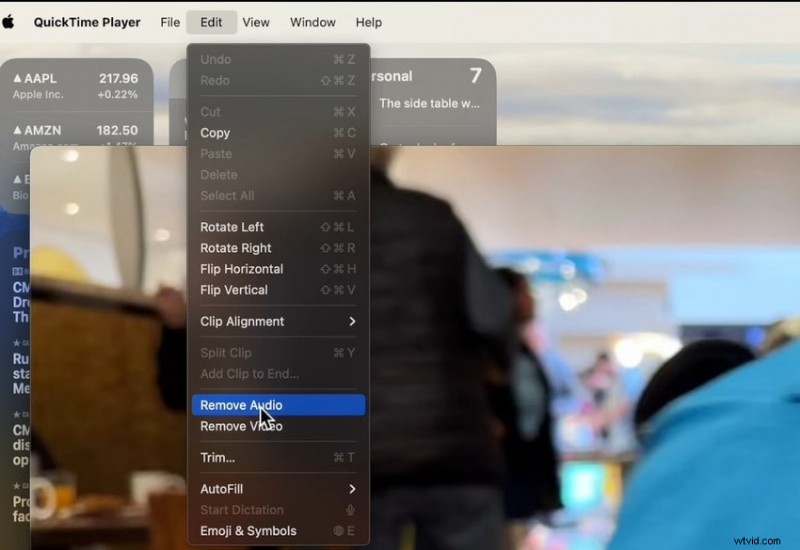
- Navigate to Edit > Remove Audio.
- Export the clip via File > Export As, choose your resolution, and save.
Android – Google Photos
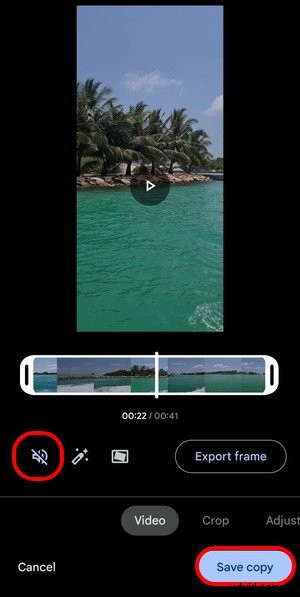
Every Android device ships with Google Photos, which includes a simple mute function.
- Open the video in Google Photos, tap Edit.

- Press the Speaker icon to mute, then tap Save Copy.
iOS – Photos App
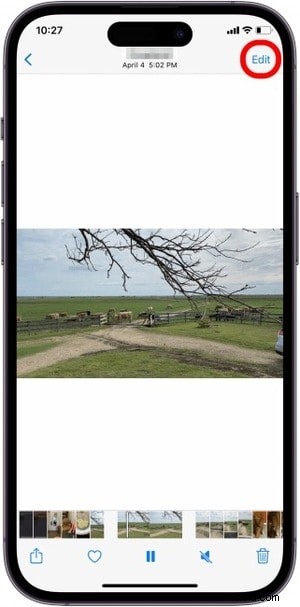
iPhone’s native Photos app offers a quick mute toggle.
- Open the video in Photos, tap Edit.
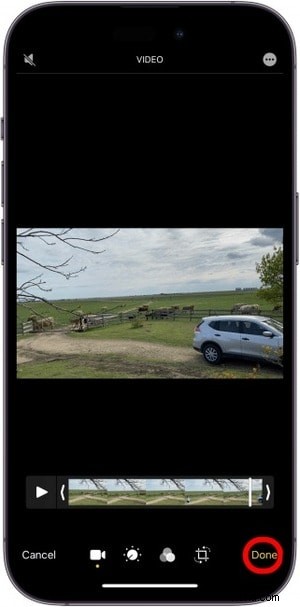
- Tap the Speaker icon to mute.

- Press Done to save the silent clip. A grayed‑out speaker icon confirms no audio.
Online – Clideo’s Mute Tool
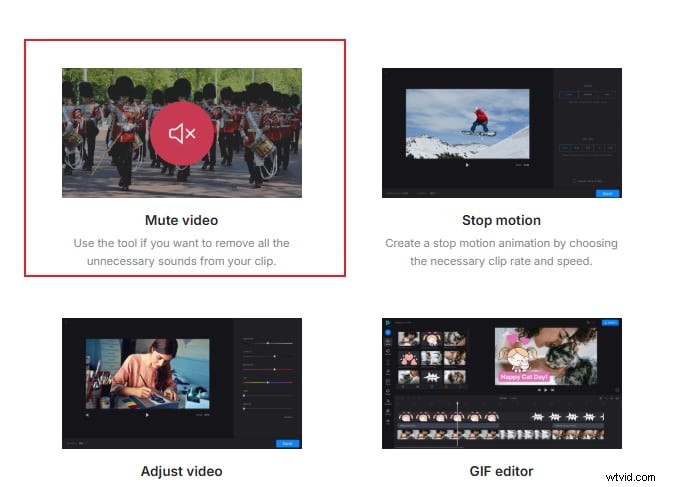
For a no‑install, cloud‑based solution, Clideo’s Mute Video feature removes audio automatically.
- Visit Clideo Mute Video and click Mute Video.
- Upload your file from your device, Google Drive, or Dropbox.

- Once processed, download the silent video or save it directly to cloud storage.

Conclusion
With these tools—whether you’re on a desktop, smartphone, or the web—you can quickly mute or delete audio from any video file. Filmora remains the top choice for editors needing advanced features and AI enhancements, while VLC, QuickTime, and online platforms provide lightweight, instant solutions.
Try the recommended software today and transform your videos with confidence.