
Whether you’re sharing moments with loved ones or preparing content for social media, muting a video on an iPhone can enhance its impact. From adding background music to protecting privacy, you’ll discover practical solutions that keep the visual narrative strong while removing unwanted audio.
In this article
- Mute a video using Wondershare Filmora
- Mute a video with the native Photos app
- Mute a video via iMovie
- Mute a video online with Clideo
Reasons to Mute a Video on an iPhone
There are several common motivations for silencing a video’s audio track:
- Add music – Replace the original sound with a soundtrack that complements the visuals.
- Privacy – Keep sensitive dialogue out of public view.
- Focus on visuals – Let the imagery speak without audio interference.
Choosing the right approach depends on your workflow and the level of editing required.
How to Mute a Video on an iPhone With Filmora
Wondershare Filmora offers a lightweight yet powerful editing suite. Its intuitive interface lets you mute, edit, and export videos in a few taps.


Follow these steps to silence your footage:
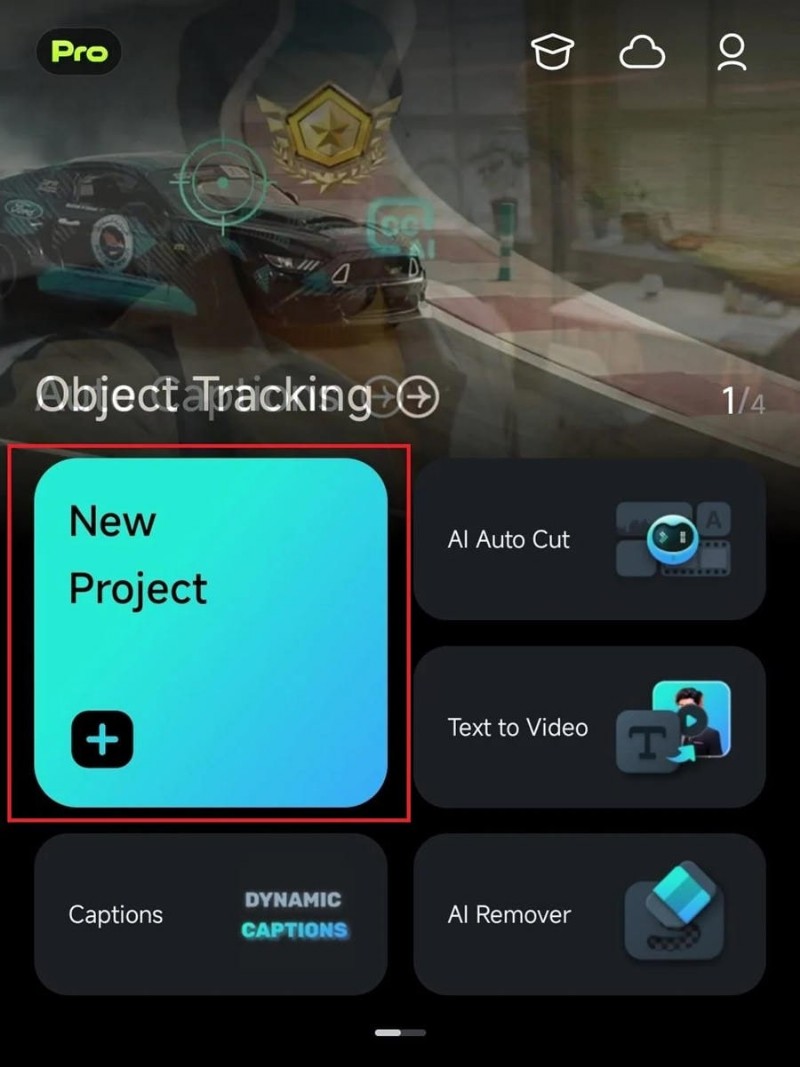
Step 1: Launch Filmora and tap New Project.
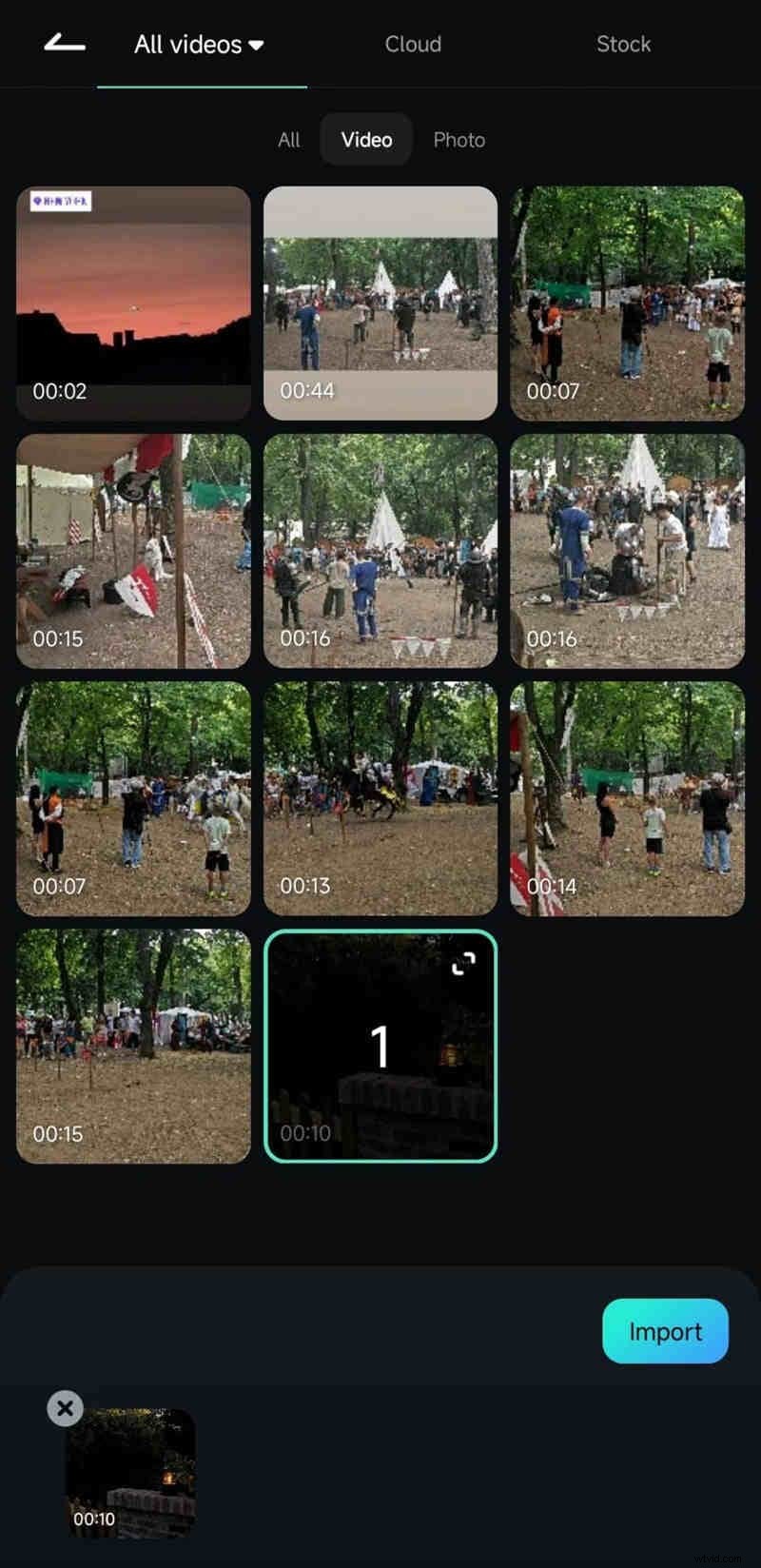
Step 2: Select the video(s) you wish to edit from your gallery.
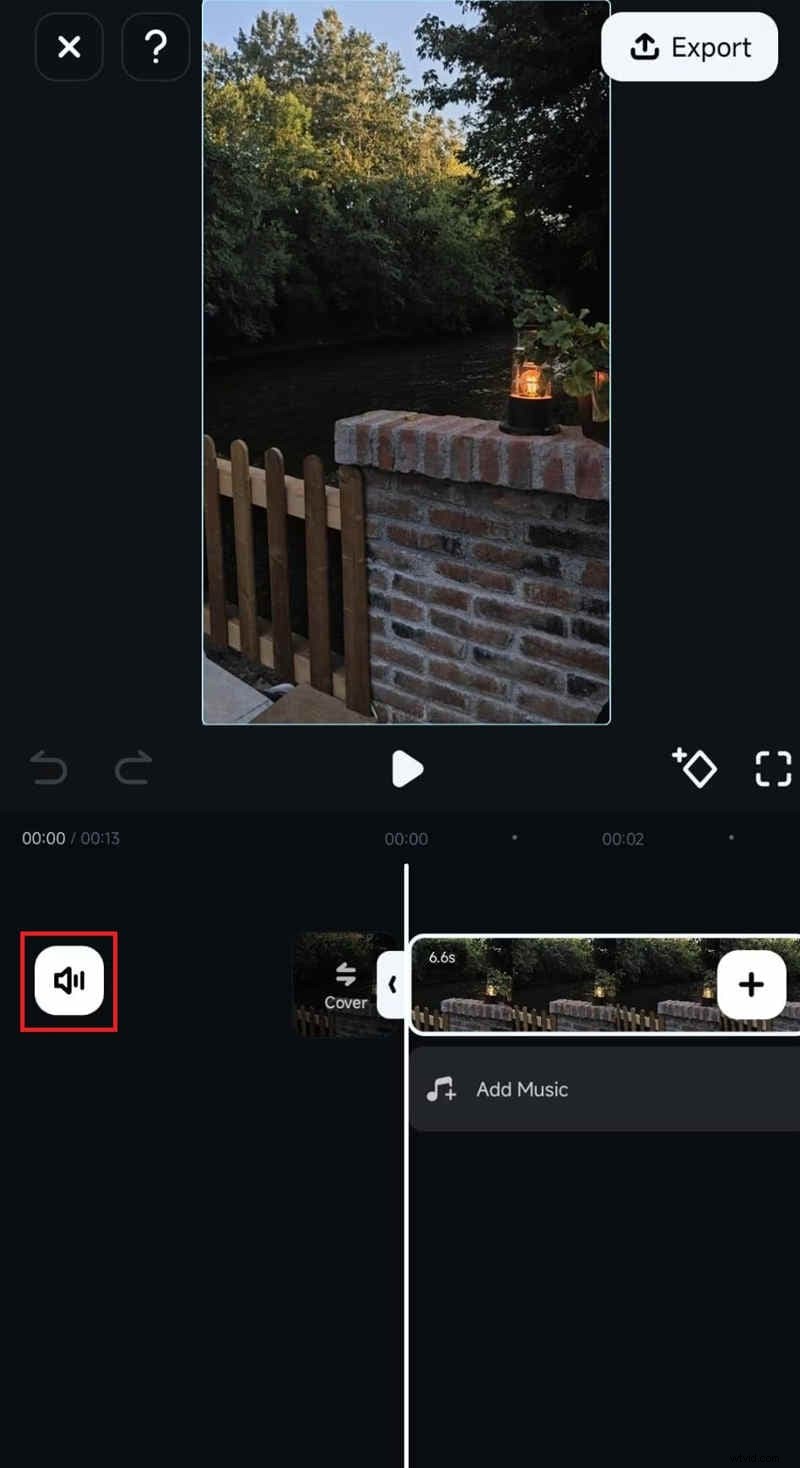
Step 3: On the timeline, tap the speaker icon to mute the clip.
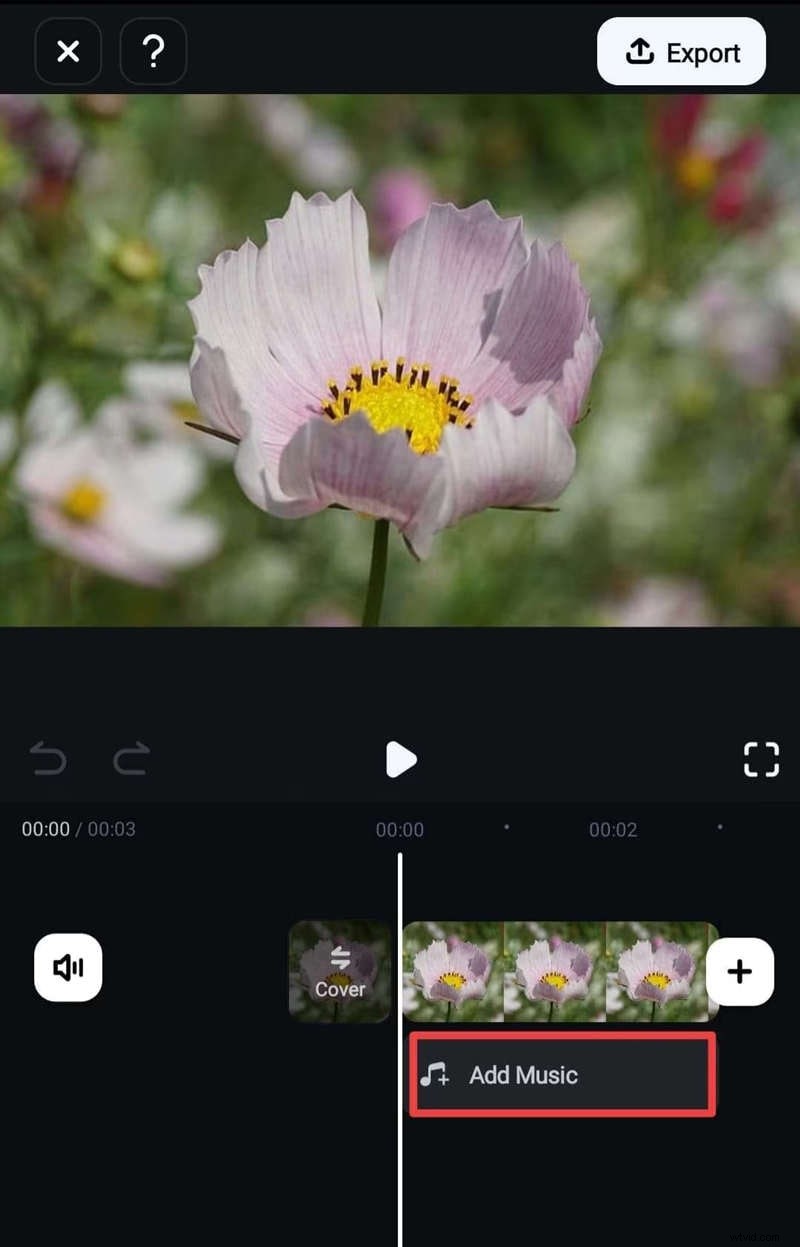
Step 4: If desired, add new music by tapping Add Music and choosing a track.
When you’re finished, export the muted video back to your gallery or continue refining it within Filmora. The app supports batch muting, saving you time on larger projects.
How to Mute a Video on an iPhone With the Photos App
For quick, on‑device edits, the built‑in Photos app is a reliable choice. Its simple workflow removes audio without any additional downloads.
Step 1: Open the Photos app and navigate to Videos.

Step 2: Tap the video you want to mute.
Step 3: Tap Edit in the upper‑right corner.
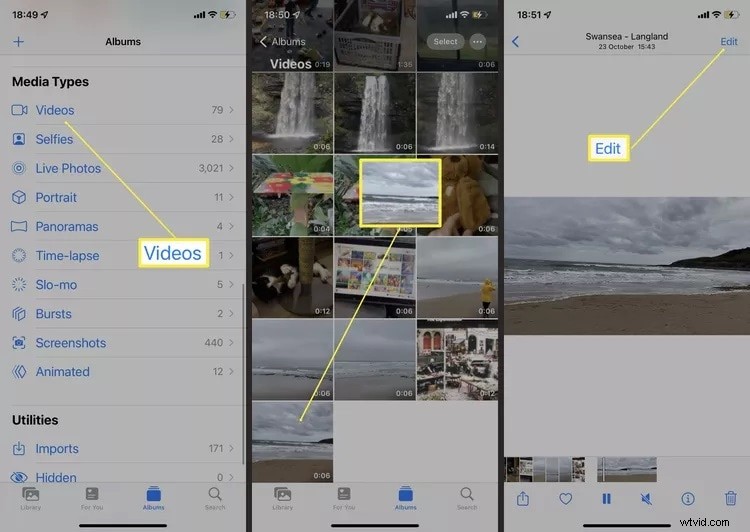
Step 4: Press the speaker icon to silence the clip, then tap Done to save.
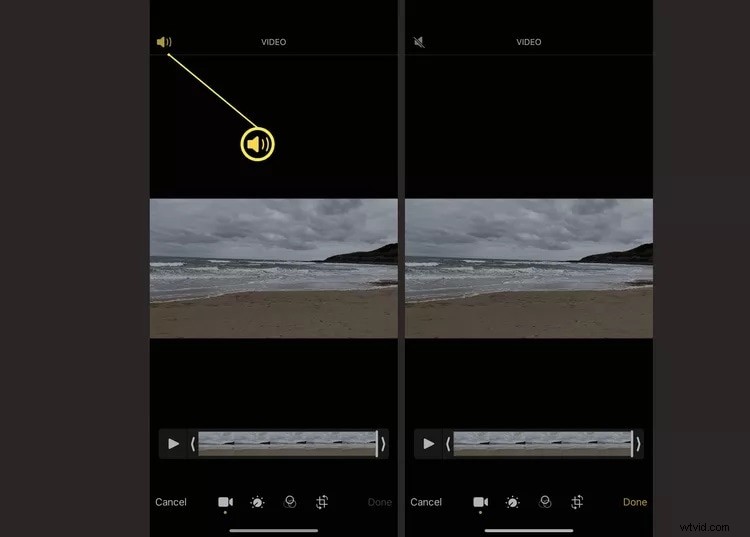
This method is ideal for quick fixes and maintains your original video quality.
How to Mute a Video on an iPhone With iMovie
iMovie provides advanced editing features across iOS and macOS. Its audio controls let you adjust volume or remove sound entirely.
Step 1: Open iMovie and tap Create Project.
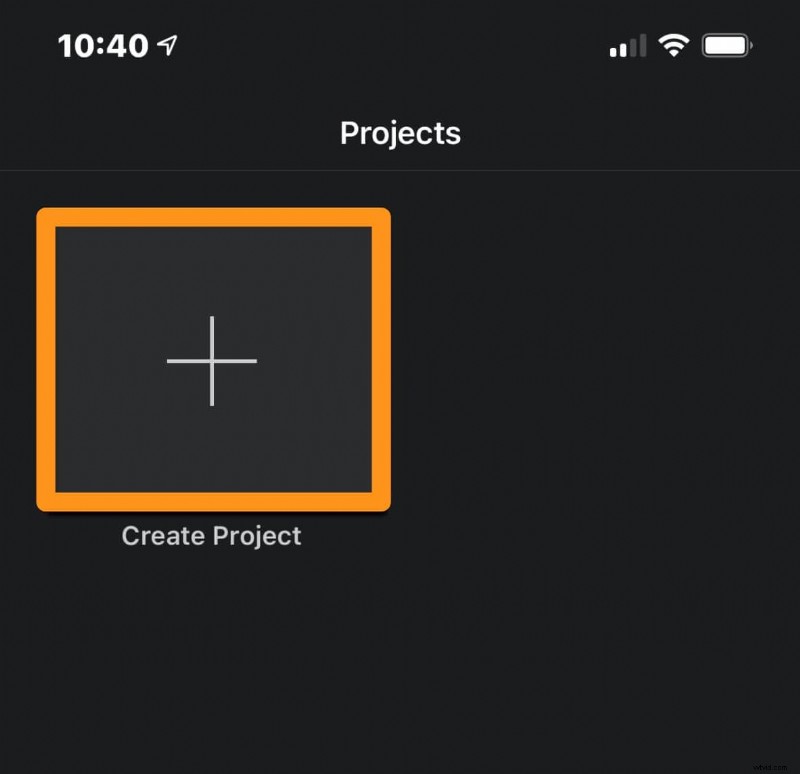
Step 2: Choose Movie and tap Create Movie.
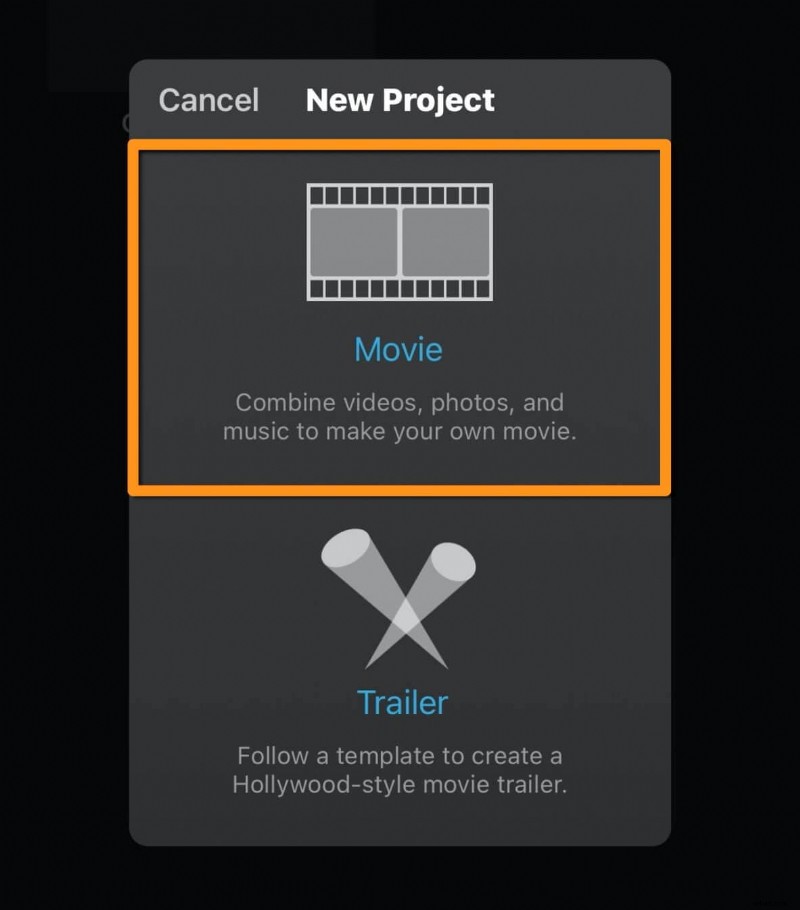

Step 3: Select your video from the gallery and add it to the timeline.
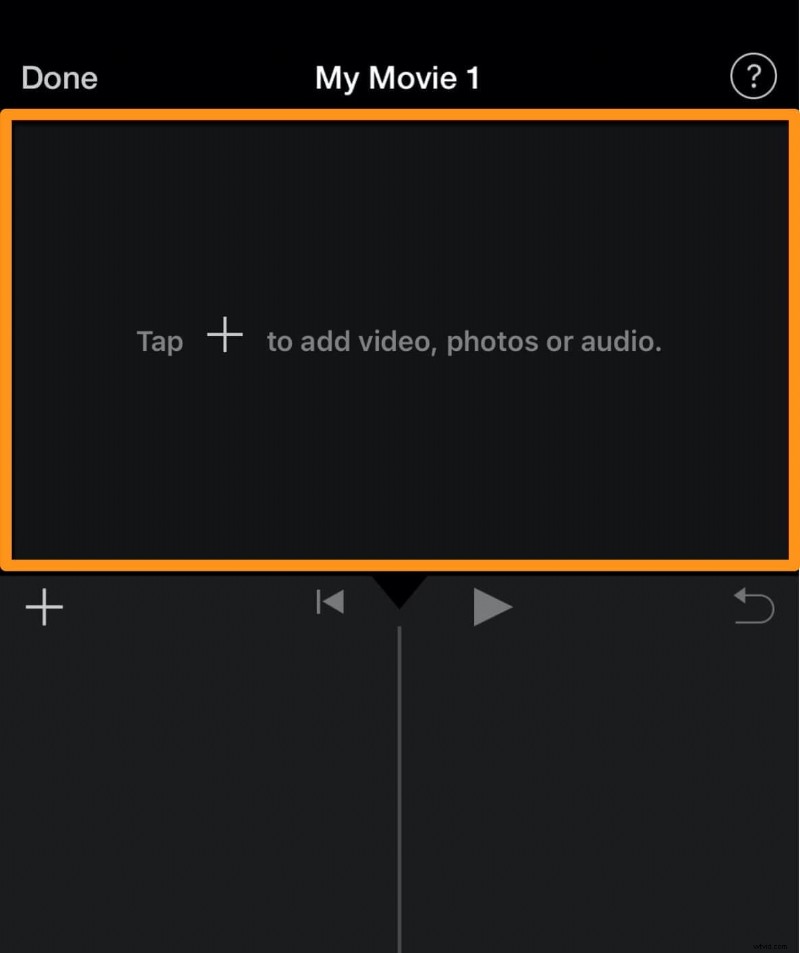
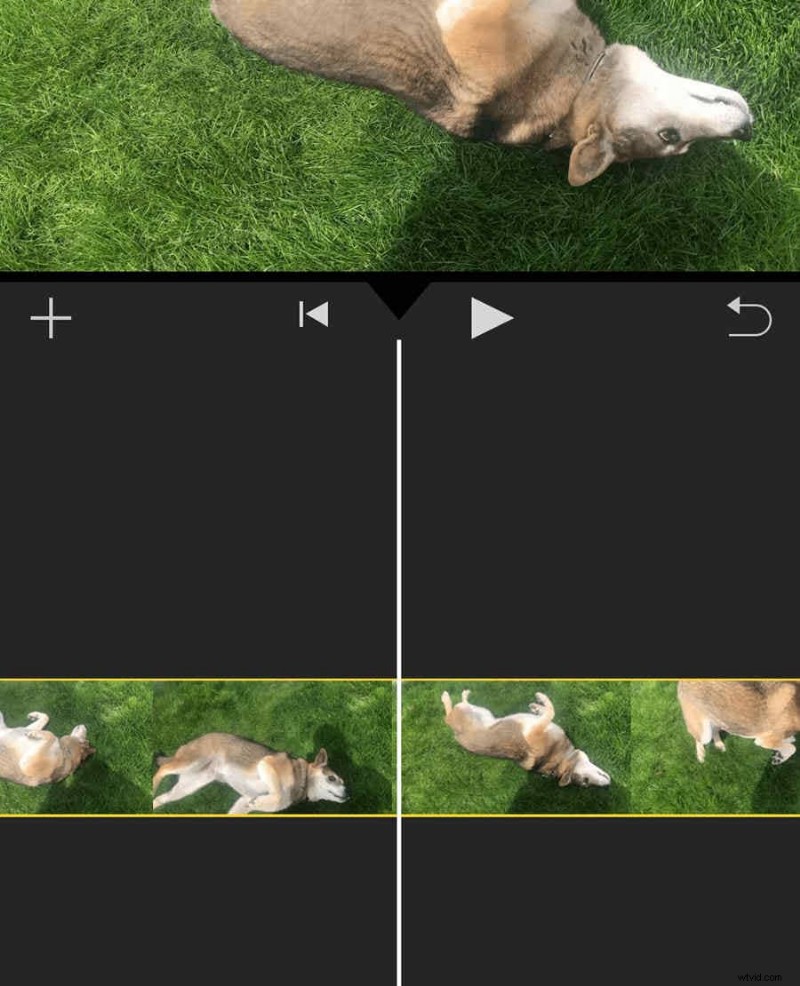
Step 4: Tap Audio at the bottom and slide the volume slider to the left until it reaches zero.
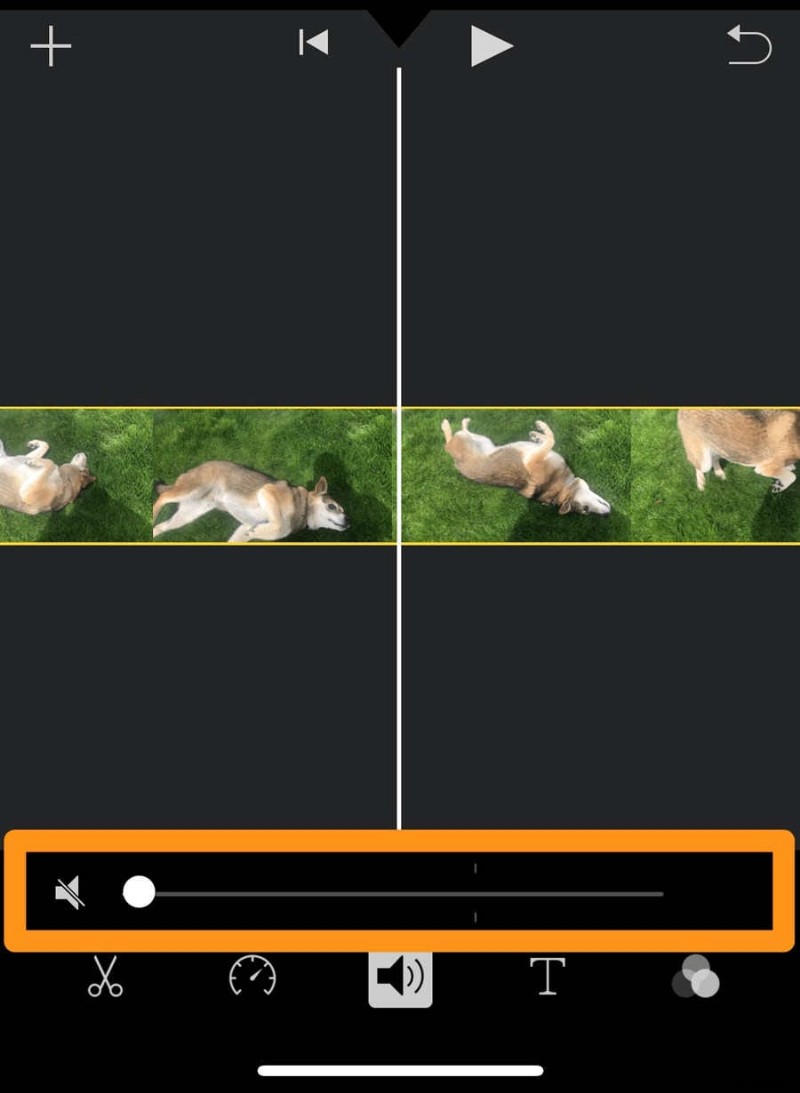
Export the edited clip back to your device, and the video will play without sound.
How to Mute a Video on an iPhone Online
If you prefer not to install additional apps, an online editor like Clideo offers a hassle‑free alternative. No account creation is required.
Step 1: Open your browser, visit Clideo, and tap Choose File.

Step 2: Upload your video and let the platform process it.

Step 3: Click Download once the audio has been stripped.

This solution is ideal for users who need a quick, app‑free fix.
Conclusion
Muting a video on an iPhone is a versatile tool—whether you’re adding a soundtrack, safeguarding privacy, or simply emphasizing visuals. The native Photos app offers a straightforward method, iMovie provides deeper control, Filmora delivers speed and batch capabilities, and Clideo gives an instant, app‑free option. Choose the approach that best fits your editing style and project requirements.
For those who value efficiency and a full suite of editing tools, Filmora stands out as the fastest and most feature‑rich solution. Download it today to transform your audio and video projects with ease.