
Screen recorders let you capture every on‑screen moment—whether you’re sharing a TikTok clip, creating a tutorial, or debugging an app. In this 2024 guide, we evaluate the best iPhone screen recording apps, compare their features, and show you how to get started.
Quick‑Reference Table
| Tool | App Store Rating | Best For |
|---|---|---|
| Built‑in iOS Recorder | N/A | Instant social‑media captures, app testing, bug reporting—no installation required. |
| Record it! | 4.7 | Games, demos, tutorials with Facecam commentary. |
| Du Recorder | 4.2 | Live streaming to YouTube, Facebook, Twitch, plus screen capture. |
| AZ Screen Recorder | 4.3 | High‑quality recordings with Facecam; ideal for educators and streamers. |
| Go Record | 4.5 | Quick tutorials, gameplay, vlogs with Facecam reactions. |
In‑Depth Reviews
Built‑in iOS Recorder
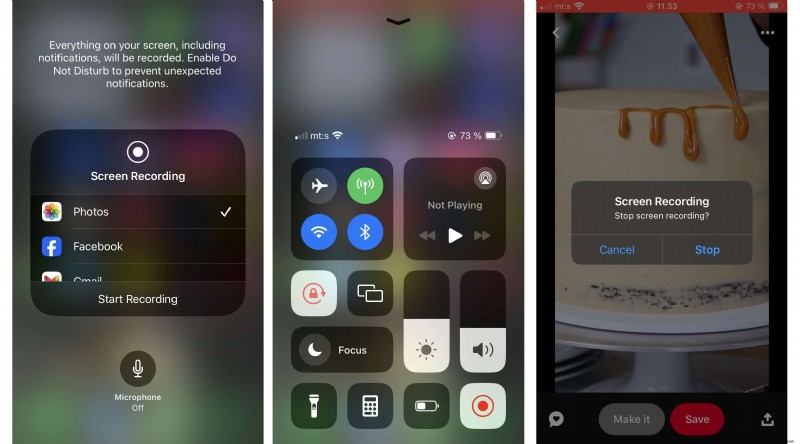
The native iOS screen recorder is a zero‑cost, watermark‑free tool that integrates seamlessly with the Control Center. Recorded videos are saved directly to Photos, where you can perform basic edits like trimming or applying filters.
- ✅ No extra cost
- ✅ Unlimited recording time, no watermarks
Drawbacks include limited editing capabilities and a lack of advanced options such as live streaming or multiple audio tracks.
Price: Free (built into iOS)
Record it!
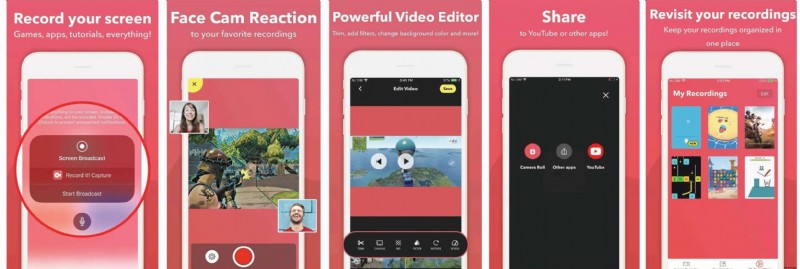
Designed for tutorials and game walkthroughs, Record it! offers a quick one‑tap capture and an intuitive in‑app editor. The Facecam feature lets you overlay a picture‑in‑picture commentary, enhancing the storytelling value of your videos.
- ✅ Basic editing within the app
- ✅ Facecam overlay with adjustable size
- ✅ Audio commentary support
Limitations: Requires iOS 14+, the free tier caps recordings at three minutes, and some advanced features demand a one‑time purchase or subscription.
Price: Free basic version; Pro for $5.99
Du Recorder
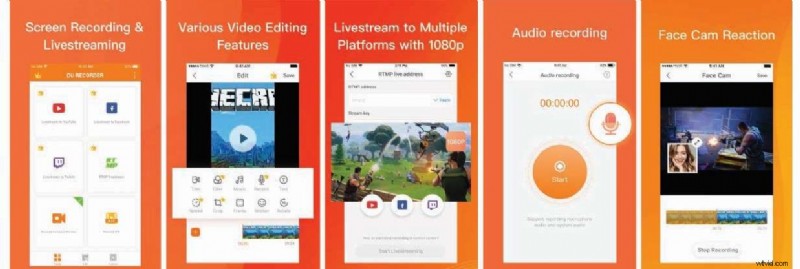
Du Recorder is a versatile choice for streamers and content creators. It supports simultaneous screen and webcam capture, offers live streaming to major platforms, and provides essential editing tools such as trimming, speed adjustment, and text overlays.
- ✅ No recording time limits
- ✅ Live stream to Twitch, YouTube, Facebook
- ✅ Screenshot and GIF export
Free version is ad‑driven and has limited editing depth. The subscription removes ads and unlocks the full feature set.
Price: Free; plans start at $3.99/week
AZ Screen Recorder
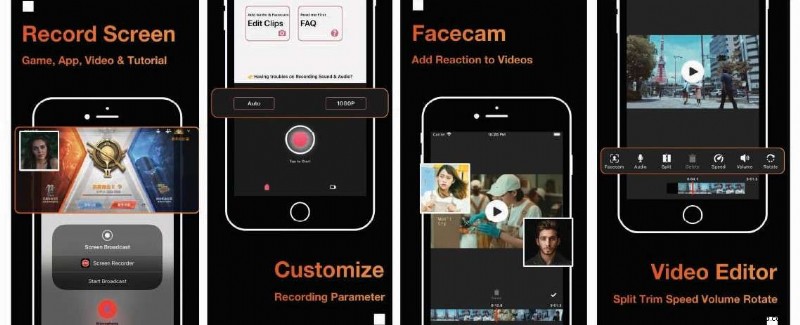
AZ Screen Recorder delivers a clean, user‑friendly interface with customizable resolution and FPS settings. It supports Facecam overlay and can import external clips for a cohesive editing experience.
- ✅ Unlimited recording time
- ✅ Adjustable resolution and frame rate
- ✅ Facecam overlay
Advanced features require payment, and some users report audio bugs, particularly on older iPhone models.
Price: Free; ad removal starts at $3.99
Go Record
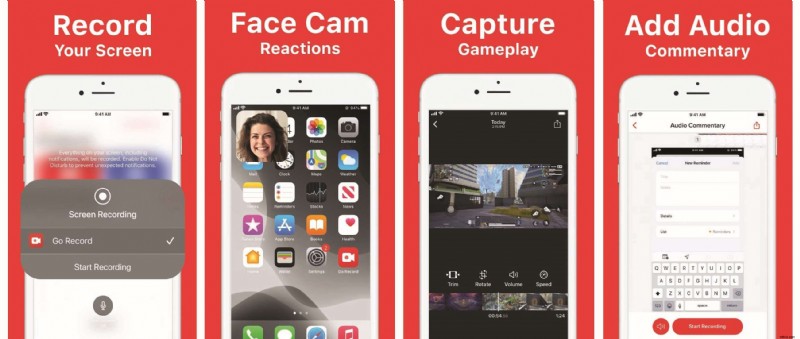
Go Record focuses on quick capture and easy sharing. Its Facecam mode and audio commentary options make it suitable for tutorials, gameplay, and vlogs. The app offers a smooth editor for basic trimming and annotation.
- ✅ No watermarks
- ✅ Rapid start/stop controls
- ✅ Direct sharing to social platforms
Full functionality is behind a purchase, and the app only supports iOS 14+. Advanced editing options remain limited.
Price: Free; Pro for $9.99
Bonus: Best Screen Recorder for macOS
For Mac users, Wondershare Filmora offers a comprehensive screen‑recording and editing solution. It can capture your screen, webcam, and system audio simultaneously, then edit the footage with AI‑powered tools.


Key Features
- Record screen, webcam, and system audio
- Schedule recordings
- Adjust frame rate and resolution
- Show mouse clicks to highlight actions
- 30+ editing tools, including noise removal and AI voice enhancer
- Export up to 4K resolution
How to Record on Mac with Filmora
- Download and install Filmora on your Mac.
- Navigate to File > Record Media > Record PC Screen and select your preferred mode (Full Screen, Custom, Target Window).
- Choose audio sources: Microphone, System Audio, or Camera.
- Adjust settings such as mouse color and timer.
- Press the red button to start recording; you can pause, stop, or re‑record as needed.
Conclusion
Whether you need a quick snapshot or a polished tutorial, one of these iPhone screen recorders will fit your workflow. For desktop users or those seeking advanced post‑production, Wondershare Filmora provides a robust, cross‑platform solution. Happy recording!