
TinyTake Screen Recorder: Features, Pricing, and Alternatives
TinyTake—now part of Mango Apps—has earned a reputation as a straightforward, cross‑platform screen recorder for Windows and macOS. Whether you’re capturing a quick tutorial, annotating a presentation, or creating a walkthrough for a team, TinyTake offers a suite of tools designed to streamline the process.
Table of Contents
- Key Features
- Performance & Stability
- Supported Output Formats
- User Ratings & Reviews
- Pricing Overview
- Best‑Fit Users
- Pros & Cons
- Comparison: TinyTake vs. Filmora
- Getting Started
- FAQs
Key Features of TinyTake
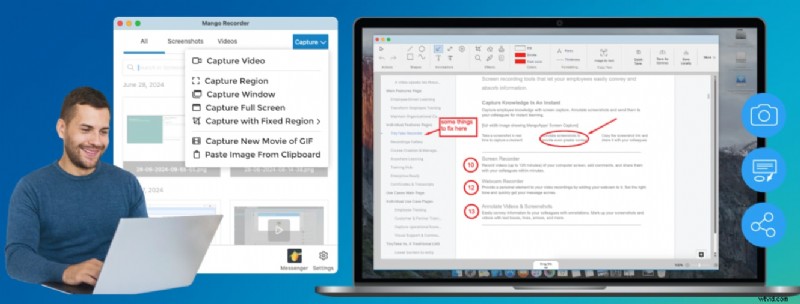
- Webcam Capture – Record your webcam alongside the screen for a personal touch.
- Screenshot Functionality – Take annotated screenshots in real time.
- Video Capture – Record the entire screen, a specific window, or a chosen area.
- Annotation Tools – Add shapes, highlights, text, and arrows during or after recording.
- Storage Options – Save locally, upload directly to YouTube, or store in integrated cloud services.
- Cloud Integration – Connect with Dropbox, Google Drive, and OneDrive for seamless file management.
- Custom Hotkeys – Assign keyboard shortcuts to start recordings or capture screenshots instantly.
Performance & Stability
Designed to be lightweight, TinyTake imposes minimal CPU and RAM overhead. Users can record up to 1080p resolution without noticeable lag, making it reliable for standard office tasks. However, it is not optimized for high‑frame‑rate gaming or intensive broadcast scenarios.
Supported Output Formats
TinyTake exports recordings in MP4 for video, PNG for still images, and GIF for animated clips.
User Ratings & Reviews
While G2 reviews are dated, they consistently highlight TinyTake’s user‑friendly interface and swift workflow. One reviewer awarded a 4/5 star rating, praising the keyboard shortcuts, cloud auto‑save, and streamlined annotation capabilities. Another gave a 4.3/5 rating, noting that the free tier limits recordings to 5 minutes—a constraint that can be circumvented by stitching clips together.
Recent releases under Mango Apps have reportedly removed the 5‑minute cap, offering uninterrupted recording sessions.
Pricing Overview
TinyTake provides a free trial with core features and tiered subscriptions for advanced needs:
- Free – Basic functionality, limited storage.
- Basic – $99/month.
- Standard – $149/month.
- Pro – $299/month.
All plans support a 14‑day free trial.
Best‑Fit Users
Small businesses and teams that require quick screen capture, annotation, and cloud collaboration will find TinyTake particularly useful. Its integration with team communication tools and comment features make it ideal for remote collaboration. For high‑framerate gaming or live streaming, consider alternatives that specialize in those use cases.
Pros & Cons
Pros
- Free cloud storage up to 2GB.
- No watermark on trial videos.
- Intuitive interface and easy setup.
- Real‑time and post‑capture annotation.
- Basic video trimming included.
Cons
- 14‑day trial only.
- Limited advanced editing capabilities.
- No customizable export formats.
- Maximum resolution capped at 1080p.
- Separate voiceover recording is not supported.
Comparison: TinyTake vs. Filmora
| Feature | TinyTake | Filmora |
|---|---|---|
| Recording Modes | Screenshots, webcam, screen video | Webcam, screen, microphone, system audio |
| Free Trial Length | 14 days | Unlimited |
| Editing Tools | Trim & annotate | Advanced video & audio editing, effects, transitions |
| Scheduled Recording | Not available | Available |
| Output Formats | MP4, PNG, GIF | 18+ formats (MP4, MKV, MOV, GIF, etc.) |
| Platforms | Windows, macOS | Windows, macOS, iOS, Android |
Filmora’s Standout Features
- Customizable recording area.
- Multi‑mode capture: screen, webcam, microphone, system audio.
- Recording timer for scheduled stop.
- Mouse click & keystroke highlighting.
- AI‑powered background removal, vocal isolation, and voice enhancement.
- Extensive media library of 2.9M+ assets.
Getting Started with TinyTake
Follow these simple steps to begin recording:
- Visit the Mango Apps website and download the free trial.
- Open TinyTake and click the Capture dropdown on the toolbar. Select your preferred recording mode.
- Adjust settings (resolution, audio, etc.) and click Continue > Start to begin.
- Press the red stop button when finished.
- Choose Save & Close to finalize edits or Save As to export.
For a visual walkthrough, refer to the embedded screenshots above.
FAQs
- Is there a time limit on recordings? The free trial lasts 14 days; recordings themselves have no hard duration cap, though the trial may restrict certain features.
- Does TinyTake add watermarks? No, all trial videos are watermark‑free.
- Can TinyTake record keyboard strokes? Yes, keystroke recording is available in subscription tiers.
Conclusion
TinyTake offers a clean, reliable solution for everyday screen recording and annotation needs. Its lightweight design and cloud integration make it a solid choice for small teams. If you require richer editing tools or mobile support, consider Filmora as a more feature‑rich alternative.