
If you’re new to GoTo Meeting or have struggled with its recording feature, this guide will walk you through every step—from the built‑in tools for hosts and co‑hosts to reliable third‑party solutions for attendees. By the end, you’ll know exactly how to capture every meeting on desktop, web, and mobile, and where to find your recordings afterward.
Table of Contents
- Built‑in Recording on Desktop & Web
- Built‑in Recording on Mobile
- Recording Without Permission (Third‑Party Tools)
- Conclusion
- FAQs
1. Built‑in Recording on Desktop & Web
GoTo Meeting’s native recorder is available for both the desktop application and the web interface. It’s straightforward and does not require any additional software.
Prerequisites
- GoTo Meeting Pro account.
- Cloud recording must be enabled by the account administrator.
Steps
- Launch the GoTo Meeting app or open the web client and join your meeting.
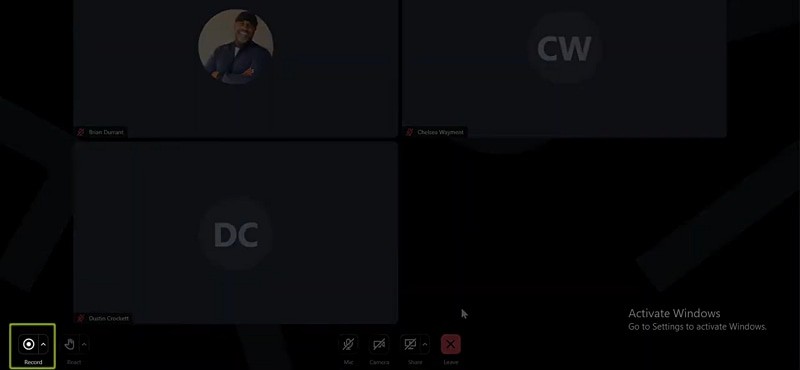
- At the bottom of the screen, click the Record button to start.
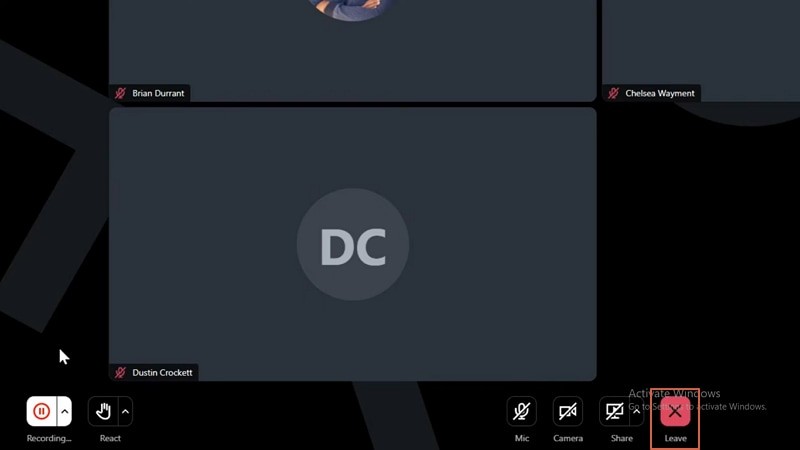
- Recording will stop automatically when the host ends the session or when you click the Leave Meeting X icon.
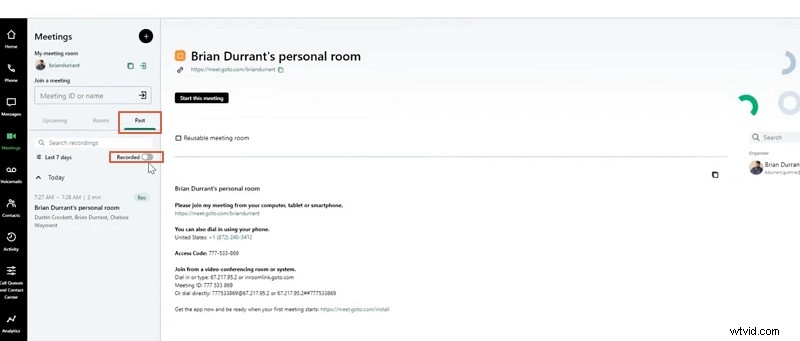
- After the meeting, go to the Past tab and enable the Recorded filter. Use the slider to activate cloud recordings.
- If you recorded locally, the file will be saved as a
.webmon your computer. Convert it to your preferred format before sharing.
Recording Limits
- Maximum length: 8 hours with attendees, 2 hours without attendees.
- Recorded links expire after 60 days unless you use a third‑party tool.
2. Built‑in Recording on Mobile
The GoTo Meeting mobile app also supports native recording. Follow these simple steps:
- Download the GoTo Meeting app on iOS or Android.
- Join or start your meeting.
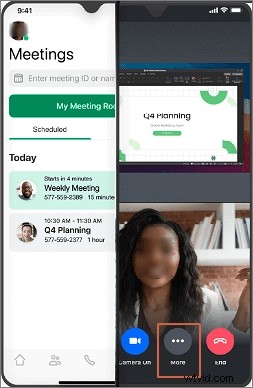
- Tap the More tab and select Record.
- The recorder starts automatically. Use the Pause button to temporarily stop, or simply exit the meeting to finish.
3. Recording Without Permission (Third‑Party Tools)
When you’re an attendee who lacks recording rights, you can still capture the session using reliable screen‑recording software. Two popular options are Wondershare Filmora and the Bubbles Chrome extension.
Method 1: Wondershare Filmora (PC/Mac)
Filmora is a versatile video editor with robust screen‑recording capabilities. It supports unlimited recording length, multi‑track audio, and advanced editing features.
Key Features
- Schedule automatic stop time.
- Separate system audio and microphone tracks.
- AI noise reduction and background music generation.
- Text‑to‑speech, voice changer, and multi‑language support.
- Post‑capture editing and export in multiple formats.
How to Record
- Download and install Filmora from the official site.
- Open Filmora and select Record PC Screen from the Record drop‑down.
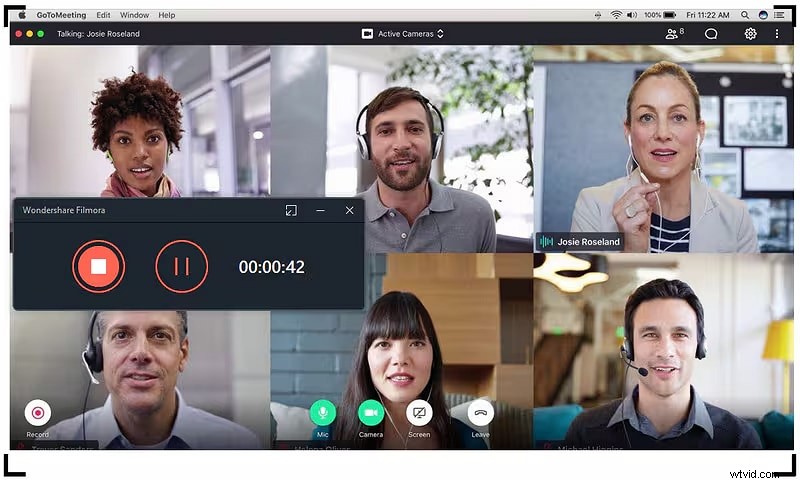
- Join the GoTo Meeting on your computer.
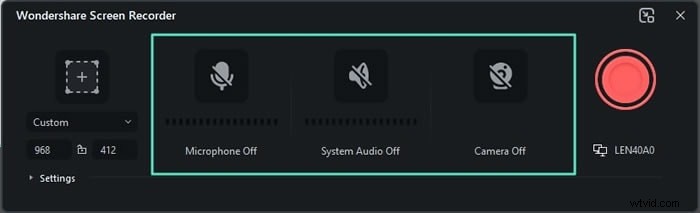
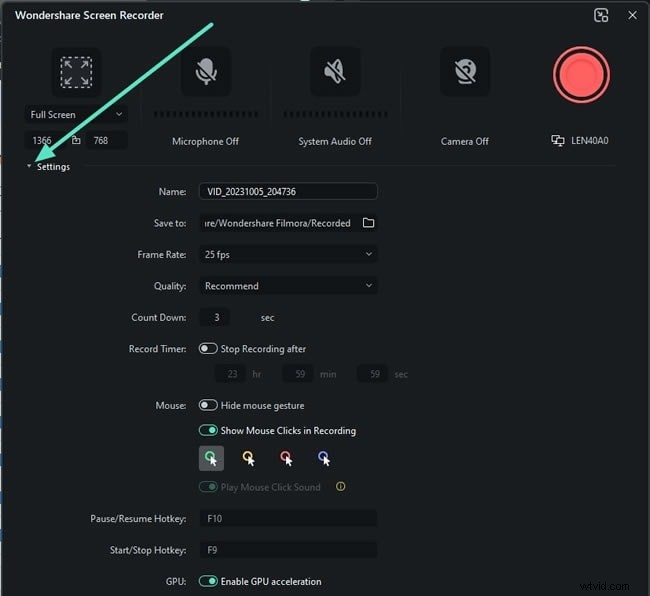
- Configure recording area, enable/disable microphone and system audio, and set frame rate and quality.
- Press the red Record button or hit F9 to start.
- Press F9 again or click the stop icon to finish.
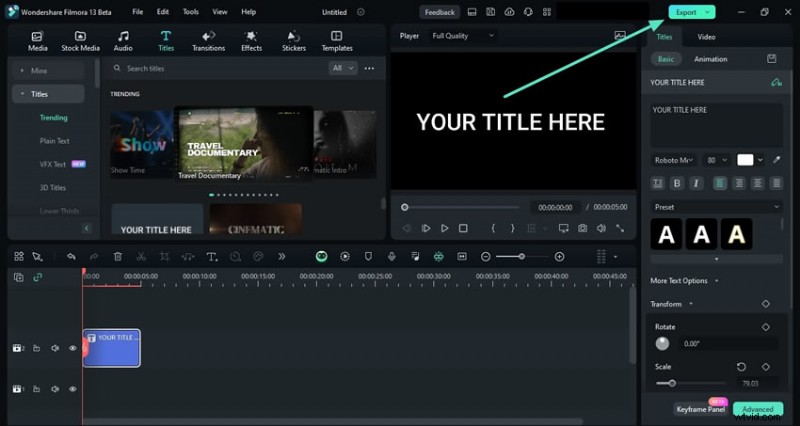
- Use Filmora’s editor to trim, add captions, or export your video.


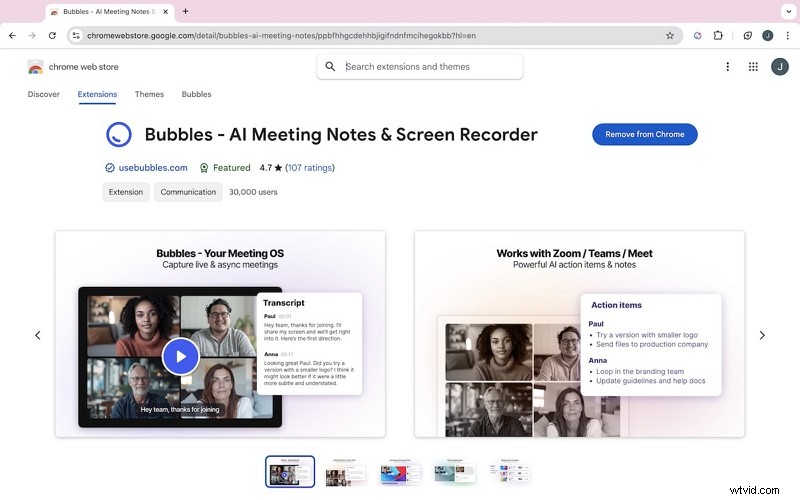
Method 2: Bubbles Chrome Extension (Web)
Bubbles is a lightweight note‑taking extension that can join a GoTo Meeting as a participant and record the session. Note that recordings include a Bubbles watermark unless you upgrade to the premium version.
How to Record
- Install the Bubbles Chrome extension.
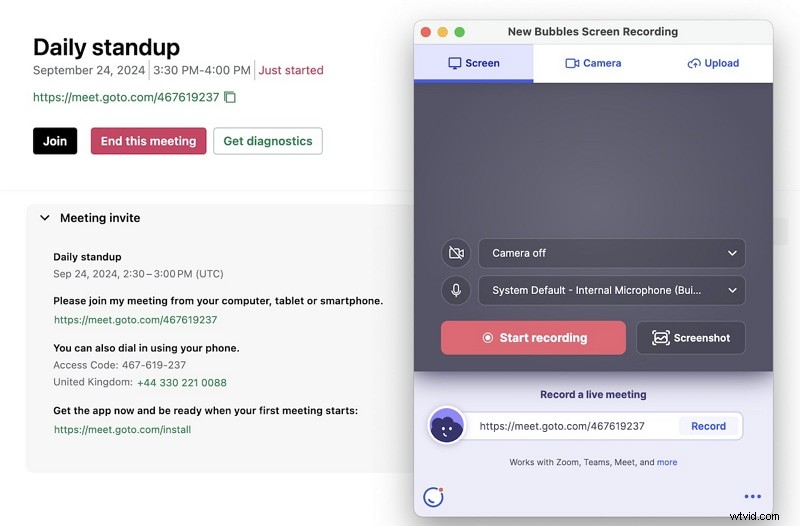
- Open the extension and paste your GoTo Meeting link; Bubbles will join automatically.
- Click Start Recording once Bubbles is present.
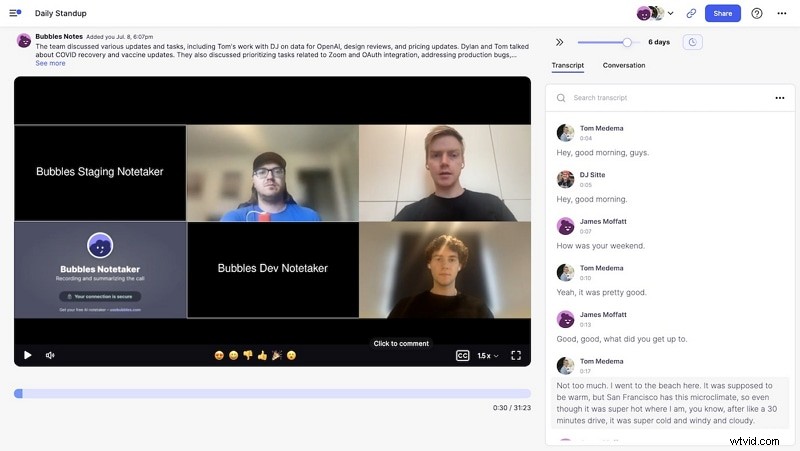
- When the meeting ends, Bubbles leaves and you receive a link or email with the recording.
Conclusion
GoTo Meeting’s native recorder is powerful for hosts and co‑hosts, while attendees can rely on third‑party tools like Filmora or Bubbles to capture sessions. These methods ensure you have reliable, high‑quality recordings ready for review, sharing, or archival—regardless of your role in the meeting.
FAQs
- Can a participant record a GoTo Meeting? By default, GoTo Meeting does not allow participants to record. However, with tools such as Filmora, participants can capture the session as if they were the host.
- Where do I find my GoTo Meeting recordings? Cloud recordings appear under the Past tab in the web or desktop app. Local recordings are saved to your device’s file system.
- How long do GoTo Meeting recordings last? Cloud recordings expire after 60 days. Local recordings remain on your computer until you delete them.