
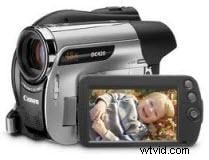
Camcorder does not only captures videos, but the excited moments and memories that treasured for a life time. In order to make the most of your video, it should be transferred to a computer. The easiest way to transfer videos to a PC is by using a USB cable or Firewire. After that is done, with the correct video editing software, you can edit your videos on computer like a professional, or just watch them on TV with family and friends.
- How to Transfer Videos from Camcorder to Computer
- Best Video Editing Software
How to Transfer Videos from Camcorder to Computer
1. Connect Camcorder to Computer
What you'll need to connect your camcorder to a computer:
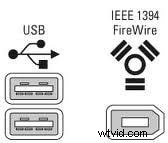
- USB cable or Firewire cable (IEEE 1394 cable)
- Supplied AC Adopter
How to connect camcorder to Computer:
Step 1: Connect the AC Adopter to your camcorder's in-jack and the wall outlet (wall socket), and turn on the camcorder.
Step 2: Connect the USB/Firewire jack of your camcorder to the computer using the supplied USB/Firewire cable.
Step 3: Now your camcorder will be automatically detected and will appear as a hard disk drive on computer (usually a Hint pop-up in the bottom right corner). If your camcorder doesn't recognized by computer, install the driver using the supplied CD-ROM.
2. Transfer Video from Camcorder to Computer
After the camcorder has connected to your computer, you could transfer videos from camcorder to computer with ease, just like copying files from on disk drive to another. You could also install and run the provided software like Picture Motion Browser for Sony Camcorder and PixelaMixer for Canon camcorder to import and edit video from camcorder.
Transfer camcorder videos using Card Reader:
If you set your camcorder to record video to Flash Memory like Memory Stick or SD Card, you need a Card reader to transfer video from flash memory to your computer. There are many brands of card readers that are compatible with both Memory Stick and SD card, and usually have a USB jack, so you can easy transfer recorded video to computer like operating local disk files after connect the USB jack to USB port on your computer.
Tips for transferring camcorder videos
- Transferring video from a camcorder to a PC may take up a lot of hard drive space. If you have an external flash drive, or it's convenient to burn camcorder video to DVD, you could transfer videos to external devices to save hard drive space.
- It will use a lot of system resources while transferring your video from a camcorder. Therefore, you'd better close other running programs before transfer videos to your computer.
- Refer to the manufacturer manual for your camcorder to see what type of connection you will need to transfer camcorder video.
- The DVD camcorder could directly record videos to DVD for playing with Blu-ray player or regular DVD player. To transfer recorded DVD videos on camcorder to computer, Wondershare Video Converter may help you convert the camcorder videos out of DVD disc.
Best Video Editor for Camcorder Videos
The video formats recorded by camcorder vary much depending on different manufacturers like Sony, Canon, Panasonic. The SD definition videos usually have AVI, MOV, MPG, MP4, MOD, etc. file extension, while HD definition videos TOD, MTS, M2TS and so on. Lots of video editing software on the market could help edit transferred camcorder videos on computer, from the professional ones like Sony Vegas and Adobe Premiere to the basic one like Wondershare Filmora.
Generally, you can't turn SD video into HD video. But you can convert HD video to SD videos for small size and portable device compatibility in these editing software or using video converter. You are recommended to convert video to MP4 for publishing online, such as YouTube and Facebook.
Also, you can edit your video with Wondershare Filmora if your video format is in the supported list.