
Since its launch in 2016, Loom has evolved from a basic screen‑capture tool into a full‑featured recording platform. Whether you’re a remote worker, educator, or content creator, Loom’s blend of simplicity and power can streamline your workflow.
In the following review, we dive into its core features, user experience, performance, pricing, and how it stacks up against alternatives like Filmora.
In this article
- Core features and workflow
- User experience and interface
- Recording quality and performance
- Pricing tiers and limitations
- Pros and cons
- Alternatives: Filmora and more
- Getting started with Loom
- Frequently asked questions
Loom Video Recorder’s Core Features
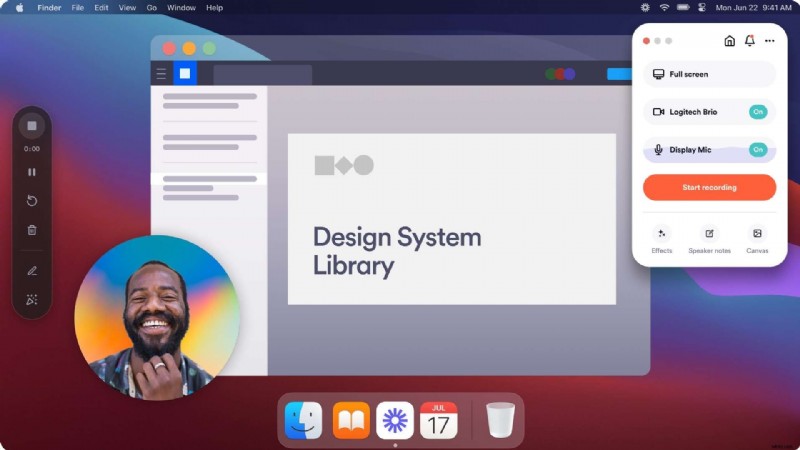
Loom is available on macOS, Windows, Chrome, and mobile devices, offering a range of recording modes:
- Screen‑only, camera‑only, or simultaneous screen‑and‑camera capture
- Annotation tools to highlight key areas during playback
- Real‑time collaboration, allowing teammates to leave comments, emojis, and feedback directly on the video
- Instant sharing to platforms such as Notion, Gmail, or any link‑based service
Ease of Use ⭐⭐⭐⭐
Loom’s intuitive design means you can start recording within seconds, even without prior experience. The learning curve is short, though mastering every feature may take a few sessions.
User Interface

The interface is clean and organized, but some advanced tools require a bit of exploration. Nevertheless, most users find it straightforward after a quick orientation.
How to Use Loom
- Download the desktop app or install the Chrome extension.
- Select your recording mode (screen, camera, or both).
- Open Settings to adjust quality, microphone, and other preferences.
- Click Start Recording to begin.
Performance and Video Quality
Loom’s lightweight engine delivers high‑resolution recordings up to 4K at 30 fps. The platform auto‑adjusts resolution based on your internet speed, ensuring smooth playback while keeping file sizes small through efficient compression.
Pricing
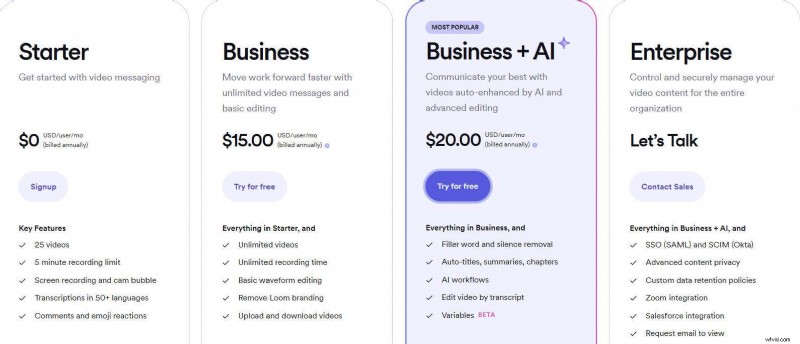
Free plan: 25 videos, 5‑minute limit per video, no advanced features like link embedding.
Paid plans:
- Business – $15 /month per user (annual billing)
- Business + AI – $20 /month per user (annual billing)
- Enterprise – custom pricing for large teams
Pros and Cons
- Pros
- Cross‑platform support: macOS, Windows, Chrome, mobile
- Built‑in annotation and collaboration tools
- No watermark in free version
- Feedback mechanisms (comments, emojis) for team workflows
- Cons
- Free plan restricts downloads and video length
- Only 5‑minute recordings unless you upgrade
Alternative: Filmora for Unlimited Recording
For users who need longer sessions or more editing capabilities, Wondershare Filmora offers a robust solution with unlimited recording time, AI‑powered features, and advanced editing tools.
Comparison: Loom vs. Filmora
| Feature | Loom | Filmora |
| User rating | 4.7/5 | 4.4/5 |
| Recording time limit | 5 min (free) | Unlimited (free) |
| Video count limit | 25 (free) | Unlimited |
| Download ability | Paid only | Free for 3 days |
| Resolution | 4K | 4K |
| FPS | 60 | 120 |
| Key features | Annotations, collaboration | Editing, AI portrait, captions, audio‑to‑text, background music generation |
Getting Started with Filmora
- Download and install Filmora; create a new project.
- Navigate to Record and choose your mode.
- Set preferences (camera, mic, system audio) and click the red Record button.
- Stop recording with the stop button or F9.
Conclusion
Loom remains a top choice for quick, collaborative screen recordings, especially for teams needing instant sharing and feedback. If you require longer sessions or deeper editing, Filmora offers a compelling alternative.
FAQs
-
How long can you record on Loom for free?
The free plan allows up to 5‑minute recordings, with a maximum of 25 videos.
-
Does Loom leave a watermark?
No. Even the free version produces watermark‑free videos.
-
Is Loom available on Windows?
Yes. Loom supports Windows, macOS, Chrome, and mobile platforms.