
Top 4 Windows Alternatives to Giphy Capture
Giphy Capture is a favorite for Mac users, but Windows users can still produce stunning GIFs with these reliable tools. Below you’ll find concise reviews, key pros and cons, and step‑by‑step guidance to help you choose the best fit for your workflow.
In this article
- Wondershare Filmora
- GIF Recorder
- Zight
- ScreenToGif
1. Wondershare Filmora
Filmora is a full‑featured video editor that turns any video into a polished GIF. Its intuitive drag‑and‑drop timeline, robust screen‑recording mode, and AI‑powered effects make it a top choice for creators who want a one‑stop solution.
With more than 2,300 built‑in assets—including text styles, stickers, and transitions—you can craft professional‑looking GIFs without leaving the editor.
AI tools automatically apply motion blur, smart cropping, and scene‑specific color grading, ensuring your GIFs look crisp with minimal effort.
- Pros
- Comprehensive editing & screen‑recording suite
- Extensive library of text, stickers, and effects
- Available on Windows, Mac, Android, and iOS
- AI‑enhanced editing options
- Cons
- Watermark appears on exports in the free version
2. GIF Recorder
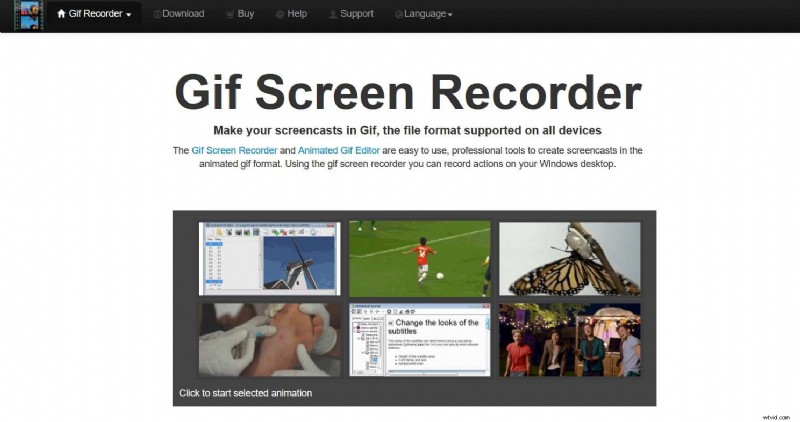
GIF Recorder specializes in high‑quality screen capture and includes a built‑in GIF editor. Its straightforward interface lets you annotate, resize, and combine GIFs with audio, making it ideal for quick social‑media content.
- Pros
- High‑resolution output
- Flexible resizing and cropping
- Audio overlay support
- Text and subtitle addition
- Cons
- Outdated UI design
- Watermarks during the free trial
3. Zight
Zight focuses on speed and sharing. Capture a screen, add captions or stickers, and instantly share to social platforms or cloud storage—all in a few clicks.
It supports a wide range of source formats, including YouTube videos, MP4 files, and static images.
- Pros
- Cross‑platform (Windows & Mac)
- Instant sharing integrations
- Rich editing toolkit
- Cons
- 15‑second limit in free trial
- Crop/rotate features restricted without purchase
4. ScreenToGif

ScreenToGif is a lightweight, open‑source solution that records your screen or webcam and offers a simple editing interface. It’s completely free, supports over 18 languages, and can run from a USB stick without installation.
- Pros
- Zero cost
- Portable – no installation required
- Multiple recording modes (screen, webcam, sketch board)
- Cons
- Windows 10 only compatibility
- Basic editing tools compared to paid alternatives
- Requires several steps for advanced tasks
How to Create a GIF with Wondershare Filmora on Windows
Filmora offers a user‑friendly workflow that transforms any video into a GIF in just a few clicks.
- Download, install, and launch Filmora.

- Click New Project.
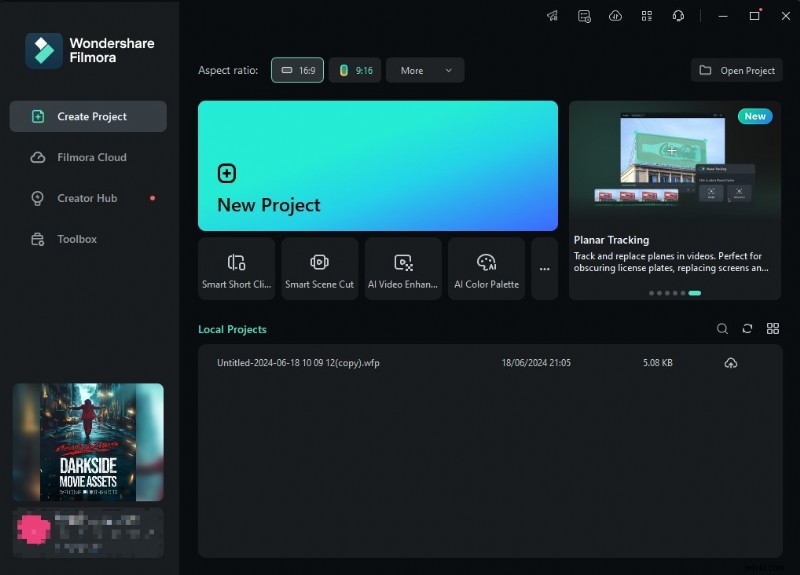
- Import your footage via Import.
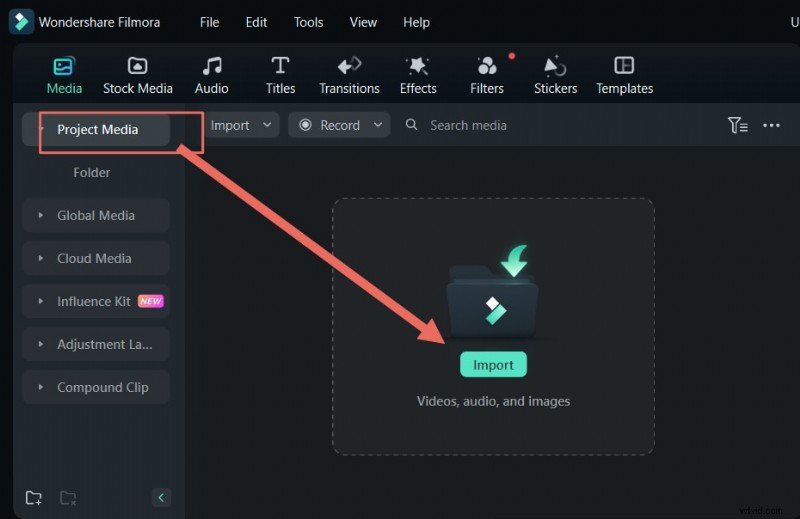
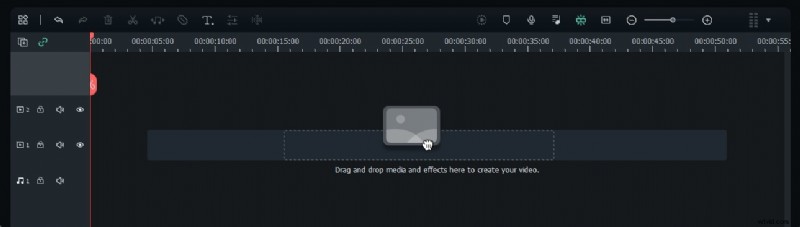
- Drag the clip to the timeline.
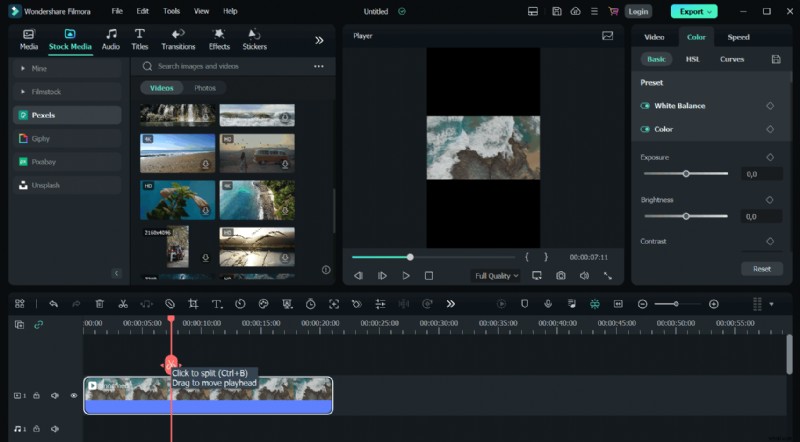
- Trim, crop, rotate, or split the clip as needed.
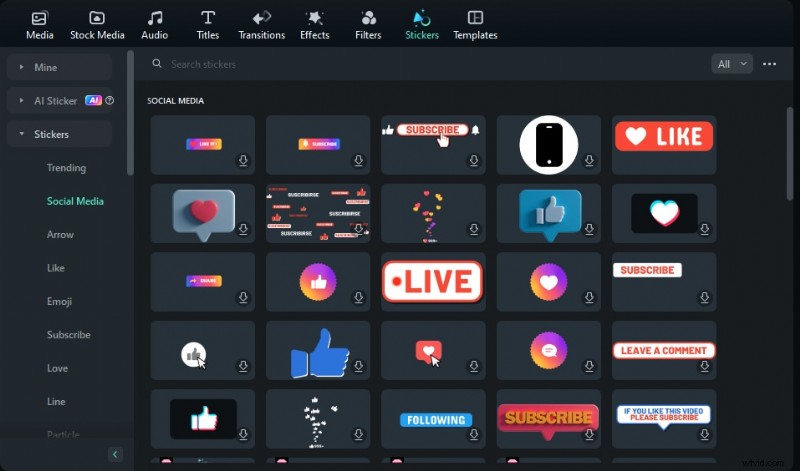
- Add text, stickers, audio, or effects from the toolbar.
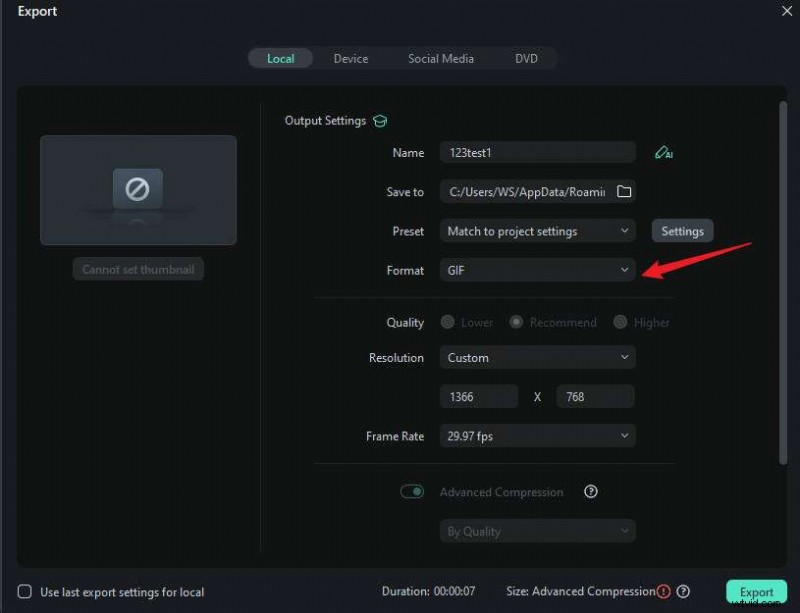
- When satisfied, click Export, choose GIF format, name your file, and hit Export.
Alternatively, record directly from your screen: New Project → Record → Record PC Screens. Adjust the recording area, start with the red button, finish with F9, then edit and export as a GIF.
Choosing the Right Tool: Key Considerations
- Editing Needs – Do you require advanced video edits or just quick screen captures?
- Text & Font Support – Ensure the tool lets you add and customize titles or captions.
- Watermark Policy – Free versions may add watermarks; decide if that’s acceptable.
- Ease of Use – A clean, intuitive interface saves time and reduces frustration.
Conclusion
While Giphy Capture is exclusive to macOS, Windows users can achieve equally impressive results with Filmora, GIF Recorder, Zight, or ScreenToGif. For a blend of powerful editing, AI assistance, and cross‑platform flexibility, Filmora remains the standout choice. Try it today and bring your GIF ideas to life.
FAQs
-
How can I capture GIFs on Windows?
Use a dedicated Windows app such as Wondershare Filmora. Import a video, edit it, then export as a GIF.
-
What is the best Giphy Capture alternative for Windows?
Among the options, Wondershare Filmora offers the most comprehensive feature set, AI enhancements, and affordable plans.
-
Is there a Giphy Capture for Windows?
No. Giphy Capture is macOS‑only, but Windows users have multiple comparable tools like Filmora that deliver the same functionality.