
Whether you need to capture a critical business conversation or preserve a personal moment, recording phone calls on an iPhone is a task that many users face. Apple’s ecosystem offers limited native options, so most iPhone users turn to work‑around methods or third‑party applications to meet their needs. This guide walks you through the most reliable techniques—direct, indirect, and app‑based—while also showing how to polish your recordings with the Filmora editing suite.
1. Direct Recording (Built‑In Feature)
iOS 16.1 introduced a call‑recording capability that works for FaceTime calls, not for regular cellular calls. When you enable the feature, the system alerts all participants that the conversation is being recorded and saves a transcription in the Notes app. Follow these steps to activate the feature during a FaceTime call:
- Initiate a FaceTime call and tap the Sound Wave icon in the upper‑left corner of the screen. Siri will announce that the call is being recorded.
- The call starts recording automatically; a visual indicator confirms the status. You can stop the recording at any time by pressing the Stop button on the voice bar.
- After the call ends, open the Notes app, go to the Call Recordings folder, and review your audio file along with the generated transcript.
2. Indirect Recording (Using Voice Memos)
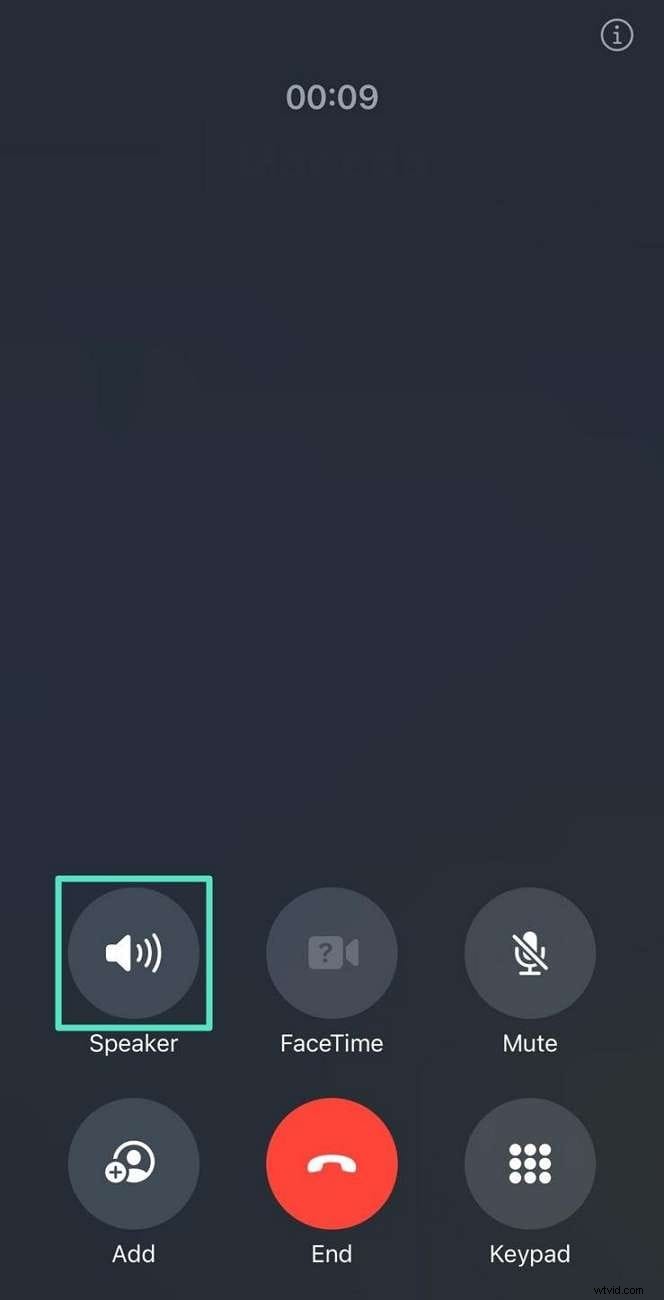
For situations where you need to record a standard phone call without alerting the other party, you can use the Voice Memos app in tandem with a second device. This method is most effective in quiet environments.
- Place the call on one iPhone and activate the speaker.
- On a second iPhone, launch Voice Memos and tap the red record button.
- When the conversation concludes, stop the recording in Voice Memos and end the call.
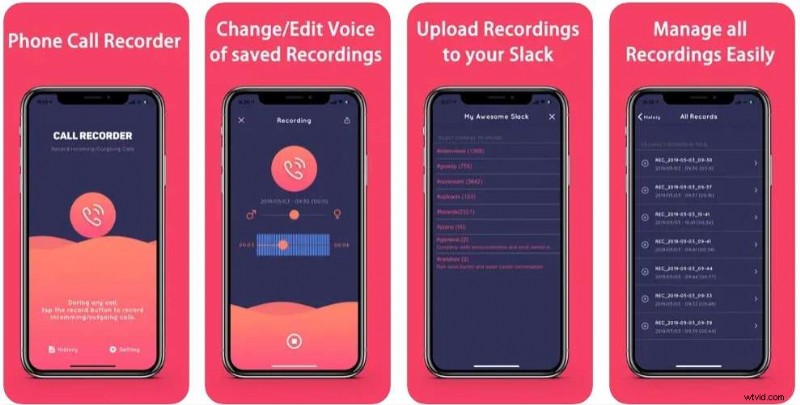
3. Third‑Party Apps for iPhone Call Recording
3.1 Rev Call Recorder
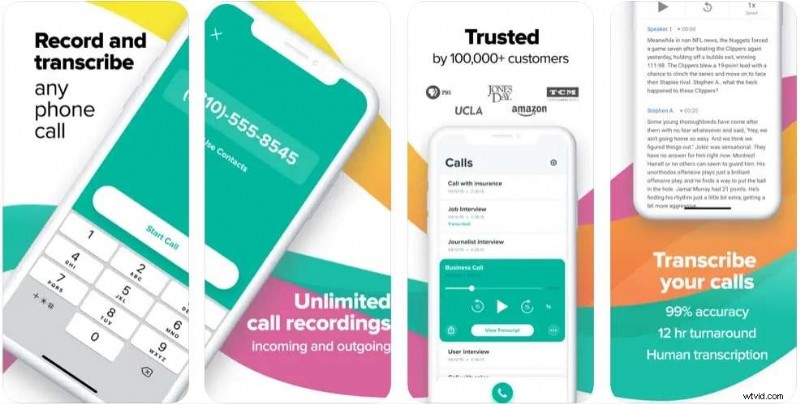
Rev offers a seamless experience for both incoming and outgoing calls with no time limits. Features include:
- Audio and text transcription of every call.
- Timestamped verbatim notes for precise reference.
Drawback: Participants receive a notification that the call is being recorded.
3.2 Call Recorder for iPhone
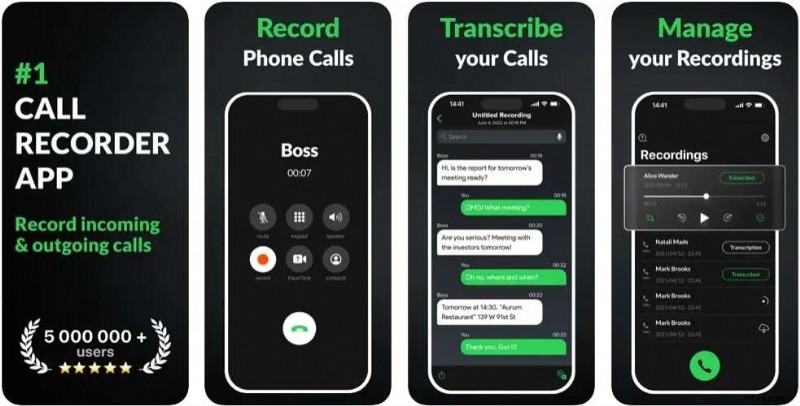
This app lets you share recordings and supports multi‑language transcription. Key benefits:
- Translates transcriptions into several languages.
- Provides skip‑over functionality to jump past unwanted segments.
Limitation: Full functionality requires a premium upgrade.
3.3 Automatic Call Recorder
Designed for hands‑free operation, this app automatically records and stores conversations in cloud services.
- Supports Google Drive, Dropbox, and OneDrive uploads.
- Offers post‑recording editing tools.
Note: Occasionally the app may fail to capture the entire call.
4. Enhancing Call Audio with Filmora
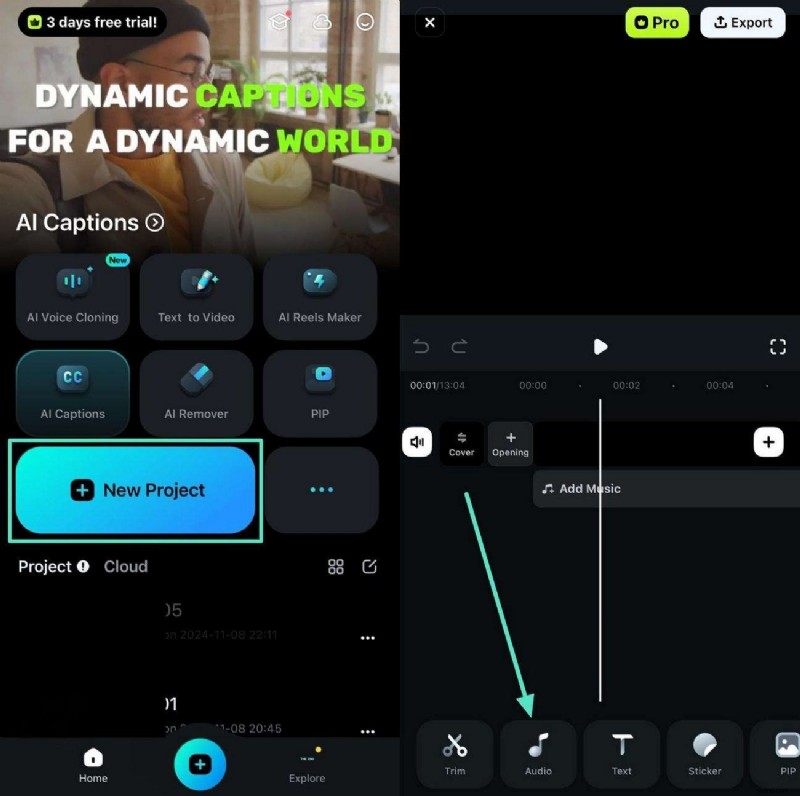
Even after recording, audio quality can suffer from background noise or low volume. Filmora provides a suite of AI‑driven audio tools to clean and amplify your recordings.
- Import the Recording: Create a new project, then drag your call video into the timeline.
- Extract Audio: Tap the Audio button, then select Extract Audio to separate the sound track.
- Noise Reduction: Apply the Noise Reduction filter to eliminate hiss and ambient noise.
- Audio Stretch: Use Audio Stretch to boost volume and adjust playback speed.
- Export: Save the edited file back to your device.
Conclusion
iPhone users now have a range of options—from built‑in FaceTime recording to versatile third‑party apps—to capture and refine phone conversations. Pair these tools with Filmora’s audio enhancements to produce clear, professional‑quality recordings. Whether you’re a business professional or a casual user, mastering these techniques will ensure you never lose a valuable dialogue again.