
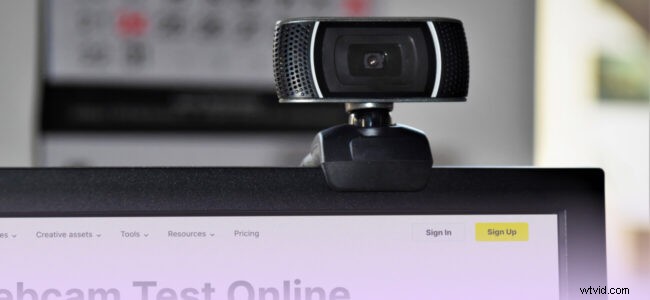
Imagine working hard for an important video call or live stream and your webcam not starting.
Been there?
Well, we all dread the “hey, your camera isn’t working” statement. While we aim to communicate better through videos, it’s annoying to find yourself hysterically scrambling to make the webcam work once you’re already on the call/live stream.
So, as we continue to incorporate more online interactions and videos into our daily lives, it’s imperative to learn how to test a webcam to avoid those unwanted surprises.
This guide shares some simple and effective ways to test webcam on Windows, macOS, and all other devices. Read on to learn about all of them!
Why Test a Webcam?
Most laptops and computers come equipped with webcams. Now, you may use your smartphone’s webcam regularly, but your computer’s? Probably, less often.
So, how do you ensure your device’s webcam works fine when you need it to? By learning how to test camera on your laptop or desktop.
It becomes essential when you have a crucial video recording or meeting. After all, you wouldn’t want yourself anxiously clicking around to make the webcam work or dropping off and re-joining the meeting, hoping that the webcam will get fixed.
Here are just a few examples of when you would want to test your camera beforehand:
- Public live stream
- Online presentation
- Video call
- Virtual conference
- Online customer interview
How to Test a Webcam on Any Device with Wave.video
Regardless of your device, the easiest way to test webcam is to use Wave.video’s Webcam Test Online tool.
Here’s how to test webcam on any device with our handy tool.
Step 1: Open your web browser and go to Wave.video’s Webcam Test Online page.
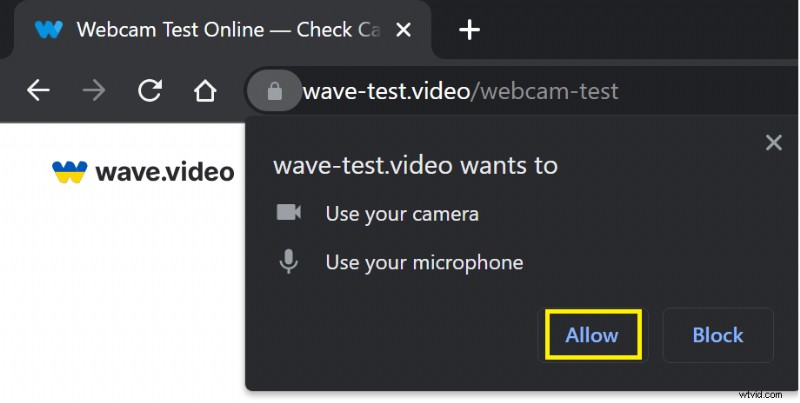
Step 2: When prompted, “Allow” access to camera and microphone in the pop-up.
Step 3: Your camera’s feed should now be visible on the screen. You can select the camera and even test your microphone and speaker using this convenient tool.
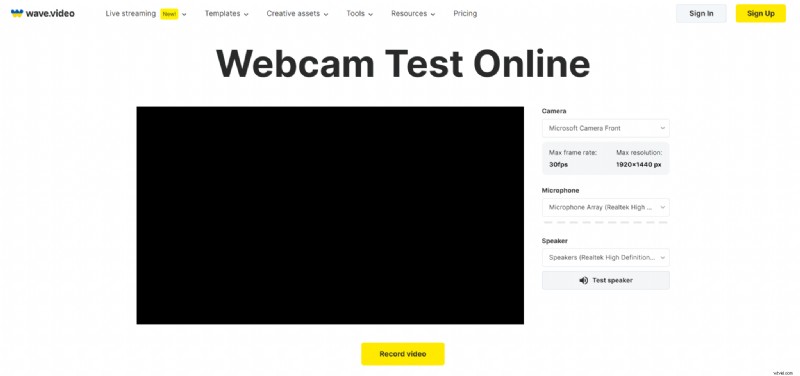
Yup, that easy! Now, if you click on the yellow button “Record video”, you will be redirected to the online video recorder where you can record your webcam video, capture screen online, or do both simultaneously.
How to Test a Webcam
Here are a couple of ways to easily test camera on laptop (Windows & macOS) on any device (laptop, tablet, or smartphone).
Test Webcam on Windows
Windows 10 users can easily test webcam with the built-in camera application. Here’s how to test Windows webcam:
Step 1: Click the Cortana search box on the taskbar.

Step 2: Click “camera” and choose “Open” from the options. 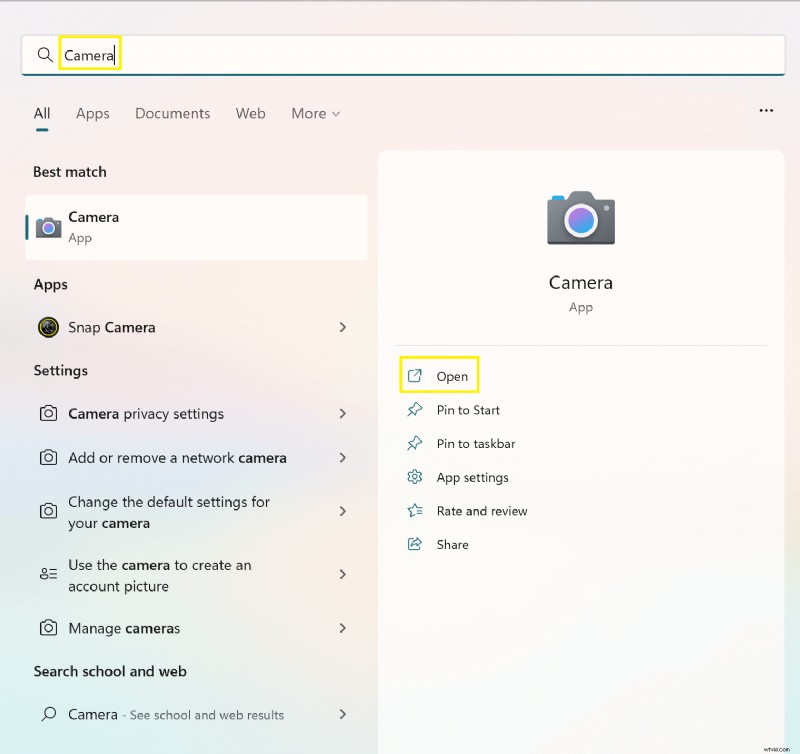
And that’s it! As long as everything is working fine, you should be able to see your camera’s feed from your Windows webcam – no matter whether you’re testing Logitech webcam or any other.
Note: You may have to allow access to the webcam if you’re using the “Camera” app for the first time.
Test Webcam on macOS
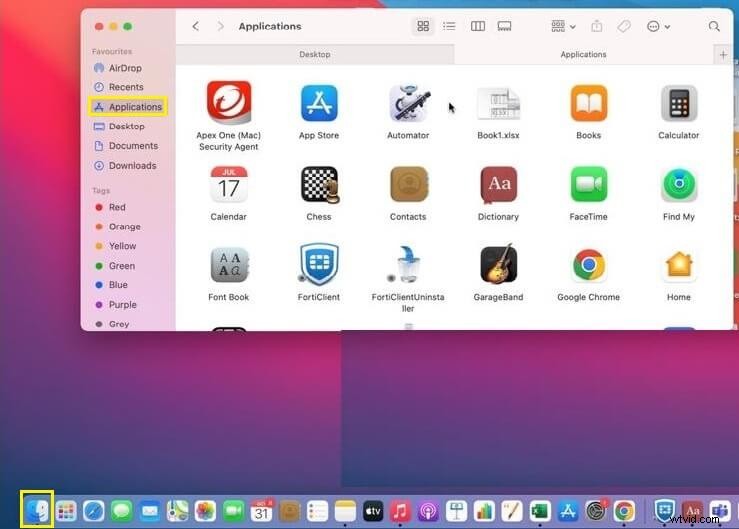
For your Mac webcam test, here are the steps you’d need to follow:
Step 1: Go to the Dock bar and click the “Finder” icon.
Step 2: Select “Applications” on the left, and you’ll see a list of apps.
Step 3: Scroll and click “Photo Booth” from the options, and you should be able to see your webcam’s feed.
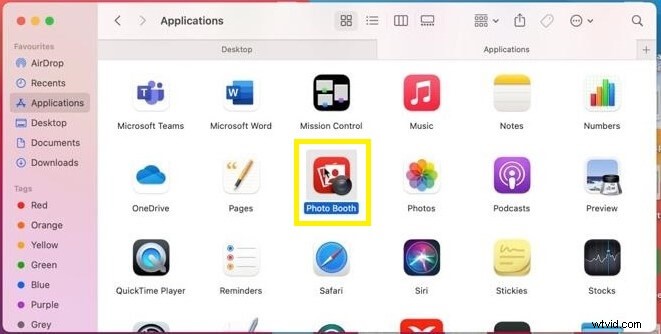
Note: If you’re using an external webcam, you may need to change the Camera in the Photo Booth app.
Ready to Use your Webcam?
Preparing for the ebbs and flows of tech becomes easier with Wave.video.
Now that you’ve learned how to test camera on laptop, check out how to use it to record videos and audio right from your browser.
You can also use Wave.video’s live streaming software and go live on multiple platforms at once. Learn more about our revolutionary web-based live streaming software here.
Join our newsletter — it’s free!
We only post the good stuff