Music lovers usually have a collection of MP3 songs. Some like to collect songs, and some like to listen to new songs, whereas some people are very much interested in simply editing MP3 songs. For doing this, a good MP3 editor is essential.
How to find a good audio MP3 editor? The article understudy will introduce an amazing audio editor along with its steps so that you get to know how to edit MP3 files. If you are ready to learn more about MP3 editing, then let’s get started without any further delay.
In this article
Part 1 How to Edit MP3 Files?
As we have mentioned earlier, to edit MP3 files, a good audio editor is essential. Do you know any good Audio Editor? Although there are various editors, Wondershare Filmora is unbeatable. It offers a whole editing world to its users. Filmora is hands down the best software when it comes to audio editing. Its intuitive interface is easy to understand and work with that even beginners can use it.
What else does Filmora have to offer? It provides various editing elements. You name anything, and Filmora has it. The editor has a wide variety of Transitions, Effects, Filters, and other elements. Interestingly, Filmora also has a media library, Filmstock, that is full of amazing things.
Features of Filmora That Will Amaze You
As we are talking about MP3 editing so, let’s shed light on Filmora Audio Editor. The editor has some mind-blowing features that you should know.
-
Audio Split is a key feature that good Audio Editors must have. Filmora lets you split audio, and additionally, you can also Trim Audio with this editor.
-
A very highlighting feature that you get from Filmora Audio Editor is 'Detach Audio from Video.' With this feature, you can detach and remove audio from video.
-
Features like Audio Denoise, Audio Mixer, Audio Equalizer are also offered by Wondershare Filmora Audio Editor.
-
Ready to know a fun feature? Not only can you add Voiceover, Filmora easily replaces the original audio of the video.
Step-by-Step Guideline to use Filmora Audio Editor
Are you ready to use Filmora Audio Editor, but do you know how to edit an MP3 file? Don’t worry if you have never done this before because we are about to share its step-by-step guideline.
Step 1: Importing Audio
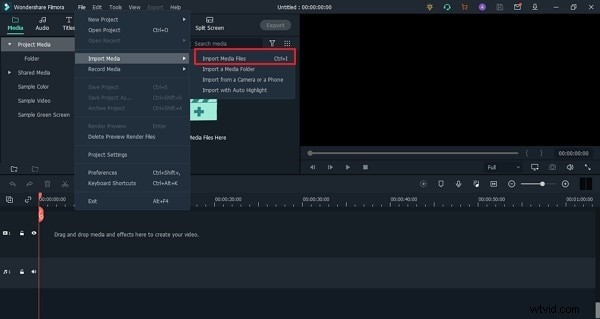
To edit the MP3 file with Filmora Audio Editor, you firstly need to create a new project. After the project has been created, let's import the media file. For that, go to 'Import Media' from the Files tab and select 'Import Media Files.'
Step 2: Audio Editing Panel
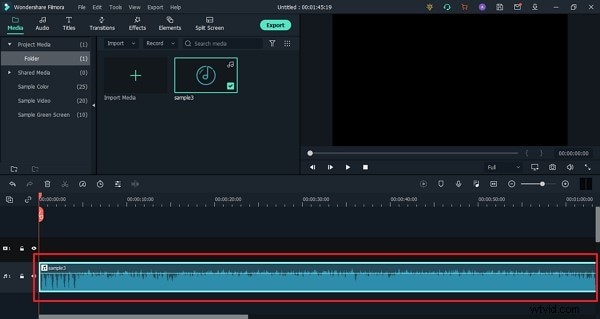
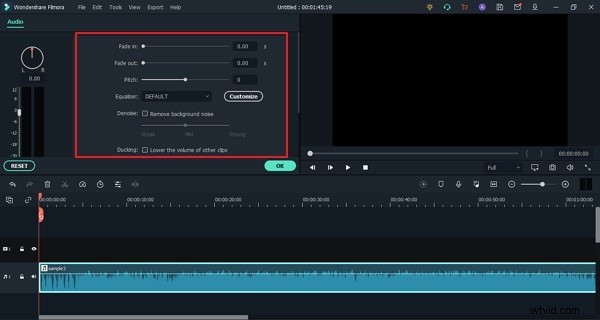
Once the file has been imported, drag it onto the timeline so that you can start editing the audio. You have to double click on the audio file to open the ‘Audio Editing Panel.'
Step 3: Let’s Start Editing
With the Audio Editing Panel, you can completely edit and customize the MP3 file. It offers the 'Fade In’ and ‘Fade Out’ options. You can also remove background noise from the 'Denoise' option. Moreover, you can use the Equalizer, set the Pitch, etc.
Step 4: Export the File
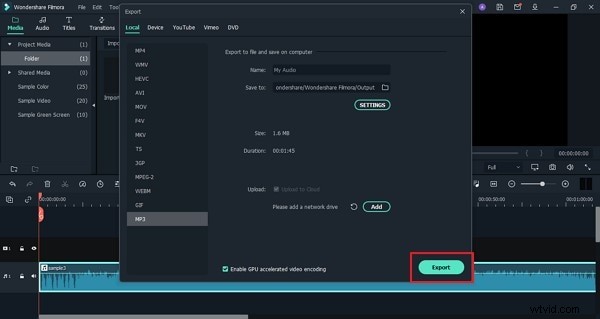
Lastly, once the editing is complete and you are satisfied, you can export the file. For that, hit the ‘Export’ button to open the export window. There, head over to the ‘Local’ section to select ‘MP3’ as the output format and ‘Export’ it to your device.
Part 2 3 Popular Free MP3 Editor for Windows
Now that we have discussed in detail Wondershare Filmora, should we talk a little about free MP3 editors? You can get a variety of free MP3 editors for Windows on the internet, but how do you know that yours is the best? If you want to know about the 3 best MP3 editors that are famous for their features, then this section is for you.
01 Audacity
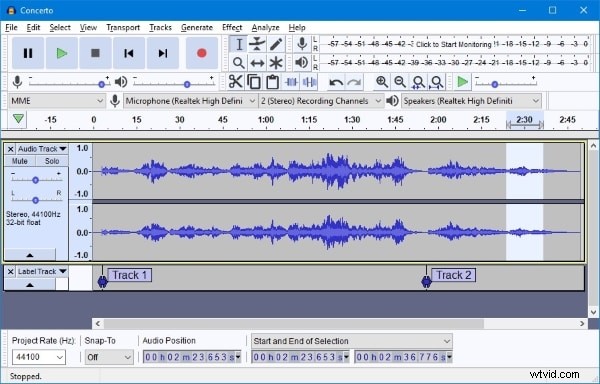
Audacity is a fantastic audio editing software that is perfect for music trimming, sound effects, and dialogue. The tool offers a free version to its users. Audacity is open-source, a multi-track audio editor that makes editing easy.
The plus point for this editing software is that it supports a wide range of file formats like FLAC, WAV, MP3, and others. What attracts the users? Well, the easy and simple interface of Audacity attracts a lot of users. Another thing that matters a lot is the installation process, and in Audacity's case, the installation is pretty easy.
-
For endless audio editing and merging audio files, nothing is better than Audacity. Also, the software supports 16-bit, 24-bit, and 32-bit sound quality.
-
Audacity provides support to various plug-ins, for instance, LV2, Nyquist, VST, LADSPA, and also Audio Unit Effect.
-
Another interesting thing about Audacity is that it records live audio from Mic or Mixer. You can also combine files and export them in different formats.
02 Ocenaudio
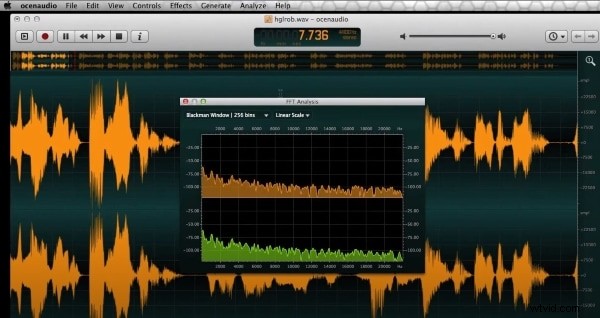
Can you name a great audio editor for home musicians and podcasters? Yes, Ocenaudio Audio Editor is the perfect, free audio editing platform for podcasters and home musicians. The audio editor has a very clear interface that everyone can use easily, without any complications. Editing MP3 files and analyzing them is made easy with Ocenaudio.
The audio editing software is famous because of its efficiency as it can edit large files. Do you want to know the fascinating thing about Ocenaudio? Well, the software uses advanced memory management, which means it opens files without wasting your PC's memory.
-
The audio editor is the best option for everyday audio editing. Also, the software offers great filter selection with precise selection tools.
-
What attracts the most users is its powerful and complete spectrogram view. Along with the waveform view, Ocenaudio also features a spectrogram view of the audio files.
-
The software offers uniform features and the same graphics on all versions. Moreover, it supports various platforms like Windows, Mac OS X, and Linux.
03 WavePad Audio Editor
Are you ready to talk about WavePad Audio Editor? The software is very famous because of the wide range of features it offers. What can you do with this audio editor? Let’s start sharing!
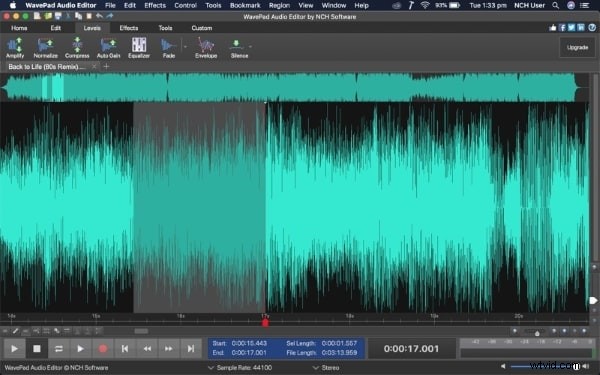
With WavePad Audio Editor, you can edit audio by trimming, cutting, joining, splitting, etc. In addition to editing, you can also add different effects to your audio. For instance, effects like to normalize, amplify, equalize, etc. The audio editor also supports extracting audio from CDs and removing audio noise.
Do you know what else it can do? You can easily edit and export the audio file in different formats from WavePad Audio Editor.
-
The most amazing thing about WavePad Audio Editor is that it supports batch processing. You no longer have to wait as the software works very efficiently.
-
Want to know something interesting about WavePad Audio Editor? It is compatible with different file formats and holds strong editing capabilities.
-
Which audio editor can compress files? With WavePad, you can compress files with great ease and load files with just two mouse clicks.
You May Also Like
How to Convert MKV to MP3 on Win/Mac/Online (with Free Options)
4 Ways to Merge MP4 and MP3
Bottom Line
As we promised earlier that we would help you and guide you on how to edit MP3 files so, this article has everything you need. We shared how you can edit MP3 files with the best audio MP3 editor, Wondershare Filmora. Along with that, we also shared 3 popular and free audio MP3 editors.
Wondershare Filmora
Get started easily with Filmora's powerful performance, intuitive interface, and countless effects!