

Looking to turn a video into a clean audio‑only file or remove the soundtrack from a clip? iMovie makes that possible with a simple, non‑destructive workflow. In this guide you’ll learn why audio extraction matters, and how to detach or export audio on your iPhone, iPad, or Mac.
In this article
- The importance of audio extraction in video editing
- Separating audio on iOS devices (iPad & iPhone)
- Exporting or detaching audio on macOS
- Using Filmora for advanced audio editing on a Mac
The Importance of Audio Extraction in Video Editing
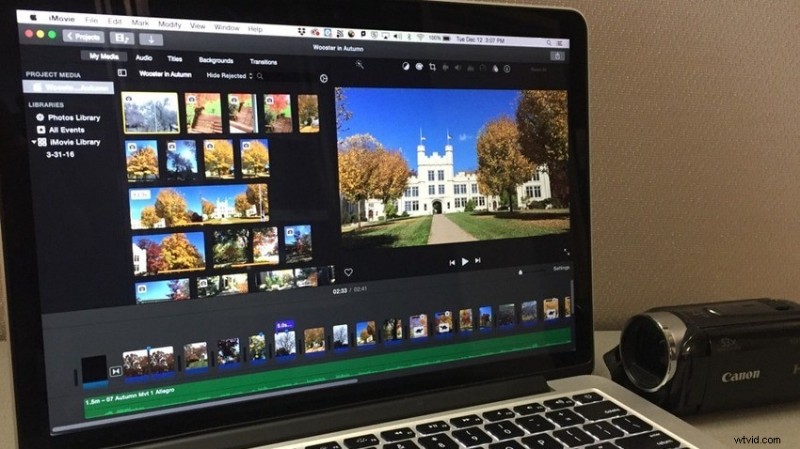
Extracting audio offers several practical benefits:
- Non‑destructive editing – Detach the track to trim, mix, or replace sound without altering the video.
- Copyright compliance – Remove licensed music and replace it with royalty‑free tracks.
- Soundtrack control – Swap background music or silence sound effects to match your vision.
- Voice‑over integration – Add narration or subtitles while keeping the original audio intact.
- Repurposing content – Convert video podcasts, webinars, or ads into audio files for streaming or radio.
With those advantages in mind, let’s dive into the practical steps.
How to Separate Audio From a Video in iMovie on an iPad or iPhone
iMovie’s interface is identical on iOS and iPadOS. Follow these steps to detach audio:
- Step 1: Open iMovie, tap Projects, then Start New Project > Movie.
- Step 2: In the Moments library, hold the desired clip and choose Create Movie. Or navigate to Media > Videos to select from another folder.
- Step 3: Tap the clip on the timeline to reveal the editing toolbar. Tap the Actions (scissors) icon and select Detach.
- Step 4: A blue audio track appears below the video. To keep the audio separate, tap Background to break the link.
- Step 5: The audio turns green, allowing independent edits.
- Step 6: To keep only the audio or delete the video, tap the track and choose Actions > Delete.
- Step 7: Confirm the change; the preview will show a blank screen if the video is removed. Tap Done.
- Step 8: Tap the Export button.
- Step 9: Choose Export Project to finalize.
- Step 10: Select Save Video. iMovie saves audio‑only files as MOV by default; you can later convert them to MP3, AAC, or other formats using an online converter or GarageBand.
How to Extract Audio From a Video in iMovie on a Mac
macOS offers two straightforward methods: export audio directly, or detach and edit before exporting.
Method 1: Export Audio Only
- Step 1: Launch iMovie and click Create New under Projects.
- Step 2: Select Movie.
- Step 3: Click Import Media and choose your video.
- Step 4: Drag the clip to the timeline.
- Step 5: Click Export > Export File.
- Step 6: In the dialog, choose Audio Only for Format and pick AAC, MP3, AIFF, or WAV. Click Next.
- Step 7: Name the file, choose a location, and click Save.
Method 2: Detach and Remove Audio
- Step 1: Import your video and drag it to the timeline.
- Step 2: Right‑click the clip and select Detach Audio.
- Step 3: The audio track appears in green; you can edit it independently.
- Step 4: To unlink the tracks, drag the lock icon to the Background Music Well. Then right‑click the video and choose Delete, or right‑click the audio track and choose Delete if you only want the video.
- Step 5: Add any desired effects, transitions, or new audio. When finished, click Export.
- Step 6: Choose Export File, set your format, avoid the Best (ProRes) preset if you need MP4, and click Next to save.
Remove or Detach Audio Clips on a Mac With Filmora
Filmora expands iMovie’s capabilities with AI‑driven tools such as Audio Ducking, Noise Reduction, and Auto‑Transcription. The detaching workflow is almost identical:
- Step 1: Launch Filmora and click Create Project > New Project.
- Step 2: Import your video and drag it onto the timeline.
- Step 3: Right‑click the clip and choose Detach Audio.
- Step 4: Edit the audio track independently – split, delete, fade, or apply noise‑reduction presets. You can also delete the entire audio track to keep a silent video.
- Step 5: After editing, click Export or Export Selected Clips.
- Step 6: Configure the output format (MP3, WAV for audio, or MP4 for video), quality, and destination, then click Export.
Conclusion
Detaching audio in iMovie is quick and intuitive on any device, making it ideal for hobbyists and quick edits. For more advanced audio manipulation—such as AI denoising, automatic speech transcription, or batch exporting—Filmora offers a richer toolkit. Choose the tool that best fits your workflow and creative goals.
Try Filmora free trial today and experience the next level of audio‑video editing.

