
TL;DR:
- There are plenty of video editors designed specifically for beginners.
- The most user‑friendly desktop options are Riverside, Shotcut, iMovie, and Adobe Premiere Elements.
- For mobile, CapCut, InShot, LumaFusion, and Adobe Premiere Rush stand out.
Ever wanted to turn your ideas into polished videos but felt overwhelmed by endless tools? You’re not alone. Many novices spend hours struggling with complex interfaces, only to abandon their projects. This guide cuts through the noise and presents eight editors that are simple, intuitive, and ready for any device.
We’ve evaluated each app based on usability, feature set, pricing, and real‑world performance. Whether you’re editing on a Mac, Windows PC, or a smartphone, you’ll find a tool that matches your skill level and budget.
Let’s dive in.
Best Easy‑to‑Use Video Editing Software for Beginners
Below are the top beginner‑friendly editors for Windows and macOS.
Riverside
Price: Free version, Standard $15/month, Pro $24/month
Compatibility: Windows and Mac
Learning curve: Very easy
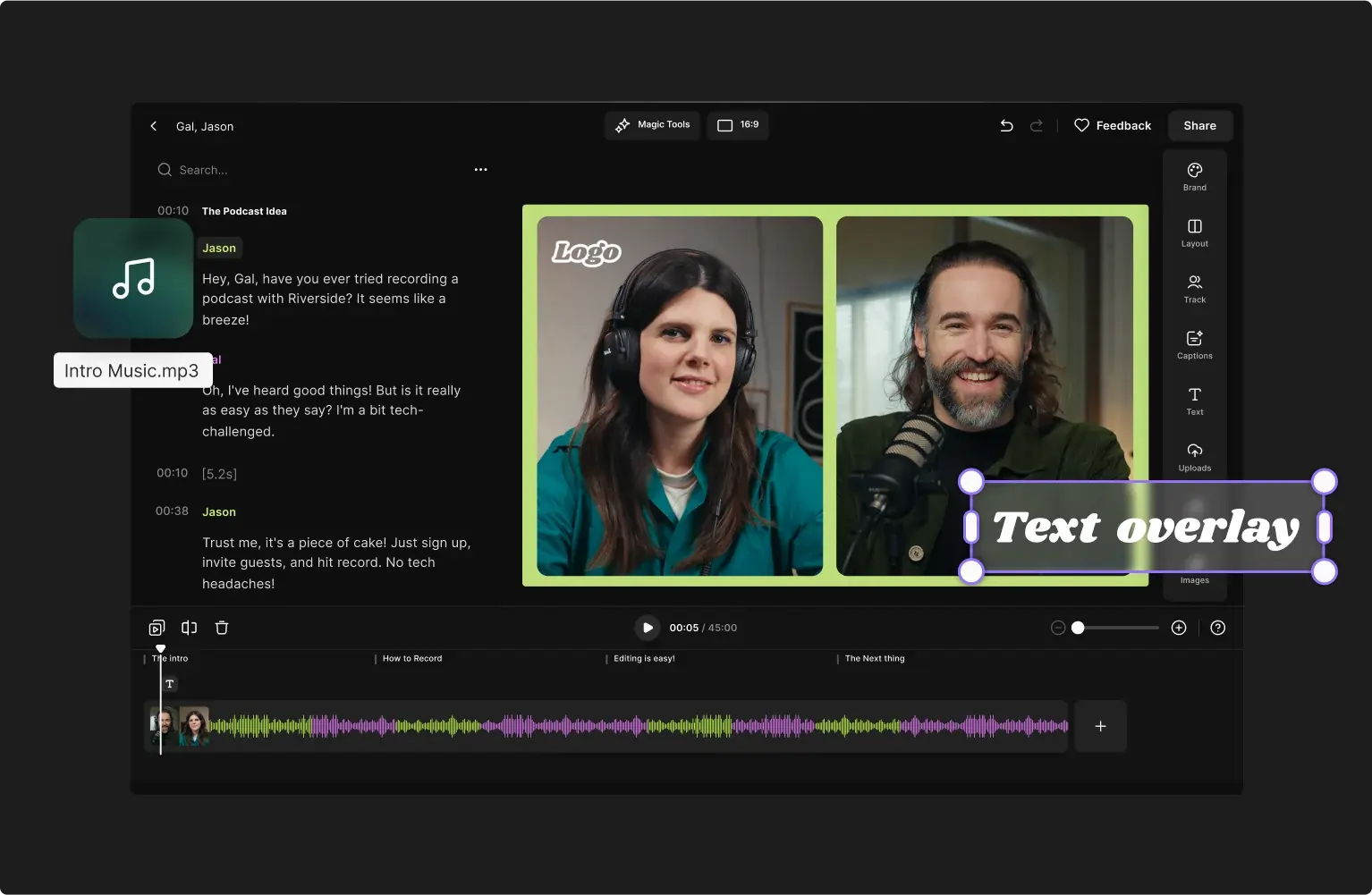
Riverside is a dual‑purpose platform that lets you record and edit in one place. Capture up to 4K video and 48 kHz audio, then use AI‑powered tools such as text‑based editing and Magic Clips to streamline the post‑production process. Its timeline is color‑coded by speaker and chapter, making it simple to navigate.
Key features
- High‑quality recordings up to 4K video and 48 kHz audio
- Separate audio tracks for each participant
- Text‑based editing that syncs with the transcript
- Intuitive timeline with color‑coded speaker labels
- Background, text, image, and dynamic caption customization
- One‑click audio cleanup and level normalization
- Ready‑to‑share layouts for social media formats
- Live media board for on‑the‑fly sound effects
Pros
- Streamlined, beginner‑friendly interface
- All‑in‑one recording and editing workflow
- AI tools reduce editing time significantly
Cons
- Free version includes a watermark
Shotcut
Price: Free
Compatibility: Windows, Mac, Linux
Learning curve: Easy
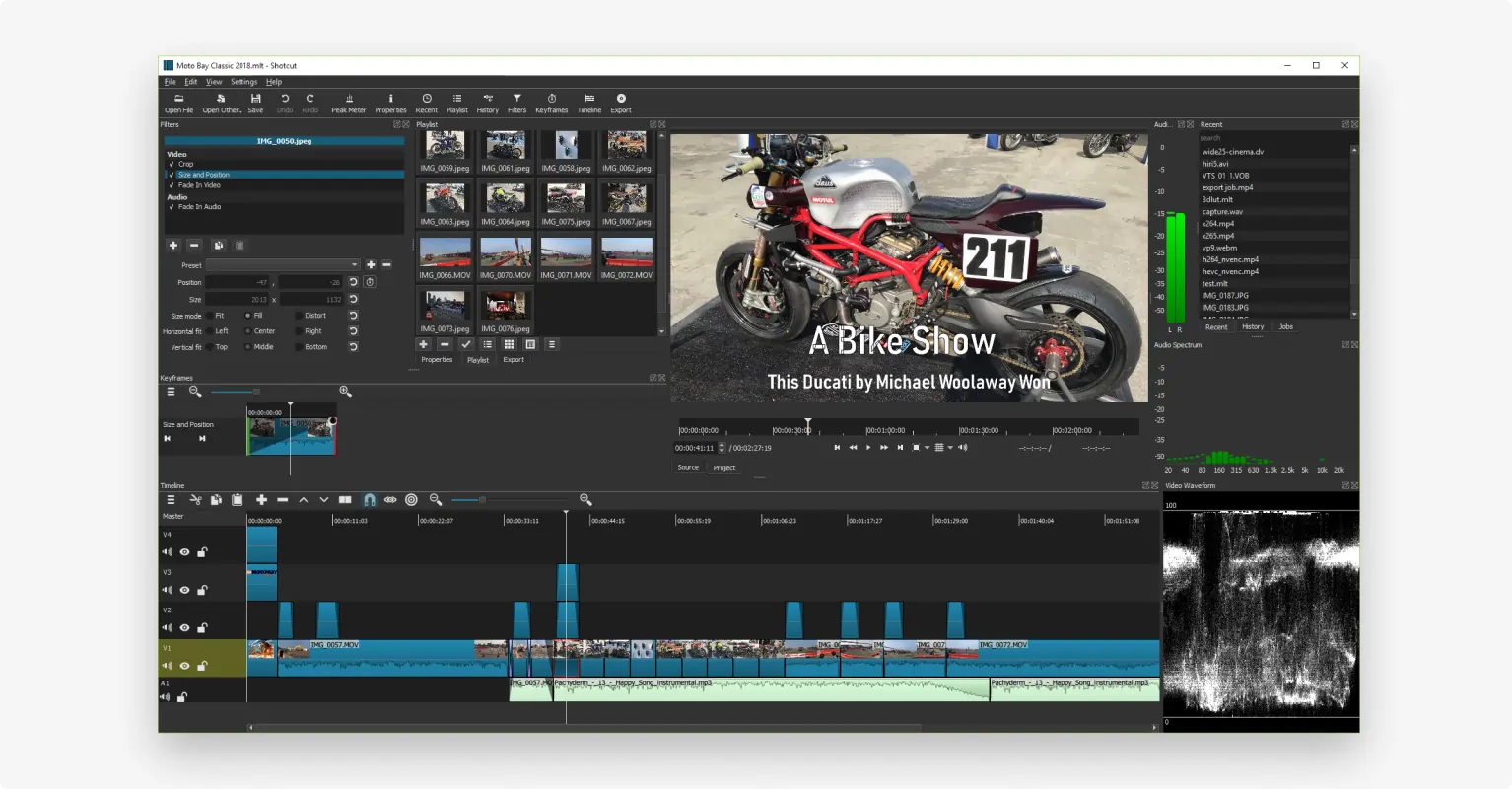
Shotcut offers a smooth learning curve while still supporting advanced features. Its free, open‑source nature makes it an excellent first‑stop for beginners who might later want to explore more complex editing.
Key features
- Advanced color grading tools
- Keyframing for animation and motion graphics
- Extensive library of effects, filters, and transitions
- Robust audio editing, including mixing and tone generation
- 4K export support for YouTube and beyond
- Video compositing across multiple sources
- Multi‑track timeline for creative flexibility
Pros
- Zero cost and open source
- Customizable interface with a gentle learning curve
- Feature set that scales from beginner to advanced use
Cons
- No preview for transitions and effects
- Occasional crashes on large projects
- Interface geared toward novice users
iMovie
Price: Free
Compatibility: Mac, iOS, iPadOS
Learning curve: Easy
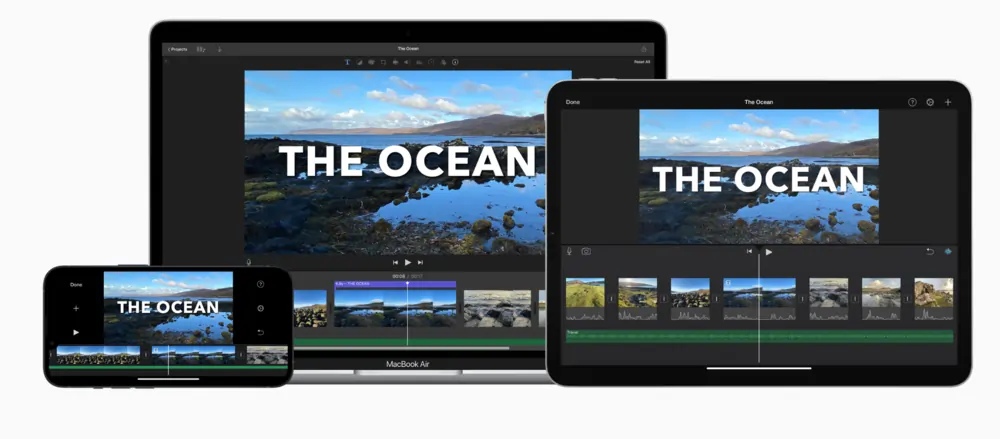
iMovie remains the most popular free editor on Apple devices. Its drag‑and‑drop workflow, built‑in templates, and seamless cross‑device sync make it ideal for beginners.
Key features
- Drag‑and‑drop editing for video, images, and audio
- Intuitive, modern interface
- Pre‑built templates and themes
- Cross‑device editing continuity
- Precision editor, green‑screen, and advanced color correction
- Comprehensive audio tools
Pros
- Supports 4K resolution
- Free across all iOS devices
- Quick start with templates
Cons
- Limited advanced features (no multicam, motion tracking)
Adobe Premiere Elements
Price: $99.99 (one‑time purchase)
Compatibility: Windows, Mac
Learning curve: Easy
Adobe Premiere Elements is the consumer‑friendly version of Premiere Pro, offering a curated set of tools without the subscription overhead.
Key features
- Wide range of transitions and special effects
- Drag‑and‑drop clip rearrangement
- Audio effects (Reverb, Vocal Enhancer, DeHummer)
- Color matching to transfer a clip’s look
- Guided edits for step‑by‑step learning
- Auto‑Creations powered by Adobe Sensei AI
Pros
- Keyframing support for animation
- Rich library of cinematic templates and titles
- Accessible for non‑professional users
Cons
- May feel basic for advanced workflows
- Rendering can be slow on complex projects
Best Video Editing Apps for Beginners on iOS and Android
Now let’s explore mobile editors that combine power with simplicity.
CapCut
Price: Free, Pro $7.99–$9.99/month
Compatibility: iOS, Android, Windows, Mac
Learning curve: Very easy
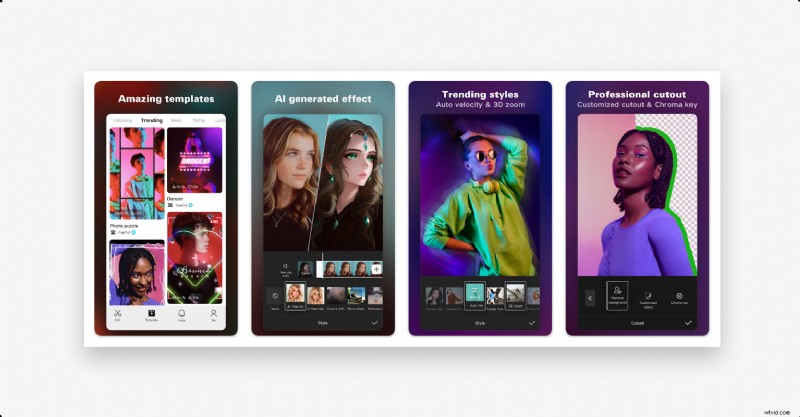
Owned by ByteDance (TikTok’s parent), CapCut offers a rich library of trendy effects and templates that are perfect for social‑media videos.
Key features
- Keyframing for dynamic animation
- Viral templates, effects, and transitions
- Chroma key for compositing
- Extensive royalty‑free music library
- AI tools: automatic captions, background removal, green‑screen
- Collaboration mode for simultaneous editing
Pros
- Trend‑centric effects and templates
- AI‑driven tools reduce manual effort
Cons
- 15‑minute maximum video length on free version
- Advanced features locked behind Pro subscription
- Limited depth for complex projects
InShot
Price: Free, Pro plans (monthly, yearly, lifetime)
Compatibility: iOS, Android, Mac (M1+)
Learning curve: Very easy
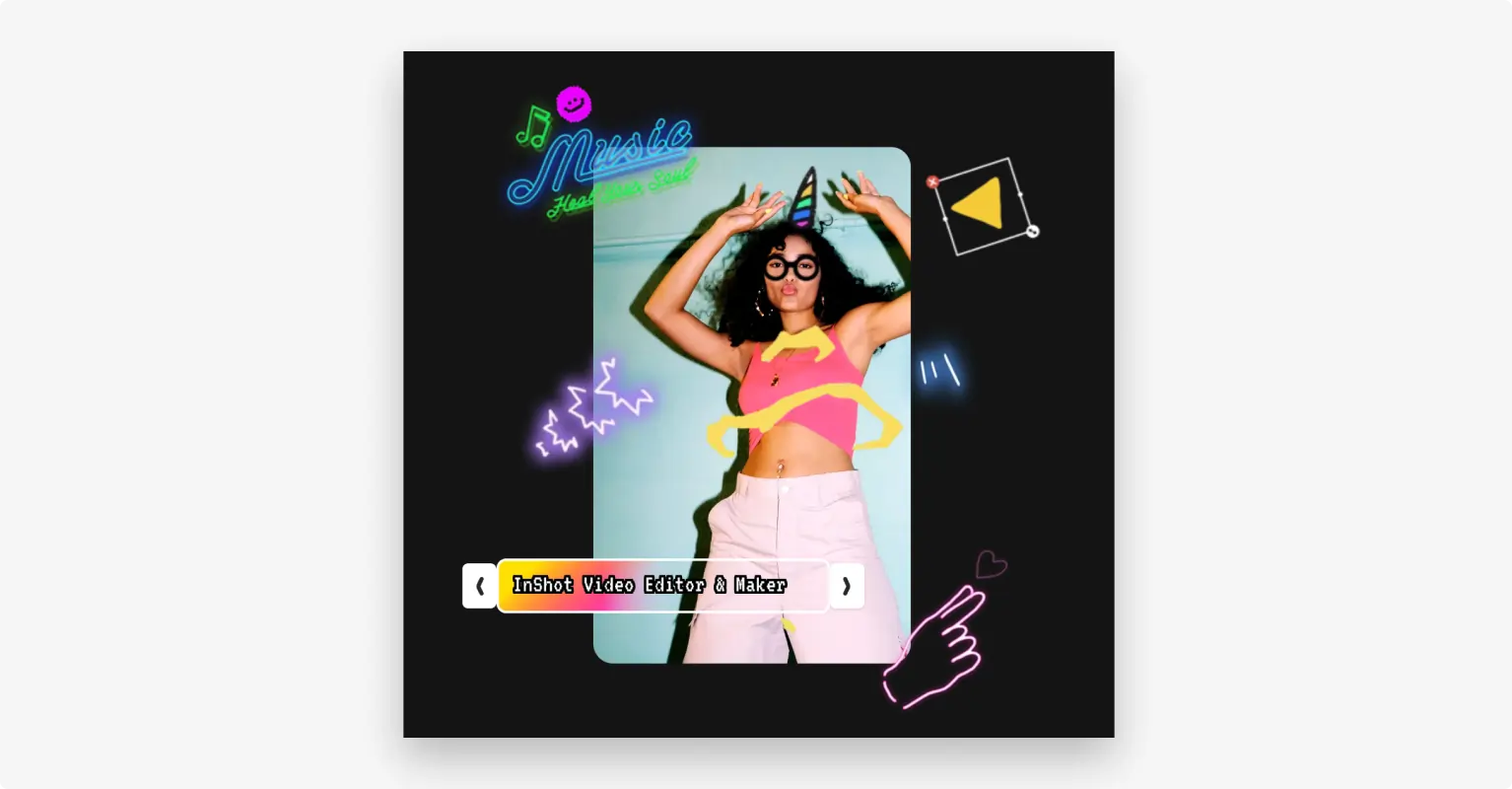
InShot is a social‑media‑focused editor that balances simplicity with a robust set of creative tools.
Key features
- Music and sound‑effect library
- Wide array of stickers, transitions, and text styles
- Core editing (trim, cut, merge, crop)
- AI utilities: clone, auto subtitles, background removal
Pros
- Intuitive interface
- Reasonably priced Pro options
- Extensive sticker and GIF collection
Cons
- Limited professional features
- Single‑track timeline
- Ads in free version
LumaFusion
Price: $29.99 (lifetime)
Compatibility: iOS, Android
Learning curve: Moderate
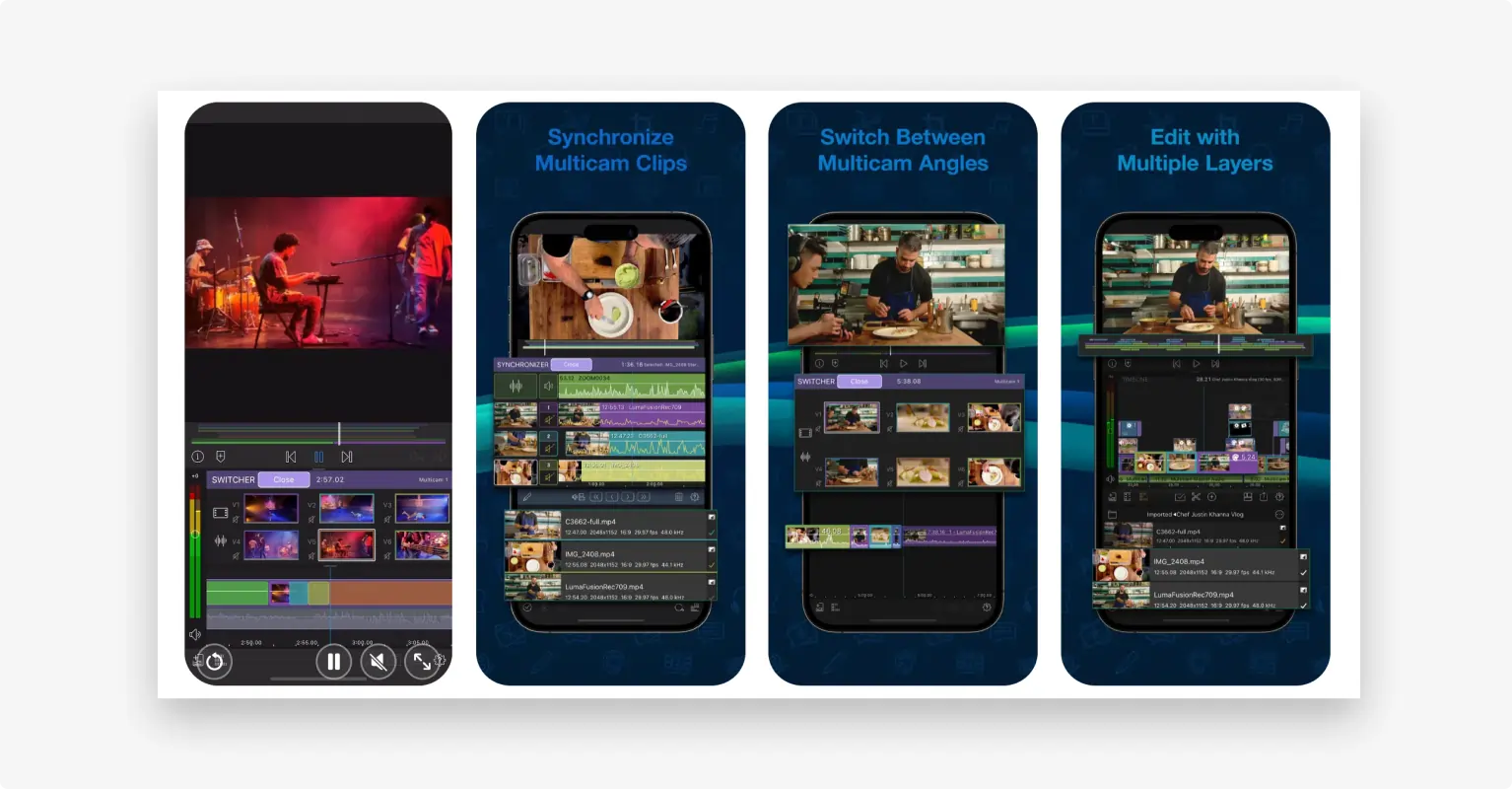
LumaFusion is widely praised for its professional‑grade features delivered in a mobile environment. It’s ideal for users who anticipate growth in their editing skills.
Key features
- Multicam editing
- Advanced audio mixing and voice‑over tools
- Keyframe animation
- Up to 6 video and 6 audio tracks
- Chroma key for background removal
- Color correction controls (exposure, contrast, saturation)
- Royalty‑free media via Storyblocks partnership
Pros
- Clean, beginner‑friendly interface
- One‑time cost, no subscription
- Professional‑level capabilities
Cons
- Color grading depth less extensive than desktop equivalents
Adobe Premiere Rush
Price: Free, Express plan $9.99/month
Compatibility: iOS, Android, Windows, Mac
Learning curve: Easy
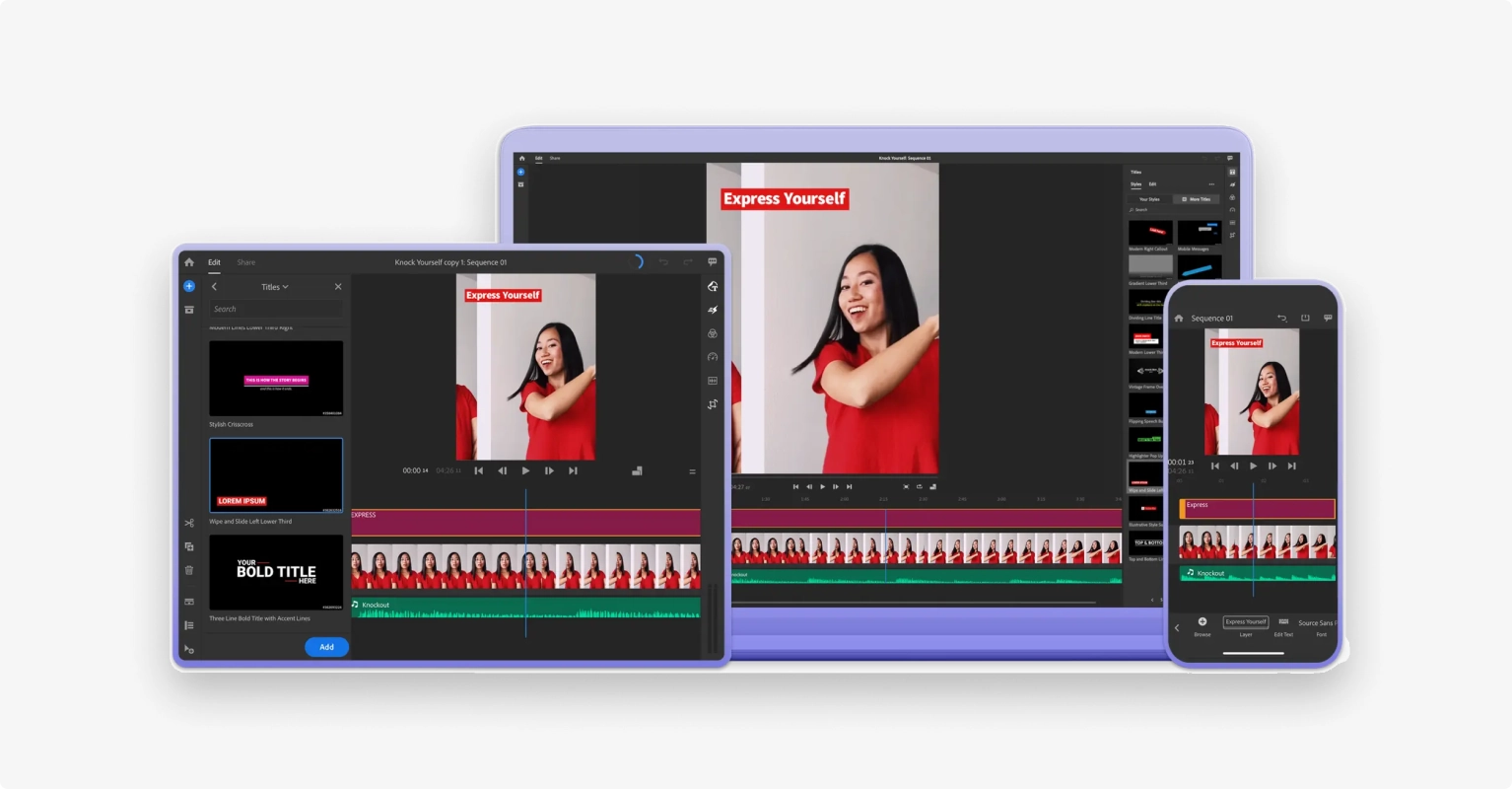
Premiere Rush offers a streamlined workflow for quick social‑media videos while still tying into the Adobe Creative Cloud ecosystem.
Key features
- Sync projects with Premiere Pro
- Built‑in titles, transitions, and effects
- Adobe Creative Cloud integration
- Basic editing tools (trim, split, speed, color)
- Cross‑device editing without losing progress
Pros
- Feature‑rich mobile experience
- Clean, intuitive UI
Cons
- Limited advanced effects and templates
- No green‑screen or motion‑tracking support
How to Choose the Right Beginner Video Editor
When evaluating options, consider the following criteria:
Ease of Use
Prioritize a clutter‑free layout, clear iconography, and drag‑and‑drop capabilities. Tutorials embedded in the app can accelerate learning.
Cost
Free versions are excellent for experimentation. Paid plans should align with your long‑term budget and feature needs.
Scalability
If you plan to advance your editing skills, choose a platform that can grow with you—look for keyframing, multi‑track timelines, and robust export options.
Learning Resources
Apps that provide guided edits, comprehensive help centers, or community forums give novices a smoother onboarding experience.
Quick Start Guide: Editing with Riverside
1. Sign in to Riverside and create a Studio. 2. Record your session in up to 4K. 3. Click Edit on the right, then Create new edit. 4. Choose between text‑based editing (modify the transcript) or the timeline editor (use the split tool and color‑coded sections). 5. Add media on the right panel—text, images, uploads, or brand assets. 6. Adjust layout (full‑screen, picture‑in‑picture, split‑screen) and aspect ratio (16:9, 9:16, 1:1). 7. Use Magic Tools for audio cleanup and immersive sound enhancement. 8. Export with your desired resolution and optional watermark removal.
Frequently Asked Questions
What is the easiest editor for absolute beginners?
Riverside offers a web‑based, AI‑assisted workflow that’s ideal for novices. For Apple users, iMovie remains the most straightforward free option. Windows users often find Shotcut to be a friendly entry point.
Where can I learn more about video editing terminology?
Our video editing glossary covers essential terms and concepts for beginners.