
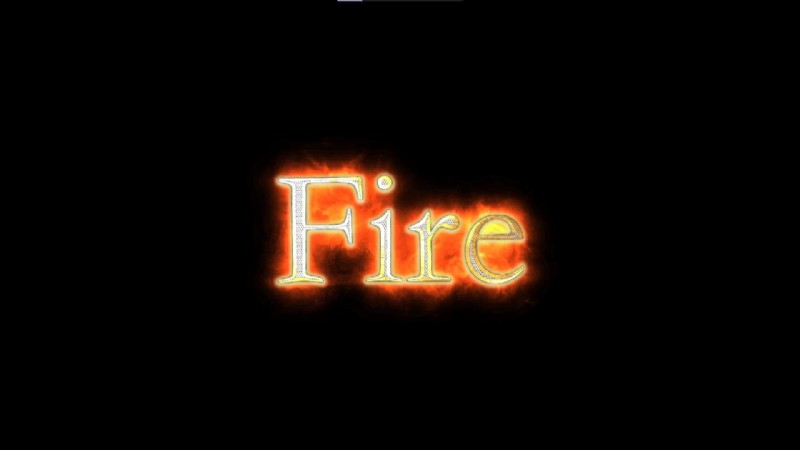
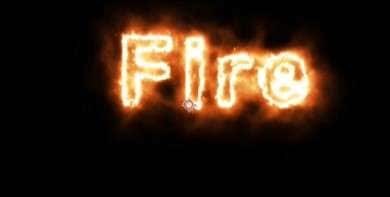
After Effects is one of the most versatile motion‑graphics tools available today. Among its many text effects, the fire‑text animation stands out for its dramatic impact. Whether you’re producing cinematic trailers, gaming montages, or vibrant social‑media clips, realistic flames can elevate your visuals.
Creating fire text may seem daunting, but with the right preparation and step‑by‑step guidance you can master it quickly.
In this article
- How to Create After Effects Fire Text with the Saber Plugin
- How to Create After Effects Fire Text with Manual Effects
- How to Create After Effects Fire Text with Templates
- Limitations of Using After Effects to Create Fire Text
- How to Add Fire Text in Videos with Filmora
- Enhance Your Video Creation with AI
Part 1. How to Set Up Before Creating After Effects Fire Text
Before diving into the flame‑animation process, set up your environment to ensure a smooth workflow.
- Download the Saber plugin: This essential add‑on gives you glowing, realistic fire‑effects that can be applied to any text layer.
- Choose a template platform: If you prefer a quick start, browse Envato, Pond5, or Motion Graphics for paid templates, or explore free options on ShareAE and VFXdownload.
- Select a fire‑inspired color scheme: Pick warm hues—reds, oranges, and yellows—to make your text look authentic.
Part 2. How to Create After Effects Fire Text
Three proven methods exist: using the Saber plugin, applying effects manually, or leveraging ready‑made templates.
How to Create After Effects Fire Text with the Saber Plugin
Follow these steps to add dynamic fire to your text.
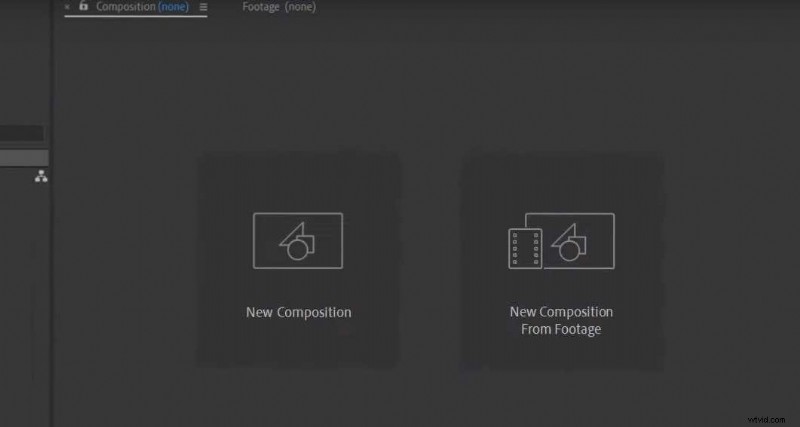
- Create a new composition (1920×1080 px for high‑definition output). Adjust frame rate and duration as needed.
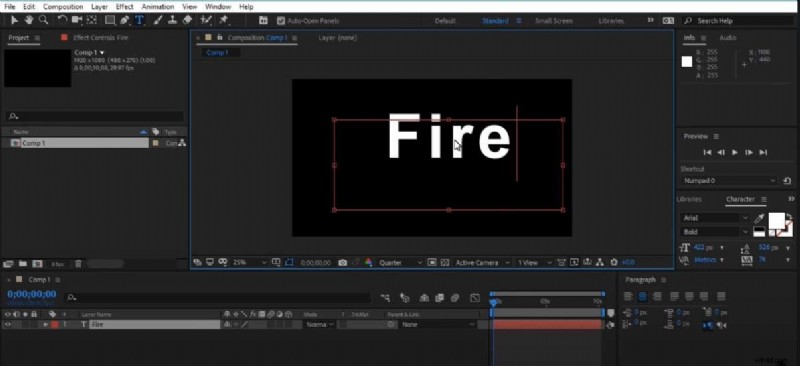
- Use the Type tool to enter your text, then tweak its properties in the Character panel.
- Add a solid layer (Layer → New → Solid). Search “Saber” in the Effects & Presets panel and drop it onto the solid.
- In Saber’s Settings, set “Customize Core” to Text Layer and choose your text layer.
- Select the Fire preset, then adjust glow intensity, color, and distortion to achieve a realistic flame.
- Preview the effect and, if desired, composite the text over other footage.
How to Create After Effects Fire Text with Manual Effects
This method builds the flame from scratch, giving you full control over every detail.
- Create a new composition and add your text. Choose a warm color (yellow, red, or orange).
- Apply the Turbulent Displace effect, then add a Glow to create the flickering appearance.
- Enhance realism with particle effects, embers, or a subtle motion blur.
- Render and export once satisfied.
How to Create After Effects Fire Text with Templates
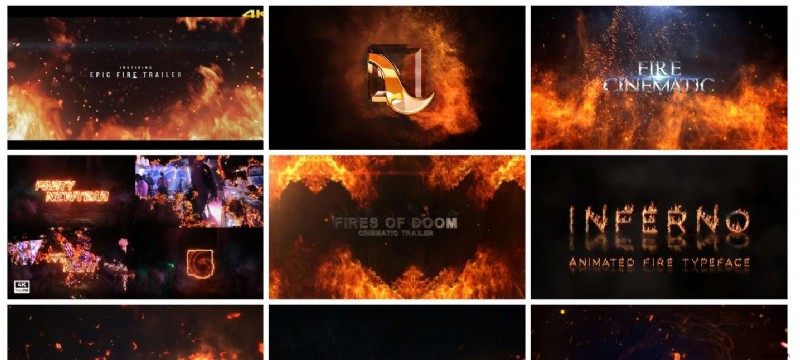
- Download a fire‑text template from your chosen platform.
- Open the template in After Effects.
- Edit the text to your preference.
- Preview and export the final composition.
Limitations of Using After Effects to Create Fire Text
- Complexity: The software’s extensive feature set can be overwhelming for newcomers.
- Cost: While a 7‑day free trial is available, full access requires a paid subscription.
- Learning curve: Mastering fire‑text effects demands time and practice.
Part 3. A More Straightforward Alternative: Filmora
For users seeking speed and ease, Wondershare Filmora offers AI‑powered video editing with built‑in fire‑text presets.
- Extensive text‑effects library: Includes ready‑made fire, 3D, and cinematic titles.
- Advanced animation options: 3D rotation, Minecraft fonts, and cinema‑style presets.
- Customizable titles: Adjust size, color, and positioning with a user‑friendly interface.
How to Add Fire Text in Videos with Filmora
Using Presets
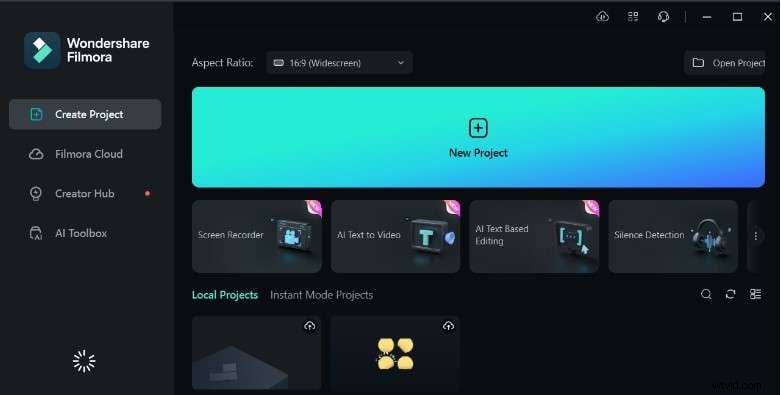
- Create a new project and import your media.
- Navigate to Titles, search “Fire Text,” and drag your chosen preset onto the timeline.
- Modify text, size, or rotation as needed, then export.
Using a Custom Title
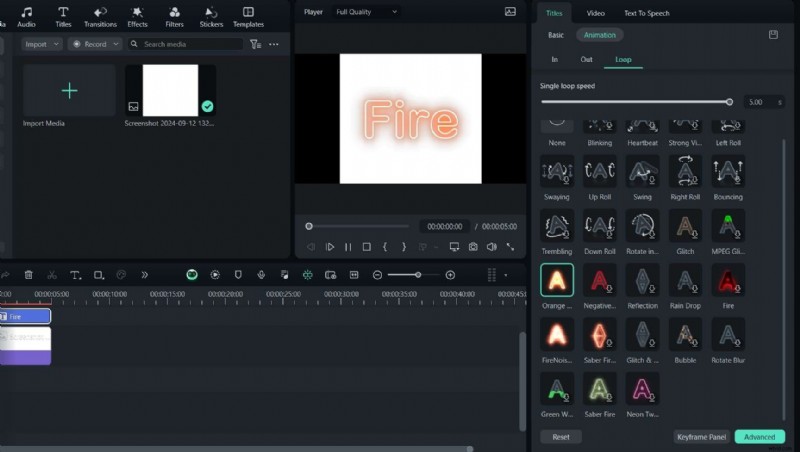
- Click the Type tool, choose Quick Text, and enter your message.
- Adjust font, color, and sizing.
- In the Animations panel, select a looping fire animation, then finalize and export.
Enhance Your Video Creation with AI
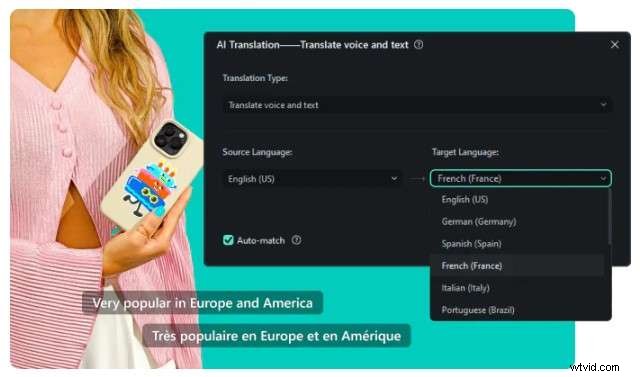
Filmora’s AI translation supports up to 23 languages, letting you localize subtitles and captions effortlessly.
- In Tools, select Audio → Speech‑to‑Text to transcribe and translate audio.
- Choose your target language, confirm, and let the AI generate the translated audio track.
- Alternatively, use the AI Translation button for direct voice‑over conversion.
Part 4. Key Tips for Creating After Effects Fire Text
- Font and sizing: Use bold, wide‑spaced fonts like Anton or Barlow. Larger sizes improve readability.
- Post‑effect adjustments: Resize, rotate, or reposition text after applying the fire effect.
- Export resolution: Choose 1920×1080 px or higher to maintain sharpness.
Conclusion
The After Effects fire‑text effect can transform any project, from cinematic trailers to playful social clips. By mastering Saber, manual techniques, or ready‑made templates, you’ll unlock limitless creative possibilities. If you prefer a faster workflow, Filmora’s intuitive interface and AI tools provide an excellent alternative. Download Wondershare Filmora today and ignite your next video masterpiece.

