
Mini DV, often called “LoFi,” is a nostalgic retro style that’s gaining popularity among video creators. In this tutorial, we’ll walk you through how to replicate that authentic Mini DV look using Adobe After Effects.
Creating the Appearance of Mini DV Footage
Begin by creating a new composition named Mini DV Comp. Set the dimensions to 200 px × 150 px to achieve a 4:3 aspect ratio. Drop your footage into this comp.
Scale the clip to fit the comp by selecting it and choosing Layer > Transform > Fit to Comp Height. The footage will now appear highly pixelated – this is intentional, as we’ll upscale it shortly.
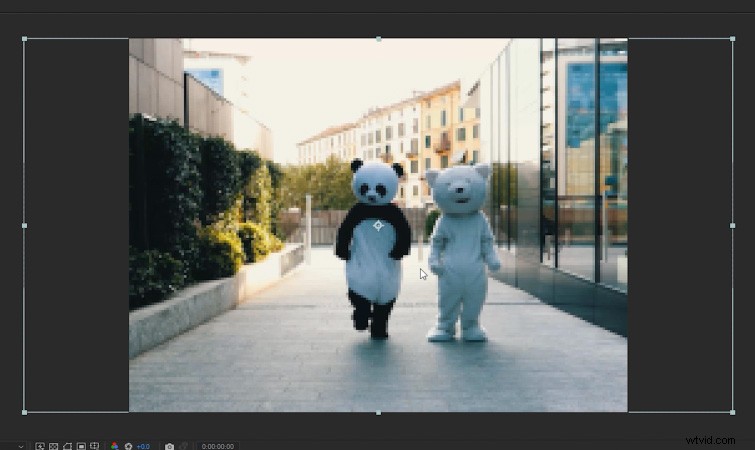 Once you scale down your footage, it will look very pixelated.
Next, create a second composition named Main Comp with dimensions of 1920 × 1080 px. Place the Mini DV Comp inside this new comp.
Upscale the Mini DV Comp by again selecting it and choosing Layer > Transform > Fit to Comp Height. The footage will now exhibit the hallmark Mini DV traits: pronounced aliasing (stair‑stepping on straight lines) and edge flicker.
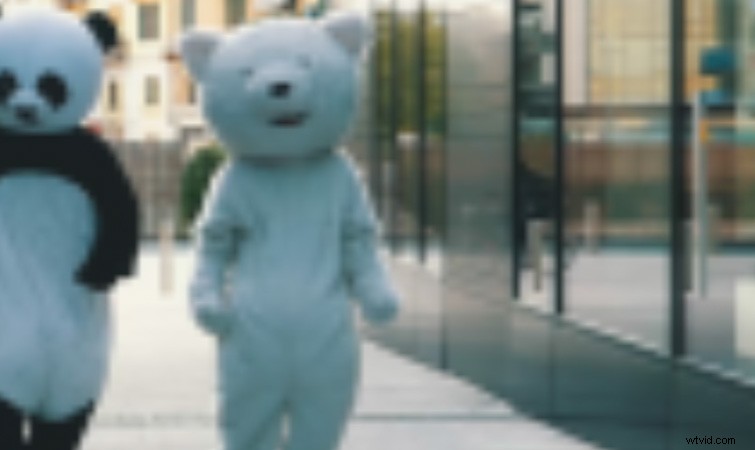 Mini DV footage often shows aliasing, visible as a stair‑stepping artifact on straight lines and edges.
Enhancing the Mini DV Look
To deepen the retro vibe, apply the Lumetri Color effect to the Mini DV Comp in Main Comp. Increase contrast for a sharper, harsher feel:
- Contrast: 50
- Highlights: 30
- Whites: 30
- Blacks: –30
- Adjust White and Black Points on the RGB Curve to fine‑tune the range.
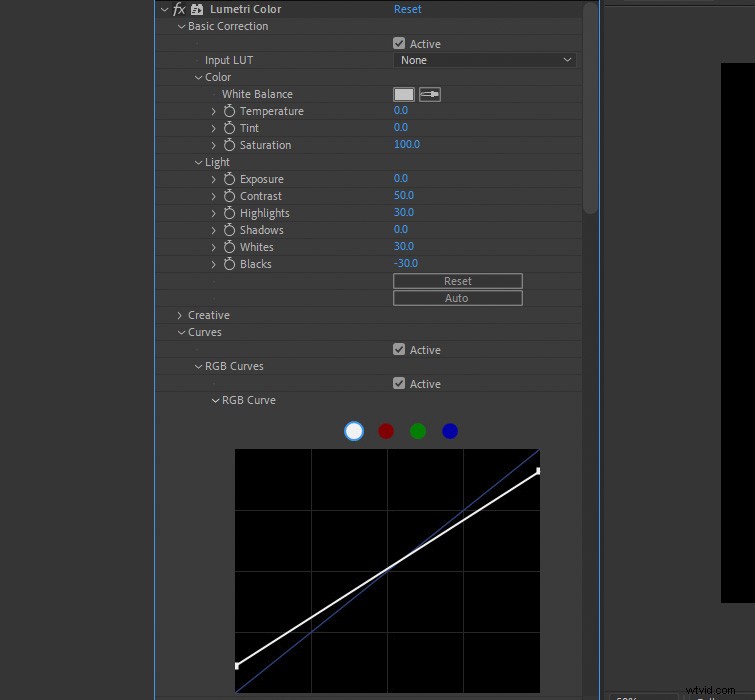 Use Lumetri Color to boost contrast and create a vintage mood.
Add a subtle color fringe by applying the Channel Blur effect and setting Blue Blurriness to 3. This mimics the color bleed seen in old Mini DV recordings.
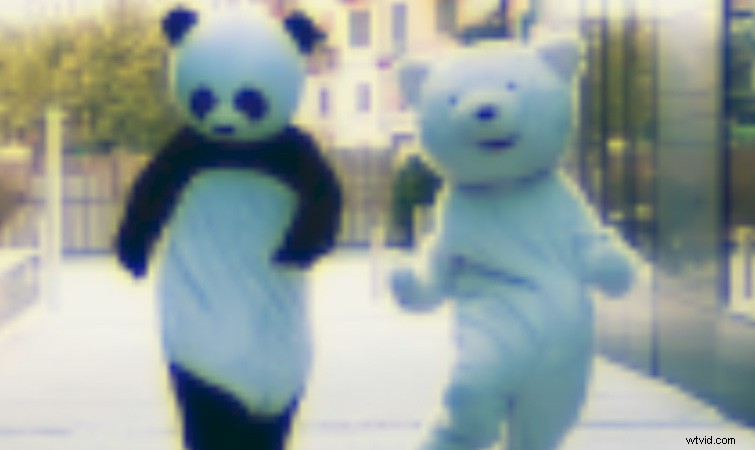 Channel Blur adds a classic color fringe to your footage.
Finally, sharpen the image with Unsharp Mask to emphasize the aliasing and edge detail:
- Amount: 150
- Radius: 2
Adjust these values as needed based on your footage. The result will be a crisp, nostalgic Mini DV aesthetic.
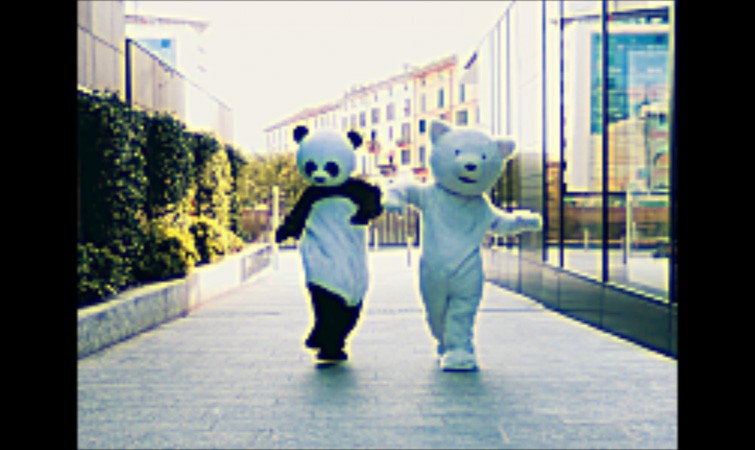 Apply Unsharp Mask to enhance contrast and haloing.
Once satisfied, simply swap out the original clip in the Mini DV Comp to apply the same look to any footage.
Want to Create Even More Retro Looks?
For additional retro styles, check out our tutorial on creating the VHS look in Premiere Pro. The guide includes a free VHS preset and other useful assets.
Interested in the royalty‑free tracks used in our top video? Give them another listen:
- “Ice Tea” by Mountaineer
- “A Chill Rain” by Luciano Music Co.
- “Behind Neon Sky” by Artlss
- “Gelato” by Sunny Tones