
In video editing, adding two videos together is essential because it allows you to tell a seamless story, add depth, and create flow between scenes. But while it may sound simple, mastering this skill takes practice and know-how. So, it's no surprise people often wonder how to combine two iPhone videos.
But with the right app, you don't even need a computer—your iPhone has everything you need to join videos together with ease. Let's dive in!
In this article
-
- Use Transitions to Connect Videos
- Match Colors and Lighting
- Use Consistent Audio
- Add Captions to Narrate the Video
Part 1. Videos You Can Make by Joining Videos
Before you learn how to merge videos together on your iPhone, let's quickly cover the basics. What does merging or joining videos even mean? It's actually pretty straightforward—you're simply taking two or more separate video clips and combining them into one smooth video. Instead of a bunch of short clips, you end up with a single, flowing video that looks seamless.
But why bother merging videos in the first place? Well, once you've got them combined, there are so many creative video projects that you can create! Here are some of them:
These four are only a few examples that you can once you've mastered how to merge videos together on your iPhone. There are still other projects that you can try like tutorial videos, short films, and many more! No matter what kind of video you choose to make, merging clips together gives you endless creative options.


Part 2. Combine Videos Together on iPhone Using the Best App: Filmora
Now that you've got some ideas for your video projects, let's talk about how to actually combine two iPhone videos. But firstly, if you want to add videos together on your iPhone, you'll need a good video editor to get the job done right, and the best app for this is clearly Wondershare Filmora. Here's why they're worth a try:
- Easy Merging: You can easily combine your clips with just a few taps, no fuss or complicated steps.
- All-in-One Editing Toolkit: Other than adding videos together on your iPhone, Filmora has everything you need to make your videos look amazing. From trimming and cropping to adding filters and effects.
- Smart AI Features: Filmora's AI tools take your editing up a notch. You can add automatic captions with AI Caption, create custom music with AI Music, and even try out AI Voice Cloning for unique voiceovers.
- High-Quality Export: High-Quality Exports: Once you're done adding videos together on your iPhone, Filmora keeps your videos looking sharp with export options up to 4K resolution, so your projects always look professional.
- Instant Sharing: When you've finished joining videos together on your iPhone, you can easily share your video straight to social media or send it directly to your friends.
Plus, Filmora gives you all these cool benefits without costing a fortune. It offers flexible pricing plans and even has a free trial, so you can try it out before deciding to buy. On top of that, it's super simple and easy to use, making it perfect for anyone.

Filmora ⭐⭐⭐⭐⭐
Powerful AI video editor for all creators
So really, there's no reason not to give it a shot. Now that you are ready to learn how to merge two iPhone videos, follow this quick and easy guide!
Step 1. Open Filmora and start a new project
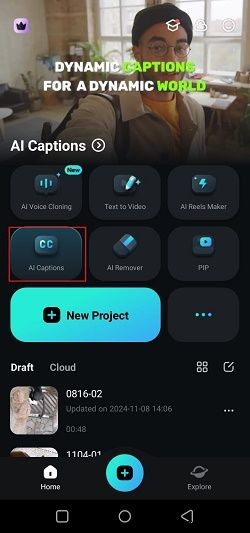
First, download the Filmora Mobile app from the App Store if you haven't already. Once it's installed, open the app on your iPhone and tap “New Project” to get started with your editing.
Step 2. Upload your first video
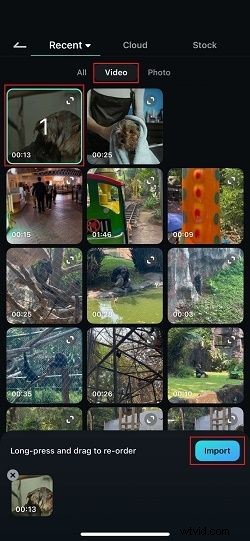
Next, select the first video that you want to combine. Simply tap the “Video” option and choose the clip you want. Then, press the “Import” button. Your video will appear on the editing timeline, ready for you to start making changes.
Step 3. Upload your second video
Now that your first video is added, drag the playhead (the white line) to the end of the clip. Then, tap the “+” icon on the timeline to add your next video.
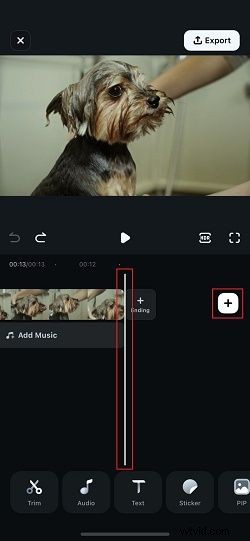
Just like before, pick your second video and hit “Import” to bring it in.

And there you go—your videos are now combined! If you want to add more clips, just repeat the same steps.
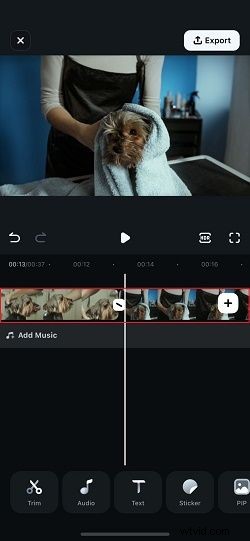
Step 4. Enhance your video
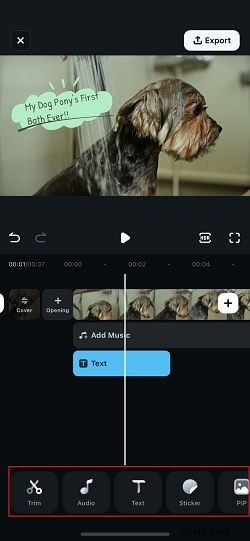
Want to make your video even better? Filmora has tons of editing tools you can try out. You can trim clips, add music, insert text, use stickers, and so much more. Go ahead and explore Filmora's toolbar to make your video more fun and engaging!
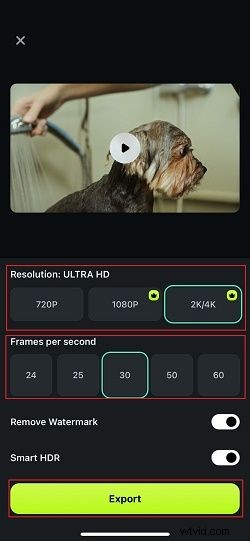
Step 5. Export your combined videos
Once you've finished editing and you're happy with your video, tap the “Export” button in the top right corner.

Pick your preferred resolution, then tap “Export” again to save your video. That's it—your video is ready to share on Instagram, TikTok, or anywhere else you like!
Filmora ⭐⭐⭐⭐⭐
Powerful AI video editor for all creators
Part 3. How to Make Merged Videos Look Cohesive
As you've seen, adding videos together on your iPhone is super easy with Filmora. But simply knowing how to combine two iPhone videos together isn't always enough to make your video watchable. You also need to make sure your video feels smooth and cohesive so that when it's moving from one video to the next, it doesn't look abrupt or awkward.
Luckily, Filmora has plenty of features to help with this. Just follow these simple tips to make your videos flow nicely and keep viewers entertained!
1. Use Transitions to Connect Videos
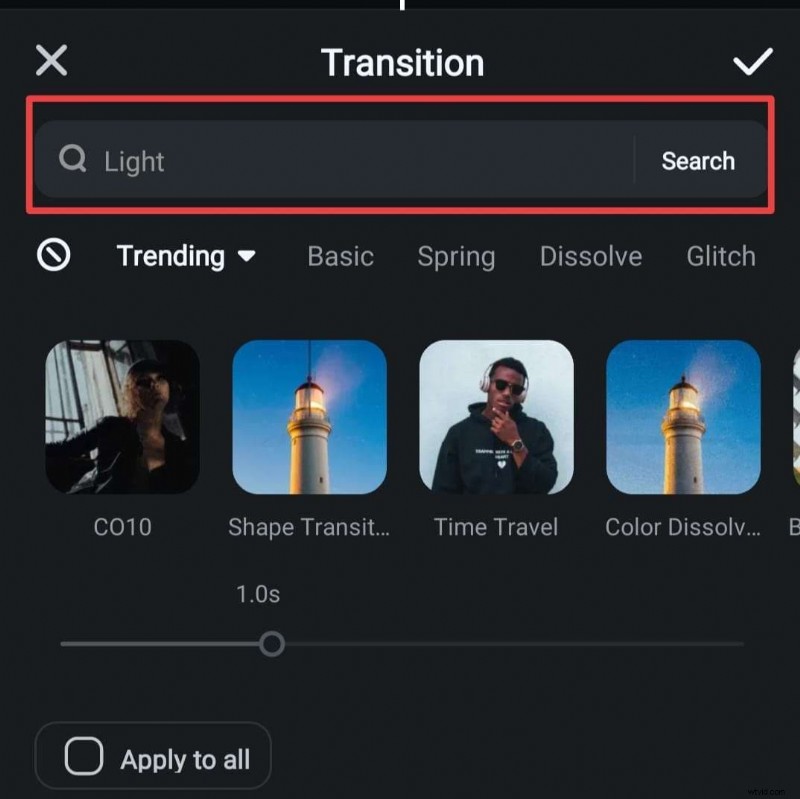
Transitions are perfect for making your cuts feel smooth and connected, so your video flows naturally without any jarring jumps. To use Filmora's transitions, just tap on the line between your clips to open the Transitions bar.
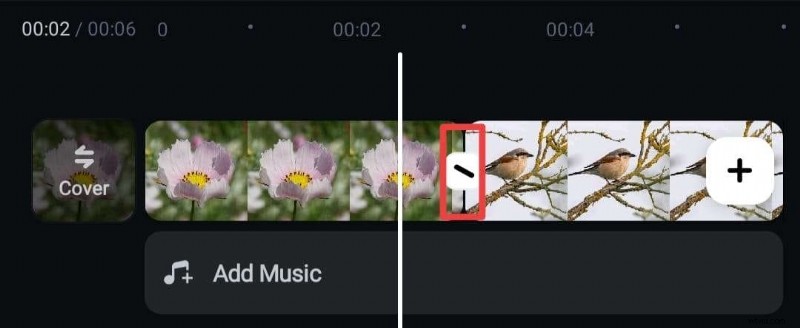
Browse through the library or use the search bar to find one that fits your style. Set how long you want the transition to last, then tap the checkmark icon to apply it. It's that simple!
2. Match Colors and Lighting
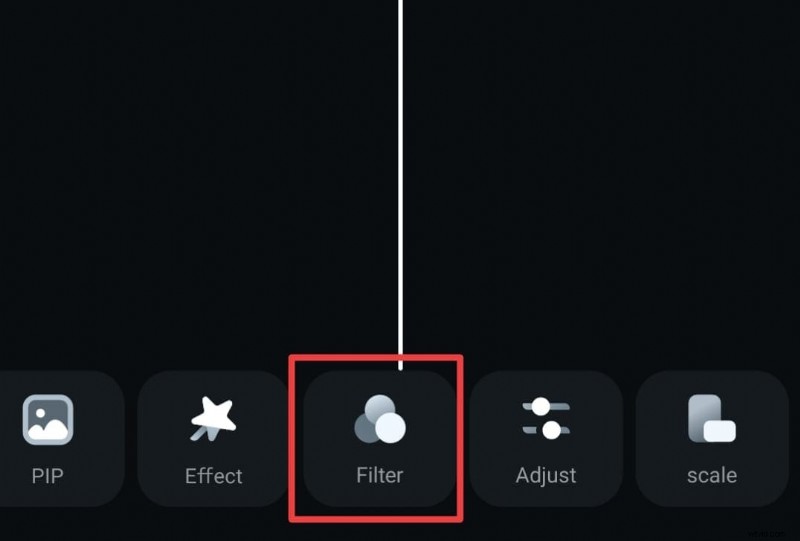
To make your video look consistent, make sure each clip has a similar color tone. If the lighting is different in each clip, it can be distracting. One quick hack to do this is by adding filters in Filmora to even out the colors. Just tap the “Filter” option on the bottom bar.
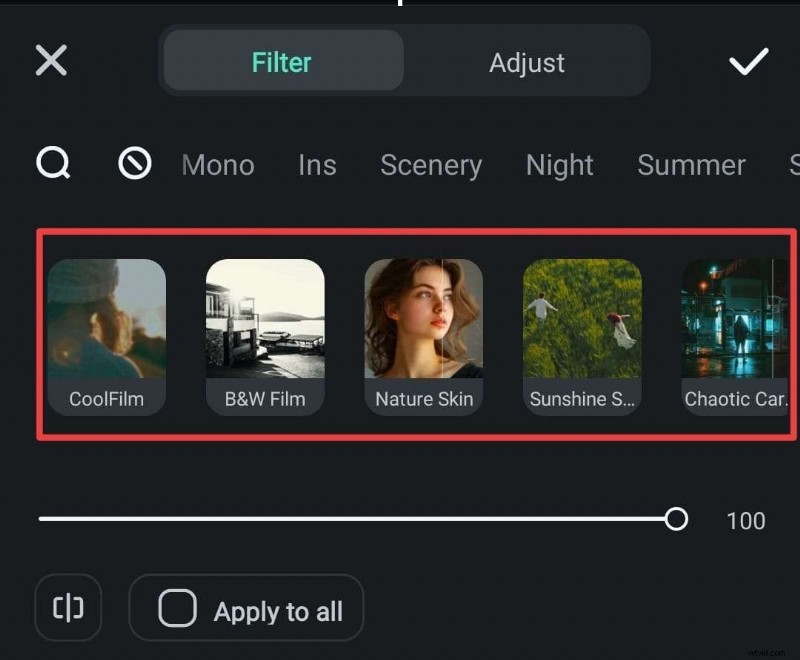
Explore through the different filters, and pick the one that suits your video best. Once you're happy with how it looks, tap the checkmark icon to apply it.
3. Use Consistent Audio
Adding background music is a great way to bring your clips together and give your video a unified feel. Pick a song that matches the vibe of your video and make sure the volume isn't too loud, so it doesn't drown out the main audio.
With Filmora, you can use the AI Music feature to create a custom track that fits the mood perfectly. To access it, just tap the "Audio" button at the bottom of the screen.
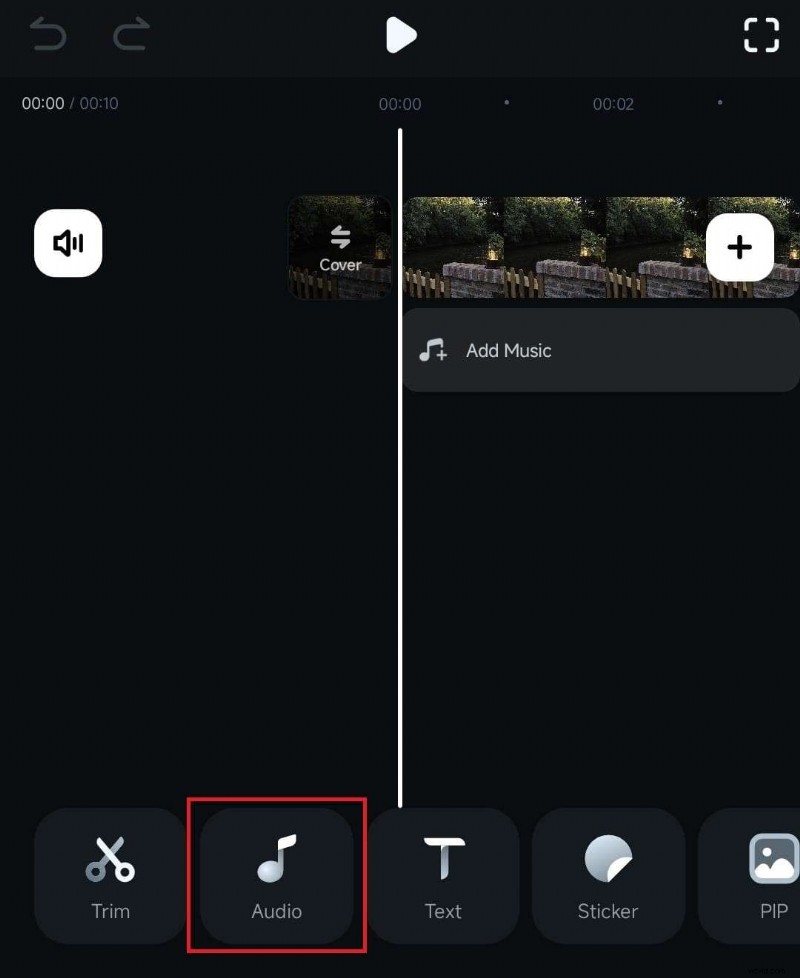
Then, scroll the menu and select "AI Audio" to open Filmora's AI music tool.
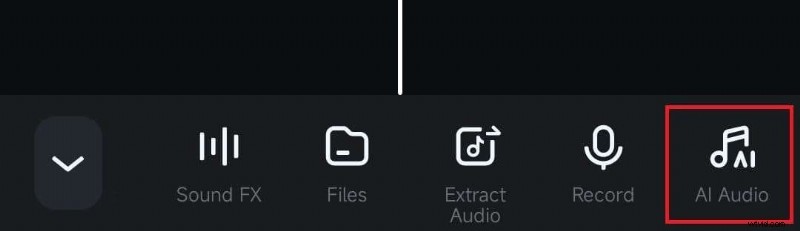
In the AI Music window, you can customize your track based on the mood, theme, duration, and how many that you want to create. When you're ready, tap "Regenerate" to create your unique audio track.

4. Add Captions to Narrate the Video
Captions are perfect for sharing your story or explaining what's happening in the video. They help guide your viewers and keep them engaged. Thankfully, Filmora's AI Captions make it super easy. Just tap on the audio track in the timeline, then select the “Captions” button.
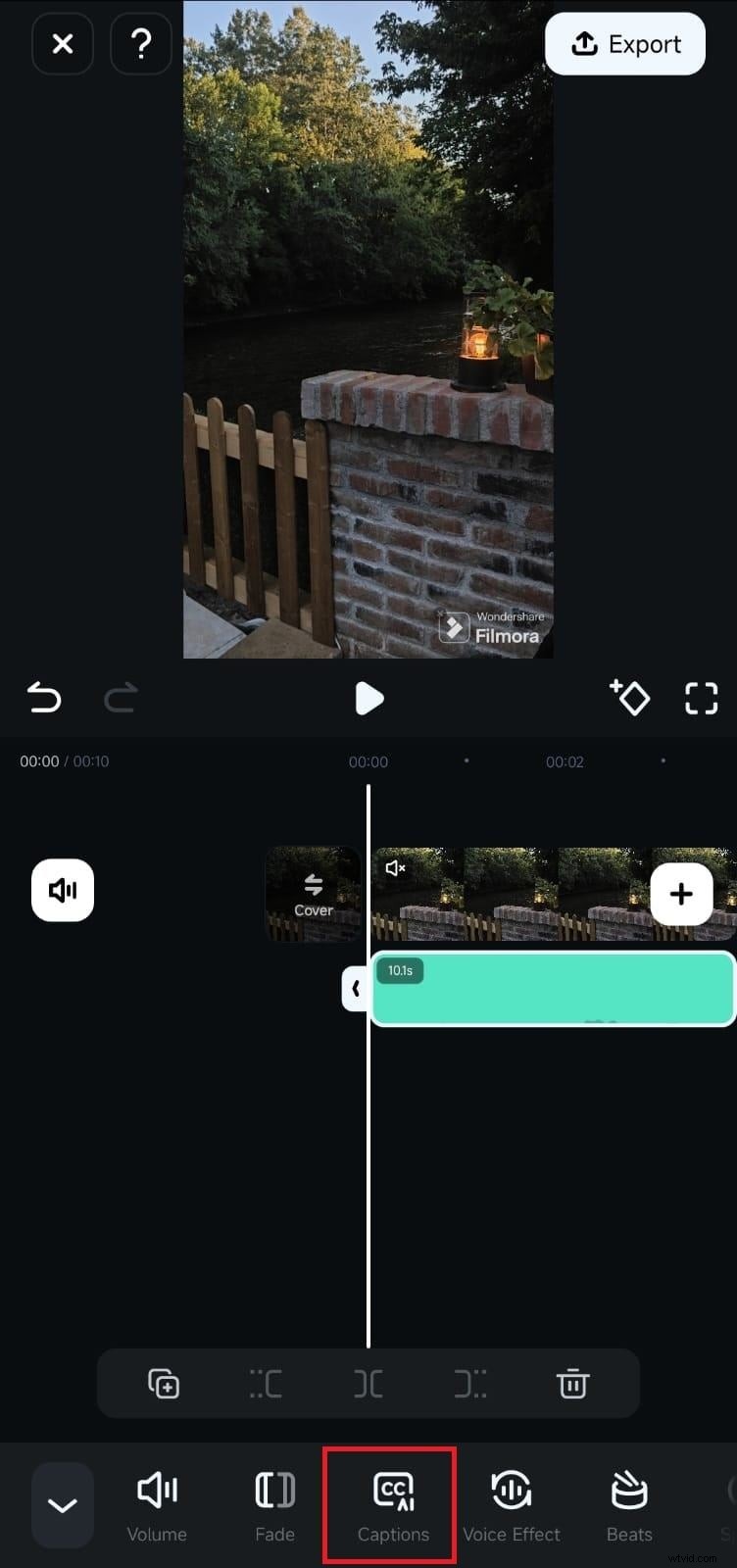
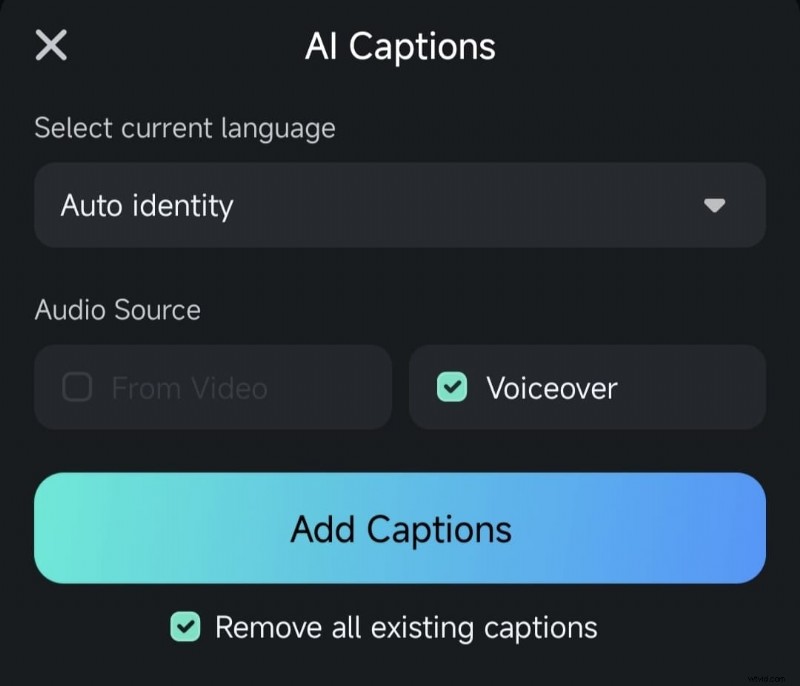
In the next screen, choose your language, pick the audio source, and hit the blue “Add Captions” button. Once the captions are added, play the video in the Preview Window to check them out and make any adjustments if needed.
Conclusion
Joining videos together on your iPhone opens up endless creative possibilities—such as making vlogs, tutorial videos, short films, or more. So, for Apple users curious about how to merge iPhone videos together, this guide shows you the easiest way using the powerful video editing app, Wondershare Filmora.
With its intuitive interface, Filmora makes adding videos together on your iPhone super simple. Plus, it's packed with features to enhance your merged clips—like adding transitions, using filters, creating custom music, generating captions, and much more. All in all, Filmora is the perfect tool to make your combined videos look smooth and professional.
Filmora ⭐⭐⭐⭐⭐
Powerful AI video editor for all creators