
Even the smallest change can make a big difference to your video, and that's exactly what a simple text fade effect can do. Instead of harsh cuts, a gentle fade adds professionalism and rhythm to your storytelling.
And to do it easily, you can do it in a video editor like Wondershare Filmora. In Filmora, you can easily apply ready-made fade presets or craft your own using keyframes to match whichever your editing style is.
If you're just starting out, we'll also show you how to use add fade-in and out text effects, combine them with other animations, and fix common issues like awkward timing or layering errors. You'll be surprised at how a simple fade-out text can completely change the mood of your video!
Part 1. Getting Started in Filmora
Before starting the fade-out text effect, let's set up the basics first. First, ensure you are using the latest version of Filmora to avoid losing any tools or features.
Then, follow the steps below:
- Start by opening your project or creating a new one, then import the media you will be using.
- Once your video clips are on the timeline, open the Title tab. Here, you can choose a text style that suits your video, from simple text at the bottom of the screen to a bold title.

Drag the selected title to the timeline and place it exactly where you want the fade-out effect to appear. This could be at the end of the intro, during a key message, or just before a scene transition.
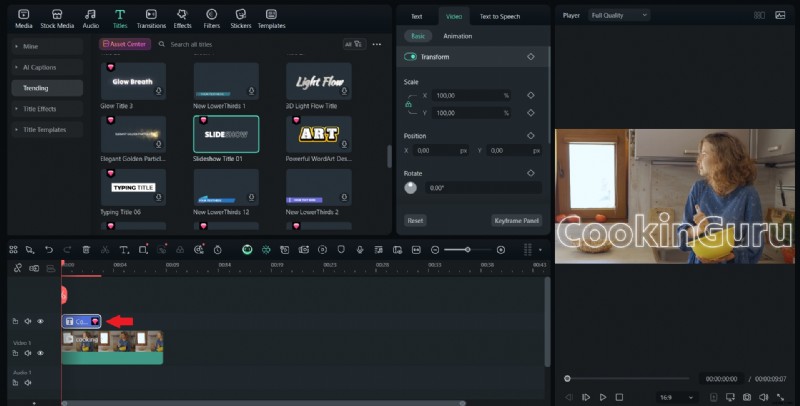
💡Quick tip: Place your text on a separate track above the main video. This ensures that the fade-out effect only affects the text and not the background clip below it. It also gives you more flexibility to adjust the timing and effects later on.
Part 2. Filmora Quick Guide: Fade Out Text with Built-in Animation Presets
The first method to create a fade-out text effect is to use Filmora's built-in animation presets for a smooth fade-out effect. This method saves time and provides a subtle transition for your text without the need to manually adjust keyframes. It works well for outros, titles, or captions that you want to fade out smoothly.
Step 1
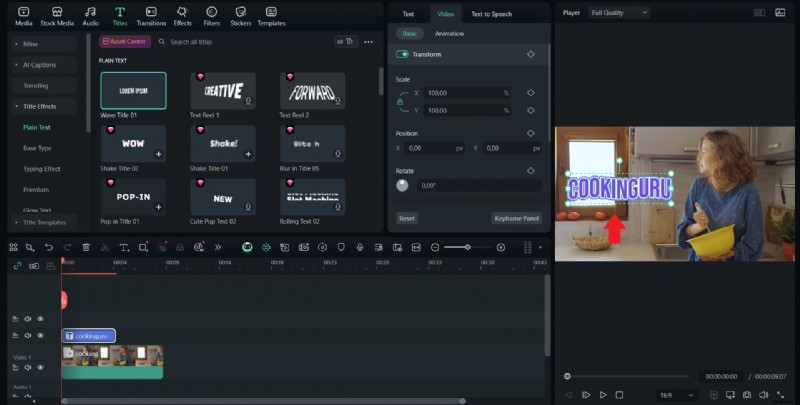
Select your text clip on the timeline
Ensure it's placed exactly where you want the fade to happen.
 Secure Download
Step 2
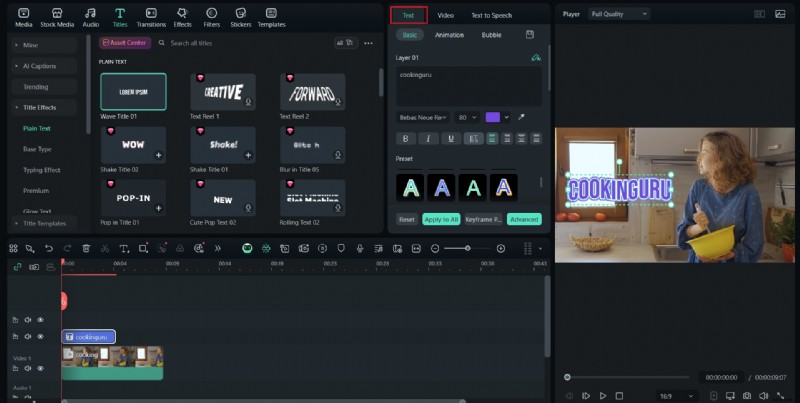
Open the Text Edit Panel
Click the text clip to open the Text Edit panel.
Step 3
Go to the Animation Tab
Go to the Animation tab inside the panel. Here, you'll find different preset options.
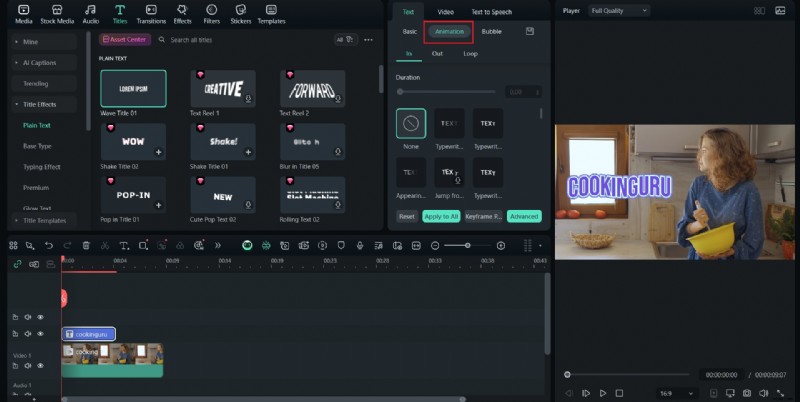
Step 4
Pick a Fade Animation
Browse the list and pick a fade animation, such as "Fade" or "Disappears", depending on the style you want.

Step 5
Apply the Animation
Click the preset to apply it to the text clip to add the fade-out effect.
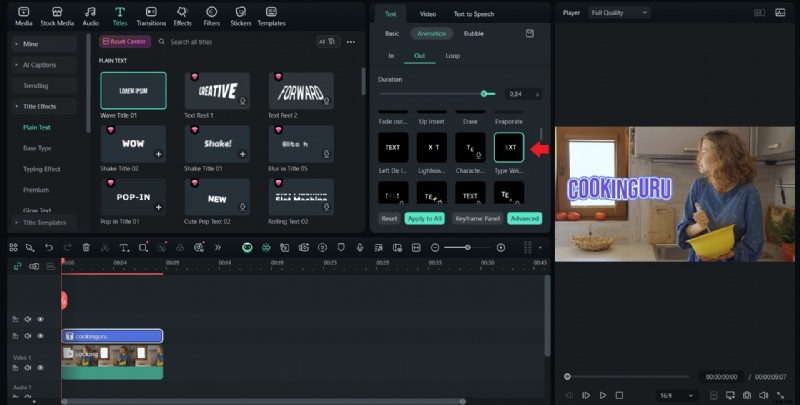
Play the preview to see how it looks in your video.

Step 7
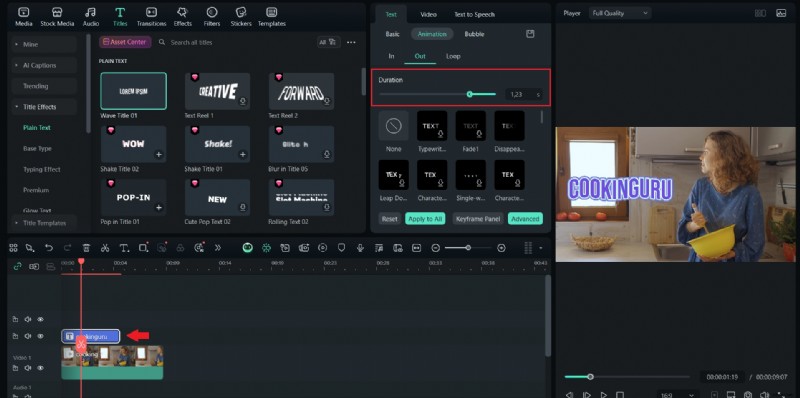
Adjust the Duration
Adjust the clip length by dragging the edges of the text clip to control how fast or slow the fade happens.
Part 3. Advanced Control: Create Custom Fade Out Text Using Filmora Keyframes
If you need precise timing or non-standard fading text effects, you can use keyframes in Filmora. For example, you can fade in or out specific parts of a sentence, adjust the fade to match the rhythm, or combine opacity changes with movement. Presets are quick, but keyframes give you complete control over the starting point, speed, and slowdown effect. Here are the steps:
Step 1
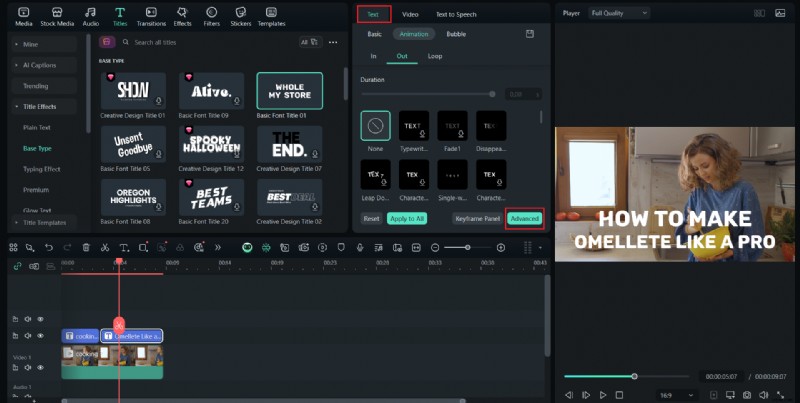
Select the text clip on the timeline
Click it to open the Text Edit panel.
Secure Download
Step 2
Click the More option icon
Click the More option icon below to display the keyframe editor. If your Filmora layout displays a small keyframe timeline below the text preview, that is where you will be working.
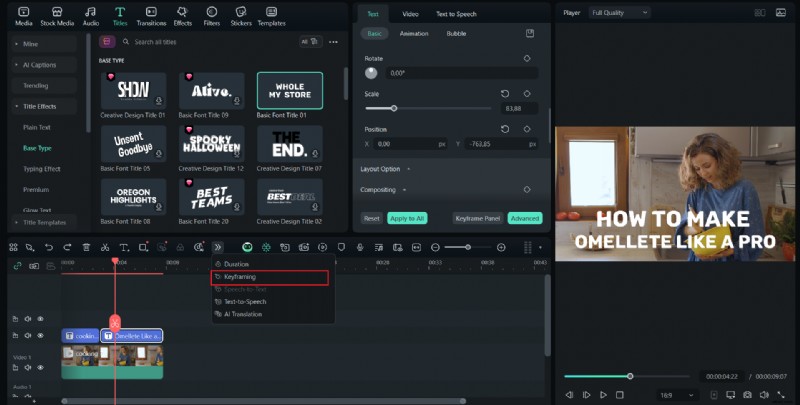
Position the playhead at the moment where the text is fully visible. Set the first keyframe for Opacity at 100 percent. Look for a small diamond or plus icon to add the keyframe.
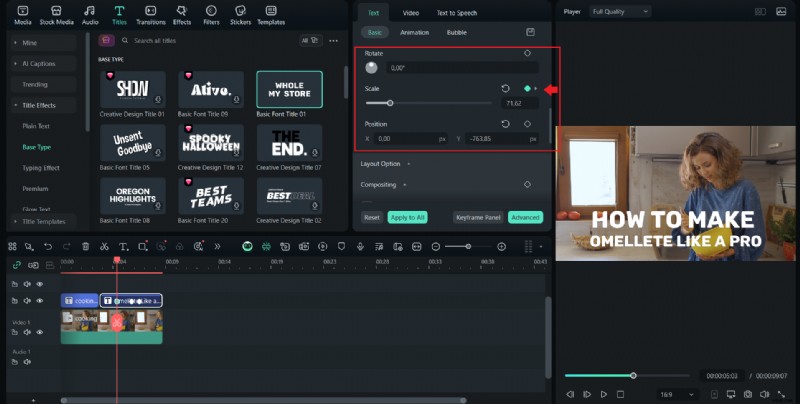
Step 4
Move the playhead to the fade-out point
Move the playhead to the time where you want the fade to end. Add the next keyframe and adjust the scale and position. This creates the basic fade out from visible to invisible.
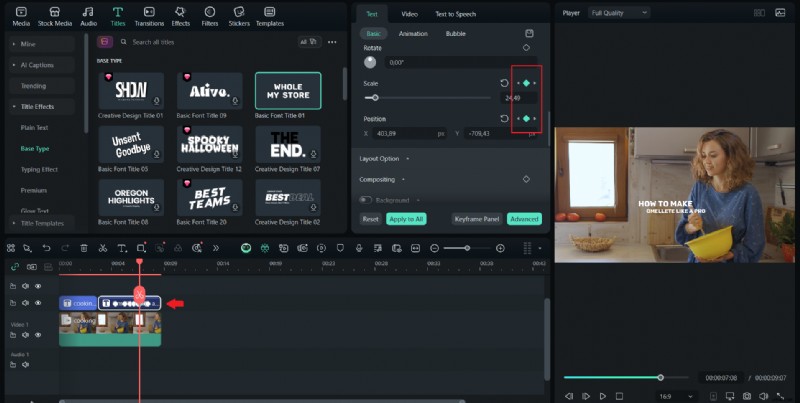
Step 5
Preview the animation
Preview the animation at full speed. Notice how the fade effect blends with the background. Make minor adjustments to the timing until it looks just right.

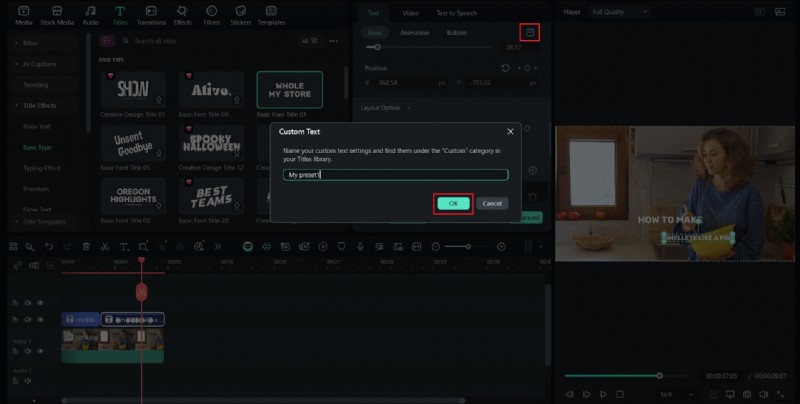
If you plan to use the same animation in the future, save it as a preset in Filmora by saving the custom animation. This speeds up future editing and maintains consistency in your style.
Part 4. Combine Fade Out with Other Filmora Text Animation for Dynamic Effects
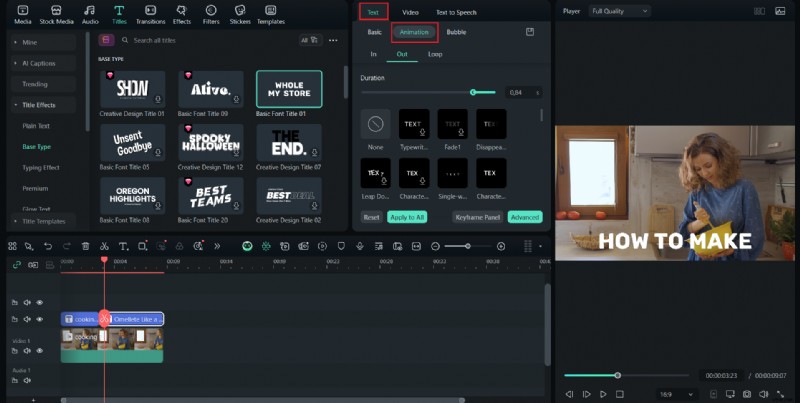
You can get a different fade-out text effect than usual by combining it with additional movements or styles to make your text look more dynamic when it disappears. Combining fade-out with an effect such as glow, zoom, slide, or bounce can make your video more playful, elegant, or cinematic. The key is to carefully adjust the animation so that the text remains smooth and easy to read.
Step 1
Select the text clip on the timeline
Open the Text Edit panel.
Secure Download
Step 2
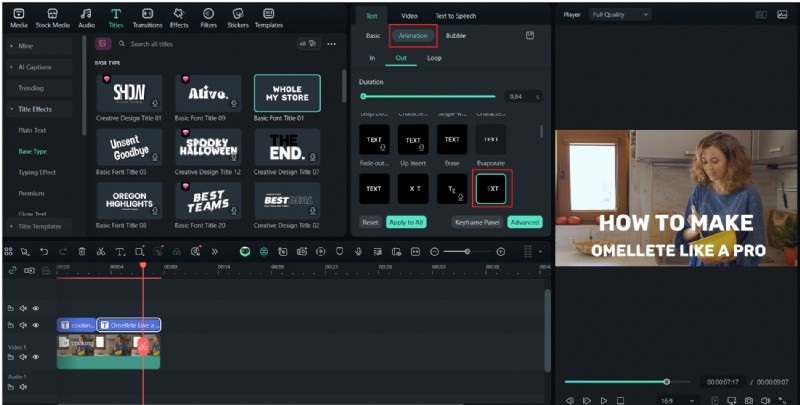
Apply a second animation
If you have already applied a fade-out effect using a preset or keyframe, then go to the Animation tab to add a second effect. Select a motion style such as Zoom out, Slide Down, or Bounce.
Step 3
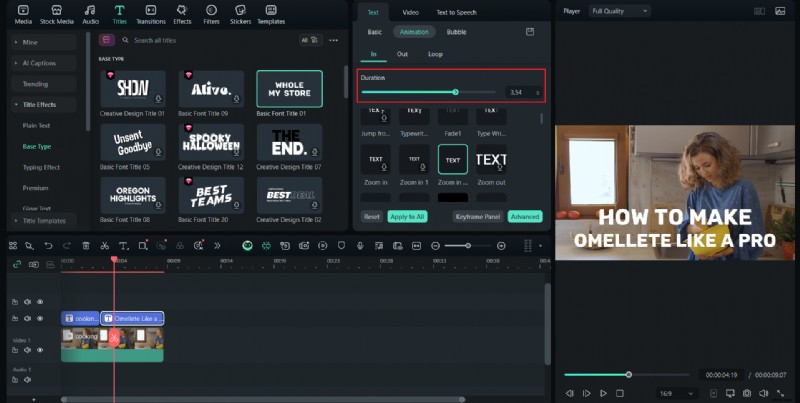
Adjust the animation duration
Adjust the duration of the additional animation to match the fade-out timing. For example, if the fade out lasts two seconds, set the movement duration to be the same for a smooth transition.
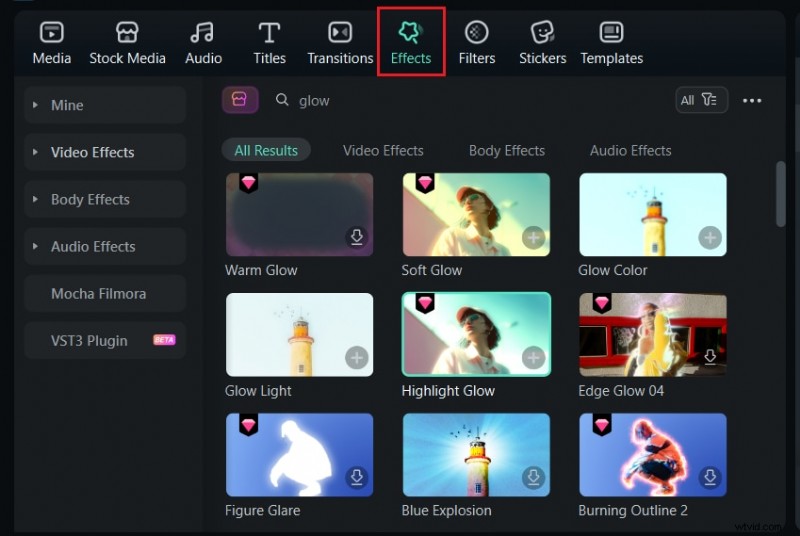
Add visual effects such as Glow or Blur from the Effects tab to make the fade effect stand out. Ensure the effects remain subtle so they don't distract from the main content.
Step 5
Preview the animation
Preview the animation. Adjust the keyframe position or preset timing so that the fade effect and movement feel synchronized.
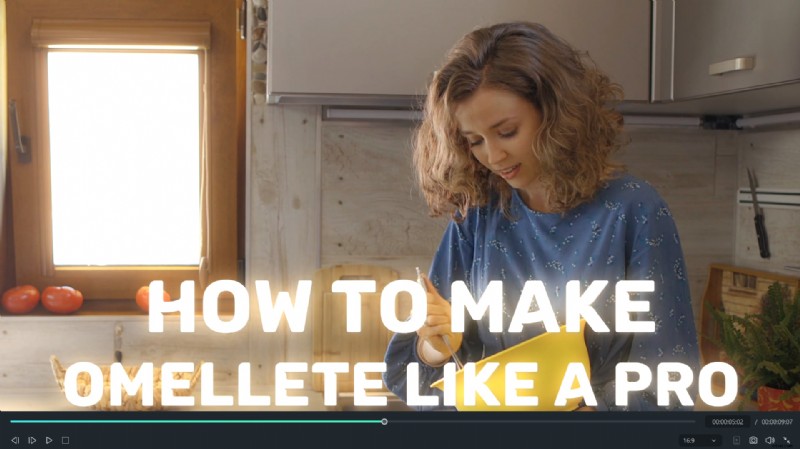
Step 6
Adjust timing with background music
If the timing looks off, drag the text clip or animation keyframe on the timeline to align it with the background music, narration, or other scene transitions.
Quick tips
- Try to keep animations clean and easy to read. Too many effects at once can make text distracting.
- Use short durations for exit animations to feel intentional and not slow.
- Check the layering to ensure text remains visible above other visual elements until it fades.
- Test different combinations of fade effects and movements to find the one that best suits the mood of your project.
Part 5. Export & Troubleshooting
Once your fade-out text effect looks smooth and polished, the next step is to export it correctly so that it maintains its clean appearance in the final video. Ensure to export it properly to guarantee that your fade effect plays back exactly as it did in the preview without any glitches, jumps, or loss of quality.
How to Export the Final Video
Step 1
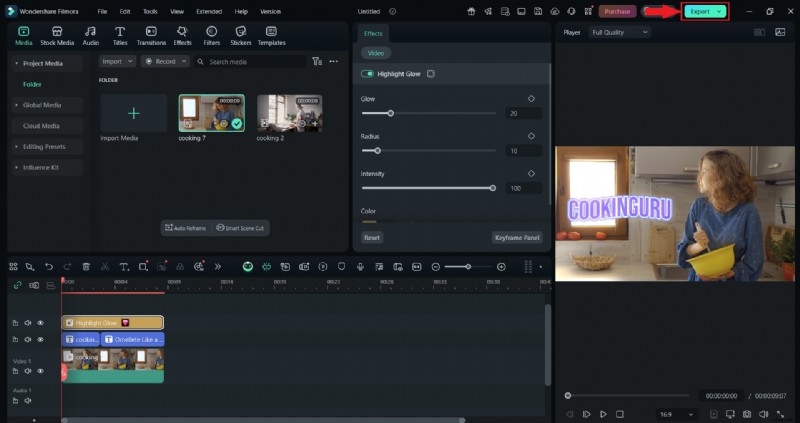
Click Export to finalize
Click Export at the top of the screen once you are satisfied with the timing and animation.
Step 2
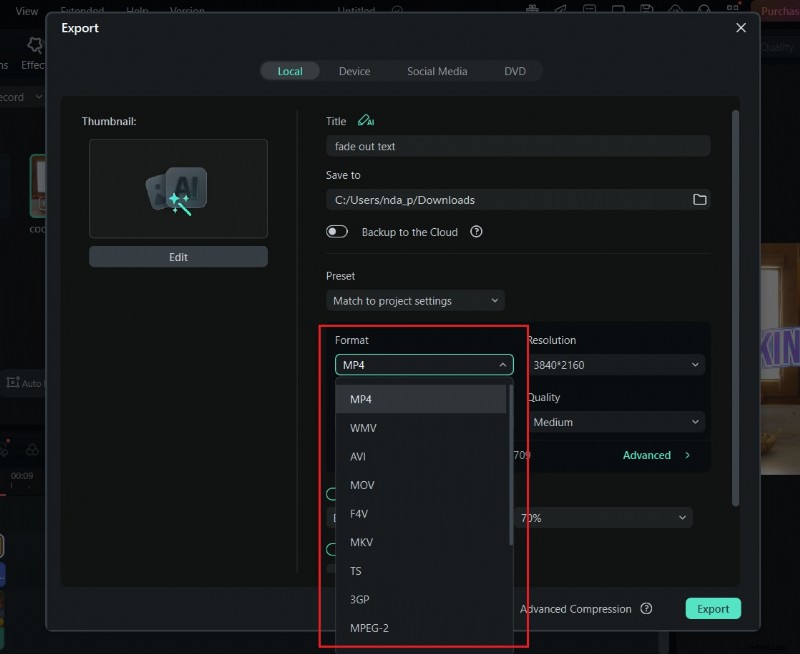
Choose the best format and resolution
Select the best format and resolution for your platform. Common choices include MP4 for online use or MOV for high-quality playback.
Step 3
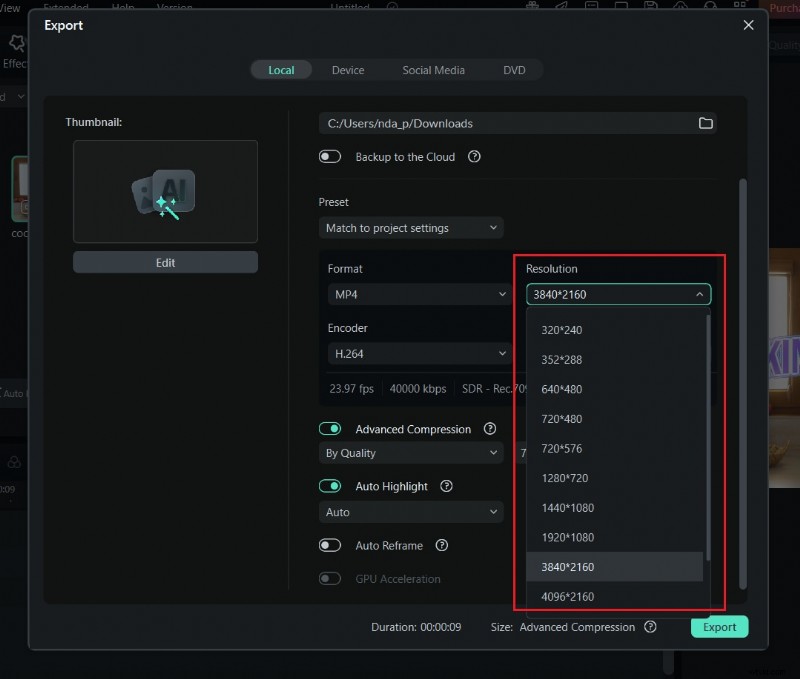
Adjust bitrate and resolution if needed
Adjust the bitrate or resolution settings if the preview appears slow or pixelated. A slightly higher bitrate helps maintain smooth fade transitions.
Export the file and play it outside of Wondershare Filmora to ensure everything displays correctly.
Common problems and quick fixes:
1. Fade effect not working
Check that the text layer has the correct preset or keyframe. If it still doesn't work, check that the opacity values are properly set between 100% and 0%, and that no other animation is overriding it.
2. Fade effect too sudden
Extend the duration of the text clip or space out the keyframes to slow down the fade effect. A longer transition creates a smoother fade and helps it feel more natural within the video's pacing.
3. Background disappearing
This issue usually happens when the fade effect is applied to the wrong layer. Double-check that only the text layer has the fade animation, and keep your background clip on a separate track to avoid unwanted transparency.
4. Playback issues
Lower the preview quality or re-render the timeline before exporting. You can also enable proxy files or use the "Render Preview" option in Filmora to improve playback performance.
Conclusion
We've learned how a smooth fade-out text effect can make your video look professional and well-planned, even though the effect itself looks simple. We've discussed three ways to create a fade-out text in a video: using presets for quick results or keyframes for precise control. You have the flexibility to build animations the way you want in Filmora.
Before exporting, always do a final playback check to detect any sudden timing issues or overlapping layers. With a little experimentation, you can create fade-outs that feel smooth, professional, and effective.

Filmora
AI Video Editing App & Software
Best tool for making videos anywhere for all creators!
Simplify all your steps in video editing, from the pre-processing to finalizing, Filmora AI stays tuned.