
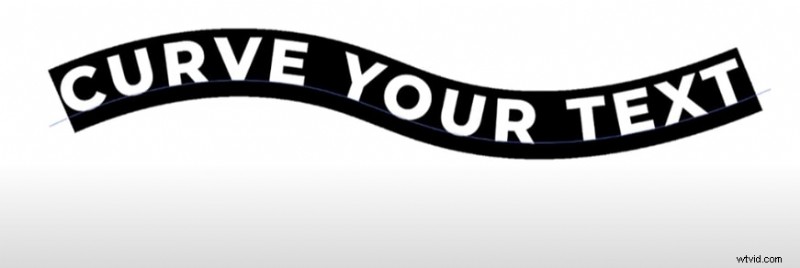
Curve Text in Illustrator features an effortless way to modify your designs. Have you ever seen text that flows smoothly around a logo or poster? That effect comes from curving text, which adds flair to any project.
The ability to curve text in Illustrator enables you to flex and mold text along diverse routes, elevating the dynamism of your designs. This proficiency is crucial for producing attention-grabbing layouts.
This article covers the reasons to use curved text, step-by-step instructions for various techniques, troubleshooting tips, and alternative methods like Filmora’s 3D curved text generator.
Let’s start.
In this article
-
- Method 1: Curve text in illustrator with the Type on a Path Tool
- Method 2: Arching Text with the Envelope Distort Feature
- Method 3: Curve text in illustrator using the Warp Effect
-
- Steps to curve text in Filmora
- Bonus: 3D curved text generator for your video
Understanding the Concept of Curving Text
Curved text in Illustrator is a powerful tool for creating dynamic and engaging typography. By bending and shaping text along various paths, you can break free from traditional fonts and add visual interest to your designs. Experiment with different shapes and forms to better illustrate the flow of your text, such as circular text.
Easy Ways to Curve Text in Illustrator
Text styling in Adobe Illustrator opens up countless design possibilities. Let's explore three straightforward methods to curve text, starting with circular text creation.
Method 1: Curve text in illustrator with the Type on a Path Tool
The Type on a Path Tool is best for placing text along a custom path or shape, such as circles or custom curves, commonly used in branding and packaging designs. Here's how to create custom curved text in Illustrator:
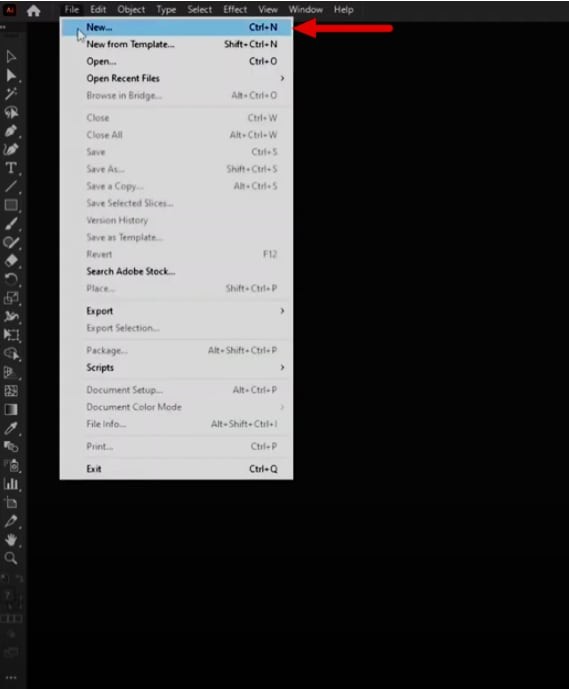
Step 1: Start a new document in Adobe Illustrator.
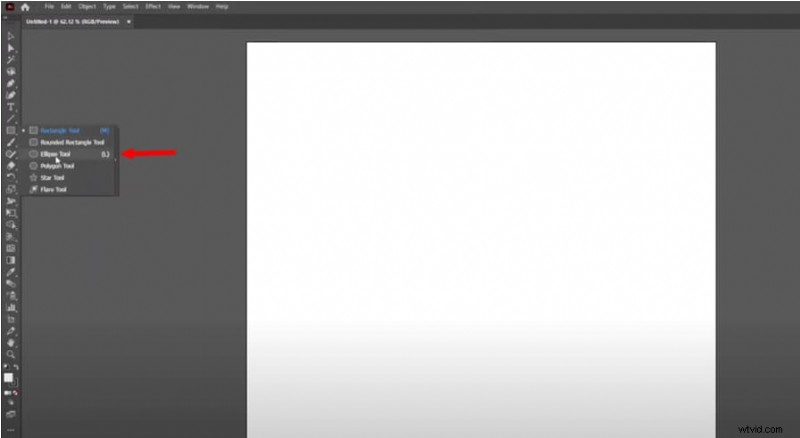
Step 2: Choose the Ellipse Tool.
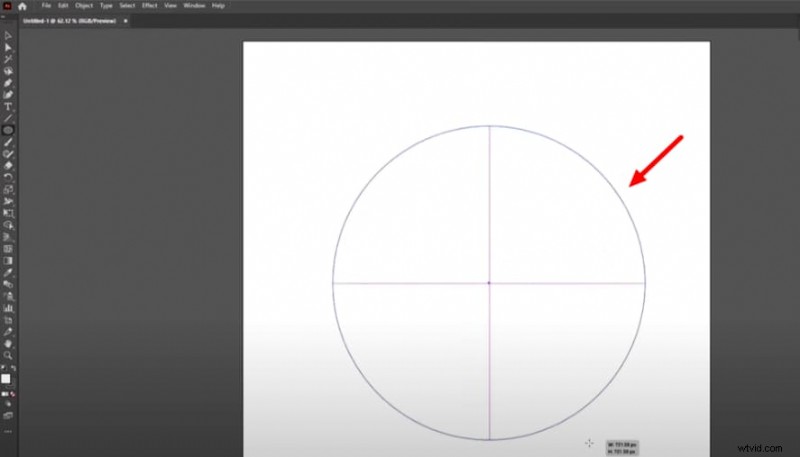
Step 3: Draw a circle by holding the "Shift + ALT" key.
Step 4: Select the “Type Tool” and then “Type on a path tool.”
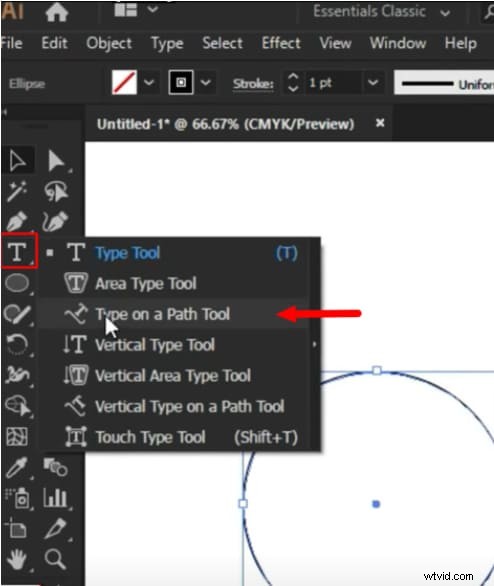
Step 5: Hover over the circle's edge until you see the ""Path"" cursor.
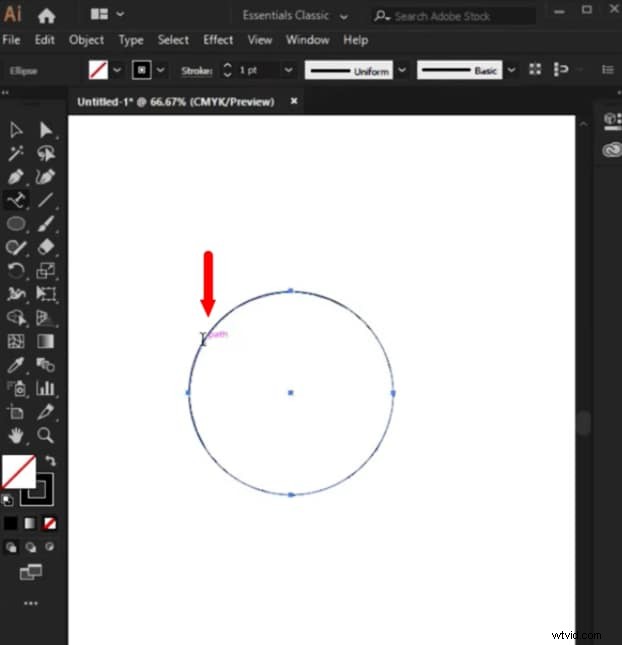
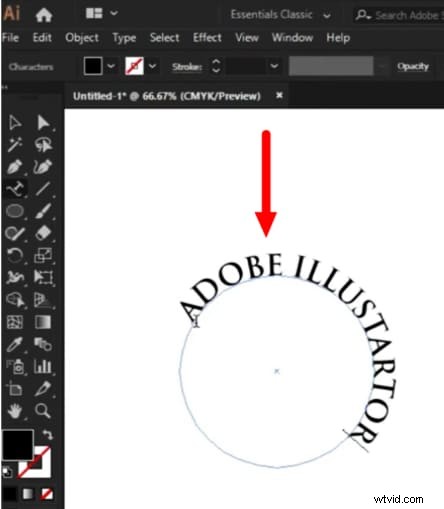
Step 6: Click on the path and type your text.
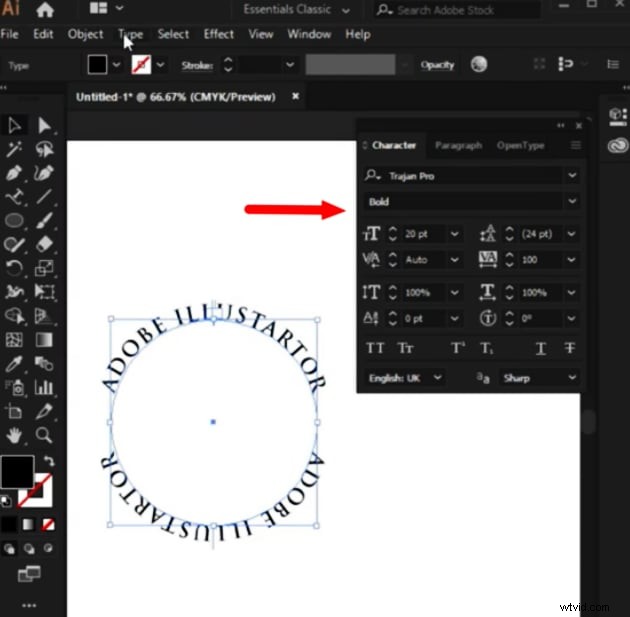
Step 7: Adjust the text's size using the “Character” panel for a better fit and appearance.
 Pros
Pros
- Provides precise control over text placement along any path.
- Text can be easily edited and adjusted after placement.
- Suitable for both simple and complex shapes.
- Requires more steps and familiarity with path creation.
- Text can be difficult to manipulate if the path is complex.
- May require additional adjustments for spacing and alignment.
Method 2: Arching Text with the Envelope Distort Feature
By using the Envelope Distort feature, this method is useful for creating complex text shapes that require detailed manipulation, such as intricate logos or artistic designs. To create a simple arching effect, follow these steps
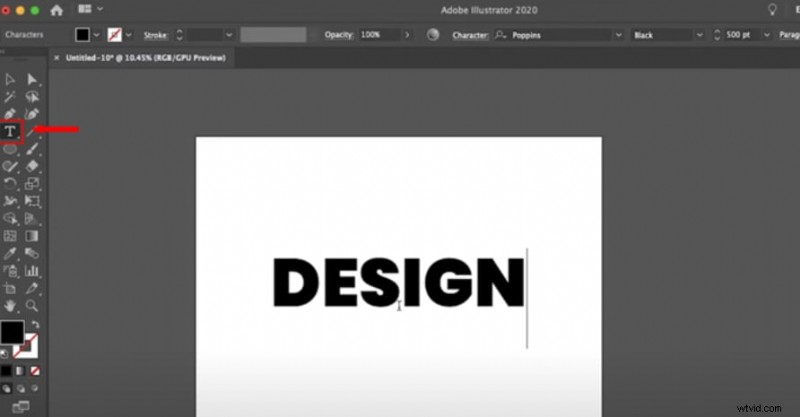
Step 1: Create Text Type your desired text and align it to the center.
Step 2: Navigate to Object > Envelope Distort > Make with Wrap.
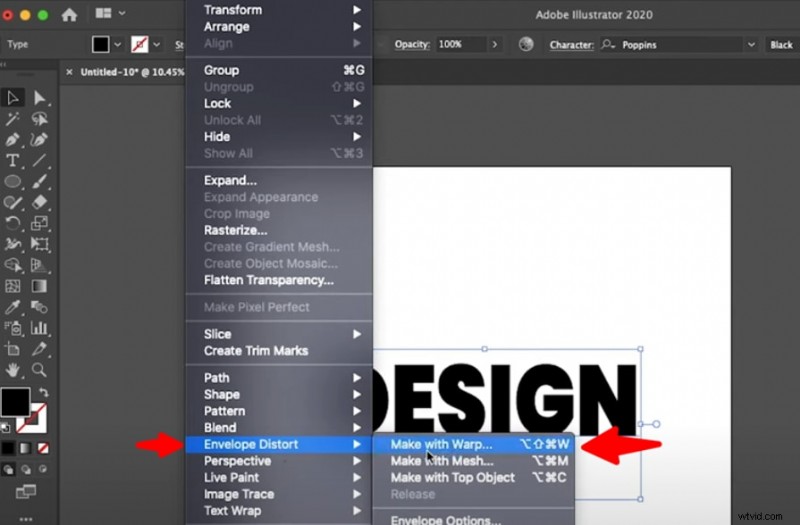
Recommendation: Make sure to select your text before initiating step 3.
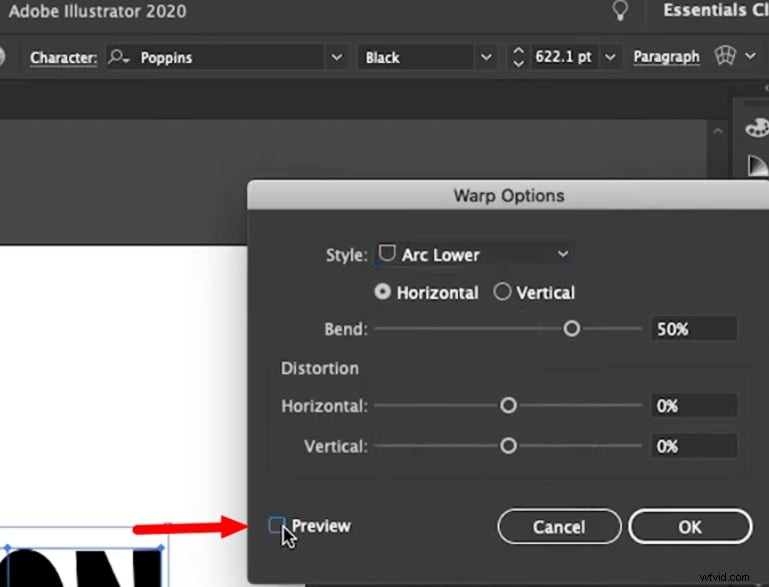
Step 3: Select the Arc Lower option.

Step 4: If there's no visible change, check the Preview box and adjust the warp amount.
 Pros
Pros
- Allows for detailed customization and manipulation of text shapes.
- Non-destructive editing; adjustments can be made after applying the effect.
- Supports a variety of warp styles for creative flexibility.
- More complex than other methods, which may be intimidating for beginners.
- Requires understanding of anchor points and mesh manipulation.
- Can become cumbersome with very detailed designs.
Method 3: Curve text in illustrator using the Warp Effect
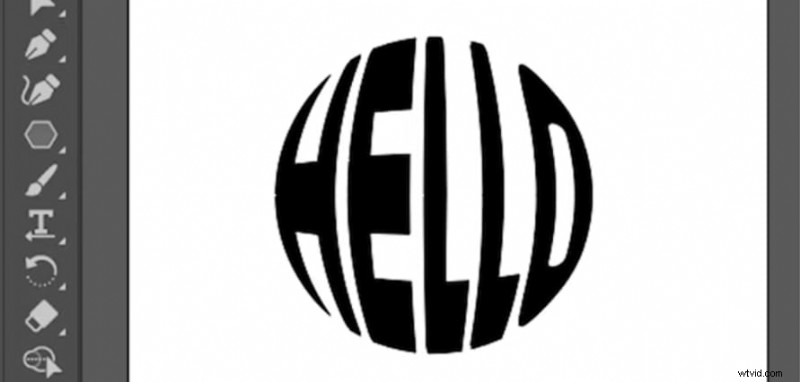
The warping text effect is ideal for creating stylized text effects, such as arches or waves, often used in logos and decorative designs. Warping text can give you creative control over how your letters look:
- Select the text you want to curve using the Type Tool (T).
- Go to Edit > Transform Path > Warp or use the shortcut Ctrl + T (Windows) or Cmd + T (Mac).
- Select a style from the Arc, Arch, or Bulge dropdown menu from the Warp Tool options.
- Drag the handles to adjust the warp effect.
 Pros
Pros
- Quick and easy to apply.
- Offers various preset styles to choose from.
- Allows for real-time adjustments to curvature.
- Can distort text if not used carefully.
- Limited to predefined styles, which may not suit all designs.
- Once applied, it may be challenging to revert to the original text format.
How To Troubleshoot Common Issues with Curved Text
This section will cover common problems encountered when attempting to curve text in Illustrator. Problems can impede your design process, whether bending text, making circular text, or using a 3D curved text generator.
-
Misalignment of Text
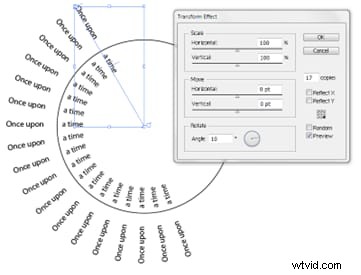
Misalignment is a frequent challenge when curving text in Illustrator. If your text appears misaligned when creating circular text in Illustrator, verify your paths and settings in the text flow or transform effect options.
-
Kerning and Spacing Problems
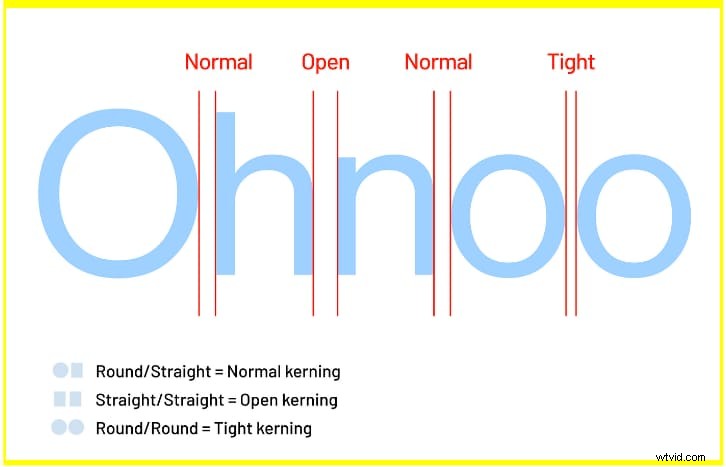
Adjusting the spacing and kerning of letters can be particularly tricky when using circular or 3D curved text effects. Ensure your text spacing is optimized to achieve a cohesive look, especially when you wrap text around a circle Illustrator.
-
Issues with Shape Follow
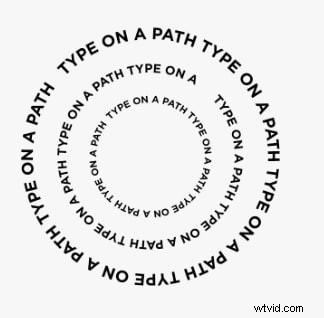
Users often face challenges getting text to follow a specific shape or arc properly. Familiarizing yourself with Illustrator’s warped text feature can enhance your design outcomes. Using bend text in Illustrator can add dynamic curves and shapes to your typography.
-
Font Compatibility
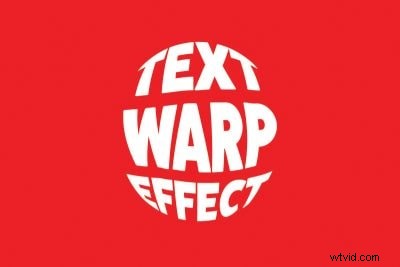
When designing text inside a circle in Illustrator, be mindful of how different fonts move and their compatibility with curved designs. Opt for fonts that are clear and simple to ensure readability, especially when used in curved layouts.
Add Curved Text to Video with Filmora
Discover a novel method for curving text in Wondershare Filmora that pushes the boundaries of traditional text effects. The following steps combine Filmora's built-in tools to create engaging, curved text that enhances your image or video projects.


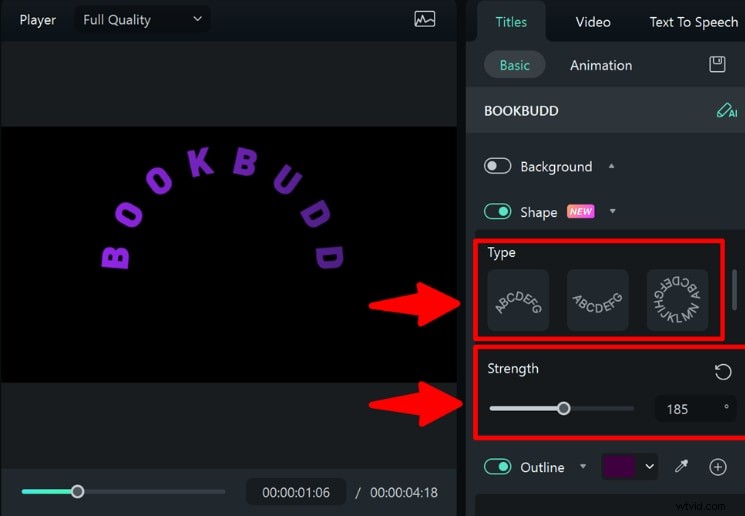
- Customizable Curvature: Users can easily adjust the curvature of the text using a "Strength" slider, allowing for fine-tuning of how much the text bends.
- Multiple Curved Text Presets: Filmora provides various presets for curved text, enabling users to choose different styles and shapes that suit their project aesthetics.
- Font and Size Flexibility: The feature allows experimentation with different font styles and sizes while maintaining the curvature effect, adding depth and dimensionality to the text.
- Integration with Other Effects: Users can combine curved text with various effects and animations, further enhancing the overall impact of their videos.
- Animation Capabilities: The curved text feature supports animation, allowing users to create dynamic and engaging typography that can be animated with keyframes.
Steps to curve text in Filmora
This section shows how to curve text in Filmora with easy steps to make your projects exceptional.
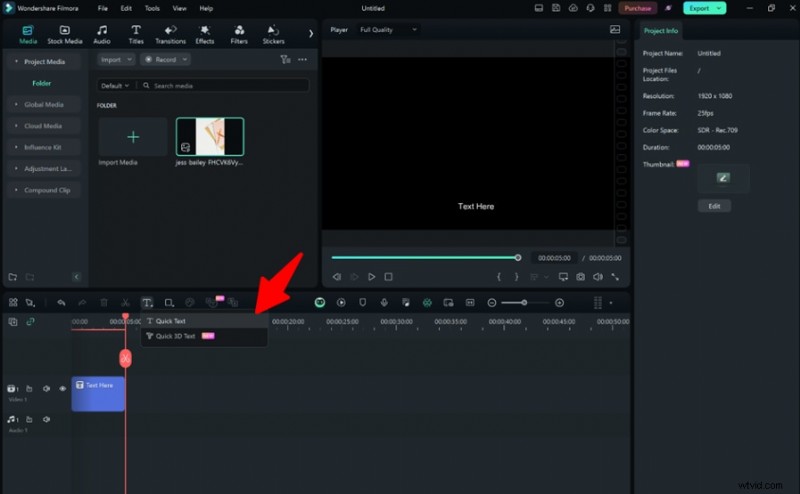
Step 1: Launch Filmora and create a new project. From the down menu, add text using the Quick Text option to make text first.
Get Started for FreeFor Win 7 or later (64-bit) Get Started for FreeFor macOS 10.14 or later
Step 2: Move the text to your desired position.
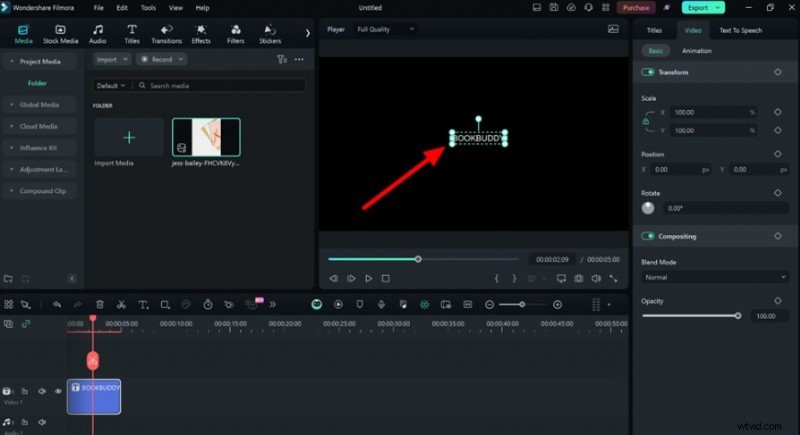
Step 3: Double-click the text layer on the right side to open Basic text. Choose your font style and adjust the size as needed.

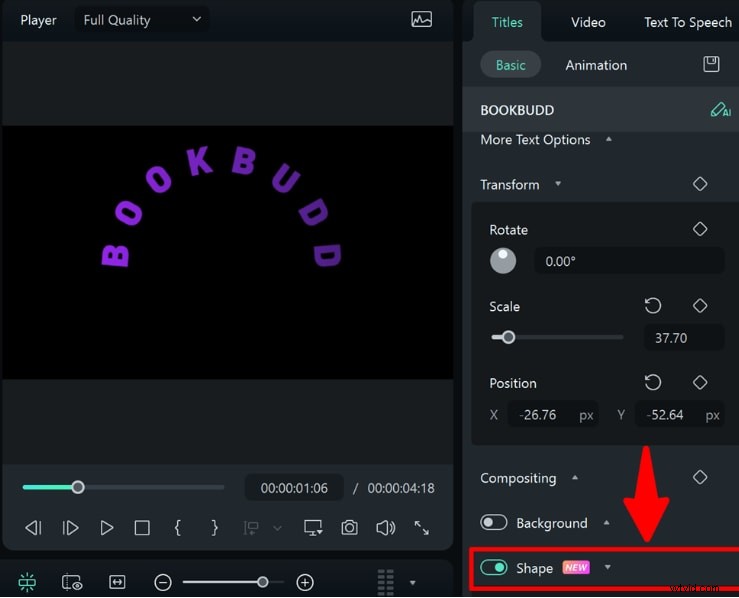
Step 4: Scroll down to the Basic Text Editing section and enable the Shape option.
Step 5: Select the type of shape you want and adjust the strength of the curve.
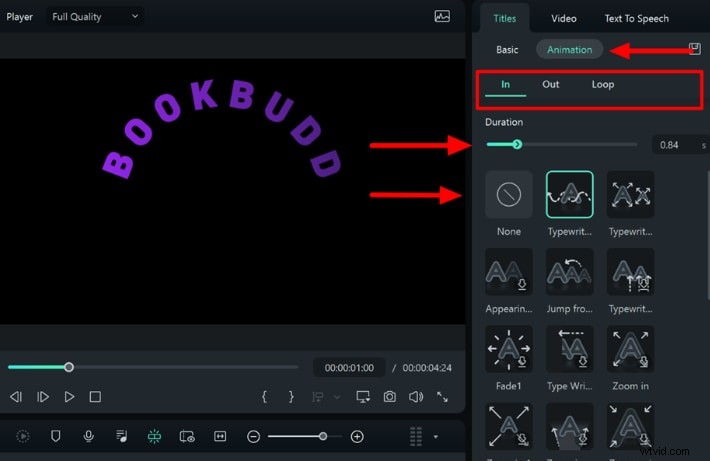
Step 6: Add animation by going to the Animation tab on the right. First, select "In" and choose your animation effect and duration.
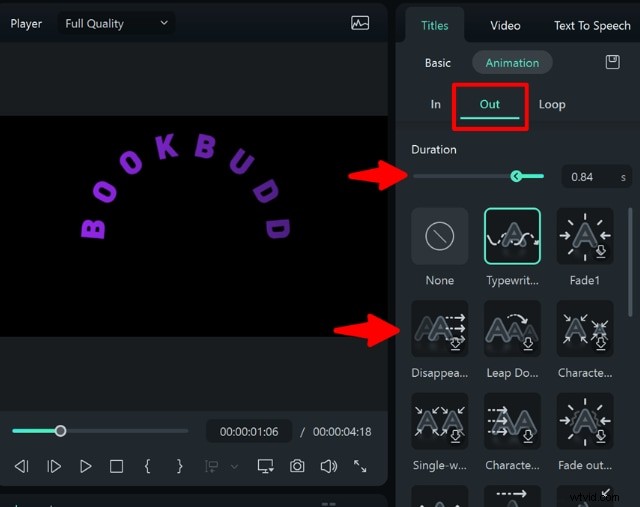
Step 7: Select the “Out” option from the Animation tab and choose an animation effect and duration.
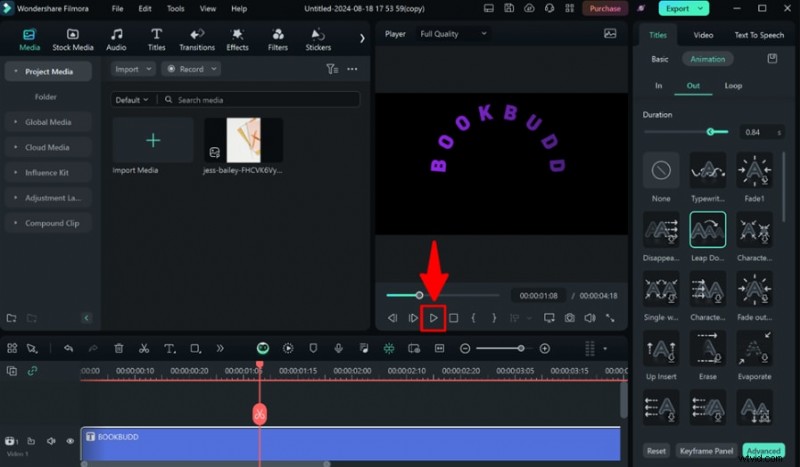
Step 8: Preview the effect with the chosen animations to see how the curved text looks.
Bonus: The Best 3D Curved Text Generator for Your Videos
Filmora's 3D Curved Text Generator offers an incredible way to add depth to your text animations:
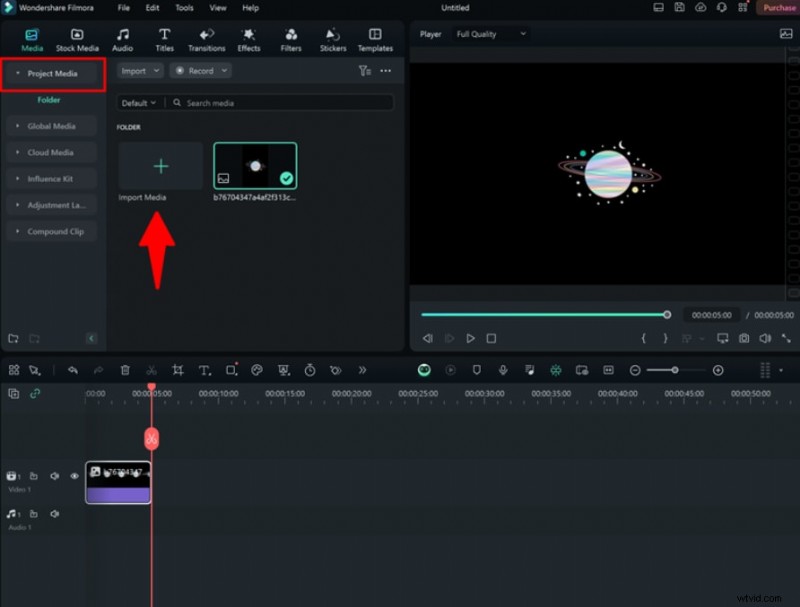
Step 1: Import an image or clip from your device.
Step 2: From the left bottom menu, choose "Quick 3D Text."
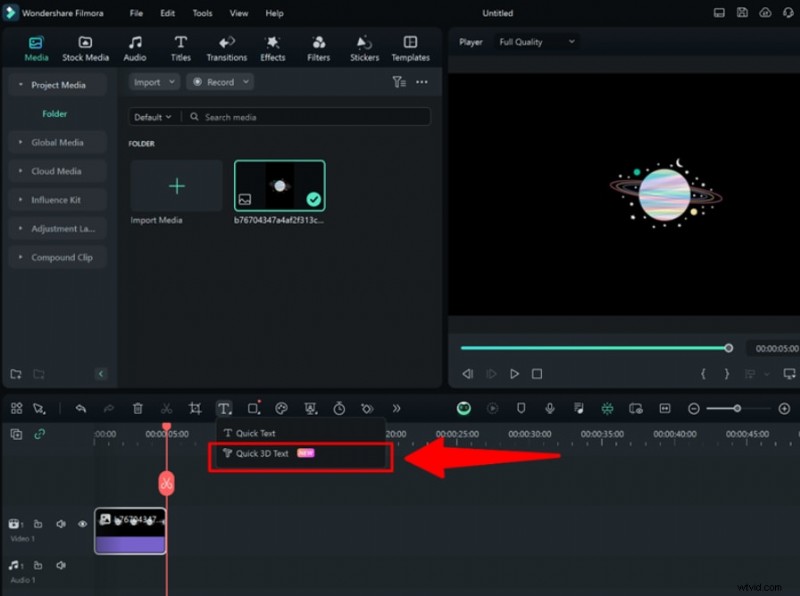
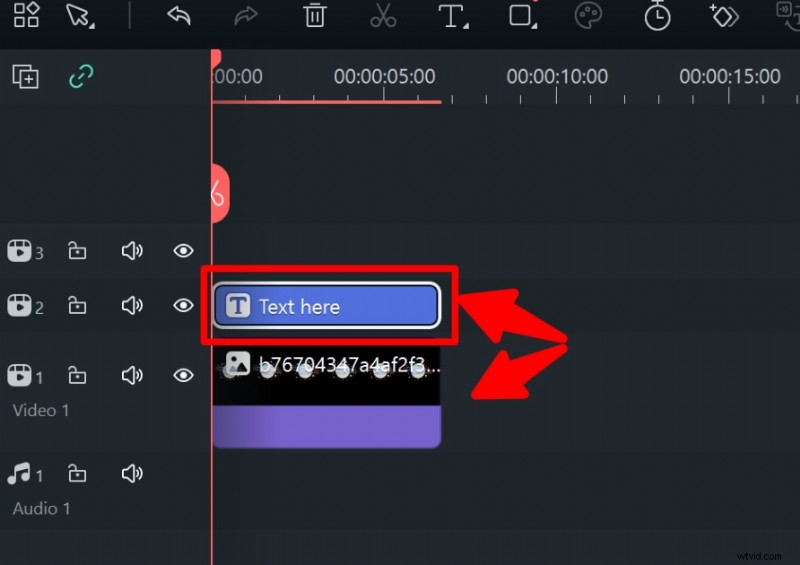
Step 3: “text here” will appear. Adjust it to match your image or clip duration.
Step 4: Click Titles > 3D Basic on the top right and add and adjust your text.

Step 5: At the bottom right of the Titles menu, select the “Advanced” option.
Step 6: In the top left, you can see options to add shapes, more images, or Text.
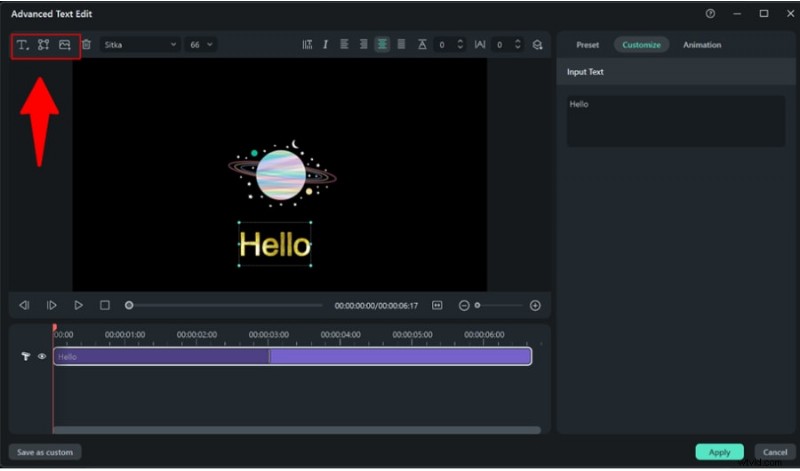
Step 7: You can Preset, customize, and select "In" and "Out" 3D animations.
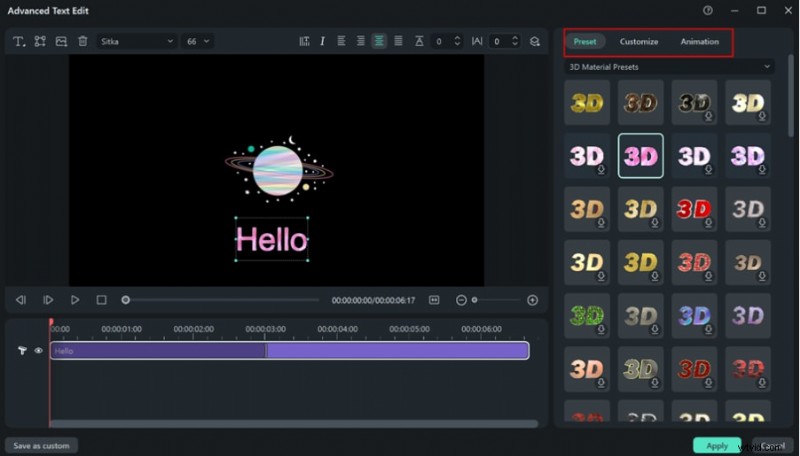
Step 8: “Apply” changes.
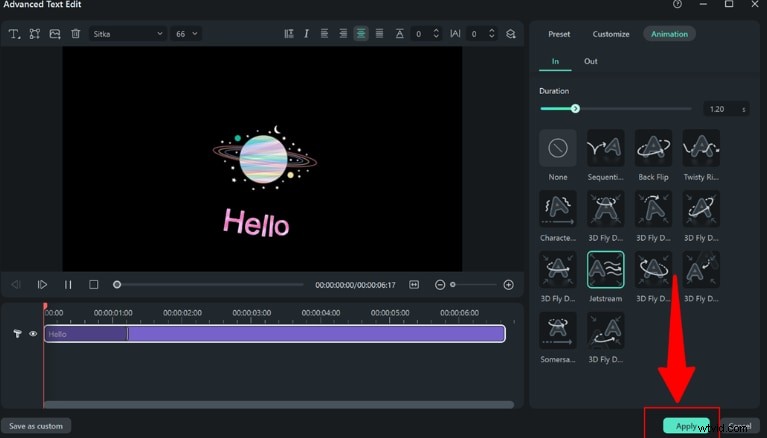
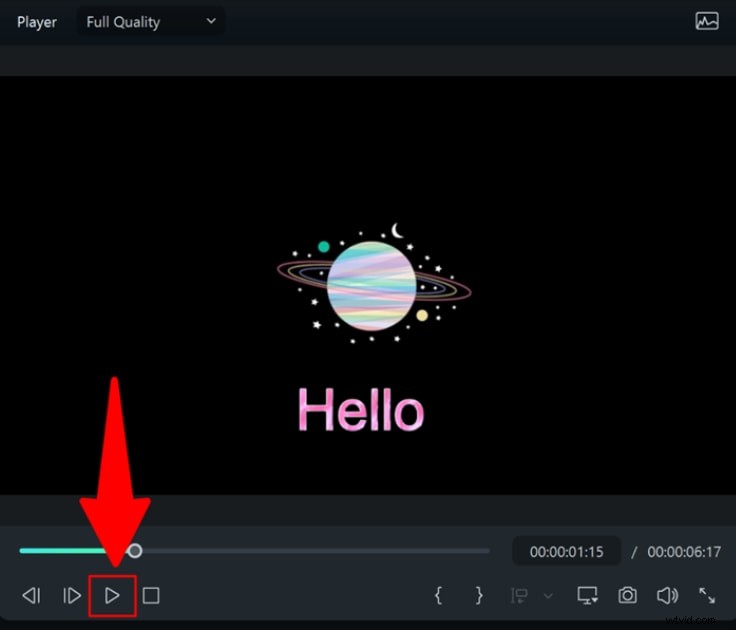
Step 9: Preview 3D curved animation.
Final Words
Enhancing your designs with dynamic visual elements and curve text in Illustrator yields valuable results. Whether you opt for circular or arched effects, mastering custom paths elevates your typography skills significantly. Moreover, exploring tools like Filmora's 3D curved text generator provides creative alternatives to add depth and animation. Experimenting with these methods allows crafting captivating designs that engage audiences and make projects stand out gloriously.
Get Started for FreeFor Win 7 or later (64-bit) Get Started for FreeFor macOS 10.14 or later