
MKV, short for Matroska, is one of the most versatile container formats for digital video. It’s celebrated for its flexibility, robust metadata handling, and broad codec compatibility.
Whether you’re streaming HD content, watching anime with custom subtitles, or archiving a full movie, MKV can keep all audio, video, and subtitle tracks in a single file.
In this article
Part 1: What Is the MKV Format?
Developed in 2002 by the Matroska project, MKV is an open‑standard container. Unlike a codec, it simply stores the media streams – video, audio, subtitles, and metadata – together in one file.
It’s especially popular for online streaming and high‑definition videos because it supports a wide range of codecs, including H.264, H.265, VP9, and AV1. The format is also a favorite among anime fansubbing communities, thanks to native support for subtitle formats like VobSub, SRT, SSA, and USF.
Part 2: How Does an MKV Video Work?
MKV’s strength lies in its ability to bundle multiple audio and subtitle tracks alongside the main video. It can handle 3D objects, closed captions, and even multiple language tracks, making it ideal for complex media projects.
It runs natively on Windows, macOS, Linux, Android, and iOS, and it’s fully error‑resilient: if a segment of the file becomes corrupted, the player can often skip that part and continue playback.
Because MKV is a container rather than a codec, it relies on external players or editors to interpret the encoded streams.
Part 3: How to Play MKV Files with VLC Media Player
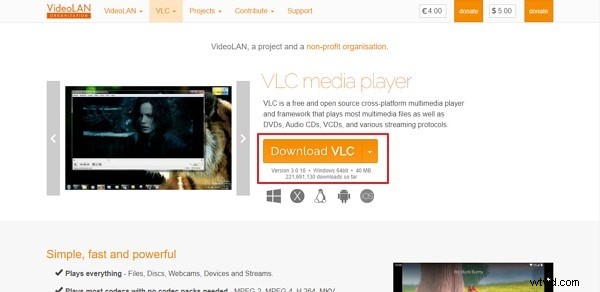
VLC is a cross‑platform, free media player that supports virtually every format, including MKV. Follow these steps to ensure smooth playback:
Step 1: Install or update VLC to the latest version. If you already have it, open VLC, click Help → Check for Updates.
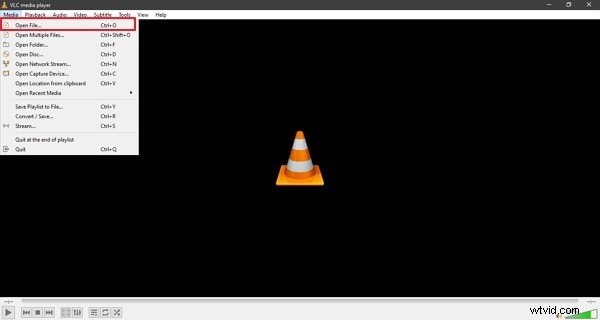
Step 2: Launch VLC, go to Media → Open File… and locate your MKV file. You can also drag the file directly onto the VLC window.
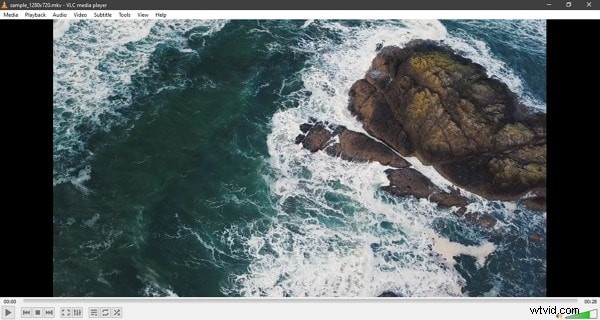
Step 3: Once the file loads, VLC will automatically play it. You can switch audio or subtitle tracks from the Audio or Subtitle menus if your MKV contains multiple options.
Part 4: Editing MKV Files with Wondershare Filmora
Filmora is a user‑friendly video editor that supports MKV files out of the box. It offers a comprehensive suite of tools for both novice and advanced editors.
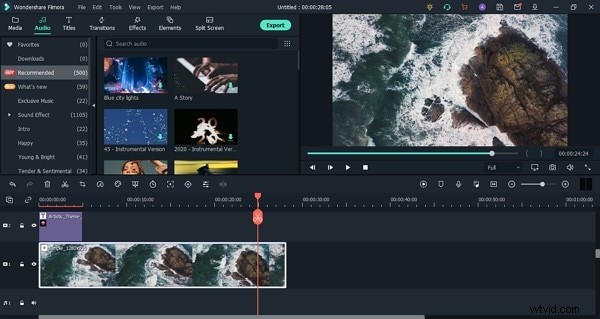
Audio Section
From the main toolbar, you’ll find an Audio library that includes sound effects, music tracks, and voice‑over options. Drag and drop your audio onto the timeline to mix with your video.
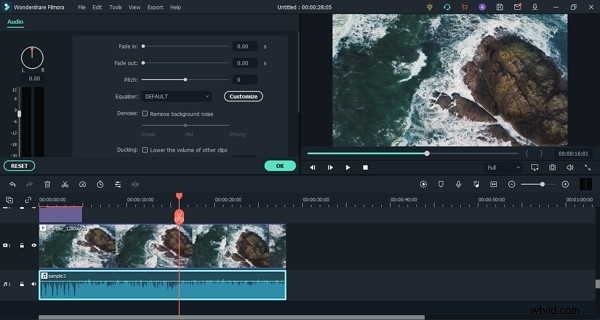
Audio Editing Capabilities
Double‑click an audio clip to open the editor, where you can detach audio from video, mute tracks, or use the Silence Detection feature to auto‑crop silent passages.
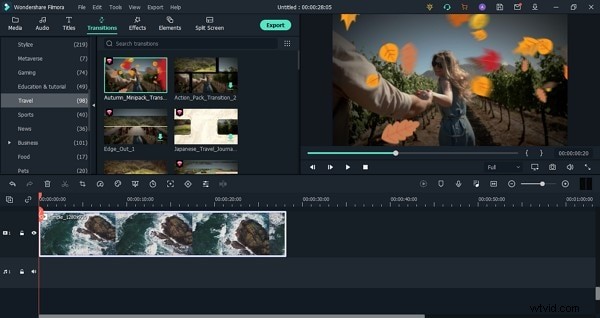
Add Transitions and Titles
Filmora’s Transitions tab offers effects like Speed Blur, Basic, Ripple, and Dissolve. The Titles section includes Lower Thirds, Subtitles, and Opener templates, all of which can be customized for your project.
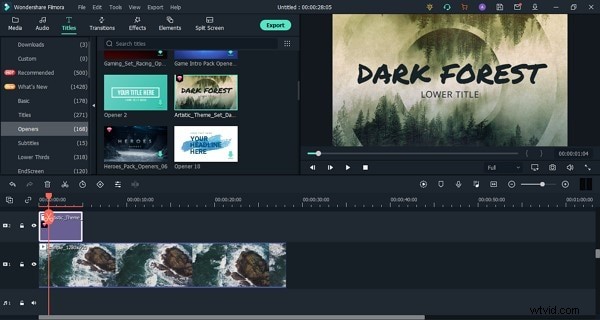
Creative Elements
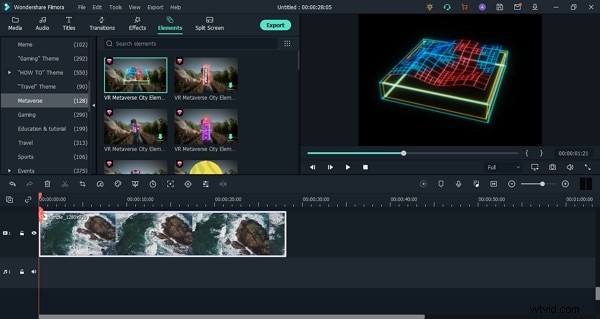
Beyond basic editing, Filmora provides a library of visual elements—such as countdown timers, social media overlays, and background presets—to keep your audience engaged.
Part 5: MKV vs. MOV – Which Is Better?
While MKV offers superior codec flexibility and subtitle support, it’s less universally compatible with mobile devices compared to MOV. MOV, developed by Apple, is tightly integrated into iOS and macOS ecosystems and typically results in smaller file sizes for similar quality.
Choose MKV when you need extensive subtitle or audio track options and plan to use a wide range of playback devices. Opt for MOV when targeting Apple devices or when file size and platform compatibility are primary concerns.
Last Words
MKV remains a powerful container for HD videos, especially when you require multiple audio or subtitle tracks. For editing, Filmora provides a feature‑rich, intuitive environment that supports MKV files and delivers professional‑grade results.
With tools like keyframing, motion tracking, advanced color tuning, and green‑screen effects, Filmora ensures that even complex projects can be completed with ease.