
In this step-by-step video tutorial, we’ll walk you through the process of looping a live stream video on YouTube using OBS Studio.
If you’re making live-streaming content, you’ll likely encounter situations that call for looped video. Obviously, this presents a problem if you don’t know how to make them. In this tutorial, we’ll walk through the entire process, cover the software you’ll need, and look at some common video loop examples. Let’s get started!
Miss anything? Keep reading to see everything we covered in the video.
Common Loop Types
You’ve probably seen so video loops on so many live streams that you don’t even give them a second thought. Here are some common loop examples:
- Pre-Roll Loops: These video loops play before a live stream begins to give viewers a chance to settle in.
- Live Radio/Podcast: These loops provide viewers with something of visual interest when people/subjects aren’t on screen.
- Animation Scene Loops: These are looping animation scenes, frequently used on lo-fi music channels and other music broadcast channels.
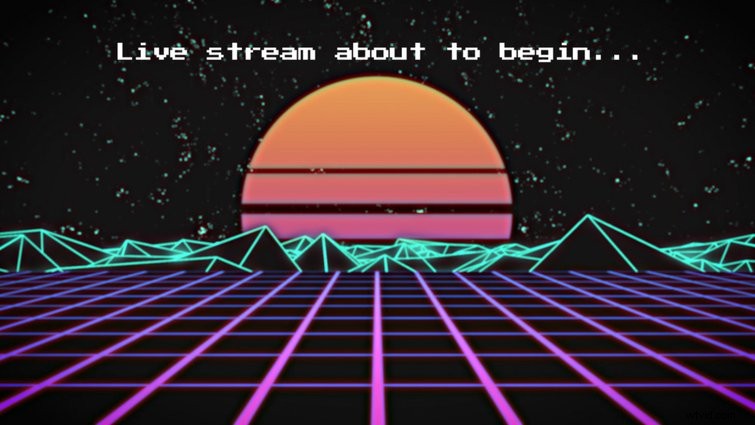
Start With a Looping Video Clip
Obviously, if you want to loop your own video, you’ll need to start with a looping video clip. You can create your own with live footage or animation, or you can save steps by purchasing a looping background on a site like Shutterstock.
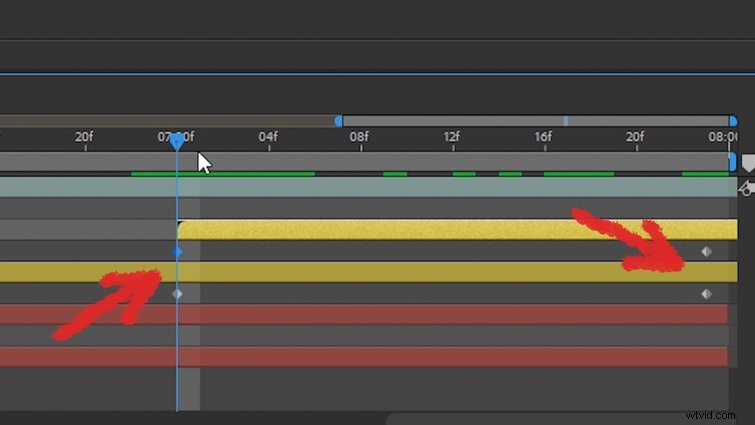
If you’re going to create your own, a quick and easy way to do so is to just duplicate your video clip and have it fade out at the end, while the duplicate copy fades in. I did that with some dust particles to create a seamless loop. (Also, be sure to check out the free dust particles I used in my video tutorial — available from RocketStock and, again, totally free.)
Live Stream Broadcast Software
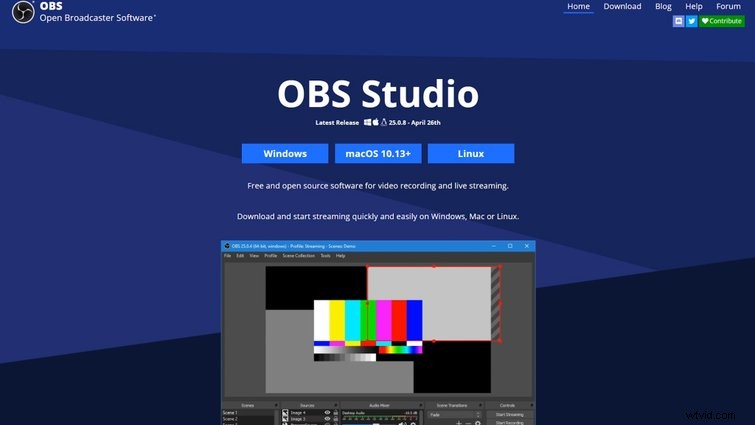
Next, you’ll need some broadcasting software, which you can think of as your “live-video editor.” Luckily, there are plenty of free options available. I’m using OBS Studio, which is one of the most popular options for live streaming and video recording. You can download it for free from OBSproject.com.
Once you launch OBS Studio, you’ll see a Scenes panel on the far left. Scenes basically acts like your “studio cameras.” You can select them to quickly switch between different things on screen during the live stream.
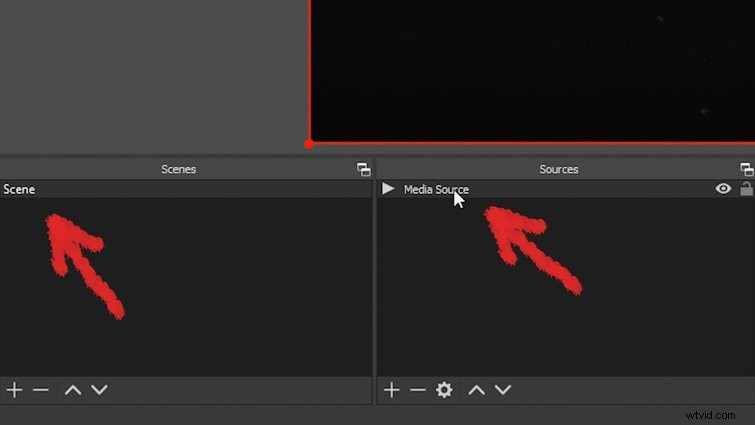
For each Scene you have, you’ll need to add some Sources. A Source is basically the media — looping video, webcam, music, mic input, etc. — you’d like to assign to each Scene. To add a looping video, click the + icon on the Sources panel, then select Media Source. You can then select your looping video clip. (After you’ve selected it, make sure you hit the Loop option check-box.)
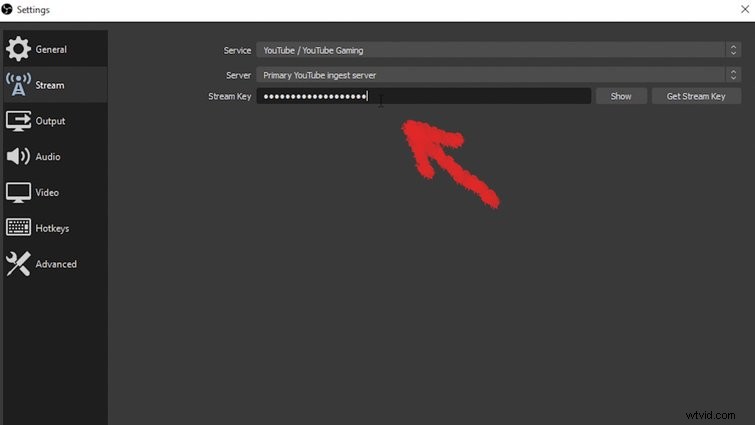
Next, select Settings on the right side of the OBS Studio interface, and navigate to the Stream options. You’ll need to select your service, then input the information for Server (which may automatically set itself), and input your Stream Key. To quickly find your Stream Key, click the Get Stream Key button. If you’re streaming to YouTube, you can visit YouTube.com/live_dashboard. (You may need to log into your YouTube account.)
You’re now ready to live stream! To show your looping video on the stream, just select the Scene that has your looping clip as the Source. (It should be playing on the OBS Studio preview screen.)
Interested in the royalty-free tracks we used to make this video? Give them another listen:
- “Lo-Fi Dreams” by Trending Music
- “Rain Rain Go Away” by Cosmo
- “Ocean Tranquility” by Cymatix
- “Stir Crazy” by Tonemassif
Interested in learning more about live-streaming? Check out these helpful resources:
- How to Start a Twitch Stream with Your Filmmaking Camera
- Live Stream with the Blackmagic Pocket Cinema Camera 4K and 6K
- Your Canon Camera Just Became the Best Webcam You Own
- A Guide to Organizing Your Own Online Film Premiere