
In today’s digital age, social networking platforms let us connect, share ideas, and showcase creativity. One such platform that blends micro‑blogging with rich media is Tumblr. While it may not dominate the headlines, its unique blend of simplicity, customization, and community engagement makes it a valuable tool for both newcomers and seasoned users.
Table of Contents
- What is Tumblr?
- Key Features that Set Tumblr Apart
- How to Get Started on Desktop
- Using the Tumblr Mobile App
- Creating Video Content with Filmora
- Conclusion
1. What is Tumblr?
Tumblr is a micro‑blogging platform launched in 2007 that allows users to publish text, photos, GIFs, quotes, links, audio, and video. Its core strength lies in the ease of posting and the ability to follow and reblog content from a diverse range of creators.
2. Key Features that Set Tumblr Apart
- Customizable Themes: Choose from free or premium themes and tweak them with HTML and CSS to reflect your personal brand.
- Tagging System: Add descriptive tags so people interested in similar topics discover your posts quickly.
- Community Discovery: Follow niche blogs and connect with fans of the same interests or celebrities.
- Anonymous Posting: Maintain privacy by creating a pseudonymous account or posting without a username.
- Engagement Tools: Comment, reblog, and like posts to join ongoing conversations.
3. How to Get Started on Desktop
Step‑by‑Step Guide
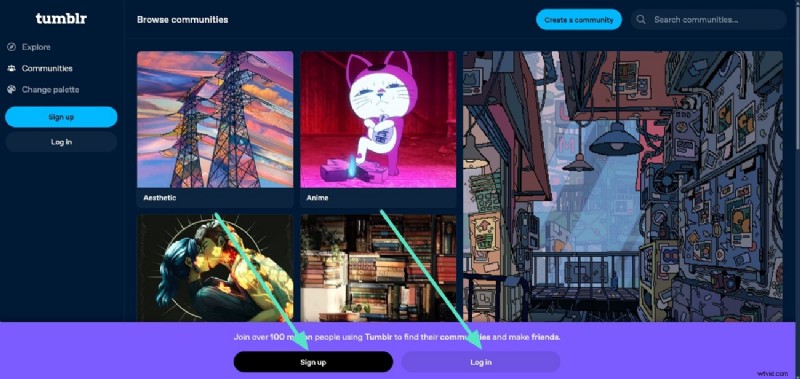
1. Sign Up or Log In: Open Tumblr.com and either create a new account with your email or log in if you already have one.
2. Navigate the Home Feed: Use the toolbar to create posts and scroll through content from blogs you follow.

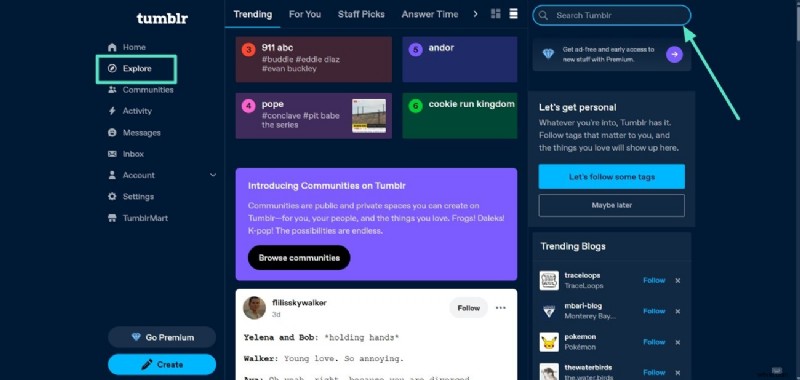
3. Explore Trending Topics: Click “Explore” or use the search bar at the top‑right to find hot posts and emerging trends.
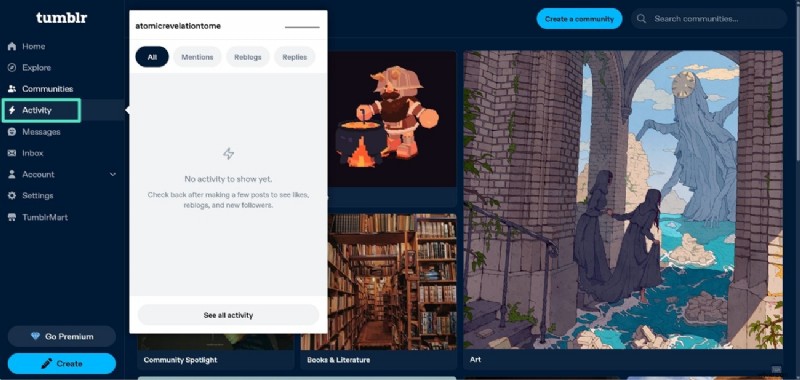
4. Check Activity: The “Activity” section shows mentions, replies, and likes from your network.
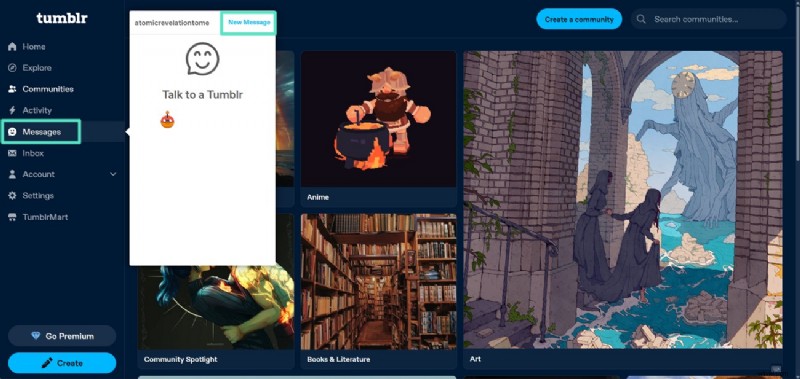
5. Manage Messages: From the right‑hand sidebar, view inbox messages and compose new ones by clicking “New Message.”
4. Using the Tumblr Mobile App
Getting Started on Your Phone
1. Launch the App: Open the Tumblr app and tap “Sign Up” or “Log In.” Browse the “Home” feed and tap the pencil icon to create a new post. When ready, press “Post.”
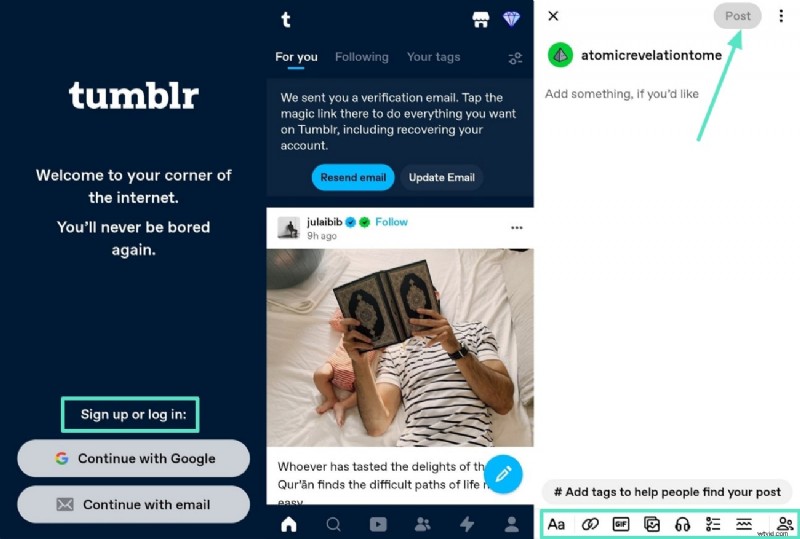
2. Discover Content: Tap “Search” and type keywords in the search bar to find posts that match your interests. The app also offers a dedicated “Video” tab for short clips and a “Lightning” icon for quick access to your Activity and Messages.

5. Creating Video Content with Filmora
To share engaging video posts on Tumblr, many creators turn to Wondershare Filmora. This all‑in‑one editor provides both basic and AI‑powered tools that simplify video production on PC and mobile.
Filmora Desktop Highlights
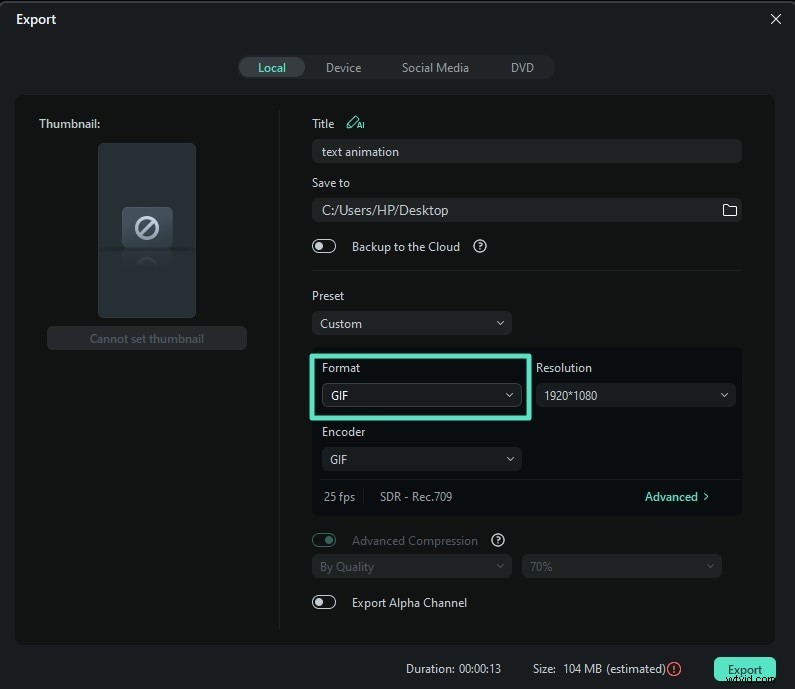
- GIF Creator: Turn any video clip into a GIF, adjust frame rates, and add effects for memes.
- Auto‑Reframe: Use AI to adjust aspect ratios for different platforms, including Tumblr’s preferred dimensions.
- Smart Short Clip: Auto‑generate short, shareable snippets with key moments highlighted.
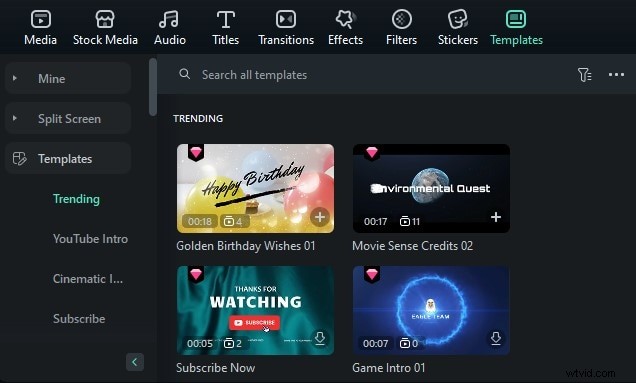
- Template Library: Drag‑and‑drop ready‑made templates to accelerate production.
- AI Image‑to‑Video: Convert a single image into a dynamic video sequence.
- AI Stickers & Music: Create custom stickers or generate background music that matches your video’s mood.
Filmora Mobile Features
The Filmora app (iOS & Android) brings the same power to your phone, allowing you to edit and export high‑resolution videos directly from your device.
- AI Auto‑Cut: Turn long videos into short reels tailored for Tumblr.
- AI Captions: Generate multilingual subtitles automatically.
- AI Emojis: Add relevant emojis that sync with your captions.
- Effects & Filters: Apply a wide range of visual enhancements.
- Music Library: Browse royalty‑free tracks that fit your video’s theme.
6. Conclusion
While Tumblr may no longer top the social‑media charts, its blend of micro‑blogging, media sharing, and community interaction keeps it relevant—especially for younger audiences and creative hobbyists. By mastering its core features and leveraging powerful tools like Filmora for video creation, you can produce compelling content that resonates on the platform.