
Looking to elevate your video projects? A glow‑text effect can transform plain typography into a striking visual cue that captures viewers’ attention. It’s more than bright colors – it creates an atmosphere that amplifies your narrative and highlights key information.
Whether you’re producing a promo, a title sequence, or an animated graphic, a well‑crafted glow can make your text pop against any backdrop.
This guide walks you through the most effective methods to create glow text in Adobe Premiere Pro, and introduces Wondershare Filmora as an accessible alternative. We’ll compare the two platforms, explore neon‑style presets, and share advanced tips to keep your glow dynamic and engaging.
Let’s get started!
In this article
-
- Key Features of Glow Text Effects in Premiere Pro
- Three Simple Ways to Create Glowing Text in Premiere Pro
- Pros of Using Glow Text in Premiere Pro
- Cons of Using Glow Text in Premiere Pro
-
- Method 1: Basic glow effect in Filmora
- Method 2: Advanced glow effect in Filmora
-
- Envato Elements
- Motion Array
- Mixkit
-
- Animation for Added Movement
- Layer Effects
- Color Gradients and Variations
Part 1: How to Make Text Glow in Premiere Pro
Premiere Pro offers several built‑in techniques to give your titles a luminous glow without the need for third‑party plugins. Below is a step‑by‑step walkthrough of the three most common approaches.
Key Features of Glow Text Effects in Premiere Pro
- Full Customization: Adjust inner and outer glow colors, radius, and feather to match your brand palette.
- Seamless Integration: Glow layers blend naturally with your footage, preserving depth and contrast.
- Zero External Plugins: All required effects are native to Premiere Pro, ensuring compatibility and stability.
Three Simple Ways to Create Glowing Text in Premiere Pro
Begin by setting up your text and then apply one of the following methods.
Step 1: Prepare the Text Layer
- Use the Type Tool to create your text on the timeline.
- Open the Essential Graphics panel and set the fill color to your preferred hue.
- Duplicate the text layer three times (hold Alt and drag). You’ll use each copy for a different glow technique.
Method 1: Using the Essential Graphics Panel
- Select the first duplicate in the timeline and open its Appearance settings.
- Check the Shadow box, set opacity to 100%, and increase Blur Length and Size until a soft glow emerges.
Method 2: Applying Gaussian Blur
- Apply the Gaussian Blur effect to the second duplicate.
- Set Blurriness to a high value to generate a luminous halo.
- Add keyframes to the Blurriness property to animate the glow over time.
Method 3: Using the VR Glow Effect
- Drag the VR Glow effect onto the third duplicate.
- Adjust Brightness and Saturation to fine‑tune the glow’s intensity.
Pros of Glow Text Effects in Premiere Pro
- Polished, high‑impact visuals that enhance readability.
- Fully customizable to suit any creative direction.
- Consistent look across multiple projects.
Cons of Glow Text Effects in Premiere Pro
- Heavy blur operations can slow rendering on low‑end hardware.
- Built‑in options may lack the nuanced controls of dedicated plug‑ins.
- Over‑application can distract from core content.
While Premiere’s native tools are powerful, Filmora’s intuitive interface makes glow creation accessible to beginners.
Part 2: Wondershare Filmora – A Beginner‑Friendly Tool for Glow Text
Filmora’s drag‑and‑drop workflow and pre‑made glow templates allow you to apply a polished glow with minimal effort. Ideal for novices or quick projects, Filmora keeps the learning curve shallow while still delivering professional results.
Key Benefits of Filmora for Glow Text
- Extensive font library for style matching.
- Customizable color, size, and animation options.
- Instant preview and real‑time rendering.
- Save your settings as presets for future reuse.


Method 1: Basic Glow Effect in Filmora
- Create a title by selecting Titles from the media library.
- Drag the chosen title onto the timeline.
- Open the Basic panel to edit text, font, and color.
- Navigate to the Effects tab and search for “glow” (e.g., Glow or Glow Edges).
- Right‑click the title on the timeline and choose Effect Settings to tweak brightness, blur, and hue.
- Preview the result to confirm the glow’s intensity.
Method 2: Advanced Glow Effect in Filmora
- Choose a 3D or curved text template from the 3D Templates or Curved Text categories.
- Drag the template onto the timeline.
- Double‑click the clip to edit its content, size, and color.
- Apply the glow effect as described in Method 1 and fine‑tune the parameters.
Part 3: Premiere Pro vs. Filmora – The Glow Text Showdown
Choosing the right tool depends on your skill level, budget, and project needs. The table below summarizes key differences.
| Aspect | Adobe Premiere Pro | Wondershare Filmora |
| Ease of Use | Steep learning curve with a complex interface | Drag‑and‑drop interface |
| Features | Advanced custom glow controls | Pre‑built glow templates |
| Rendering Speed | Slower on low‑end systems | Fast rendering with real‑time previews |
| Target Users | Professionals seeking granular control | Beginners and hobbyists |
Pick the software that aligns with your workflow and creative vision.
Part 4: Resources for Enhanced Neon Effects in Premiere Pro
Below are three premium libraries that provide high‑quality neon and glow templates, perfect for adding a polished finish to your projects.
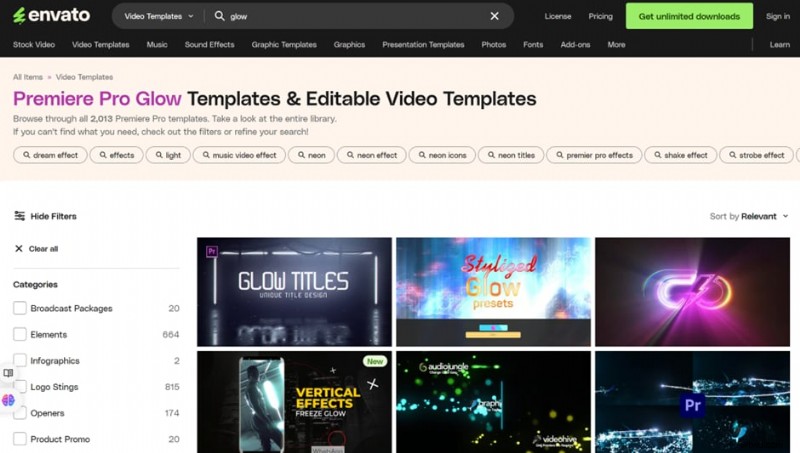
Envato Elements
- Unlimited downloads with a subscription.
- Animated text templates with customizable neon effects.
- Streamlined workflow for rapid production.
Motion Array
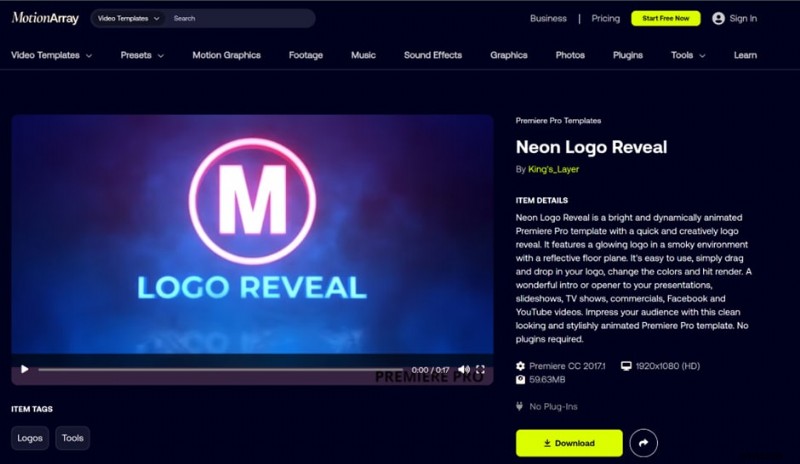
- Extensive neon logo reveals and text animations.
- User‑friendly templates for quick integration.
- Specialized assets like Neon Logo Reveal for visual impact.
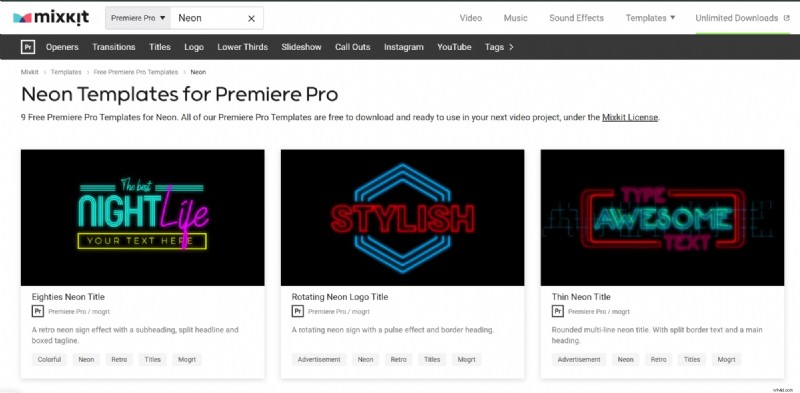
Mixkit
- Free, high‑quality neon text animations.
- Intuitive library navigation for both beginners and pros.
Part 5: Making Your Glow Text Dynamic and Interactive
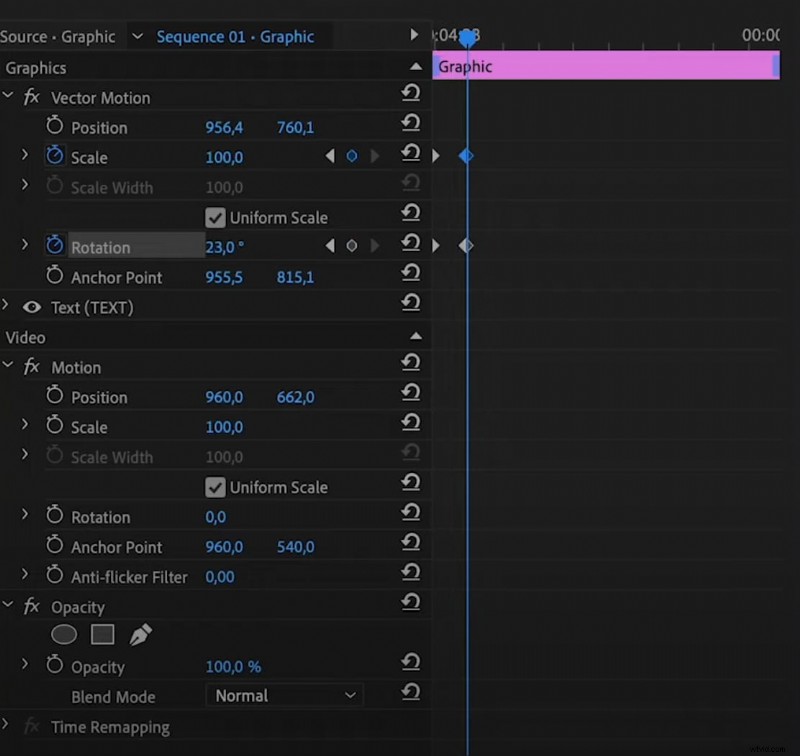
Animation for Added Movement
Use keyframes to animate position, scale, and opacity, creating a pulsing glow that syncs with music or narrative beats.
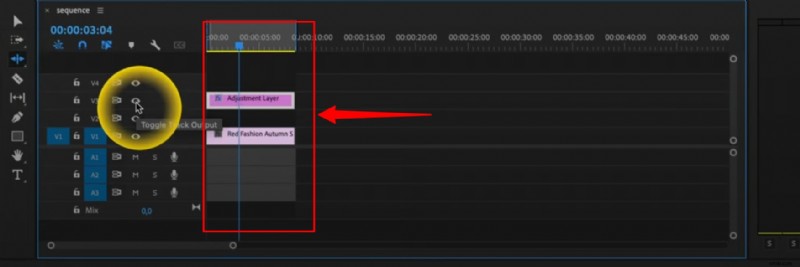
Layer Effects
Stack multiple glow layers with varying colors, opacities, and blend modes (e.g., Screen or Overlay) to build depth and richness.
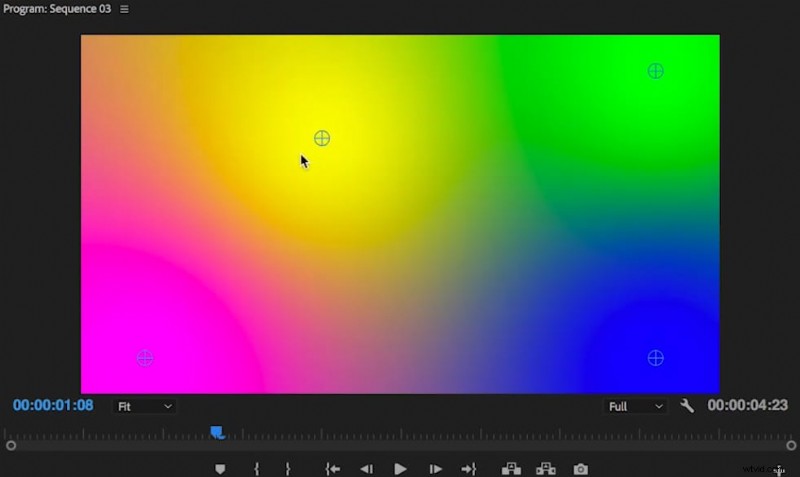
Color Gradients and Variations
Apply animated gradients to the glow, adjusting position, angle, and color stops for a dynamic, eye‑catching effect that can be brand‑specific.
Conclusion
This guide covered three practical methods for achieving glow text in Premiere Pro, as well as straightforward approaches in Filmora. Both platforms deliver professional results, but Premiere Pro excels for users who demand granular control, while Filmora offers an efficient, beginner‑friendly experience.
By experimenting with glow layers, animation, and external template libraries, you can elevate any video project with a polished, attention‑grabbing effect.
Get started for free on Windows 7 or later (64‑bit) or macOS 10.14 or later.