
After a recent trip, you may find yourself with more photos than a single social‑media post allows. Converting those images into a cohesive video collage is an elegant solution that keeps your memories vivid and shareable.
If you’re unfamiliar with turning photos into videos, this guide walks you through Filmora’s most reliable features—both on desktop and mobile—so you can create polished, music‑backed slideshows in minutes.
In this article
- Filmora’s Key Features for Photo‑to‑Video Conversion
- Step‑by‑Step Methods on the Filmora App
- Step‑by‑Step Methods on Filmora Desktop
Part 1. Filmora: The Ultimate Photo‑to‑Video Maker
Filmora’s AI‑powered editor eliminates the tedious manual arrangement of each image. With a rich library of customizable templates and an automated Image‑to‑Video utility, you can transform a stack of photos into a dynamic, music‑enhanced video in under ten minutes.
Whether you’re editing on a computer or on the go with the iOS/Android app, Filmora offers a consistent set of tools that streamline the creative process.
Incredible Features of the Filmora Mobile App
- VEO 3 AI Image‑to‑Video: Enter a text prompt and a reference image, and the app generates a video with synced background music.
- AI Beat: Automatically aligns image transitions, effects, and text to the rhythm of your chosen track—no keyframing required.
- Motion Tracking: Attach moving text or graphics to a subject that moves across the frame.
- Smart Cutout: Isolate a subject from its background for creative overlays or clean‑up.
- AI Templates: Drag‑and‑drop your media into ready‑made designs that adapt to your content automatically.
- AI Emoji: Enrich captions with context‑aware emojis for a playful touch.
- Speed Ramping: Smoothly accelerate or decelerate footage with preset speed curves.
Core Features of Filmora Desktop
- VEO 3 Image‑to‑Video: Generate a video from a photo, text prompt, and reference image, complete with background music.
- Magnetic Timeline: Arrange photos, clips, and effects in a drag‑and‑drop interface that auto‑aligns to your edits.
- AI Video Denoiser: Reduces visual and audio noise across all tracks automatically.
- Extensive Asset Library: Over 1000+ effects, filters, transitions, and titles with granular controls.
- AI Music Generator: Create original background tracks by selecting mood, tempo, and instrumentation.
- Auto Reframe: Smartly adjusts aspect ratios for Instagram, YouTube, TikTok, etc., while keeping the subject in focus.
- Template Library: Choose from hundreds of premade layouts and customize every element to match your brand or style.
Part 2. Turning Photos into Videos with the Filmora App
On a mobile device, you can craft a video in just a few taps. Below are the three most efficient methods available in the app.
Method 1: VEO 3 Directly
- Open the Filmora app and tap the "VEO 3" icon. Upload a reference photo, type your idea into the text box, and press "Generate".
- After the video appears, tap "Project Edit" to upscale and fine‑tune the output.
- Add text by selecting the "Text" icon, choosing "Add Text," typing your description, and confirming with the checkmark.
- Customize the text style via the "Edit" icon, selecting an art style, and confirming.
- Export by tapping "Export," choosing your resolution and frame rate, then tapping the final "Export" button to save to your device.
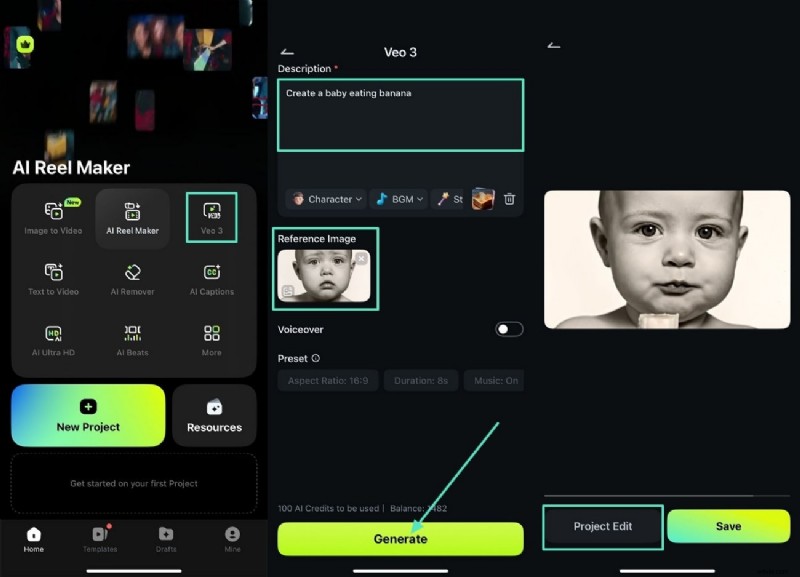
Watch the exported video below.
Method 2: Image‑to‑Video Utility
In the app’s main menu, choose "Image‑to‑Video," then pick a template or let the AI auto‑create a storyboard. After the video is generated, apply filters, music, or additional text before exporting.
Method 3: Template Selection
Browse the template library, select a design that fits your theme, and drop in your photos. The app auto‑adjusts durations, transitions, and background music. Personalize any element, then export.
Part 3. Creating Photo‑to‑Video Collages on Filmora Desktop
Method 1: Image‑to‑Video Utility
Launch the Image‑to‑Video tool from the desktop dashboard. Import your photos, choose a template, and let the AI animate them. You can further tweak pacing, add voice‑overs, or overlay graphics before rendering.

Method 2: Templates Library
Select a pre‑made template, then replace placeholder media with your images. Every element—text, music, transitions—can be edited on the timeline. Once satisfied, export in the desired format and resolution.
Conclusion
Filmora combines powerful AI features with a user‑friendly interface to turn any photo collection into a polished video. Whether you’re on a phone or a computer, these tools let you create engaging stories, shareable on social media or personal archives, with minimal effort and maximum impact.