
There are many reasons you might need to compress the size of a video file/reduce video file size. You might want to upload your video to a video sharing site like YouTube. You might want to email a video file or share it with family and friends via a mobile device. In each of these instances, having the capability to compress your video files is critical to the ability to share them.
You can compress videos on Mac using video compressor software such as Wondershare Filmora for Mac. This allows you the most versatility in choosing how and where to share your videos because you can compress your videos to a manageable size, export them to various formats, and more.
Video formats can generally be divided into three categories:
• Uncompressed. Your video footage is stored as raw data, without compression of any kind. Image quality is optimal, but widespread sharing may be impossible due to the enormous file size. You are also limited to the format the video is recorded in, which may not be widely supported.
• Lossless. Your video footage is saved to preserve the original data, without loss. Image quality is excellent, but the file size will still be unwieldy and difficult to share.
• Lossy. Your video footage is saved to a format that accomplishes video compression with varying degrees of data loss, according to the amount of compression desired. In highly compressed videos, the loss of image quality will be noticeable; lesser compression allows for better image quality and less noticeable losses.
Want to Reduce the Video Size on a Windows computer, check our tips for Reducing Video Files for Free with Windows Movie Maker
Compressing videos on Mac by using Compressor Programs
Skipping ahead a little, one of the best software tools for compressing videos on Mac is Wondershare Filmora for Mac. Filmora combines several qualities to deliver “best of all worlds” performance:
• Filmora is easy to learn for beginners and is designed for all creators
• Filmora has a wide range of professional-level features
• Filmora is optimized for compressing and editing videos for Mac
• Filmora is one of the most affordable video compressor software programs for Mac
Versatility and ease-of-use are crucial when choosing a video compression tool, and Wondershare Filmora for Mac delivers. Check out a short video below to get a quick overview of what Wondershare Mac Video Compressing tool offers:
If you are using a windows, check this tutorial instead
1. Adjust resolution for video compression
The resolution affects the clarity of your video, and adjusting the resolution can allow you to reduce the file size via video compression. Typical resolutions for SD video include 640 x 480 pixels and 640 x 360 pixels. Typical resolutions for HD video include 1280 x 720 pixels (720p) and 1920 x 1080 pixels (1080p).
Compressing videos on Mac by adjusting the resolution can be accomplished easily and quickly in 3 steps with Wondershare Filmora for Mac as well:
Step1: Import your videos to the media library as below:
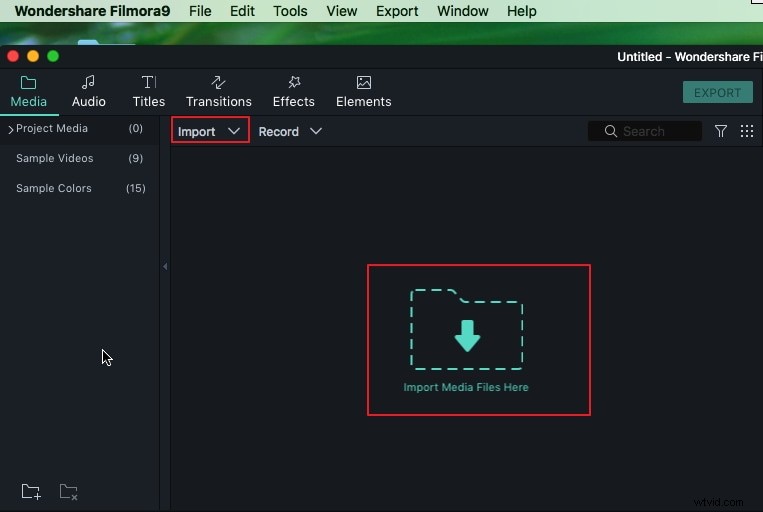
Step2: Before editing, choose a clip in the Media Library and drag it to the timeline directly.
Step3: hit the "Export" button to bring up with editing window, there you can choose a proper resolution as follows:
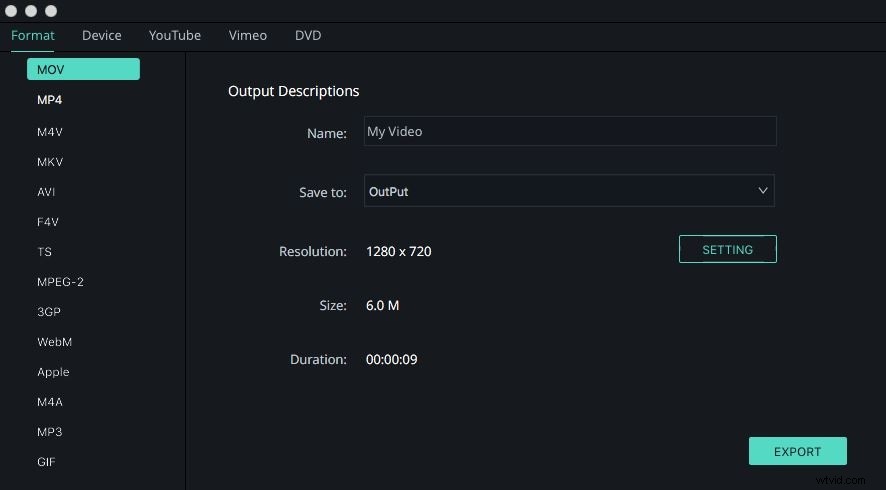
To compress the video size with Filmora for Mac, you can adjust the resolution settings and reduce it to a proper value to get a small size.
2. Adjust bit rate for video compression
Bit rate (sometimes called data rate) manages the visual quality of your video and determines its file size. Bit rate is typically measured in kilobits per second. SD quality is generally in the range of 2000-5000 bit rate, 720p HD is generally in the 5000-10,000 bit rate range, and 1080p HD is typically in the 10,000-20,000 bit rate range.
Adjusting bit rate with Wondershare Filmora for Mac to compress your file size is quite simple. Below the Resolution setting, you will find the "Bit Rate" setting. You can select a lower bitrate setting from the drop-down list menu to get reduced file size.
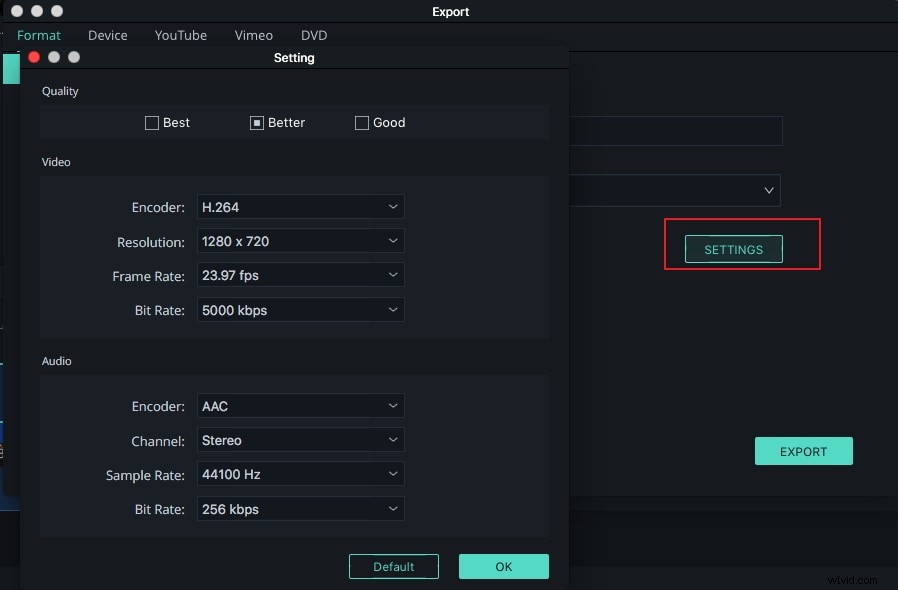
Filmora video editor now has the ability which allows you to add up to 100 video tracks and audio tracks respectively to empower your imagination. Download a free trial version of Filmora to compress your video now: