
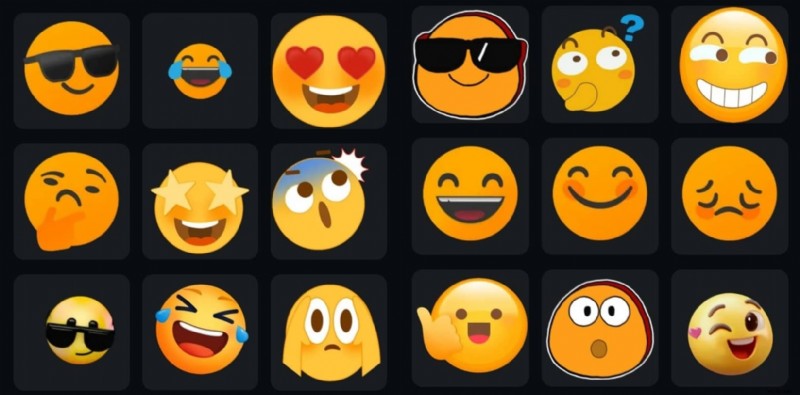
Did you know that videos featuring animated emojis can increase viewer engagement by up to 80%? This figure comes from a 2023 study by Wistia, highlighting the power of dynamic visuals.
Animated emojis are more than decorative; they convey emotion, capture attention, and make content feel relatable. YouTubers, TikTok creators, and Instagram Reels editors routinely use them to enhance storytelling.
In this guide, you’ll learn where to download free animated emojis, how to add them to your videos using Filmora, and practical tips to make them shine.
In this article
- Top sources for downloading animated emojis
- Step‑by‑step guide to adding emojis in Filmora
- Best practices for using emojis in content creation
Part 1: Top Sources for Downloading Animated Emojis
Below are the leading platforms where creators can find high‑quality animated emojis.
1. Wondershare Filmora – All‑in‑One Editing
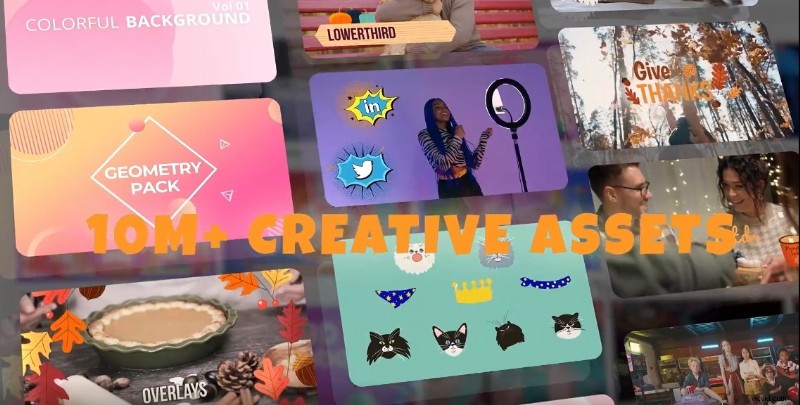
Filmora offers an intuitive drag‑and‑drop experience. The built‑in stickers library contains hundreds of animated emojis, eliminating the need to switch between apps.
Key benefits:
- Beginner‑friendly interface
- Searchable by keyword or theme
- Works on desktop and mobile
Popular emojis available include smiling faces, thumbs‑up, hearts, and celebratory confetti.
2. GIPHY – The Largest GIF Repository
GIPHY hosts a vast collection of GIFs, stickers, and animated emojis. It’s free to use and ideal for creators on a budget.
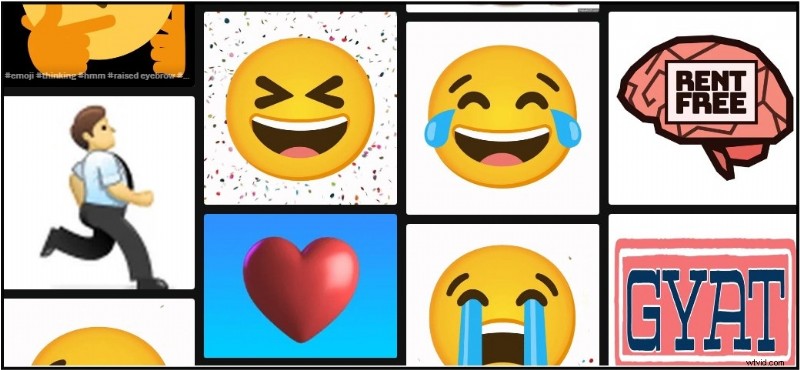
Its search function allows quick discovery of emojis such as “happy,” “clap,” or “angry.” Most assets are provided as GIFs or transparent PNGs, making them perfect overlays in any editor.
3. IconScout – Lottie & SVG Animations
IconScout specializes in vector‑based animations (Lottie, SVG). These files retain sharpness at any scale and can be customized directly on the platform.

Benefits include:
- Color, speed, and size adjustments without quality loss
- Multiple export formats (JSON, GIF, MP4)
- Preview and edit before download
Part 2: How to Add Animated Emojis in Filmora
Follow these simple steps to embed emojis into your video timeline.
Step 1 – Import Your Video
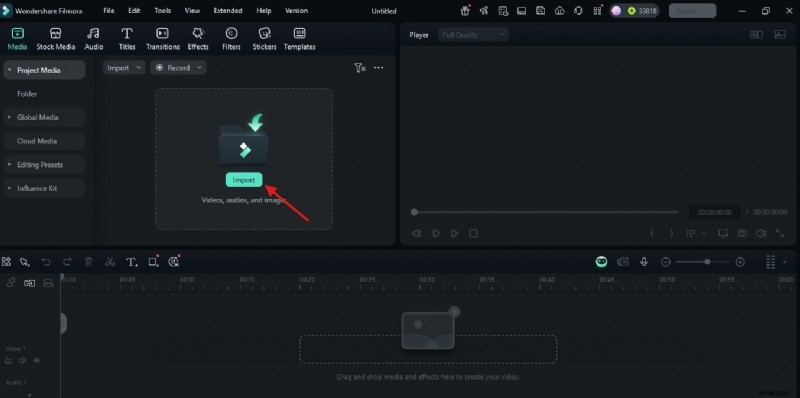
- Launch Filmora and create a new project.
- Click Import, select your footage, and drag it to the timeline.
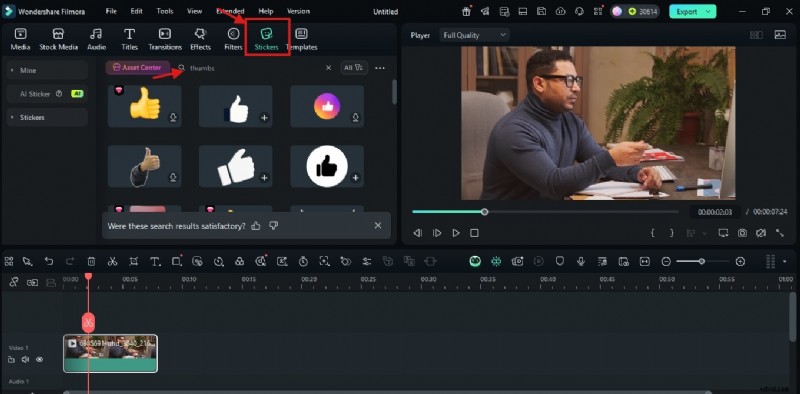
Step 2 – Open the Stickers Library
- Click Stickers on the top menu.
- Use the search bar to find emojis (e.g., “smile,” “heart,” “thumbs”).
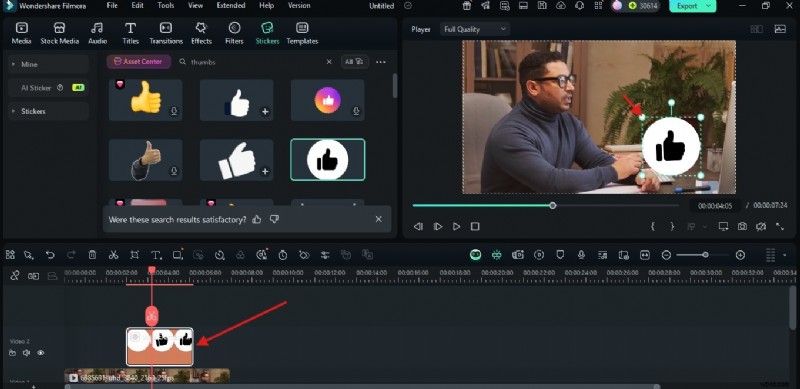
Step 3 – Place and Resize
- Drag the chosen emoji onto the video track above your footage.
- Select the clip, then adjust its size and position in the preview window.
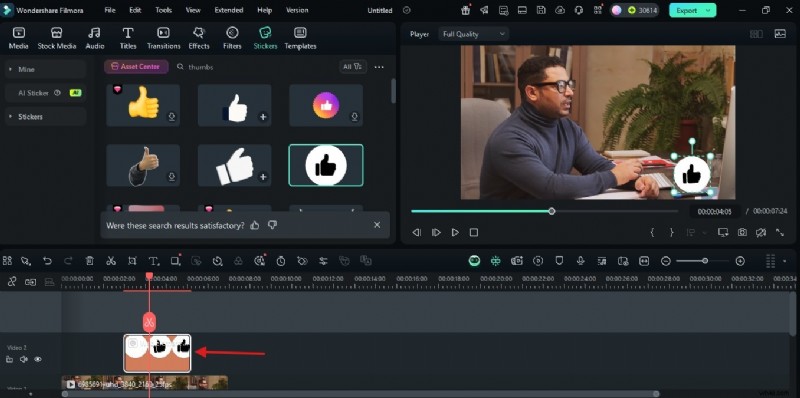
Step 4 – Set Duration
- Hover over the clip edges to reveal the resize cursor.
- Drag left or right to shorten or extend the emoji’s on‑screen time.
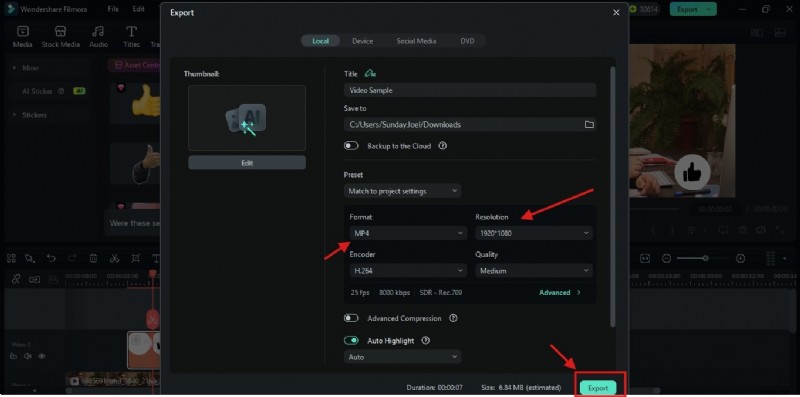
Step 5 – Preview and Export
- Play back your edit to ensure timing is correct.
- Click Export, choose format and resolution, then hit Export again to save.

Part 3: Best Practices for Using Animated Emojis
Proper use of emojis can amplify your message without distracting your audience.
General Guidelines
- Limit quantity: Stick to one or two emojis per scene to avoid clutter.
- Align emotion: Match the emoji’s tone with the content (e.g., avoid a laughing emoji in a serious segment).
- Audience‑centric: Test bright, playful emojis for younger viewers and minimalist styles for older audiences.
Creative Ideas
1. Pair with On‑Screen Text
Combine an emoji with a word like “Wow” or “Great” to reinforce positivity.

2. Emoji Thought Bubbles
Use a bubble emoji above a character’s head to illustrate thoughts, ideal for silent or comedic scenes.

3. Interactive Call‑To‑Action (CTA)
Place a pointing‑finger emoji near “Like” or “Subscribe” prompts to draw attention.

Conclusion
Animated emojis are a low‑effort, high‑impact tool for boosting engagement. While other sites provide free downloads, Filmora’s built‑in library lets you add and tweak emojis directly while editing—streamlining your workflow.

Filmora – ⭐⭐⭐⭐⭐ The best AI‑powered video editing software.