
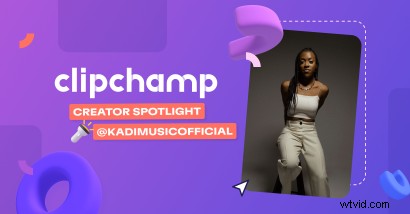
Meet the creator
Meet Kadi, a singer-songwriter from South London, UK who produces emotive pop/soul music.
What kind of video do you create?
In Clipchamp, Kadi creates music covers, blogs on her journey as an independent artist, behind-the-scenes (BTS) video content and creative videos to introduce her songs to her audience. When Kadi releases a song, she makes sure she films the process and uses Clipchamp to edit this content into behind-the-scenes pieces of content for her various social channels.
Tell us a bit about this video:
Three features you used to create this video:
Progress bar - “Progress bar is a feature I didn’t realize Clipchamp had at first, it’s really cool because then people are aware of how long the video is going to be and encourage them to stay till the end.”
Split: “When editing this video I used the split tool a lot because I had to cut up my video and get rid of anything that wasn’t going to be engaging and make sure the video wasn’t too long, keeping the core of the message straight to the point.”
Import: “This video required a lot of graphics which I created and imported into Clipchamp which was really cool.”
What is your top Clipchamp tip?
Kadi’s top Clipchamp tip is to make use of brand kit. Brand kit is a space in Clipchamp where you can store your brand’s go-to fonts, colors, and logos. It’s the key to keeping your videos consistent and on-brand, no matter the size of your company.
Brand kit allows Kadi to create with consistency. “I have this specific brown color I use so I have that in my brand kit.”
What feature would you like to see next from Clipchamp?
Kadi would like to see Clipchamp add auto-captioning into the desktop editor. Captioning opens the world of video content to the deaf and hard of hearing community, so we love this idea!
Although not available in the desktop editor yet, using Clipchamp’s mobile app, you can record or upload videos and automatically generate captions using speech-to-text technology. You can then share from your mobile device or import the captioned videos into our desktop editor to add your final touches.