
If you’re scrolling through the internet searching for a way to easily speed up or slow down your video clip, look no further. Clipchamp's video speed controller tool is what you’ve been looking for, and it’s free! There’s no need to download an expensive app, install an extension pack or video speed software. We’ve got you covered. Learn how to use our awesome video speed controller online below.

How to use Video Speed Controller
Our free online editor comes with all of the features required to create a great video. One of our favourites being our user friendly video speed controller. The editor is run completely through your Chrome browser, so no need to worry about slow upload speeds either. With a quick click of a button, you can customise your video footage to speed up, slow down or stay at its original pace.
Step 1. Log into Clipchamp Create
Sign up for free or log into your existing account.

Step 2. Create a new project
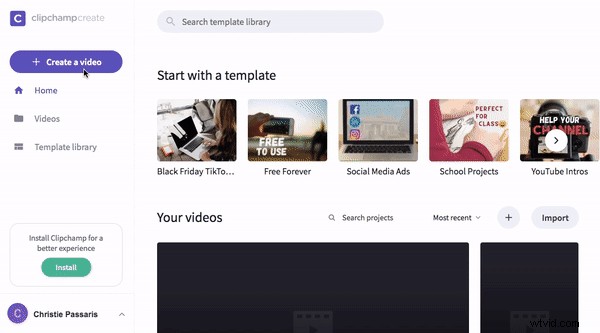
Once you’ve signed in, click Create a Video and select the video ratio you would like to use. The editor will automatically open. We recommend using 16:9 for YouTube video upload or 1:1 for square Instagram video upload.
Step 3. Add Media
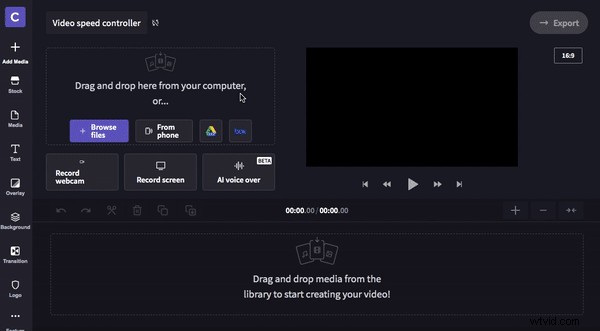
If you have existing video footage you would like to use, click Browse Files and select the footage you want to add. You can also add directly from your smartphone device, Google Drive and Box.
If you would like to use stock footage, click Stock and browse the endless stock clips. Click the + plus button to add clip to the media library. Click Close to return back to the editor.
Step 4. Add footage to timeline
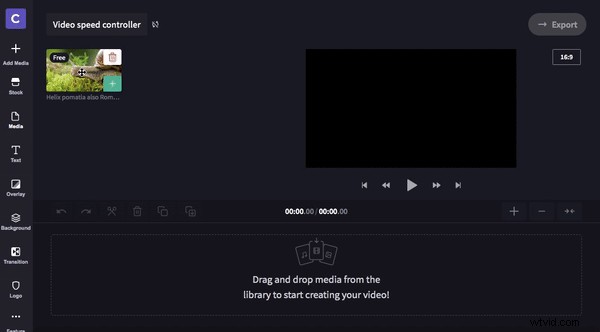
Once you have selected and added your footage to your media library, drag and drop your clip/s onto the timeline.
Step 5. Use the video speed controller tool
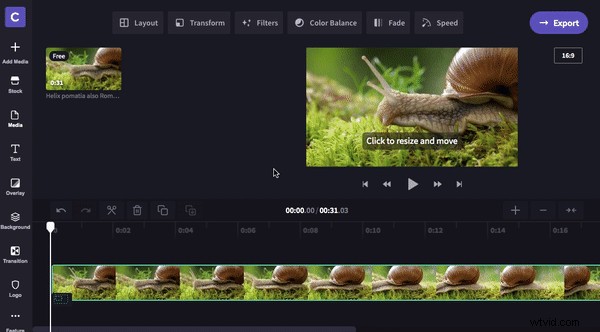
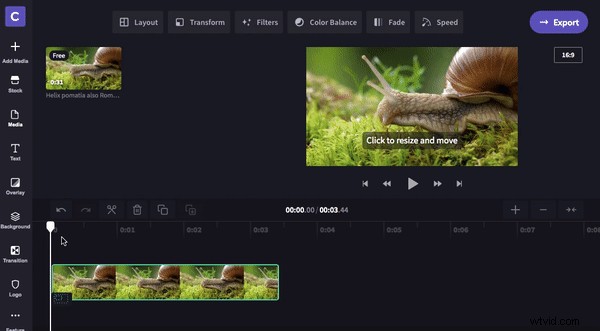
Make sure your clip is selected on the timeline. Selected clips will have a green border around them. Once selected, click Speed on the top right side of the control panel. You will have three video speed changes to choose from. Slow, Normal and Fast. Choose what speed you want to make your clip. We have chosen to decrease video speed to slow.
A drop down menu will appear under the three options once you click the speed. Slide the cursor back and forth to change the speed time of your selected speed control. Make sure to play back your clip to see if you’re happy with the speed change. You can alter the speed as many times as you’d like.
Step 6. Split clips - optional step
If you want to change the speed multiple times within the same clip, drag your white handle and select Split on the section you want to cut. You can now change the video speed of the clip without affecting the original clips speed. We have chosen to video speed increase the new clip.
Step 7. Export video
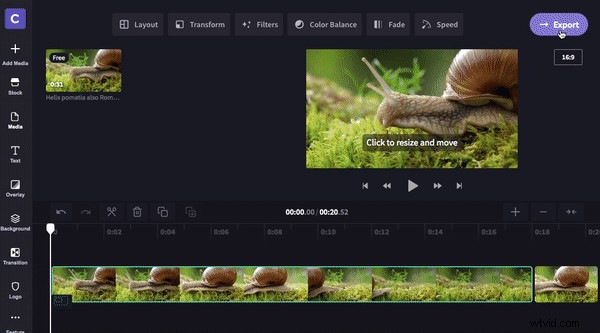
Once you have finished editing your video, click Export in the top right corner. Select from the exporting options. We recommend using 720p for social media upload or 1080p for the best quality. If you want a faster file size, click Maximum compression. Click Continue when finished.
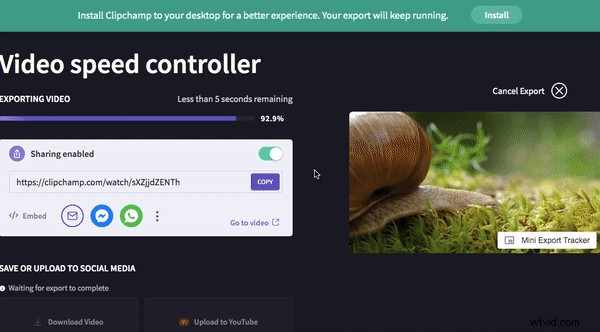
An autosave popup will appear automatically. Save the video to your computer when exporting has finished.
Bonus Tip: Video Speed App
Want to use a video speed controller app instead of desktop? Create videos from your mobile device with our video speed up app feature. Record, edit and caption your creations with our new all in one app! Clipchamp for IOS is a fast way to change the speed of your video. Download Clipchamp from the app store now.
You’re now good to go! We can’t wait to see what you create using the video speed controller online.