
In the past, if you need to add multiple audio files, such as background music, sound effects and recorded audio to one video, and play all of them simultaneously. Either you have to pay for a large amount to purchase a professional video editing program and spend much time learning the user manual. Or you can purchase an easy video editing program to add one audio file at a time, export the video, add the next piece of audio to the program repeatedly. In nowadays, you can purchase an easy and trendy program called Wondershare Filmora for Mac (Latest Filmora version 9 for Mac), which will save you much time on reading the user manual and meanwhile save you much money to buy a professional complicated program. It is a good way to kill two birds with one stone.
You could follow below instructions to add multiple music files to the video and play them simultaneously.
Step 1: Import videos
Please click Import to add all the video and audio files (background music, sound effects and recorded audio) you need.
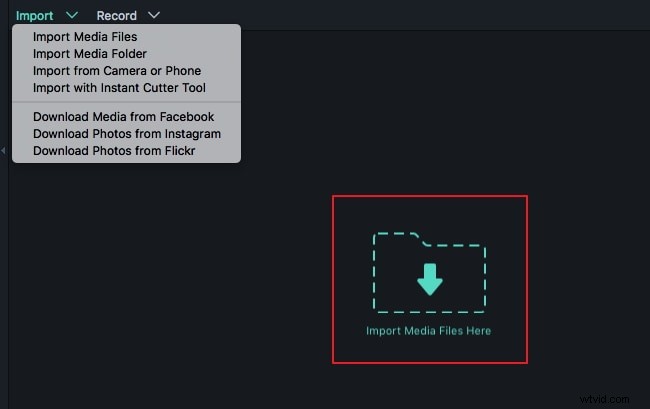
Step 2: Drag video and audio to timeline
Then drag and drop the video to the video track. You can freely arrange clips in timeline untile you like the sequence. At the same time, drag and drop the music file, recorded audio and sound effect to timeline respectively.
Step 3: Adjust the length of clips
Lastly to make them synchronized with the video file. You could drag the edge of the audio files to change the duration directly. Or you could freely move either of the audio files to anywhere you need.
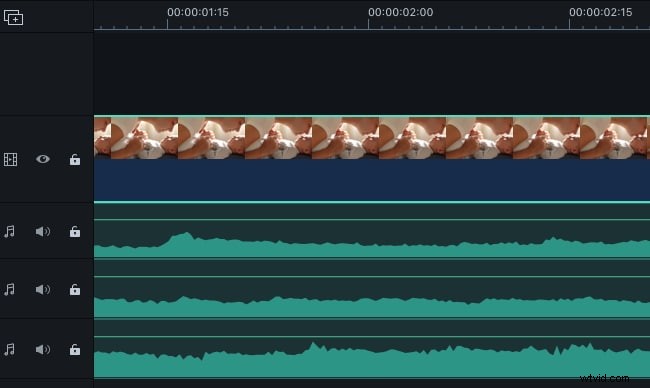
Tips: If you need to record an audio, you could record an audio directly by this program. Then you do not need to do it by another program. The recorded audio will be located in the Media Library and the audio track meanwhile.
Conclusion
Wondershare Filmora for Mac (Latest Filmora version 9 for Mac) supports importing up to 100 tacks, which means you can import up to 100 video and audio files at the same time, so it can meet your needs easily. Just download it to have try!