
The truth is that if you want to add music to video with Windows Movie Maker, this isn't something particularly complicated. However, there are a few considerations that you'd need to account for, so let's go ahead and take a look at what you need to know.
While it's true that you can add music with Windows Movie Maker, the process has a few cons. They include:
- No exclusive audio tracks
- It's difficult to use, and the features are rather limited
- There is no timeline
Instead, you can take advantage of Wondershare Filmora. This is software which is going to allow you to rely on:
- Built-in audio mixer as well as an audio equalizer to get the best quality
- Exclusive audio track in order to perfectly edit the music to the video
- Detach the audio from the video conveniently
- De-noise the audio in order to get premium sound quality and many more.
You can take a look at this video tutorial on how easy it is to use the Wondershare Filmora software:
How to Add/Edit Music to Video in Windows Movie Maker
The comprehensive Windows Movie Maker is a program that enables the users to import convenient audio files in order to play on the background of different videos. With this in mind, let's take a look at the steps that you would have to go through in order to make sure that you've succeeded with this endeavor.
Step 1:
Start the program and import the video clip in it. That's absolutely seamless, and it poses no challenge whatsoever.
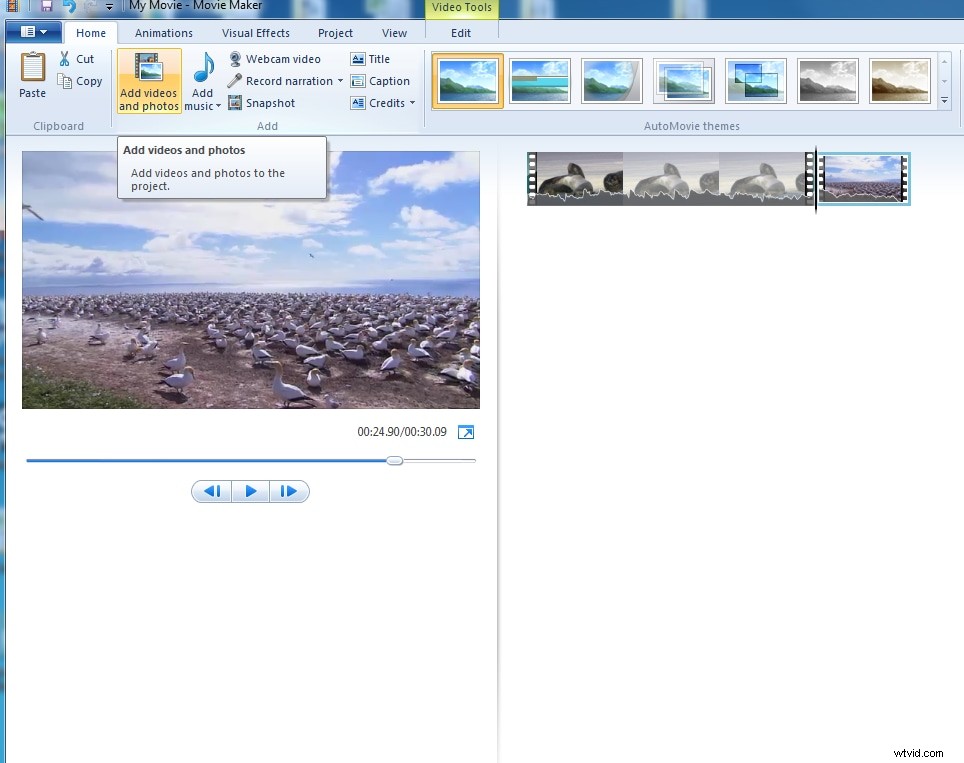
Step 2
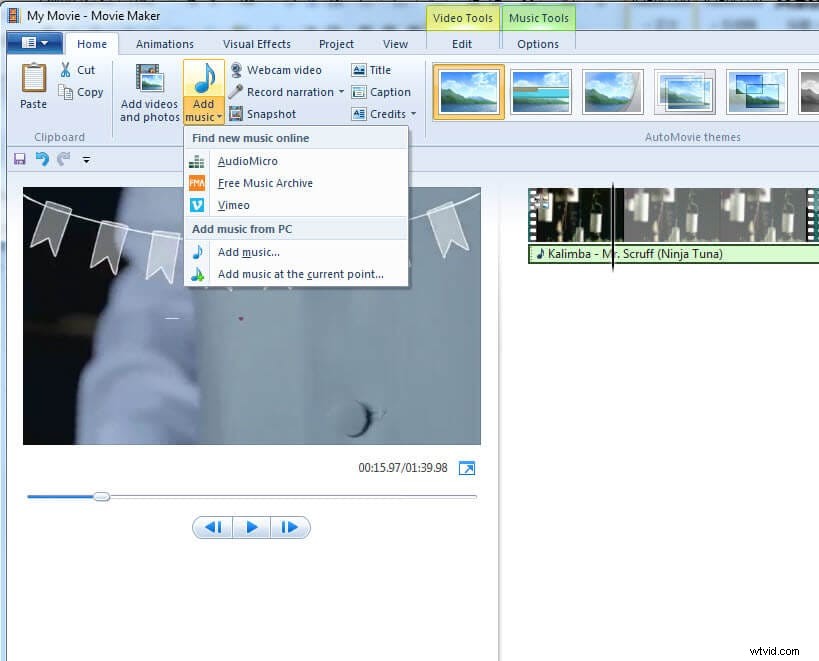
Import the audio files. There is an “Add Music” button that you need to hit in order to import music. You can import it from Free Music Archive, Vimeo, and Audio Micro and directly from your computer. The most common file types include .mp3, .wav, .wma and .mpa. Keep in mind you wouldn't be able to add the music unless you've added the clip in the first place.
Step 3
Edit the Music. In order to do so, you have to double click on the music, and you will see the provided options. You can adjust the volume, set certain effects like Fade in and Fade out or split the file, set the starting as well as the end points and many more.
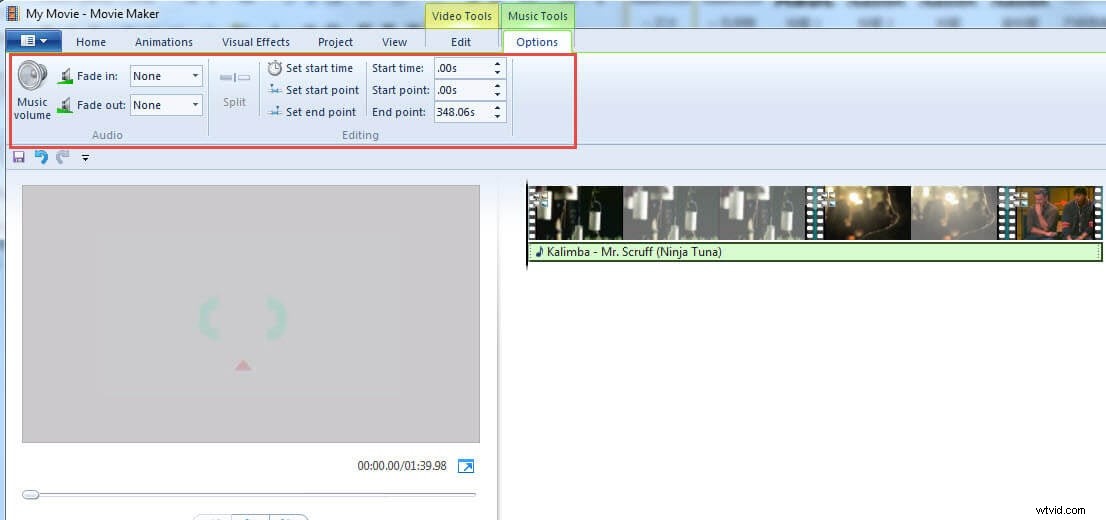
Note: if the audio you imported is longer than the video clip, you will be unable to see the second music you added, you can set the start and end point to adjust it.
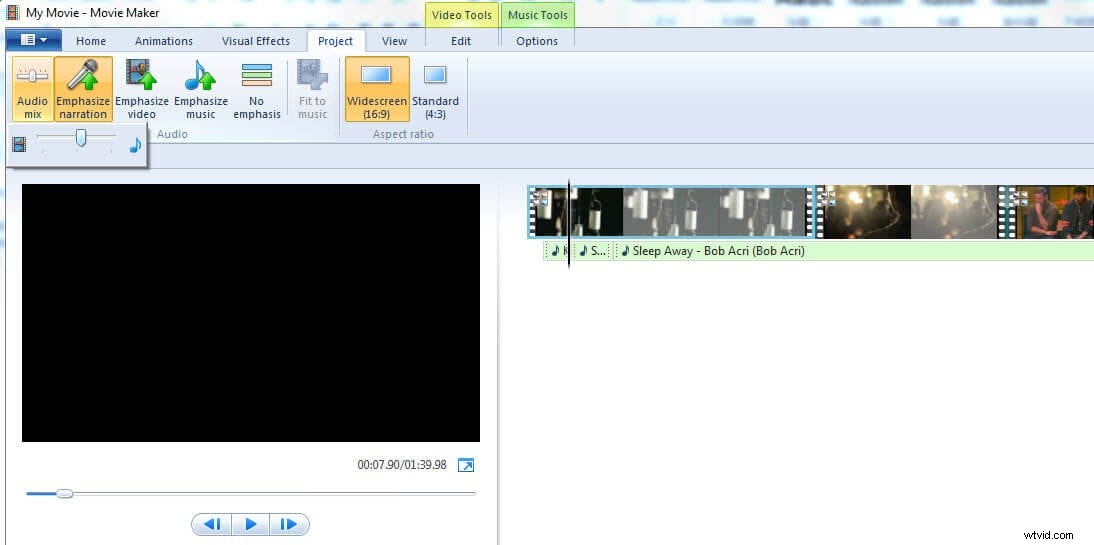
You can adjust the volume of audio and video by dragging the tool bar of Audio Mix.
Step 4
The last thing you'd have to do is to save your project. Make sure to do this because if you fail to, you wouldn't be able to recover it.