
Want to apply mosaic to the picture/video you've taken with your digital camera or downloaded from the Web? You just need this intuitive and easy to use video Mosaic maker – Wondershare Filmora. With it, applying mosaic to hide improper or private message is a nice and easy technique, even for beginners. In the following step-by-step guide, I'll show you how to create a simple mosaic. In the end, a video tutorial is also for you.
1 Load your media files
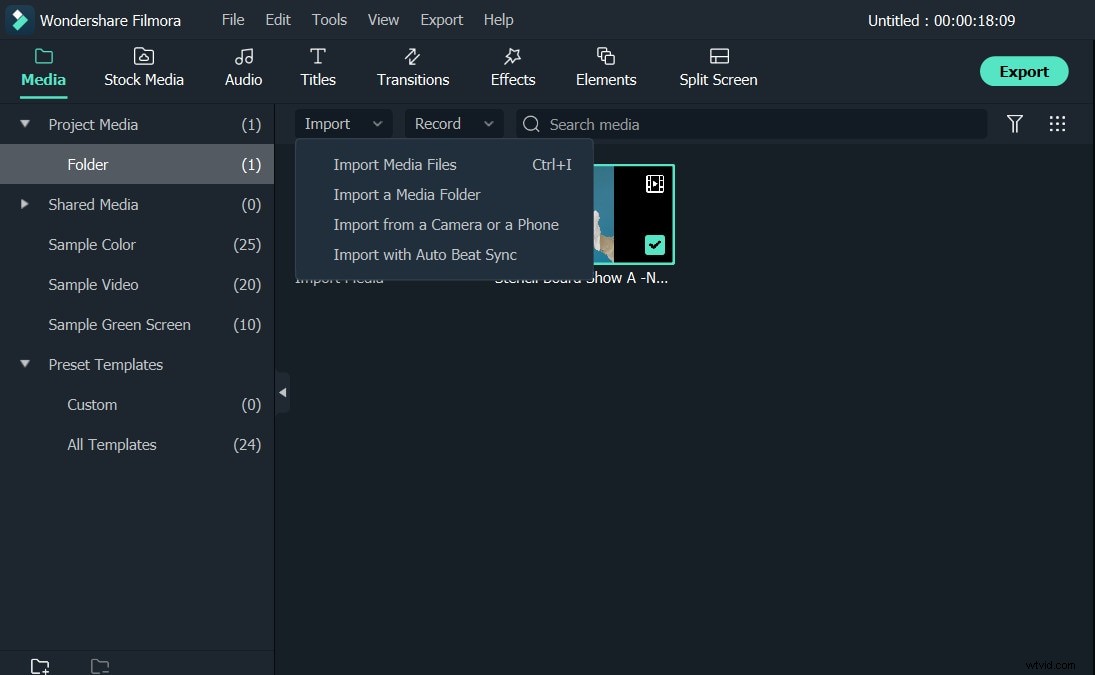
Run this video mosaic maker, click New Project to start exploring. To add your original video or photos, click Import to browse your file folder, or drag and drop them directly into the primary window.
2 Make a mosaic with ease
Drag videos from the media library to timeline one by one. Clik Effects > Filters > Utility > Mosaic. Drag Mosaic to timeline. You can drag the border of mosaic clip to adjust its length. In the preview window, click the mosiaic to modify the mosaic area and size. You can also double clik on the mosaic clip to switch the mosiac type, blur amount and opacity.
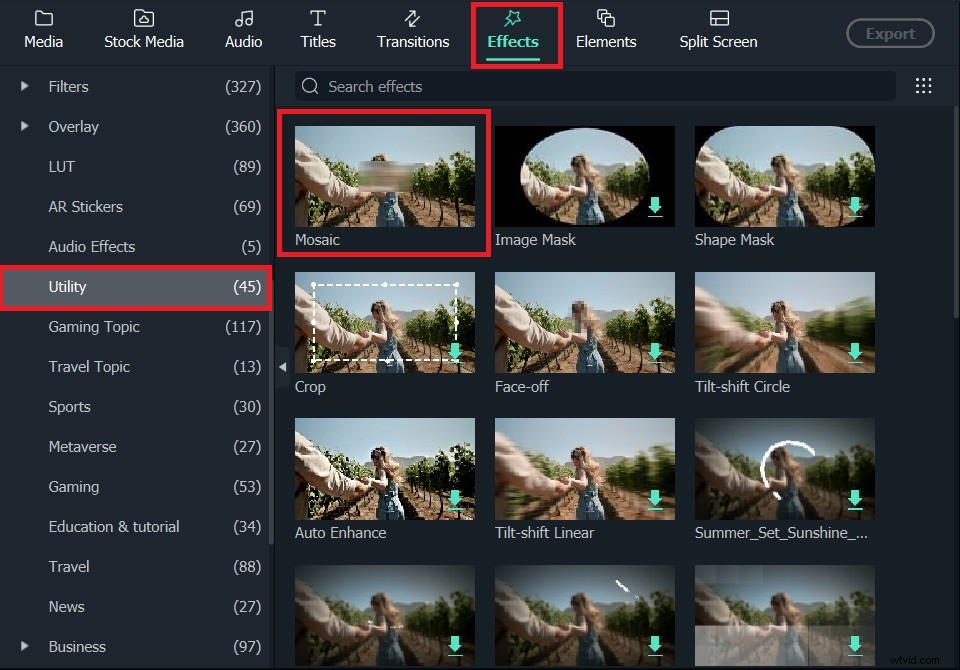
Tips: To help you find the target filter you want quickly, you can also search the filter name in the serach bar. Select Filters at left, and then type in the filter name at right.
3 Save the mosaic video
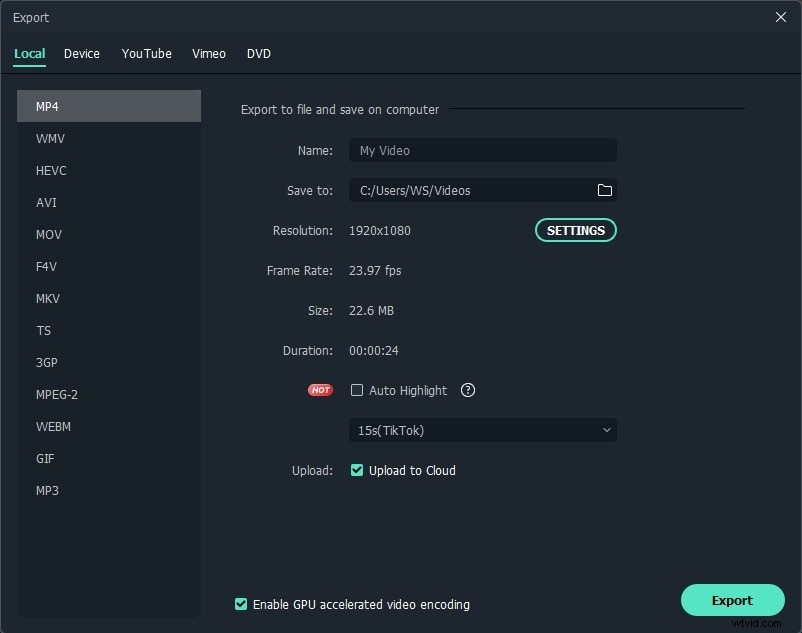
Hit EXPORT to export the mosaic video/photo you've just created. In the output window, choose your desired format to save it on your computer.
Alternatively, you can click the YouTube tab and share your creation with the world on YouTube or Vimeo.
Check this video tutorial to know more details about Mosaic.