
Losing editing data to a computer crash is every editor’s worst nightmare. Learn how the release of DaVinci Resolve 14 puts this issue to rest.
One heartache for video editors is to see a project crash and lose several hours’ worth of work. Thankfully, this doesn’t happen very often because of the built-in autosave in most NLEs. As these programs have advanced, so has the way autosaves work. In Resolve 14, there are now three ways you can edit with a safety net.
While this article primarily addresses new users of Resolve, there’s something here for users of all levels — you might be surprised to find that the autosave menu has completely moved.
Where to Find Autosave
By default, Resolve sets autosave to “off.” Therefore, the first thing you need to do is to turn it on. Some editors prefer to keep autosave turned off because it can disrupt their workflow, but with database improvements over the last few years, the autosave pop-up will usually open and close in under a second, and now Live Save removes the on-screen graphics altogether.
In previous versions of Resolve, you would find the autosave setting in Project Settings, which is located at the bottom right of the user interface. However, in Resolve 14, the autosave is now under user settings in the preferences menu (CTRL+,).
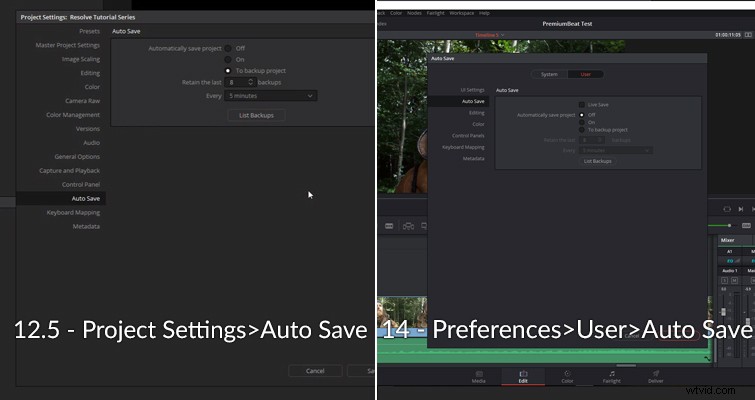
As a side note, even though I always keep autosave on, as you can see in the screenshot above it’s reverted to off. This is because I’ve only just updated the software from the beta to the public release. I’m sure that this could have landed me in trouble had I not started writing about the autosave feature. Therefore, if you have updated recently, make sure you go back to the autosave settings and switch it to on.
The Settings
Resolve 14 gives us three autosave settings to choose from:
- Live Save.
- Auto Save.
- Auto Save to Backup Project.
Auto Save
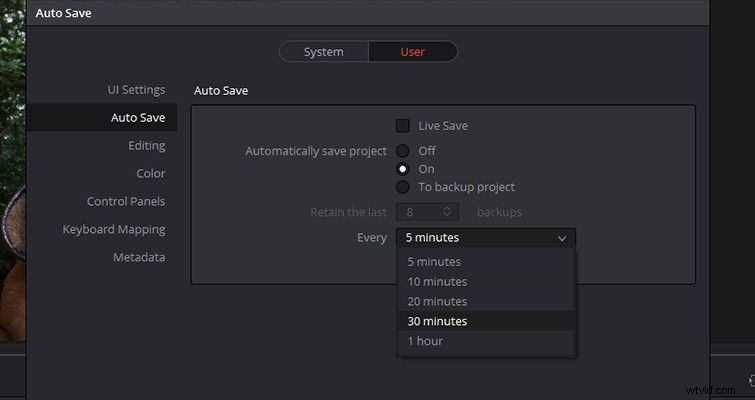
Let’s first look at the standard autosave feature. If you’re coming over to Resolve from Premiere Pro, I’m sure autosave is going to be very familiar. It does exactly what it says: it automatically saves your project every few minutes according to your settings. This brings up an on-screen pop-up when the project is saving, and depending on the power of your system, it may cause an interruption because you’ll be unable to continue editing while the project is saving. However, in Resolve 14 the autosave feature will likely be gone before you have time to sigh. This save feature will only overwrite the primary project file.
Auto Save to Backup Project
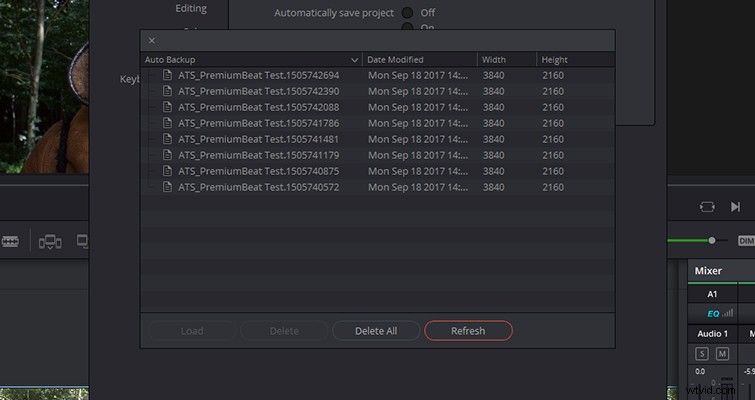
Autosave to backup project works similarly to the standard autosave setting. However, every time the project autosaves, instead of overwriting the original project file, the program creates a copy of the project. You can specify how many backups (from 1-10). When you reach backup X out of X, Resolve will revert to backup copy #1 and start to overwrite the list. Premiere Pro has a similar feature, but you can also send a backup to the Creative Cloud.
If your project does crash, when you load Resolve back up, the most recently saved version should automatically load. However, you can also load a previous backup directly from the autosave panel itself by clicking on a backup save and selecting load.
Live Save
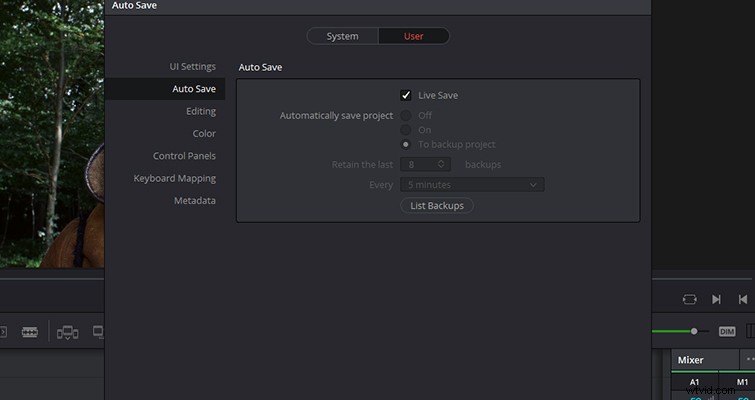
Live Save is the newest addition to Resolve. Live Save will continually save every adjustment (with little impact on performance) you make in the edit. There is no pop-up or notification to let you know that this is occurring, but you can trust that Resolve is saving your project. If your computer unexpectedly loses power, or if Resolve unexpectedly shuts down, you can re-open at the very last action.
For me, at this point, I feel like Live Save is like performing a trust fall on someone you don’t quite know. As 14 has only just entered into public release, we’ve yet to hear horror stories on how Live Save didn’t work, or how it bugged out the system. While I have good faith in the Blackmagic magicians, I think for next few months I’ll stick with Autosave To Backup project.