
Whether you’re new to DaVinci Resolve or you’ve been using it for a while, these time-saving tips will make a difference in your next project.
Diving into a new application can be overwhelming at the best of times. Learning quick tricks and tips can be hard when most tutorials only cover the basics in a linear fashion. This playbook series seeks to find the best tips and cut out the boring bits. Dive into episode two below!
Moving Media Between Timelines and Projects
Sometimes you need to move media between timelines. Of course, you can do this by copying a clip, opening timeline two, then pasting the material just as you would in a text editor. However, I find this approach a little tedious, and the loading time, even if it’s just a second or two, is too long.
Thankfully, in DaVinci Resolve 15, we have the option of tabbed timelines, so you don’t have to continually go back and forth to the media pool to open different timelines. After opening tabbed timelines, you can jump back and forth between the two timelines.
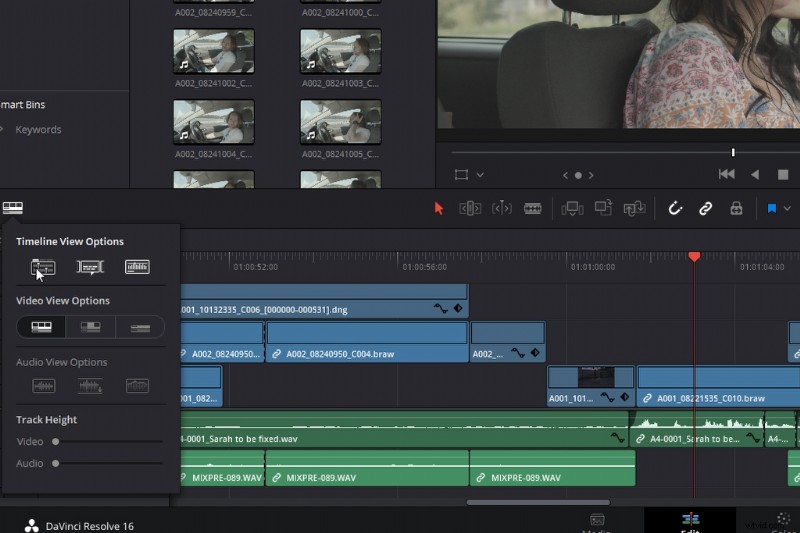
However, I still feel like we’re navigating blindly, and I want a more intuitive way of jumping back and forth. With Resolve 15, you can stack entirely composed timelines on top of each other.
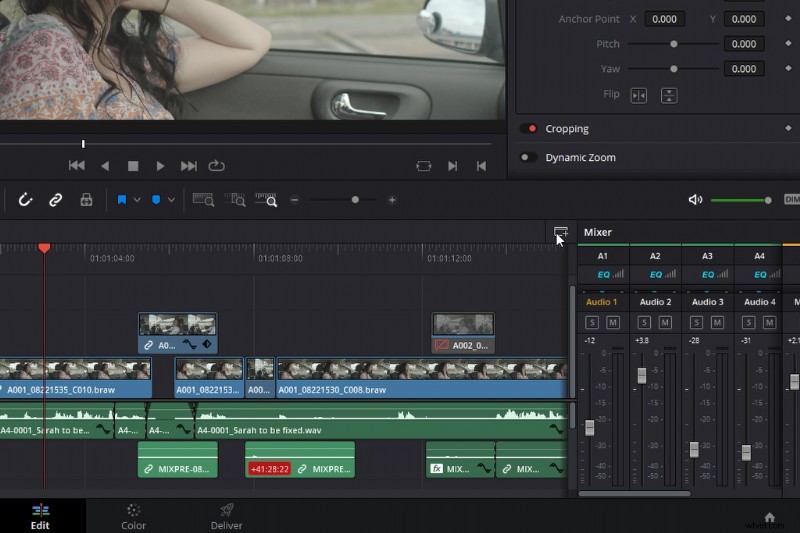
With two stacked timelines, you can move individual clips or a section across multiple tracks across the two timelines. Although this is mainly to adjust two timelines on the fly, it’s also incredibly useful for moving media between two timelines without breaking the edit.
But what about copying clips across projects? It’s not as if you can pop open a new project in your existing project.
Well, actually, you can.
Dynamic Project Switching
First, leave the edit page and go to the project manager’s homepage by hitting the house icon. Then right-click anywhere — it can be on a project or in the blank space—and activate dynamic project switching. Now, open the second project you would like to coincide with your current edit.
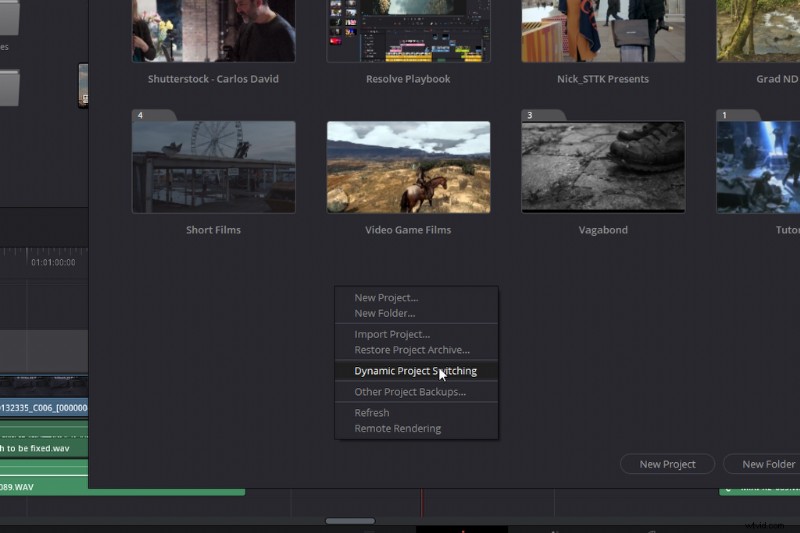
Above the timeline viewer where it has the project title, you can click the dropdown menu. Open up the secondary project stored within the dynamic switching.
You can do this with several projects, and it allows you to quickly use different elements that you’ve already constructed in other projects. However, it’s important to note that this is a RAM-heavy operation. I don’t recommend opening too many projects, or you may notice a decrease in performance.
Power Bins
Say you have a media file that you tend to use throughout every project. Perhaps it’s a title card, or piece of background music. You can have it appear in the same way a power grade appears in the gallery throughout every project — with a power bin.
Initially, the power bin isn’t visible. So, you need to bring it into view by selecting View > Show Power Bin.
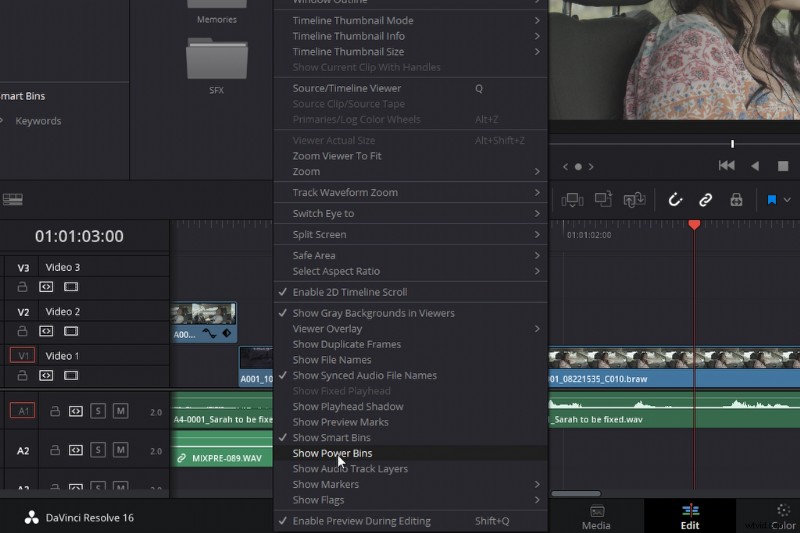
When you place media into this bin, it will appear in every project until you remove the item or hide the power bin.
Adjust Linked Media
In every edit, it’s more than likely that you’ll have a linked video and audio file, and you need to extend the audio into the next sequence, perhaps to create a J or L cut. Usually, you might opt for unlinking the video and audio, extending the media, and relinking the two tracks. However, if you hold Alt before selecting linked media, it only selects either the video or audio.
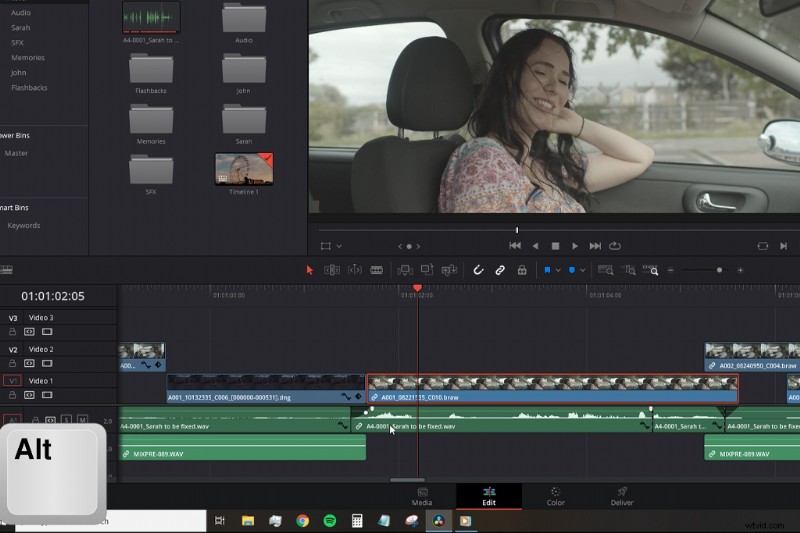
This allows you to adjust linked media separately from its connected counterpart.
Add Transitions Quickly
The next shortcut is Ctrl+T. Pressing Ctrl+T after selecting an edit point (V) will add the default transition to both video and audio tracks (cross dissolve or crossfade).
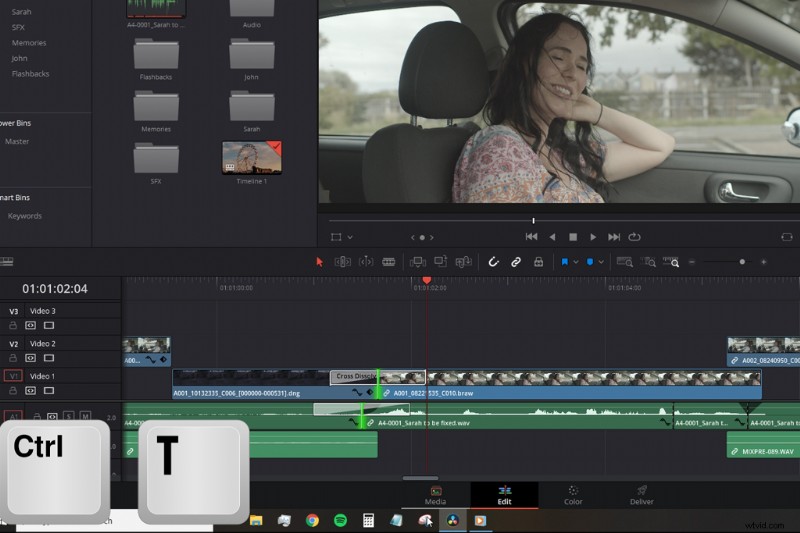
This shortcut is incredibly useful. But, if you like to use a specific transition more than the default one (a cross dissolve), you can open the effects library, find a new transition—say a blur dissolve—then right-click and select Set As Default Transition.
As I note in the tutorial, when you click Ctrl+T, if you’re selecting the edit point of linked media, you may notice that the transition gets added to both the video and the audio. Sometimes this isn’t useful if we don’t want the audio to crossfade or the video to cross-dissolve.
So, like the previous shortcut, if you select the edit point but initially hold Alt, you only highlight the edit point of the selected video or audio. Hitting Ctrl+t will only add to one media, not both.
1080p in 4K
While most cameras can now shoot in 4K at 24fps, very few mirrorless cameras or DSLRs can shoot at 60fps 4K or 120fps 4K. So, filmmakers often need to drop down to 1080p. For most online content, 1080p rendered at a 4k timeline is passable; for more professional circumstances it’s not. However, if you need that 1080p to appear somewhat sharper and more natural, well, Resolve can do that for you.
Resolve 15 introduced a new upscaling feature called Super Scale that can resize HD to 8K. Resolve already has a fantastic image rescaling filter, which you can set up according to the requirements of your project either through the setup menu or in the inspector.
But the Super Scale tool is different. It uses an advanced algorithm that improves image detail upon enlarging. That also means it will be a processor-intensive operation that can slow your footage down.
The Super Scale isn’t as accessible as many other features — you won’t find it in the inspector, nor in any menu panels. To get to Super Scale options, right-click your media, and select “Clip Attributes.”
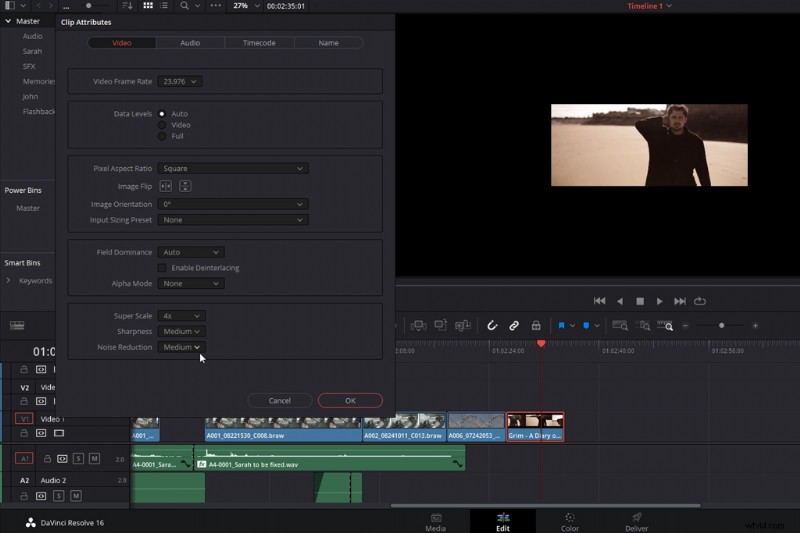
From there, you’ll find the Super Scale menu at the bottom of the video tab with three settings to work with: Super Scale, Sharpness, and Noise Reduction. The first setting changes the size of the file. You can choose from 2x, 4x, and 6x. The sharpness and noise reduction settings will then help you fine-tune the resize.
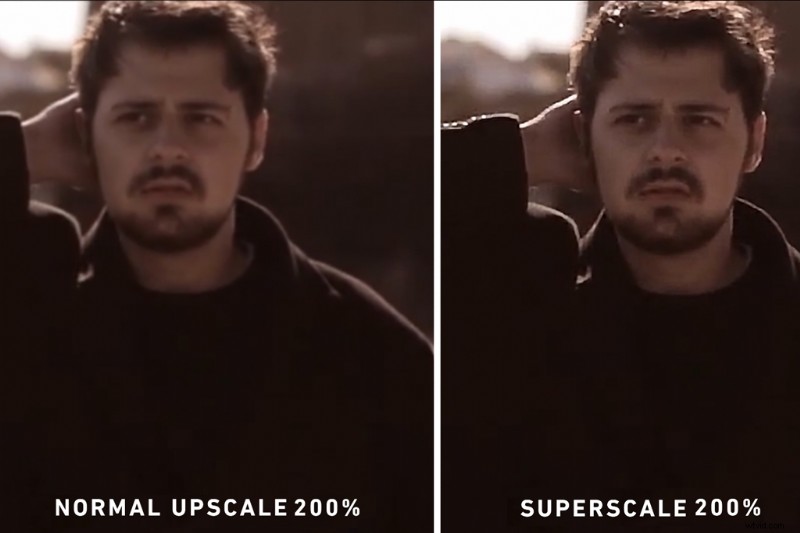
While it’s often hard to display the difference via a compressed still image or compressed YouTube upload, I encourage you to test out the Super Scale feature. There is a significant difference in quality between Resolve’s standard resize filter and the Super Scale feature.
Interested in the tracks we used to make this video?
- “Flaming Lo Fi” by Trending Music
- “Tempting” by Trending Music
- “Late Night Groovin‘” by Marc Walloch
- “Hip Hop Travel” by Trending Music
- “Boom Bap Hip-Hop” by Trending Music
Want more insight on video production? Check these out.
- The DaVinci Resolve Editing Playbook Tutorial: Episode 1
- Filmmaking Industry Tools and Service Updates During the Pandemic
- Creative Ways to Make Money at Home as a Videographer
- The 7 Best Free Filmmaking Resources for Video and Motion Graphics
- Animation Breakdown: Make a Fake 3D Eye in After Effects