
Let’s look at that tried-and-true program, Final Cut Pro X, and tackle all the specs you need to know to work with it.
Compared to the other non-linear editing platforms out there, Final Cut is pretty consistent with where it lives in the echelon of non-linear editing systems.
While it’s had its ups and downs in the past, FCPX is still here and worthy of our love and attention. Though not technically as accessible to editors as Resolve and Premiere, there’s still a lot to break down for what you need and how to make the most of editing in FCPX.
System Requirements
We’re going to explain what these components are and some of the recommended products currently on the market. But, if you’re just looking for the requirements so you can bounce, we got you.
Also, I should just make sure I mention, FCPX is only compatible with macOS, so you’ll need to be working with an Apple computer for the program to work.
Mac
Let’s just look at the requirements with macOS:
- macOS 10.15.6 or later
- 4GB of RAM (8GB recommended for 4K editing, 3D titles, and 360° video editing)
- 1GB of VRAM (GPU) recommended for 4K editing, 3D titles, and 360° video editing
- 3.8GB of available disk space
- a graphics card that supports Metal, an Apple technology that lets the system and apps efficiently tap into the capabilities of today’s graphics processors (GPUs)
In case you’re wondering what “Metal” is. Here’s a description straight from Apple:
While this isn’t exactly an article about GPUs and CPUs, it’s important to understand how these tools work in relation to what Premiere needs from your computer in order to perform to the best of its ability.
So, let’s go over the basics and where to look for the products that will best match your computer setup, so you can have an idea of where to start or what you need. Then, we’ll talk about what Final Cut requires from you.
What Is a CPU?
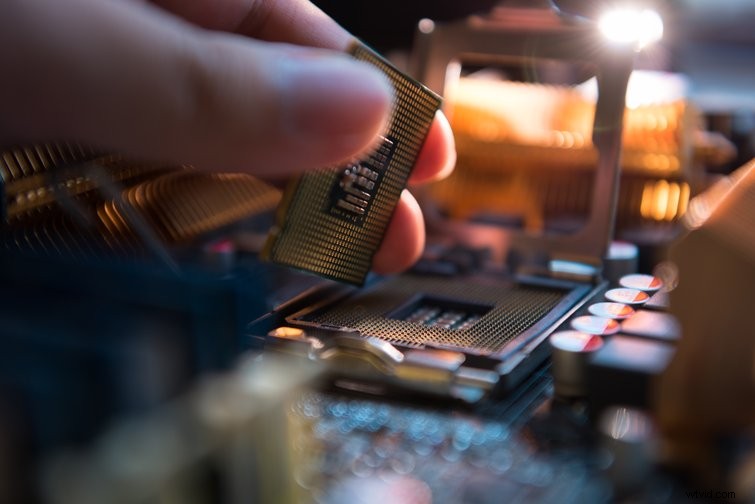
A CPU (central processing unit) resides attached to the motherboard of your computer. CPUs are essentially chips that receive information from different parts of your computer, then performs somewhat of a calculation. So, it takes in information, figures out what to do with it, then does it. Still with me? It’s the brain, essentially.
In the context of this specific situation, the CPU has previously been a major factor when using FCPX. Like most post-production situations, you’d really benefit from having a decent CPU to work with.
That being said, which CPU would ideally work best for FCPX? Let’s dive in.
Best CPU Option for Final Cut Pro X
Obviously, I haven’t personally tested each and every CPU available, especially given this is more about choosing newer or older Macs, but there are resources that will list how these stack up against each other.
The recent release of Apple’s new M1 chip is really the best thing they’ve done in a while.
- The new iMac: Enough Power for Filmmakers, Designers, and 3D Artists
So, all I can really say here is that I recommend not purchasing any Mac/MacBook that has less than a quad core processor, or four cores. Right now, the base model Macbook Air has an 8 core processor (thank the M1 chip for that), putting you in a good place.
Here are the best options and prices for each, respectively.
- 13-inch MacBook Air – $999
- 13-inch MacBook Pro – $1,299
- 27-inch iMac 3.1GHz 6 Core w/ 4.5GHz 256GB Storage and 5K Retina Display – $1799
What Is a GPU?
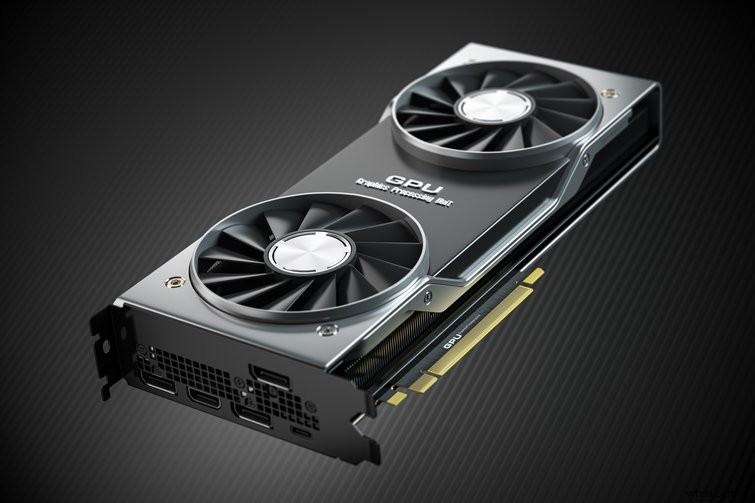
A GPU (graphics processing unit) is a card that’s designed for graphics and video rendering. This is what’s handling the actual footage you bring into Final Cut.
One of the reasons Final Cut is now such a powerhouse for the everyday Mac user is the fact that almost every model of a new Mac computer is coming with some seriously stacked parts.
So, even though Final Cut still remains a bit exclusive—only being available to Mac OS users—it doesn’t necessarily mean you can’t have somewhat of a say about how you edit.
- Comparing the Performances of Premiere Pro vs Final Cut Pro X
Best GPU Option for Final Cut Pro X
Alright, time to break down what the best options are for GPUs. Well, kind of. With Apple, it’s tricky because more often than not, you’re limited to what comes with the computer. And, by just looking at some of the specs for their MacBooks or iMacs, you get the same graphics card with each model. Alternatively, Apple has suggested upgrade paths on their page here.
For example, for the 2019 Mac Pro, they suggest the following modules:
- AMD Radeon Pro 580X MPX Module
- AMD Radeon Pro W5700X MPX Module
- AMD Radeon Pro W5500X MPX Module
- AMD Radeon Pro Vega II MPX Module
- AMD Radeon Pro Vega II Duo MPX Module
But, that’s fine because FCPX doesn’t rely on your GPU as much as, say, Resolve. If you’re working with an effects-heavy edit or render, the GPU will help out a lot. Whereas, with a standard, footage placed on the timeline type of edit, a strong GPU won’t be needed as much
However, if you require that extra boost of performance, you can acquire an eGPU. Of course, Windows user benefit over their Mac counterparts with the ability to install larger components that house more power.
Given the sleek and slimline design of MacBooks and iMacs, it’s not always possible to harness the same type of power. Therefore, you could look at using an eGPU.

An eGPU is short for External Graphics Processing Unit, and the idea is that it allows professional creatives to remain mobile and harnesses the power of a desktop.
They offer incredible flexibility and plugins via Thunderbolt 3, allowing you to benefit from improved graphics performance and acceleration of computational tasks. Of course, you do have an extra device to carry around, but it’s typically still a lot smaller than lugging around a huge desktop.
What GPUs do you need to use? Well, it’s going to depend on the size of the eGPU casing. But, for the most part, they’ll accept near enough all GPUs on the market.
Max Tech has a fantastic video below on what GPU to use for a MacBook Pro in 2020.
If you’re new to the world of building a custom PC or adding in specific custom parts, check out this full step-by-step build of a video editing-specific PC tutorial.
Okay, I think that’s it. If I missed anything, just kindly let us know. FCPX is constantly getting updated, as is a lot of the hardware that hits the market every year. So, we’ll be coming back into the post and updating the information as it changes.