
Capturing your Steam gameplay is essential for gamers who want to showcase highlights, tutorials, or stream clips. Fortunately, a range of tools—from built‑in Windows features to advanced editors—make it simple for anyone, from novices to pros, to record and share high‑quality footage.
In this guide we outline five proven methods for recording Steam gameplay, from free built‑in utilities to powerful editing suites. Discover which solution fits your skill level and workflow.
In this article
- Windows Game Bar
- Wondershare Filmora
- OBS Studio
- DemoCreator
- Fraps
The best recording method for Steam gameplay depends on your needs:
| Tool | Ease of Use | Features | OS Compatibility |
| Wondershare Filmora | Easy | Advanced Editing, AI Tools | Windows, Mac, Mobile |
| Windows Game Bar | Very Easy | Basic Recording | Windows |
| OBS Studio | Moderate | Customizable, high‑quality recordings | Windows, Mac, Linux |
| DemoCreator | Very Easy | Basic, no download needed | Browser‑based |
| Fraps | Easy | Lightweight, works on older computers | Windows |
Part 1. How to Record Steam Gameplay Using Windows Game Bar
For Windows users, the built‑in Game Bar offers a quick, free way to capture your Steam sessions without installing extra software. Follow these steps:
Step 1: Press Win + G while in-game to open the Game Bar. Click the Record button (or use Win + Alt + R) to start recording.
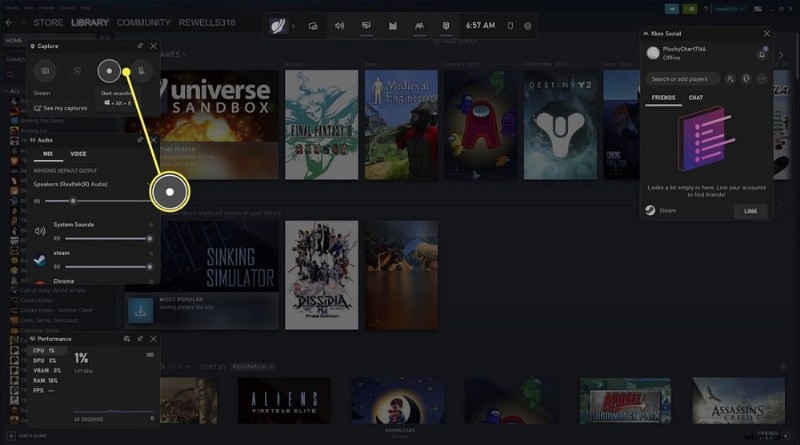
Step 2: Press the same key combination to stop. The video will be automatically saved in the Videos folder under Captures.
- Pros: Free, pre‑installed, and straightforward.
- Cons: Limited editing options; only available on Windows.
For more advanced editing—such as trimming, annotations, and effects—consider using a dedicated editor like Wondershare Filmora.
Part 2. Recording Steam Games With Filmora Screen Recorder
Filmora is an all‑in‑one solution that blends high‑quality screen recording with powerful editing tools. It’s ideal for creators who want a single platform for capturing and polishing gameplay videos.
High‑Quality Recording
Filmora captures video and audio in full HD, ensuring smooth footage without lags or stutters. Select the area of the screen you wish to record, and Filmora handles the rest.
Advanced Editing Options
After recording, Filmora’s editor lets you:
- Add text, arrows, and shapes to highlight key moments.
- Trim and cut sections with precision.
- Apply transitions for a professional look.
Powerful AI Features
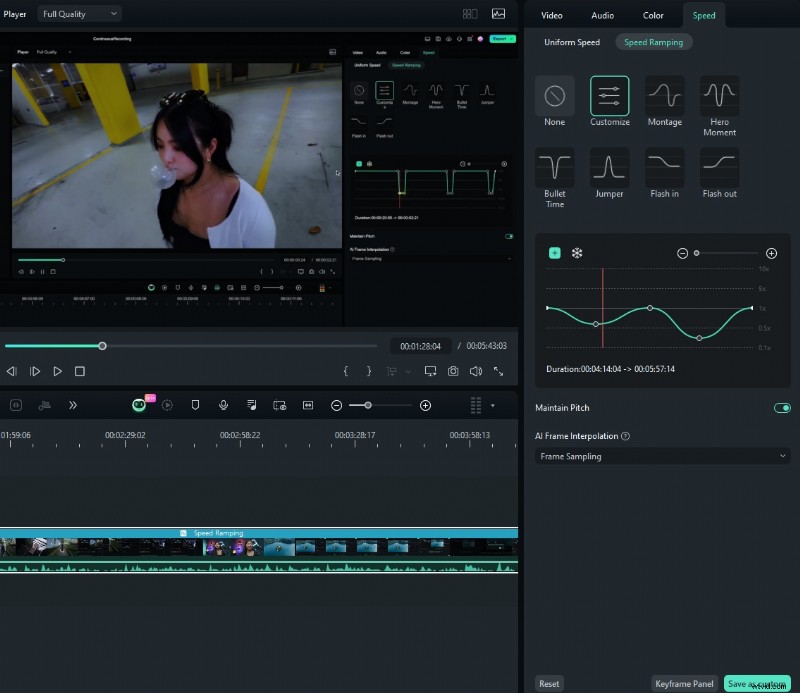
Filmora’s AI tools include motion tracking, dynamic keyframe editing, and speed ramping—enabling you to focus on in‑game objects or create dramatic slow‑motion effects.
Audio Enhancements
Enhance your audio with:
- Auto ducking to lower background music during dialogue.
- Audio synchronization for voice‑over alignment.
- Audio visualizers that react to sound.
How to Record Steam Gameplay With Filmora
Follow these steps to get started:
Step 1: Download and install Filmora. Launch the app and sign in with a Wondershare account or another available method.
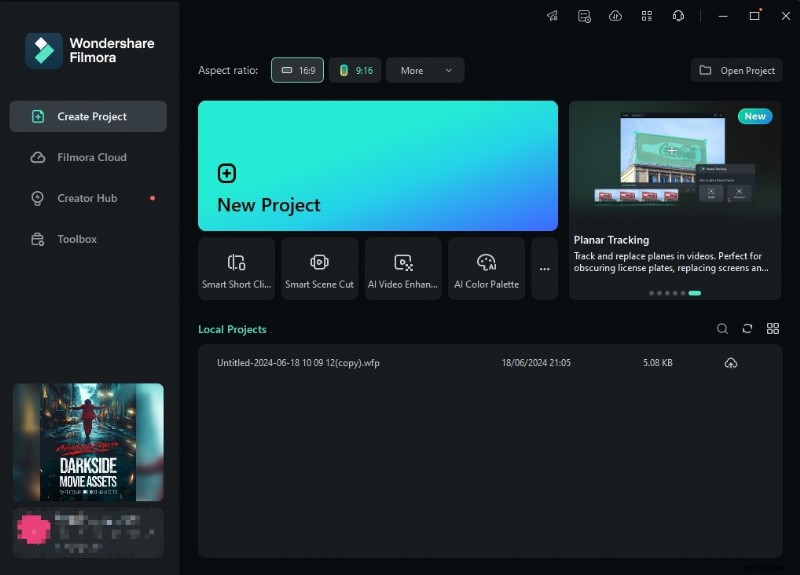
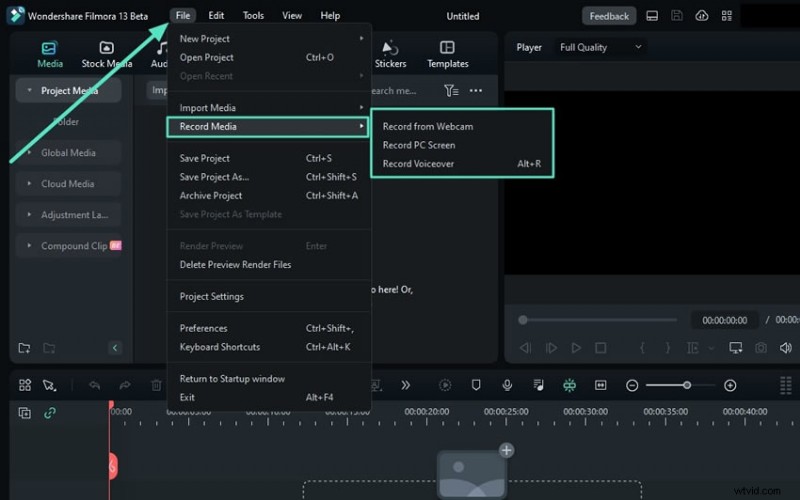
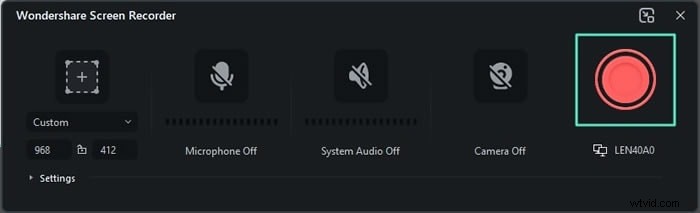
Step 2: In the main menu, select Screen Recorder. Choose File > Record Media > Record PC Screen, adjust the capture size, and select your audio sources.
Step 3: Click the red REC button (or use hotkeys) to start capturing. When finished, stop the recording and the video will appear in the editor.
Step 4: Apply effects like speed ramping. Click Speed and choose Speed Ramping to adjust playback speed.
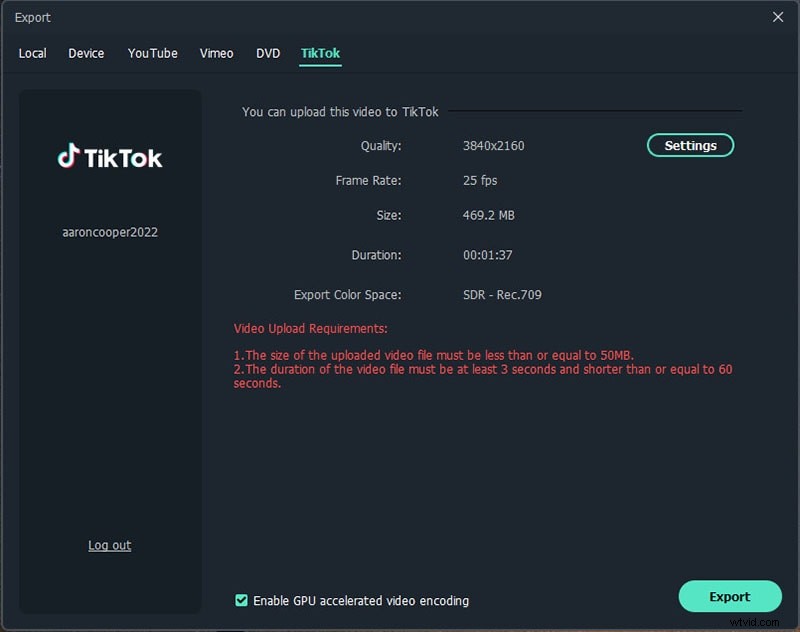
Step 5: Export your finished video in formats such as MP4, MOV, or AVI, and share directly to YouTube, TikTok, or Vimeo.
- Pros: Combines recording with comprehensive editing; AI tools for motion tracking and audio sync; user‑friendly for beginners and pros alike.
- Cons: Full feature set requires a subscription after the free trial.
Part 3. How to Record Steam Games With OBS Studio
OBS Studio is a free, open‑source solution favored by experienced streamers and content creators for its high‑quality output and extensive customization.
Step 1: Download OBS Studio from the official website and install it.
Step 2: Add a Game Capture source, selecting your Steam game. Configure resolution and frame rate to match your recording needs.

Step 3: Click Start Recording to begin. Stop when finished; the video will be saved automatically to your chosen folder.
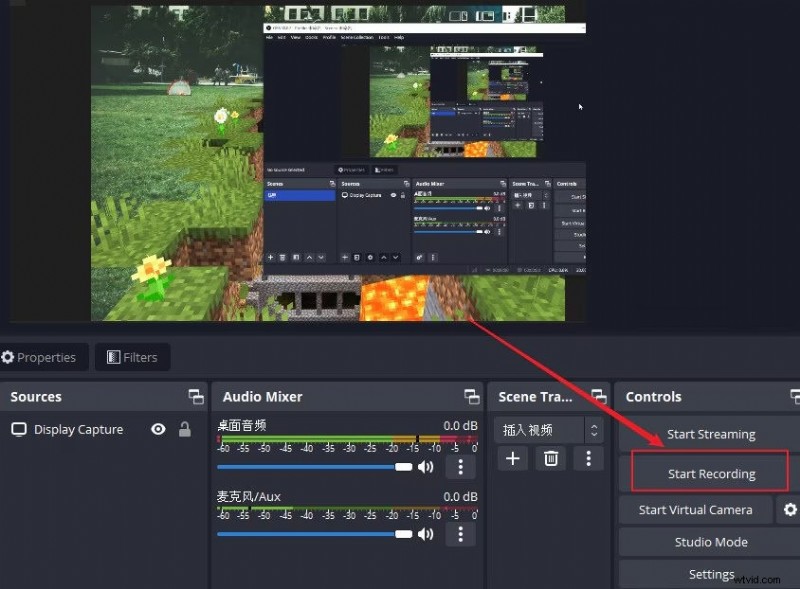
- Pros: Completely free; supports up to 4K recording; highly customizable.
- Cons: Interface can overwhelm newcomers; high resource usage at high resolutions.
Part 4. Other Tools to Record Gameplay
DemoCreator
DemoCreator offers a lightweight, browser‑based recorder with on‑the‑fly annotations and basic editing—ideal for quick captures.
Step 1: Install DemoCreator or use the online version. Navigate to Video Recorder > Game.
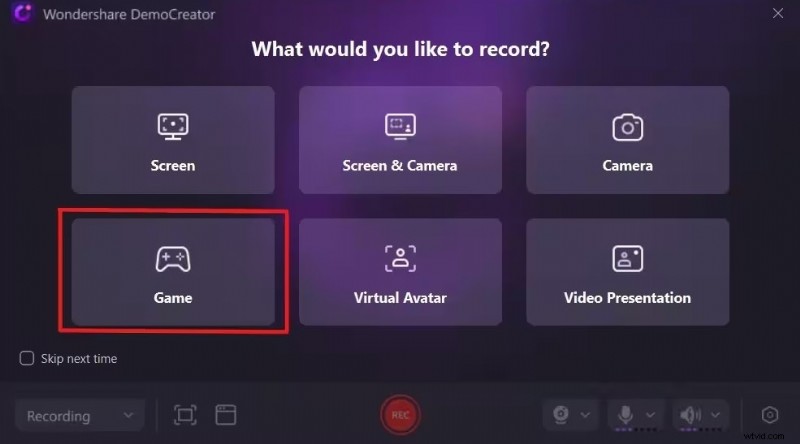
Step 2: Configure video and audio settings, then hit the red REC button. Use F9 to pause and F10 to stop. Export the clip to your device.
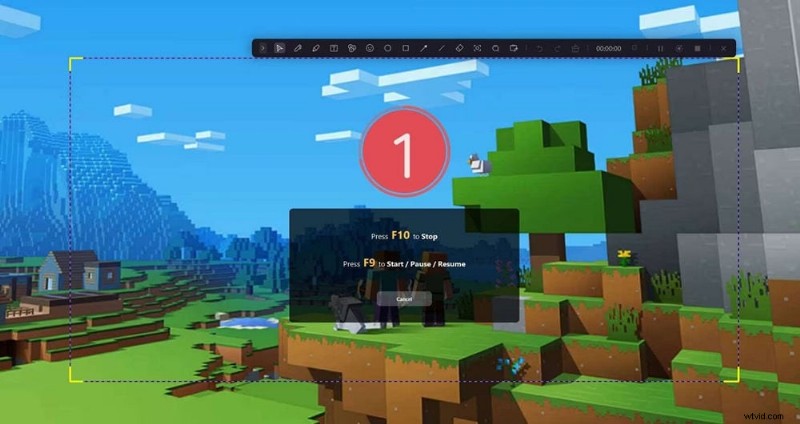
- Pros: Easy to use; allows live annotations and quick editing.
- Cons: Free version adds watermarks and limits resolution.
Fraps
Fraps remains a go‑to choice for older systems that require a lightweight recorder without heavy resource demands.
Step 1: Install Fraps and launch it; the program runs in the background during gameplay.
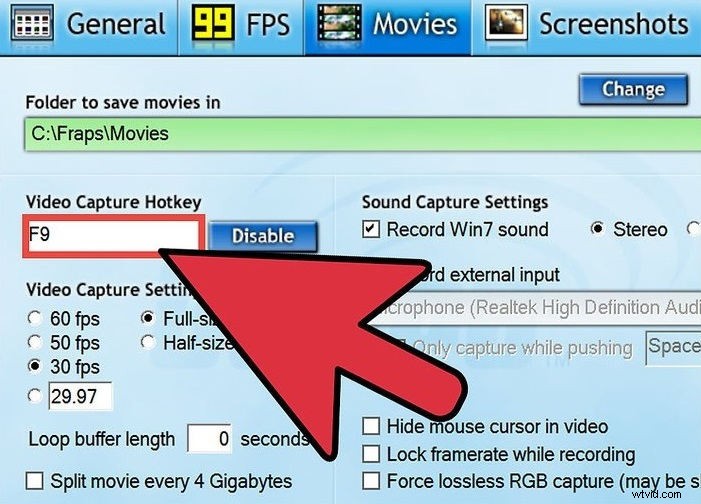
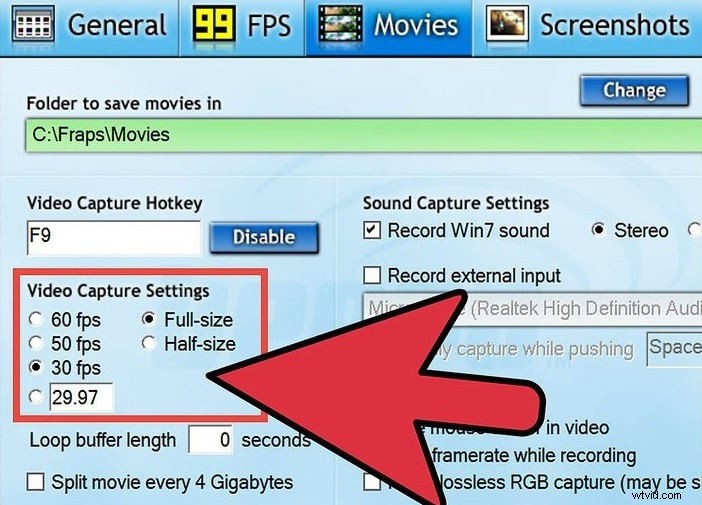
Step 2: Set resolution, FPS, and other options. Press F9 to start recording; press F9 again to stop. Fraps saves the file directly to your hard drive.
- Pros: Extremely simple; includes an FPS counter.
- Cons: Produces large files; no recent updates may cause compatibility issues.
Part 5. Which Recording Method Is Best for You?
If you’re a beginner or need a quick, no‑frills capture, the Windows Game Bar or DemoCreator is an excellent start. For those who want granular control, advanced editing, and AI‑driven enhancements, Filmora or OBS Studio offers the depth and flexibility required.
Filmora’s integrated workflow—recording, editing, and publishing—makes it the most comprehensive choice for creators seeking a single platform to produce polished content.
Conclusion
Recording Steam gameplay has never been easier thanks to these top tools. Whether you choose the simplicity of the Game Bar, the browser‑based speed of DemoCreator, or the power of Filmora and OBS, each method delivers features that suit different skill levels and goals.
Give Filmora a try today to streamline your recording and editing process. Capture, polish, and share your best gaming moments with confidence.