
When you have something to promote or an event to shout about, you'd immediately think of making a poster on your phone to grab attention fast.
A poster is traditionally a printed visual tool designed to catch the eye and convey information effectively. But now, with the rise of digital media, posters have taken on a new form—video posters. It's the same great concept, but they come with motion and sound that are more suitable for social media posts.
Thankfully, you don't need any fancy equipment to make one. We will show you how to make a poster on your phone, using just a few taps and swipes.

In this article
- Why Filmora is the Best Poster Maker App
Part 1. Creating Image Posters vs. Video Posters on Mobile
Posters have long been a go-to method for communication. They come in different forms, each designed for a specific purpose. Here are some of the most common uses of posters:
- Promotional Posters – Used for advertising products, services, or special offers to attract customers.
- Campaign Posters – Commonly seen in political, social, or awareness campaigns to spread messages and influence audiences.
- Movie Posters – Designed to promote films, featuring key visuals, titles, and release dates to generate excitement.
- Event Posters – Created to announce concerts, festivals, conferences, or other gatherings, providing details about the time, venue, and theme.
- Educational Posters – Used in schools, offices, and public spaces to share important information, such as safety guidelines, historical facts, or learning materials.
- Travel Posters: – Typically created for advertising destinations, these posters promote tourism by showcasing key landmarks, scenic views, and activities, encouraging people to explore new places.
But between image and video posters, there are distinct differences in how they capture attention and convey messages.
| Feature | Image Poster | Video Poster |
| Info Delivery | Quick visual info | Rich info with text, sound, and motion |
| Visibility | High with bold graphics | Higher, favored by algorithms |
| Content Delivery | Simple, quick message | Complex, unfolds over time |
| Platforms | Billboards, flyers | Social media, websites |
From the comparison, it's clear why video posters often have the edge over image posters, particularly in digital environments. In this guide, we'll focus on how to make video posters using mobile, which offer a more dynamic and interactive experience that suits those who are always on the move.
Part 2. What's the Best App for Making Posters on Mobile
To make a poster on mobile, you'll need a reliable tool that can handle the diverse requirements of graphic design, from layout customization to font selection and graphic elements. This is something that you can find in tools like Filmora Mobile App.
Filmora excels at simplifying the process of creating video posters on mobile. You can choose to use a suitable video template for a quicker and more convenient approach or start from scratch to enjoy more creative freedom. Either way, Filmora provides all the tools you need to bring your idea to life with ease.
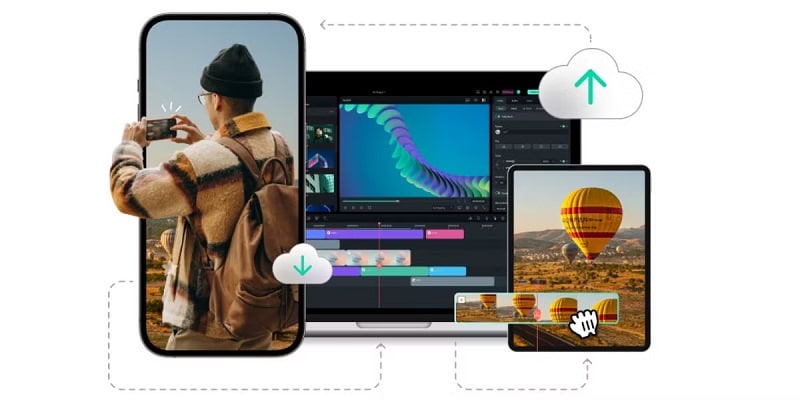
Why Filmora is the Best Poster Maker App on Mobile
- Mix and Match Media: Get creative by blending videos, images, and sounds right from your phone when creating posters.
- Rich Stock Resources: Access additional footage or animated stickers from Filmora's extensive stock library. Find royalty-free music or even generate custom tunes using AI Music Generator.
- Easy Background Removal: Got a tricky background? The AI Smart Cutout feature can make it disappear with just a tap.
- Creative Video Effects: Add a unique touch to your posters with creative video effects that can transform your design into something truly eye-catching.
- Picture in Picture: Layer images or videos with Filmora's PiP feature to create depth in your poster.
These features make Filmora a versatile choice, perfect for anyone wanting to create eye-catching posters on their phone. Once your poster is ready, you can share it directly to social platforms like Instagram, TikTok, and YouTube, right from the app.

Filmora
AI Video Editing App & Software
Best tool for making video posters for all creators!
Creating stunning video posters with easy templates and powerful editing features.
Part 3. How to Create a Video Poster on Mobile Using Templates
Creating a video poster on your mobile device doesn't have to be complicated, especially when you use templates. Make sure you have installed Filmora on your phone. Then, follow the step-by-step below on how to make a poster on mobile using templates.
 Secure Download
1
Open Filmora and Select a Template
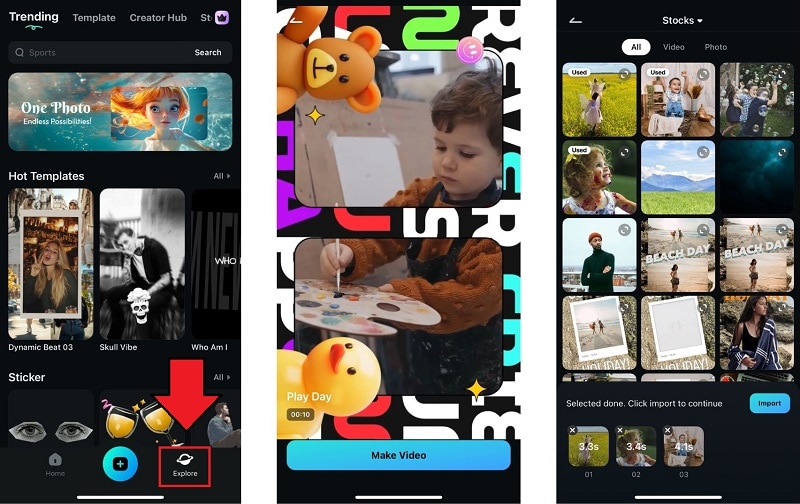
Launch Filmora and navigate to the 'Explore' section. Tap 'Template' or select 'More' next to the Template section to expand your options.
2
Customize Your Template
Search for a specific template or browse through available selections. Once you find your template, click 'Make video' to proceed.
3
Import Your Media
In the Import menu, select one or more of your videos to fit your template. Once selected, click 'Import'.
4
Edit and Finalize Your Video Poster
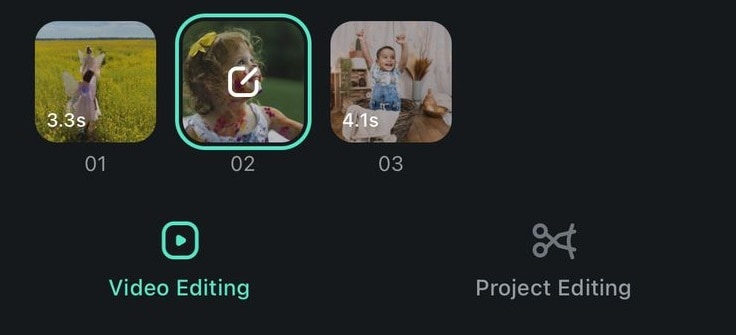
Filmora will create an initial edit with your clips. Review it, and click 'Video Edit' for more adjustments, or 'Project Edit' for advanced editing.
Part 4. How to Make a Video Poster on Phone from Scratch
Compared to using templates, making a video poster using your phone from scratch may seem more challenging. However, it gives you more freedom to express your creativity and ensures that your final product is unique and totally yours.
Here's how to make a poster from scratch using Filmora on mobile:
1
Start a New Project and Import Your Media
Open Filmora and create a new project. Add the main image or video that will serve as the base of your poster.
2
Layer with Other Media
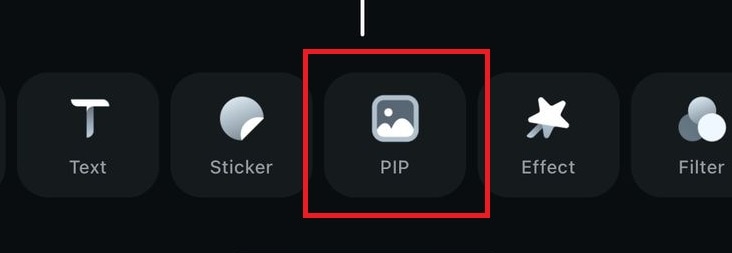
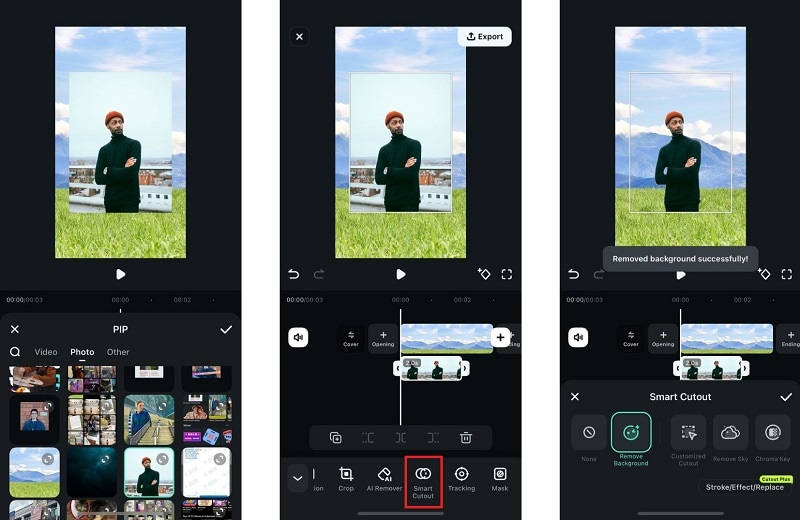
Enhance your poster by adding additional images or videos using the Picture-in-Picture (PIP) feature to layer media without cluttering the visual space.
You can also use the AI Smart Cutout to remove backgrounds from your media elements.
3
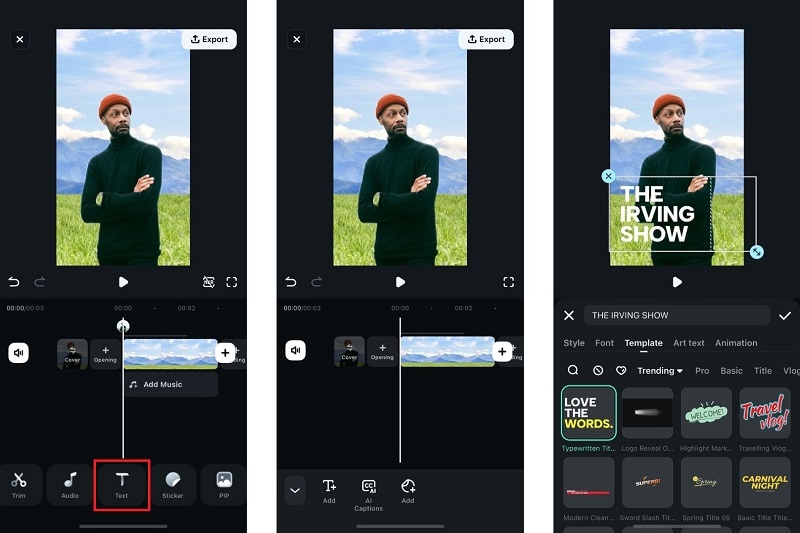
Add Text Overlays
Go back to the toolbar and select Text to add text overlays. Filmora offers various fonts, styles, and text templates to match the theme of your poster.
4
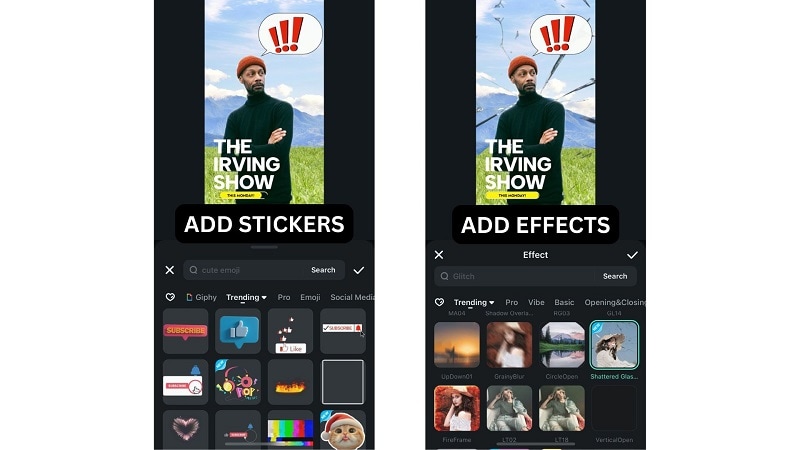
Add Animated Visual Elements
Select Stickers from the toolbar and choose animated elements that complement your poster’s theme. These can include animated stickers, shapes, or icons.
5
Apply Video Effects (Optional)
To enhance your poster, use the Effects tab to apply video effects such as
color grading, light leaks, or cinematic transitions.
6
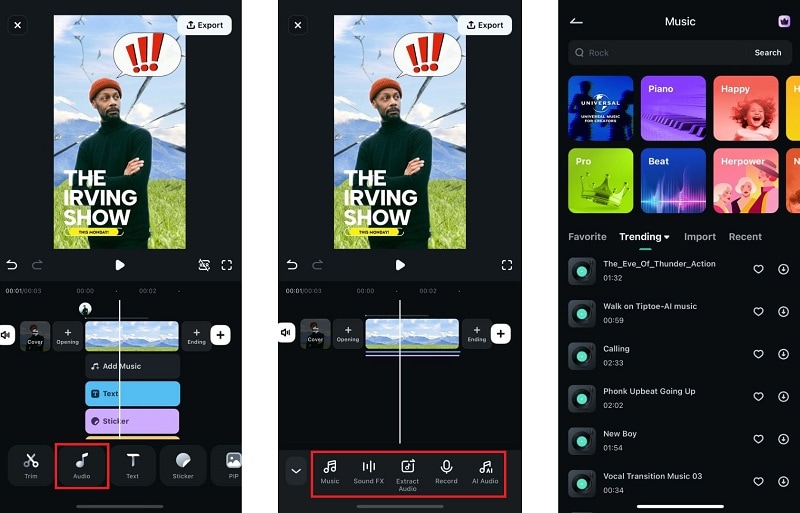
Add Music
Complete your video poster by adding music. Choose a track from Filmora's library, or generate a custom one using AI Audio, or upload your own.
7
Finalize and Share
Preview your poster and make sure everything is perfect. Once you're happy with the result, tap Export to save your creation and share it directly to social media or other platforms.
Secure Download
🎬 Create Stunning Motion Posters in Filmora Now! 🚀
Conclusion
Making a poster on your phone is easy, especially with Filmora! Whether you use a ready-made template or start from scratch, you have all the tools you need to create a video poster for any purpose.
Filmora is packed with creative features that make designing video posters effortless and fun. From AI Smart Cutout for removing backgrounds to animated effects, customizable text styles, and a rich stock media library, you can easily personalize your poster to match your vision.