
Minecraft is one of the best video games that allows its players to create their world, explore new places, build amazing things, and many more. Everyone loves to play Minecraft, especially after installing modes and texture into it. But adding such elements into Minecraft makes it heavy and it consumes a lot of memory of your PC. If your PC doesn't have enough memory to be used by Minecraft, its frames may shutter, it may load slowly and sometimes it might even crash. But there is no need to worry about it. There are several ways available on the internet that show you how to allocate more ram to Minecraft. In this article, we are going to show the easiest way of how to allocate more ram to Minecraft with a step-by-step guide.
Before proceeding to the method of how to allocate more ram to Minecraft, keep in mind that this method will only work for "Minecraft: Java Edition". It will not work on any other edition such as "Bedrock" which is also known as "Minecraft for Windows 10". In Minecraft Bedrock Edition there is no built-in option to control how much ram to use.
To allocate more RAM to Minecraft, you have to change the setting of your Minecraft launcher app. It is the app that you use to launch and play Minecraft. There are several different launchers available on the internet that are used for Minecraft depending upon the mods you are using. In this article, we are going to cover three mostly used launcher
This article contains:
- 1. How to allocate more RAM to Minecraft using Default Launcher
- 2. How to allocate more RAM to Minecraft using CurseForge Launcher
- 3. How to allocate more RAM to Minecraft using ATLauncher
How to allocate more RAM to Minecraft using Default Launcher
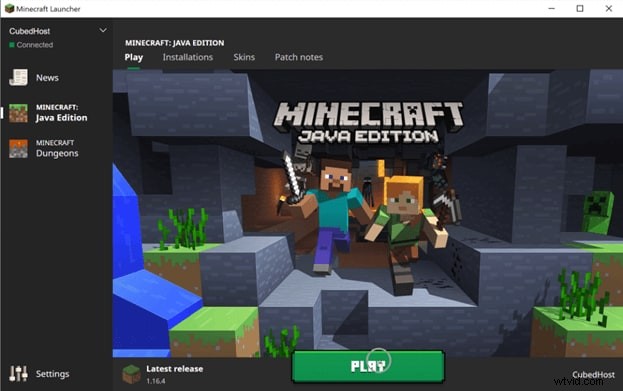
If you love to play Minecraft it is impossible that you would not have heard of Minecraft Launcher. It is the most common Minecraft Launcher that is used by so many players all around the world.
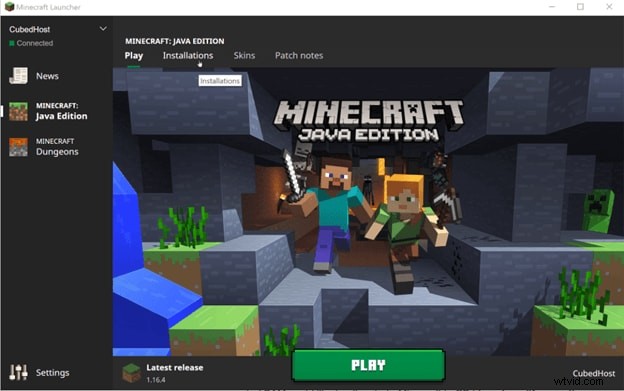
Step 01: Open Minecraft Launcher and navigate to the "Installation" Tab.
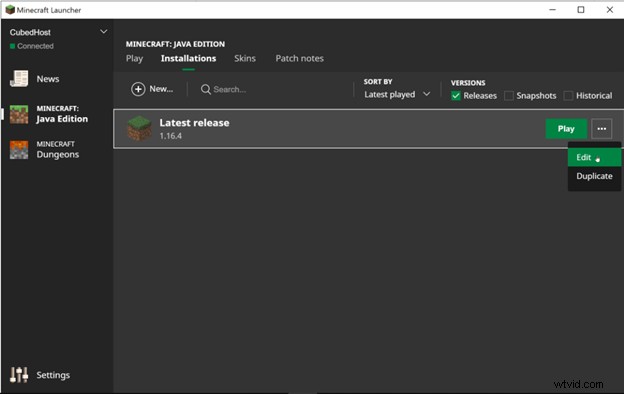
Step 02: Under the Installation, tab clicks on the three dots located on the right of the "Latest Release" and select "Edit".
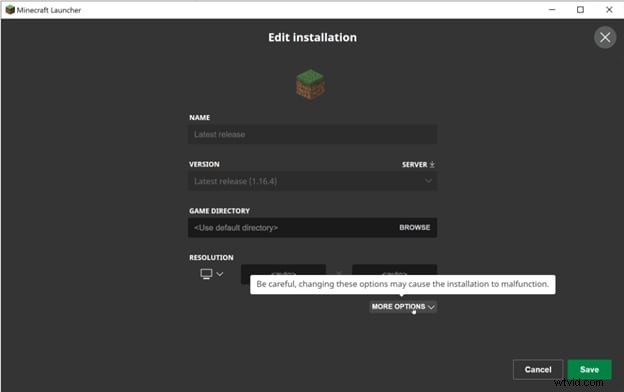
Step 03: It will open a new window that contains the settings of Minecraft. Now click on the "More Options".
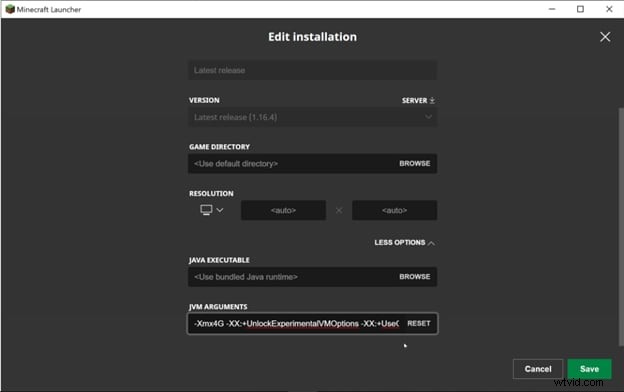
Step 04: Scroll down to "JVM Arguments". Here you can see the text. The "2G" in this text represents the 2 Gigabytes of RAM. Change it to the number of Gigabytes that you want to allocate to Minecraft. In this case, we are changing it to "4G", which means 4 Gigabytes. Leave the rest of the text as it is and hit "Save".
Step 05: Now go to the "Play" tab, hit Play, and enjoy playing Minecraft with more RAM for a smooth and better experience.
How to allocate more RAM to Minecraft using CurseForge Launcher
After Minecraft Launcher, CurseForge is the second-best launcher for Minecraft. It allows you to change the Memory you want to allocate to Minecraft according to your needs.
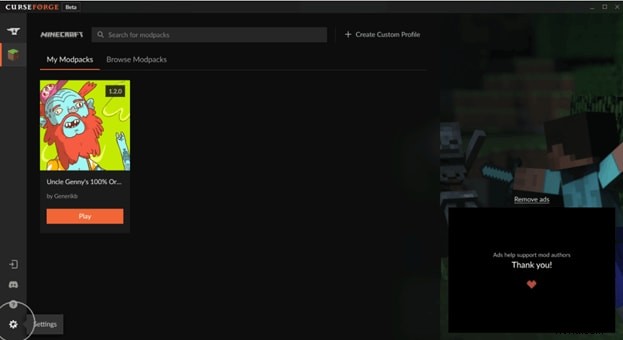
Step 01: Open CurseForge Launcher and click on the Settings icon located at the bottom left corner of the window.
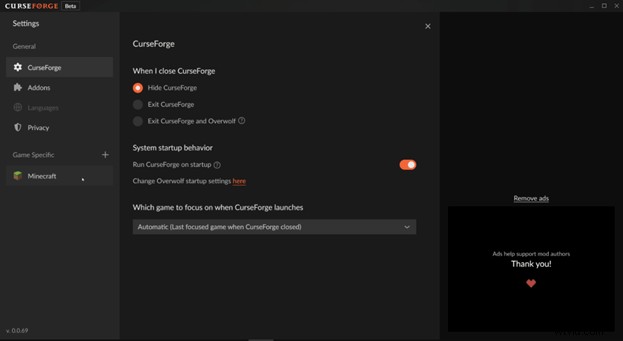
Step 02: Under Game Specifics, which is located on the left bar of the CurseForge, click on Minecraft. It will open the settings related to Minecraft.
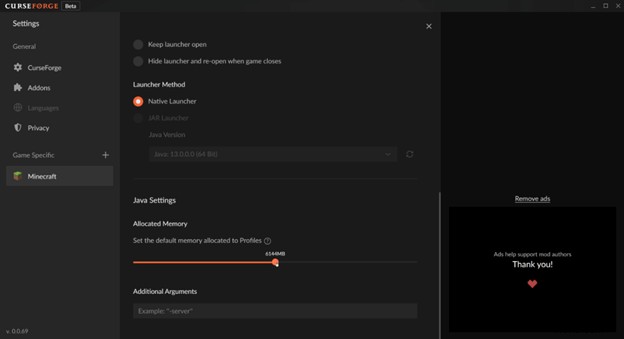
Step 03: Scroll down to Java Settings. Under Java Settings, you will find a bar to control the Allocated Memory. Arrange it according to your need and requirement of the memory you want to allocate to Minecraft. Hit the Cross (X) on the top and enjoy playing your favorite game without any glitch or crash.
How to allocate more RAM to Minecraft using ATLauncher
ATLauncher is another famous and widely used launcher for Minecraft. It also has a feature to control the memory you want to allocate to Minecraft. Let's proceed to how to allocate more RAM to Minecraft.
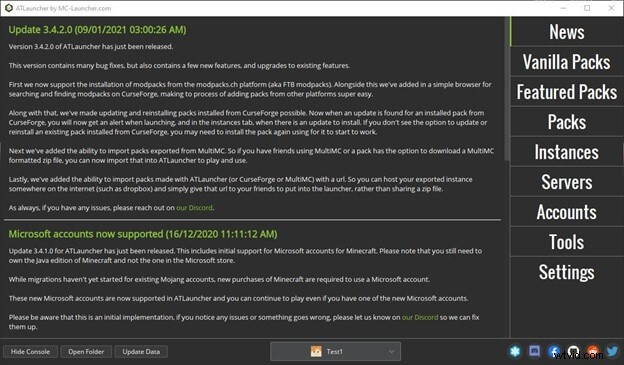
Step 01: Open ATLauncher and navigate to "Settings".
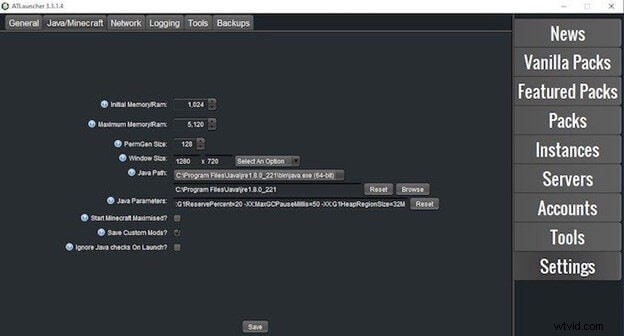
Step 02: At the top of the settings page, you will some tabs. Click on the Java/Minecraft. It will open the settings related to Minecraft. Under these settings, change the "Maximum Memory/RAM" according to your needs and hit "Save". It will allocate Minecraft with the memory of your choice to let you play Minecraft in the most perfect way possible.
These are the most used Minecraft launchers that are used throughout the world. Choose any method depending upon the launcher you are using to play Minecraft. These methods of how to allocate more RAM to Minecraft can help you have the smoothest Minecraft experience and enjoy all kinds of mods and texture without any lag or crash.