
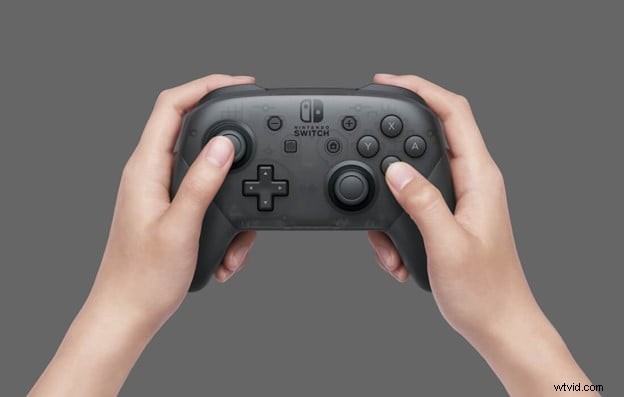
Nintendo did not design the Switch Pro controller with PC gamers in mind, but that won't stop us from using it. The controller has an excellent battery life, very accurate analog sticks, and large buttons more substantial than those on the Switch joy cons. Especially if you've been using an Xbox 360 controller for a while and are ready to upgrade, it's an excellent choice for your next PC controller.
Utilizing the Nintendo Switch Pro controller for most of your PC games is a breeze thanks to Steam's controller configurator, which officially supports this controller. Plug-and-play is the most accurate description. To play games, not on Steam, you need to use this guide.
This article will tell you how to enable your Nintendo Switch Pro controller to work with Steam or Windows, either through a Bluetooth connection or a wired connection. The first thing you'll need is a Nintendo Switch Pro controller (obviously) and a USB-C cable.
You might be interested in:
- Top Best Nintendo Switch Emulators
- How to Record Nintendo Switch Videos
Wired Connection for Switch Pro Controllers
Windows describe it as a DirectInput controller instead of an XInput controller, so getting it to work with PC games can prove tedious. However, thanks to Value-adding full Switch controller support to Steam, you will probably be able to play most of your favorite games.
Step1: Connect the Pro Controller cable (or any USB-A-to-USB-C cable) to your PC. If your computer has a USB-C port, connect the USB-C-to-USB-C data cable instead.
Step2: Connect the other end of the cable to your PC.
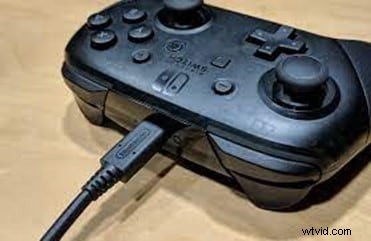
There you have it! Windows 10 will recognize your controller as a "Pro Controller." You can now proceed with installing Steam.
Wirelessly connect your Switch Pro controller to your PC
It's also easy, but you need to buy an adapter or have Bluetooth on your computer.
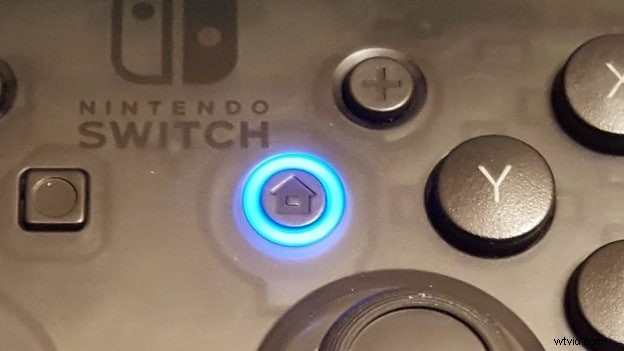
- Once you have charged the Pro Controller, you can press and hold the Sync button on the top of the controller for a few seconds until the indicator lights begin to flash.
- Right-click the Bluetooth icon in the system tray.
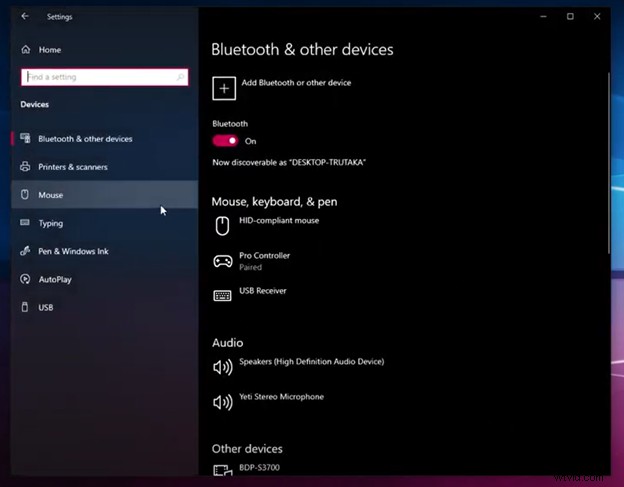
- To add a Bluetooth device, click "Add Bluetooth Device."
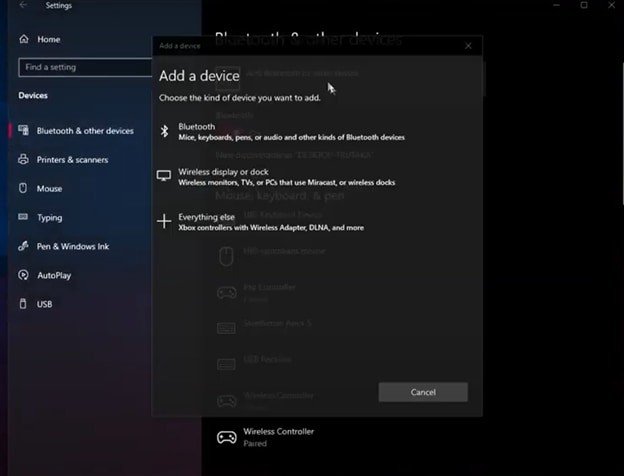
- Click on "Bluetooth" (since Windows 10 needs to be convinced that you want to use Bluetooth).
- Ensure that the Pro Controller appears on the list of available devices (if it does not, ensure that the indicator lights are flashing back and forth). Pair the controller by clicking it.
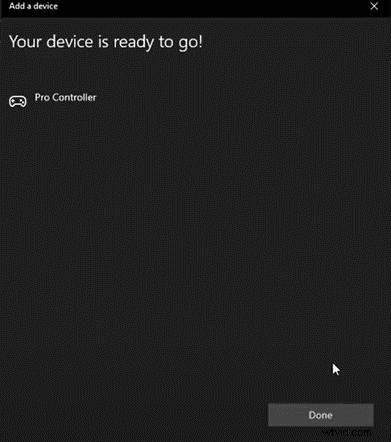
- Once Steam is set up, you can begin using it.
How To Setup Steam To Use Your Switch Pro Controller On Pc
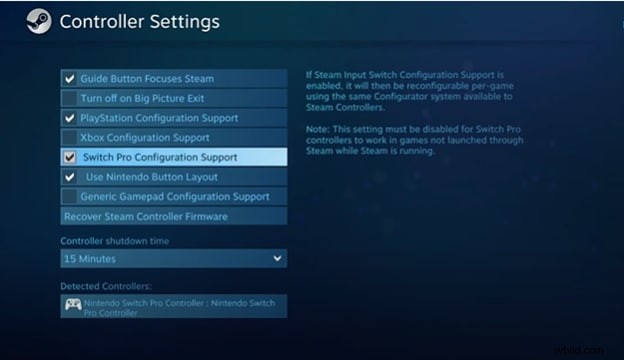
The Best Way to make sure your Pro Controller works properly with your PC game is to use Steam's Big Picture mode, which uses a comfortable lean-back system to allow you to navigate.
- You will be required to open Steam and enter the settings menu if Big Picture doesn't open automatically when you connect the Pro Controller.
- Open the Big Picture window by clicking General Controller Settings.
- The "Support Configuration" button will appear.
You should use the gamepad to navigate Big Picture if you have the Pro Controller connected. It is possible to switch between using the Nintendo Button Layout (clockwise X, A, B, Y from the top) or the Xbox controller button layout (clockwise Y, B, A, X).
When configured through Steam, you should use the Pro Controller with any Steam game similar to an Xbox gamepad. Vibration can be enabled or disabled by selecting a controller from the "Detected Controllers" list in the same setup screen as before. It is possible to calibrate the analog sticks by clicking the Calibrate button manually. Also, the controller can be set to disconnect after a specified amount of time before going to sleep.
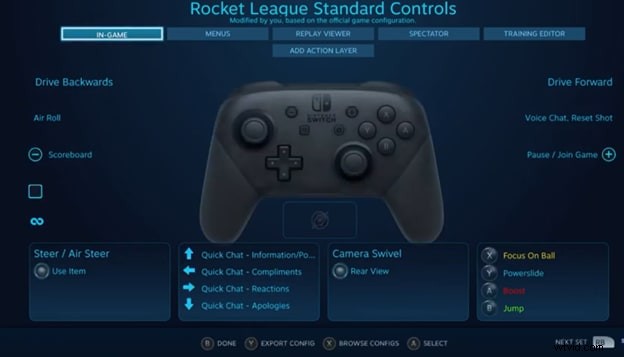
Enter the Switch Pro Controller overlay from Steam's controller options while running in Big Picture mode. There are several ways to map the inputs on the Pro Controller, but default configurations are usually sufficient for most games. By changing the controller mapping based on the situation, you can fix any problems on the fly.
What To Do With Non-Steam Games?
Using the methods discussed above, you can easily use a switch pro controller with your pc, but it only works with steam games. But what if you want to play a non-steam game using a switch pro controller? What will you do now? The switch pro controller hardware support will run out of luck in this scenario.
The main problem here now is how windows will detect your switch pro controller now if you want to play non-steam games. Luckily there are two simple solutions for this problem.
Solution1: The first solution is to use an external Bluetooth adapter that is specifically designed for different types of gamepads. You will find plenty of them out there for switch pro controllers.
Solution2: The second method is to use a software-based XInput Wrapper. There is plenty of software out there that provides this functionality. Just configure your switch pro controller with them, and you can easily use it on non-steam games.
Final Verdict
This is how you can use your switch pro controller with your PC. Now you can easily enjoy your favorite games on one of the finest controllers available in the market today. All you need to do is, follow some simple steps mentioned in this article, and you are good to go. You can connect it both with wire and wirelessly. It is comparatively easy to connect it through the wire, and the performance of the controller is also slightly better when it is connected through a wire.