
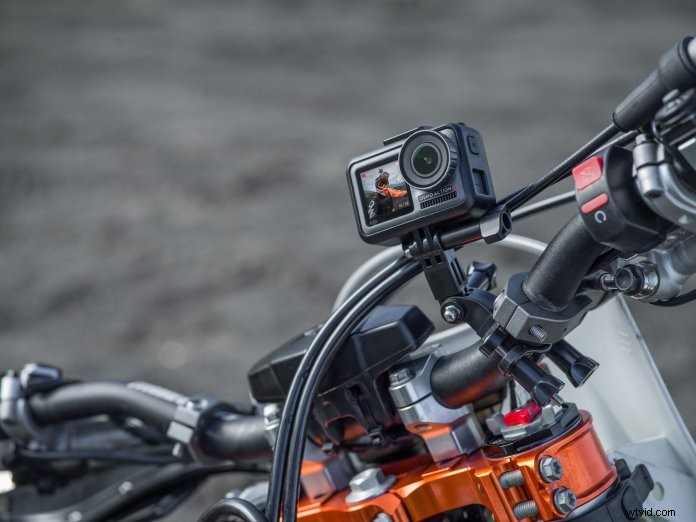
You might think operating DJI’s new Osmo Action is slightly complicated since this high-performance camera is jam-packed with various technical features. However, shooting with Osmo Action is quite straightforward. Whether you’re navigating the touchscreen or the DJI Mimo app, Osmo Action’s basic operations can be easily mastered.
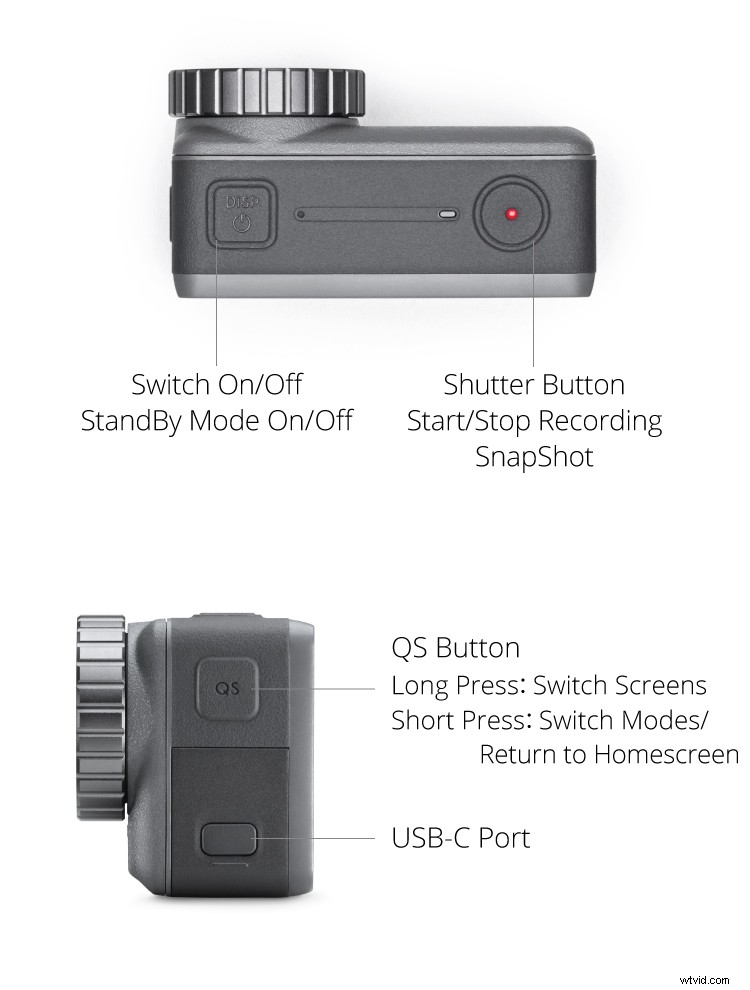
Button Control
Let’s take a look at the functions of each button on Osmo Action.
Take Out the Battery
If you’re not familiar with the process, it can be a little tricky to pull the battery out of Osmo Action. Push the two battery release buttons and take the battery out as shown here:
Activation
For Osmo Action’s activation, you will need to install the DJI Mimo app on your mobile device. After doing so, follow the steps below:
Turn the Touchscreen On/Off
When Osmo Action is turned on, press the power button to turn off the touchscreen to save battery life.
Switch Shooting Modes
Press the QuickSwitch button and tap on the shooting mode you want to use.
Switch Screens
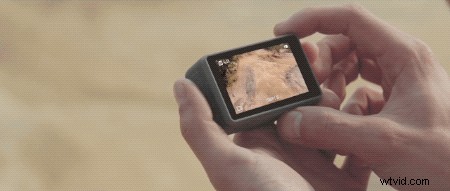
You can either double tap Osmo Action’s touchscreen with two fingers, or press and hold the QS Button to switch screens.
SnapShot
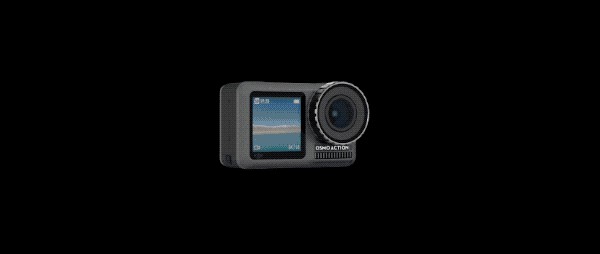
Don’t miss a shot ever again with Osmo Action‘s SnapShot function! This feature allows you to immediately start shooting even when the camera is turned off. All you need to do is to press the shutter button.

Enable Rocksteady
Switch to video mode and swipe up on Osmo Action’s touchscreen. Tap on the symbol in the upper right corner to enable RockSteady.
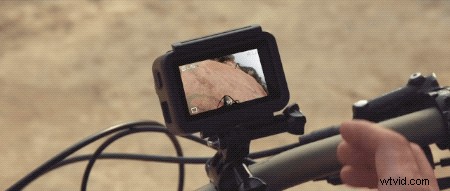
Long Exposure Images
Osmo Action provides the ability to slow down the shutter speed up to 120 seconds, perfect for capturing a night sky full of stars.
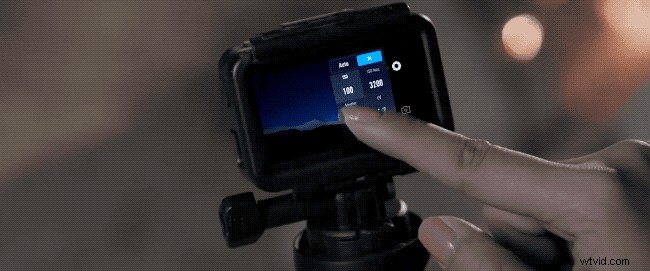
Custom Mode
For simplified use and upgraded efficiency, Custom mode lets you store, list, and select frequently used shooting modes and exposure settings.
Voice Control
Shoot hands-free with Osmo Action’s Voice Control function. This handy feature allows you to execute five essential functions just by saying the commands out loud.
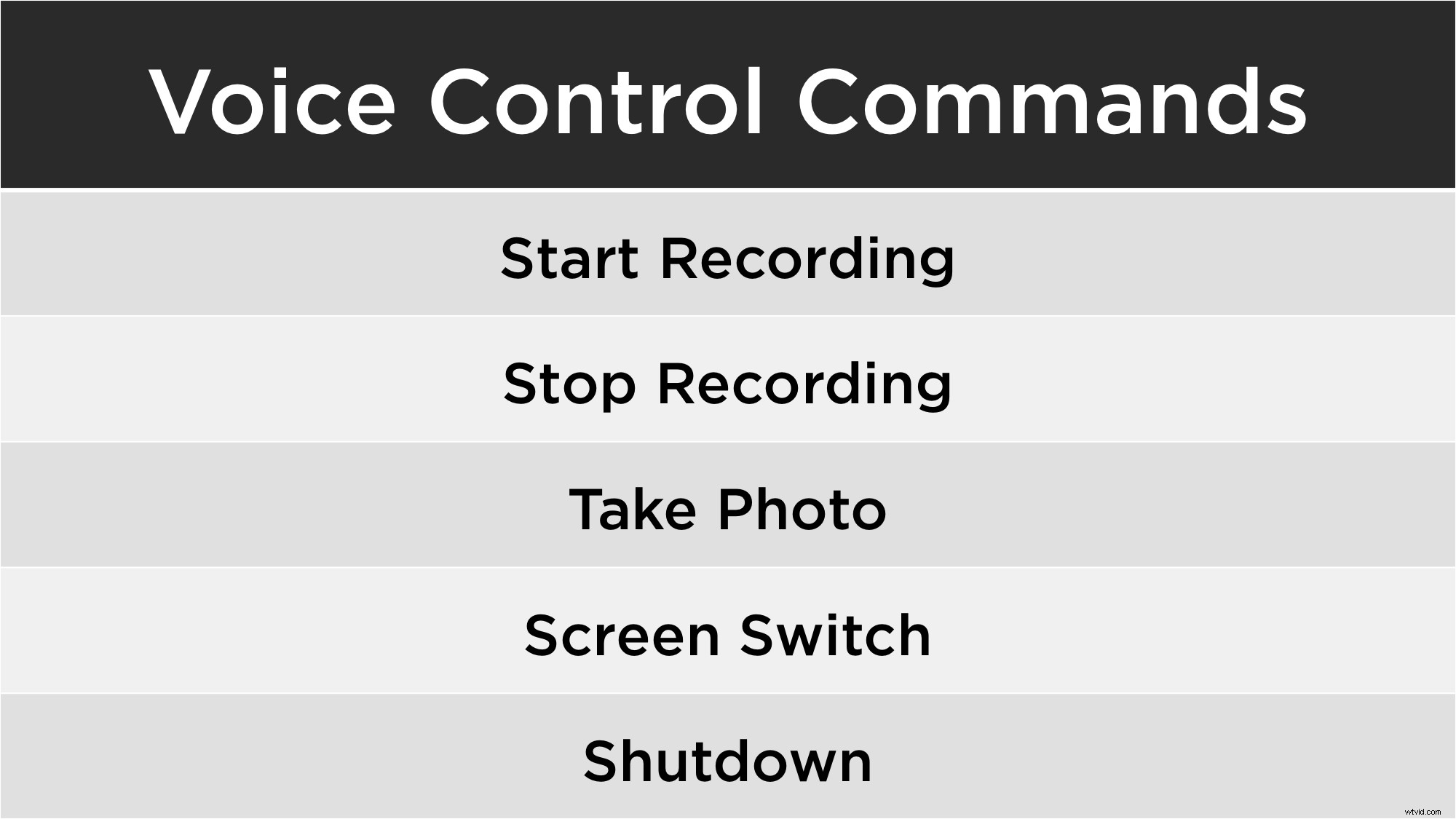
Make sure that Voice Control is activated before you use it.
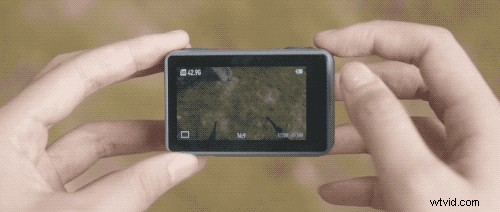
Vertical Perspective
Osmo Action is able to transition from its standard horizontal position to a vertical position for shooting from another perspective. The intelligent touchscreen will change its interface depending on Osmo Action’s position.
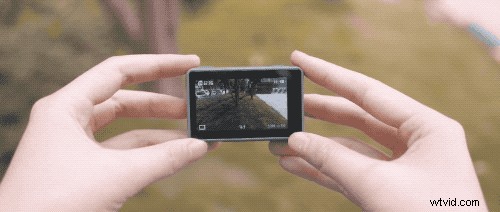
Playback
Osmo Action‘s back screen offers an easy to access playback function for checking out photos and videos after shooting sessions. Enter the playback window by swiping to the right. Follow these instructions to learn more about Osmo Action’s playback controls.
Update Firmware
If there is a new firmware available, a prompt will be shown on the Mimo app when it’s connected to Osmo Action. The firmware update process is also easy to execute; check it out below:
And there you have it, a quick guide on how to use Osmo Action. For more Osmo Action tutorials check out this YouTube playlist.
You May Also Like
10 Essential Osmo Action Accessories You Need to Get!
Osmo Action Extreme Durability Test
Osmo Pocket vs. Osmo Mobile 2: Which One Should You Buy?
Osmo Action: Unboxing and Highlights
For more DJI Support join us on
DJI Support Facebook
DJI Support Twitter
DJI Tutorials YouTube