
When you start learning about photography, the whole process can be overwhelming with its complexity. But, when you break it down into smaller pieces that you can tackle one at a time, you quickly realize that photography isn’t rocket science at all. By then, it’s only a matter of time before you understand the whole picture, and are comfortable with the different aspects and techniques.
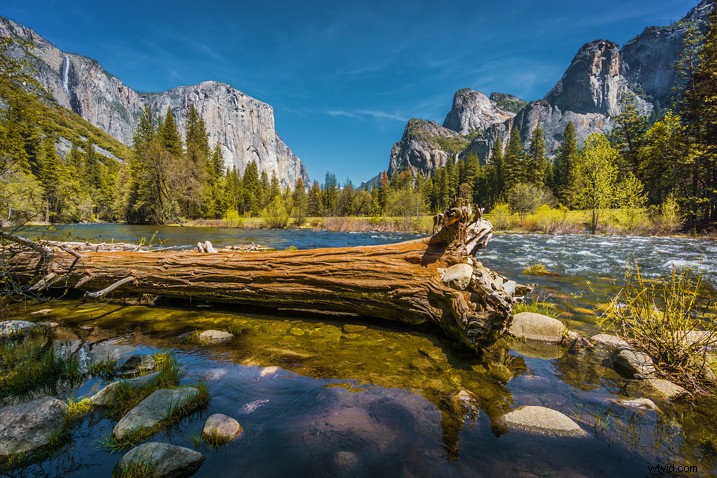
I still find one aspect of photography is more challenging than the rest, however. That is composition, which is difficult to learn and even more difficult to teach.
Why? The main reason is because of its subjective nature. It is not easy to quantify composition. In other words, there is no right or wrong; everything is open to interpretation. As a result, learning and mastering composition is usually a long and gradual process.
I want to share with you an exercise that you can perform using Lightroom, in the comfort of your home, that can accelerate the composition learning cycle. This approach was incredibly helpful in building my comfort with, and understanding of composition, in my photography. I hope you find it useful too.

The way I approach composition today is different, compared to my approach five years ago. The reason for that is because of new publishing channels.
As a photographer who runs a popular blog dedicated to travel photography, I have multiple channels where I publish my photographs. It all begins on the blog, then moves to social media networks like Facebook, Instagram, G+, and Pinterest. Plus, I often prepare an extra version for printing purposes as well.
Typically, different publishing channels require different versions of the same photograph. For example, if the original photograph has a landscape orientation with the aspect ratio of 3 x 2, Instagram requires a square 1 x 1 version, and Pinterest requires a vertically oriented image. I might need a panoramic version for print.
Even though creating multiple versions of the same photo with meaningful composition takes more time and effort, I find this exercise is extremely valuable in learning and mastering composition in photography.
Exercise in a Real Life Scenario
I took this photo just after the sunrise on O’ahu Island in Hawaii.

From the very beginning, I could see the potential of the scene and was confident that I would use it on my blog, and maybe even in my portfolio.
I intentionally took the shot of the scene wider than I would want for a regular 3 x 2 landscape composition. I left some room to have more freedom when creating different versions for publishing. I have no problem with cropping and trimming my photographs in post-processing, because 24 Mpx sensor on my Sony a6000 gives me enough pixels even for very aggressive cropping.
I started the editing process by applying few of my favorite presets from my Landscape collection, and when I was happy with the result I started working on composition.

First, I set up the Crop tool Overlay options, setting it to Golden Ratio. I know that Thirds is the most popular option among visual guides, but I find that Golden Ratio helps me to create more balanced compositions.
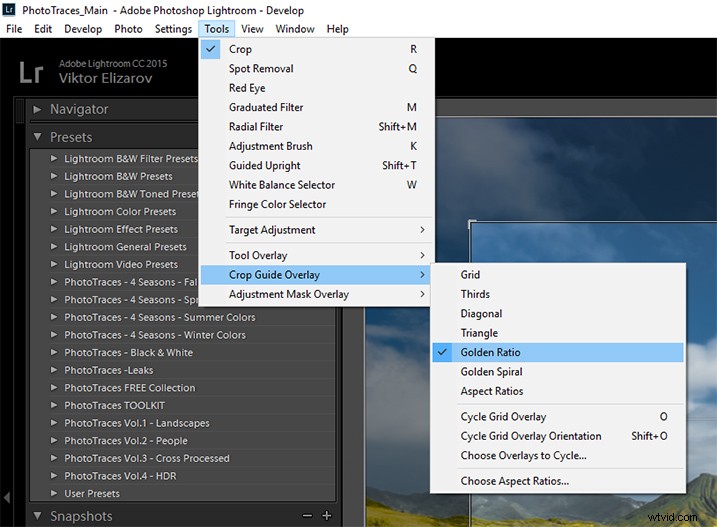
You can also scroll through the various overlay options by repeatedly hitting the O key on your keyboard, until you find the one you want.
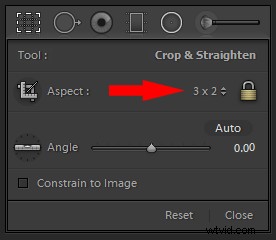
I set the aspect ratio to 2×3 and lock it.
I create my first version by simply making the composition tighter.
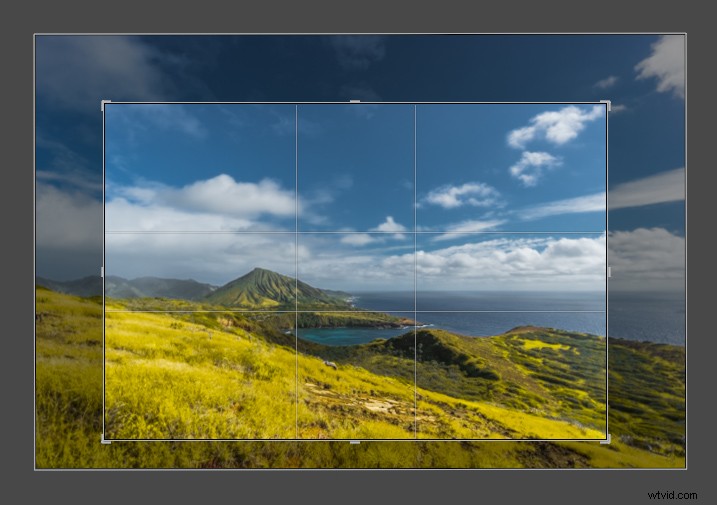

Version 1 – Aspect Ratio 3 x 2
When I am happy with the result I use the Snapshot functionality of Lightroom to save my version as a new Snapshot, and name it 3 x 2.
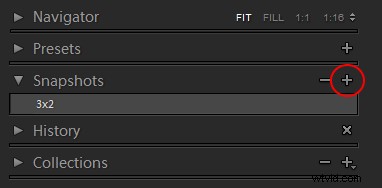
Then, I move on to the next version.

Version 2 – Aspect Ratio 1 x 1 (Instagram)

Version 3 – Aspect Ratio 2 x 1

Version 4 – Aspect Ratio 4 x 3

Version 5 – Aspect Ratio 16 x 9

Version 5 – Aspect Ratio 3 x 4 (Pinterest)
When I am done I have the Snapshot Panel filled with six newly saved versions (snapshots).
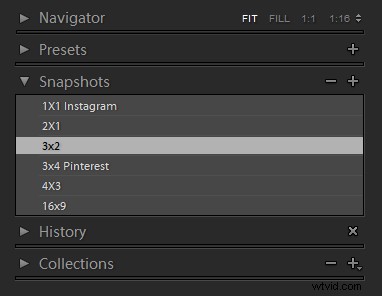
Another alternative is to use the Virtual Copy functionality for each version I create. But I prefer the Snapshot panel, which makes Lightroom less cluttered.
Now, I can review each version by clicking on an individual Snapshot version, and if I am happy with the results, I am ready to start publishing.
Conclusion
The only way to learn composition in photography is to practice on a regular basis. I highly recommend the exercise I outlined above. Make a habit of creating at least two extra versions for each photograph you edit, one for Instagram and another for Pinterest. I can guarantee you it will help you to accelerate the process of learning.