
One of the prominent features of the Osmo Action is the dual screens. You may think that dual screens on action cameras have been around for a while and you’d be right, but not like this.
On the Osmo Action, you have a full-colour touch screen on the back and another smaller full-colour screen on the front. The front screen isn’t a touch screen. Both of these screens show the same live view display with shooting information overlayed.
You can purchase the accessories and DJI Osmo Action at the DJI Store or from retailers like Adorama, B&H Photo Video, Wex Photo Video and Park Cameras.
- GoPro Hero8 Black: specs we’d like to see
The main rear screen is handy for most situations and offers the ease and convenience of a touch screen, while the front screen is ideal for when you’re filming a selfie or more likely presenting to camera.
While the camera has two screens, they don’t both operate at the same time. As default, the rear screen is on, and if you want to switch to the front screen, you have a choice of one of three ways in which to make the switch.
The first is to use the QuickSwitch button on the side, the second is to use voice control, and the third is with a finger gesture.
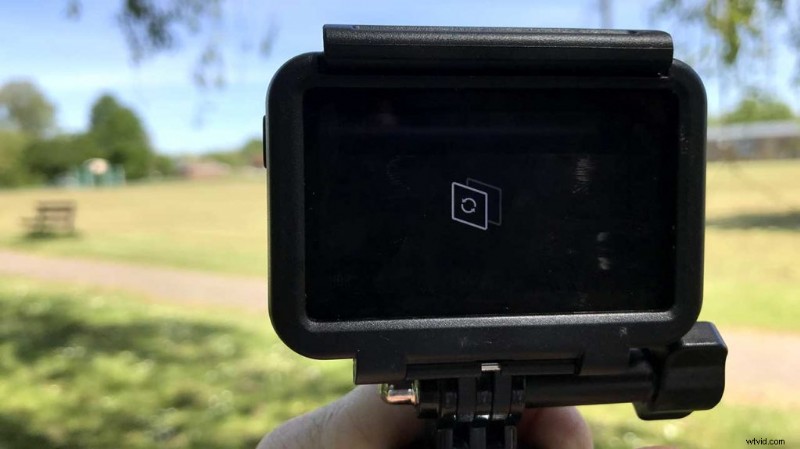
How to switch screens on the Osmo Action
- Option 1: Hold down the QuickSwitch (QS) button for two seconds
- Option 2: With Voice Action on say ‘Screen Switch’
- Option 3: Tap the rear screen with two fingers
All three options have the same result of switching between the front and back screen. At any point, after making the swap, you can swap back by repeating the process.