
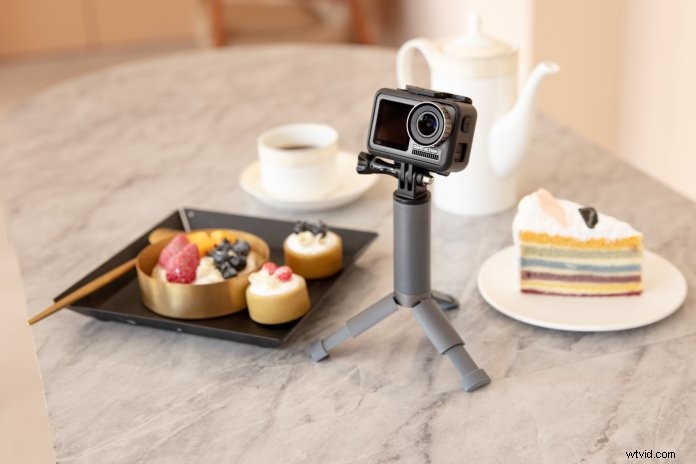
Discover how to livestream with DJI Osmo Action and share your adventure with millions of people across the world! Read on to discover Osmo Action livestream features, setup details, and more.
When it comes to filming breathtaking adventures, DJI Osmo Action can handle anything you throw at it. From scuba diving to skydiving, our debut action camera delivers a knockout performance with crystal-clear 4K/60fps video, RockSteady stabilization, and vivid dual screens. We’re excited to announce that you can now also livestream with your DJI Osmo Action to millions of people around the world.
What is Livestreaming
Livestreaming is changing the way content creators are interacting on a daily basis with their followers. Live video broadcasts are expanding views into the millions, opening the door to a new age of content creation. Whether you are filming from the comfort of your home or embracing the great outdoors, DJI Osmo Action unleashes a new world of livestreaming adventure. Let’s find out what it can do!
DJI Osmo Action: Action Camera for Streaming
DJI Osmo Action is a perfect camera for streaming as it supports stable 720p 4Mbps livestream video and up to 104 minutes of livestream video. Before we get into the details, make sure you download the latest version of DJI Mimo to get access to all the new livstreaming features.
Let’s take a look at how Osmo Action can take your livestreaming to the next level!
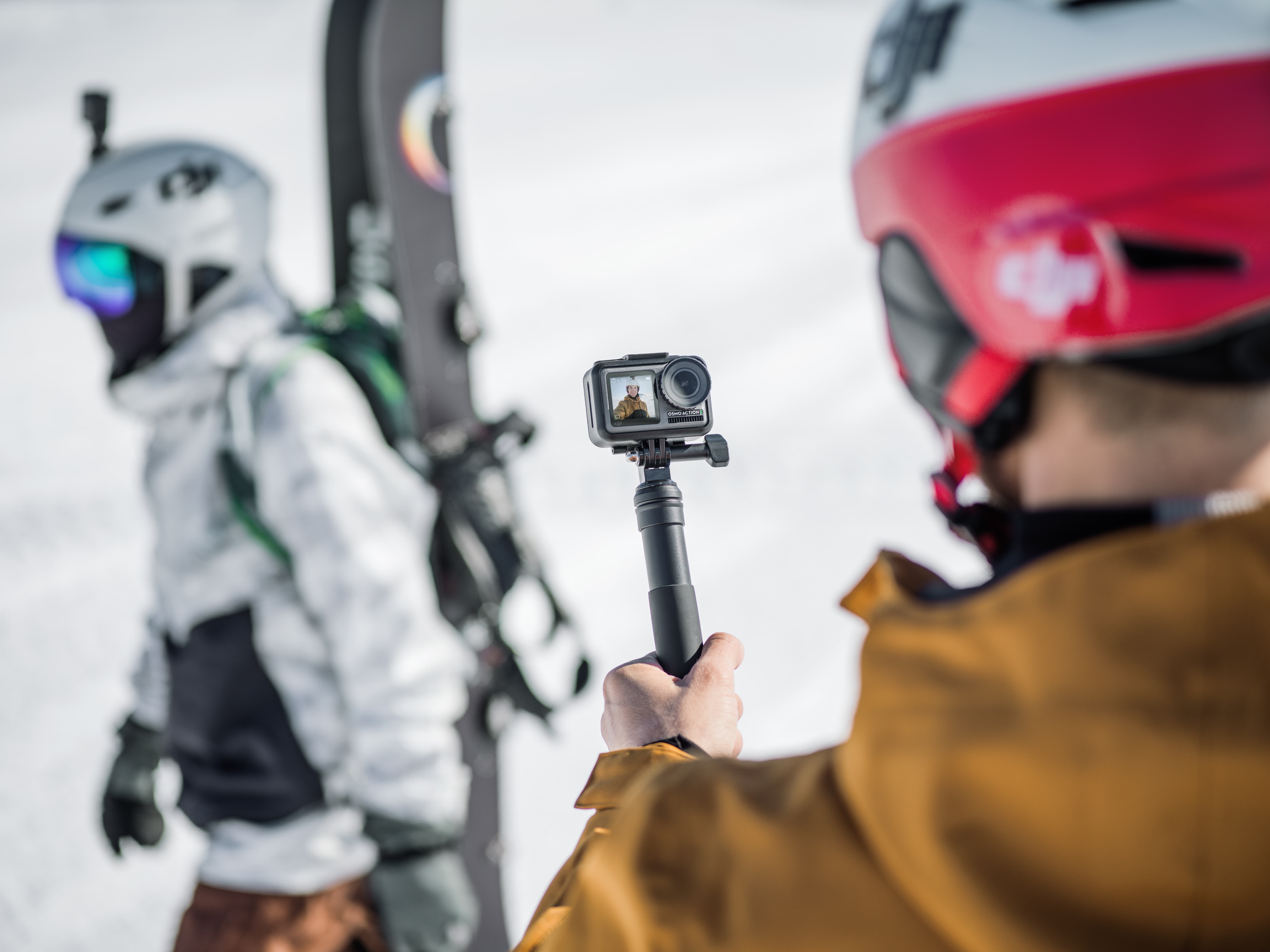
Sports
DJI Osmo Action is incredibly lightweight and portable, making it a perfect tool to share your greatest moments of action with the world.
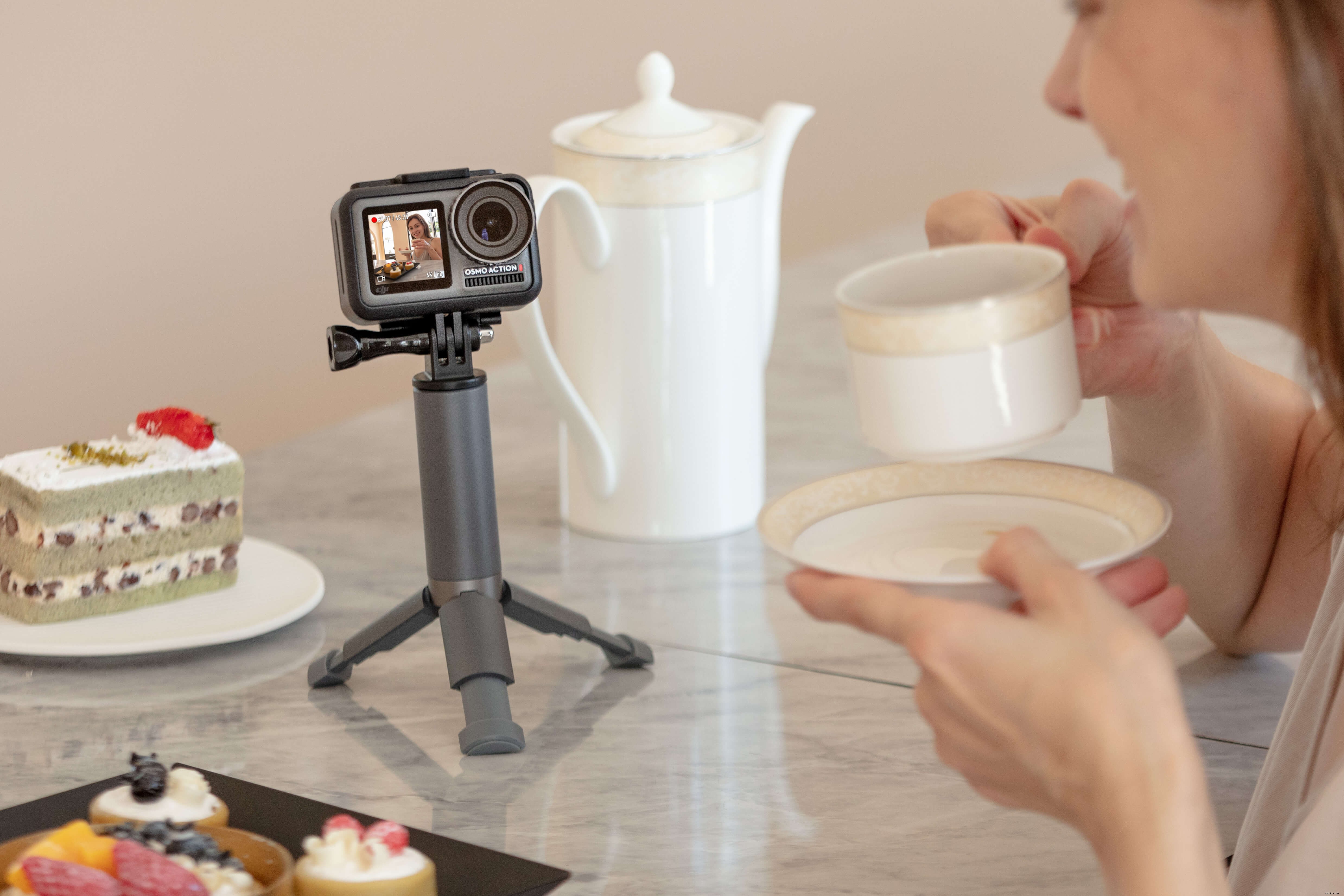
Cooking
For foodies and content creators, you can light up your social media feed by livestreaming your culinary adventure. DJI Osmo Action features an extremely durable design that makes it an ideal livestreaming device.
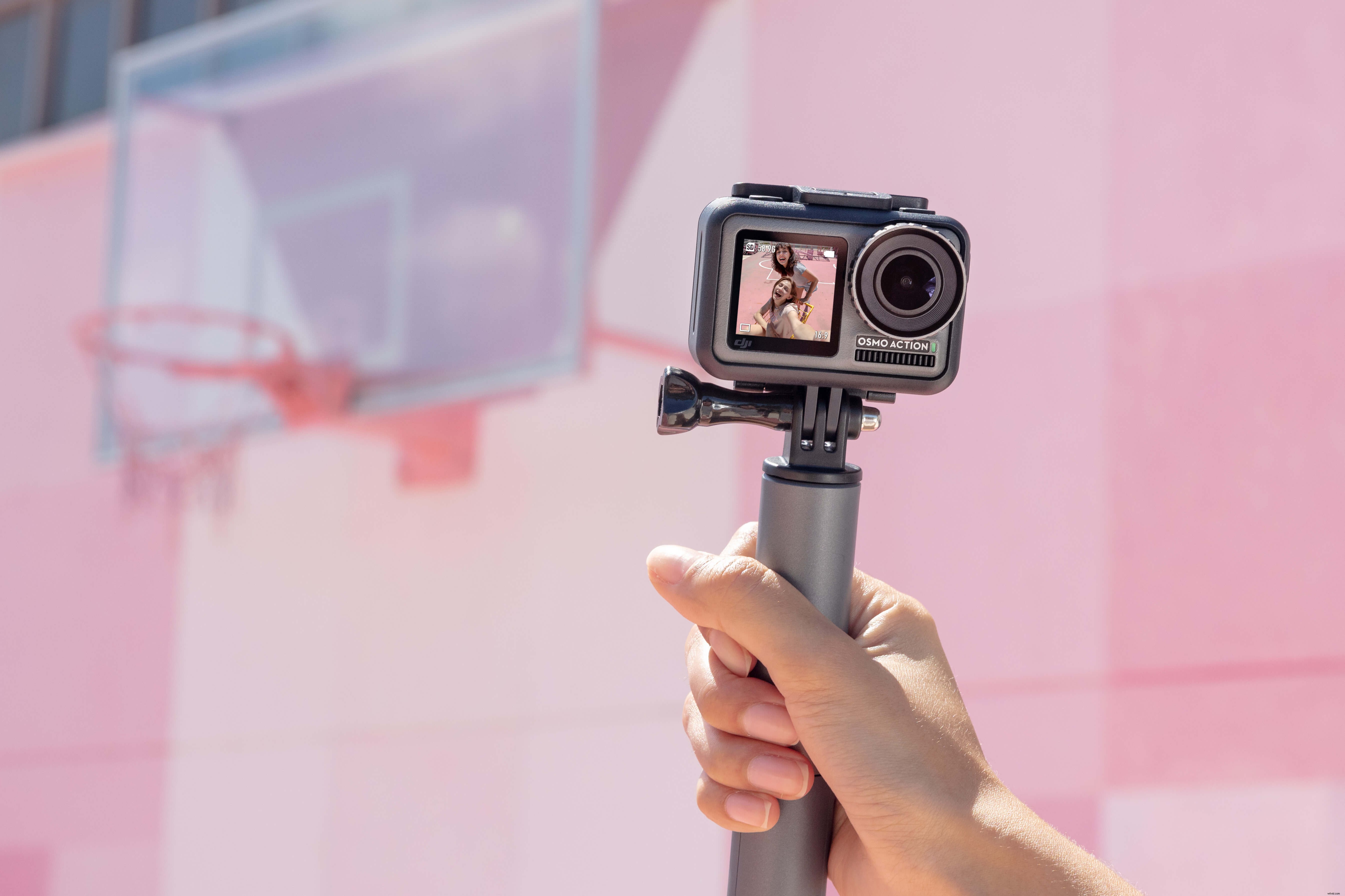
Traveling
DJI Osmo Action’s dual screens are perfect for any livestream. The front screen gives you a way to keep track of your framing while you immerse your viewers in your adventure.
How to Update DJI Osmo Action’s Firmware for streaming
Check out these easy-to-follow-steps to update Osmo Action’s firmware.
Remember to update your iOS and Android devices to the latest firmware before you try to enable the DJI Osmo Action livestreaming function. Additionally, update DJI Mimo to at least v1.2.20.
How to Setup DJI Osmo Action Livestreaming (Facebook & YouTube)
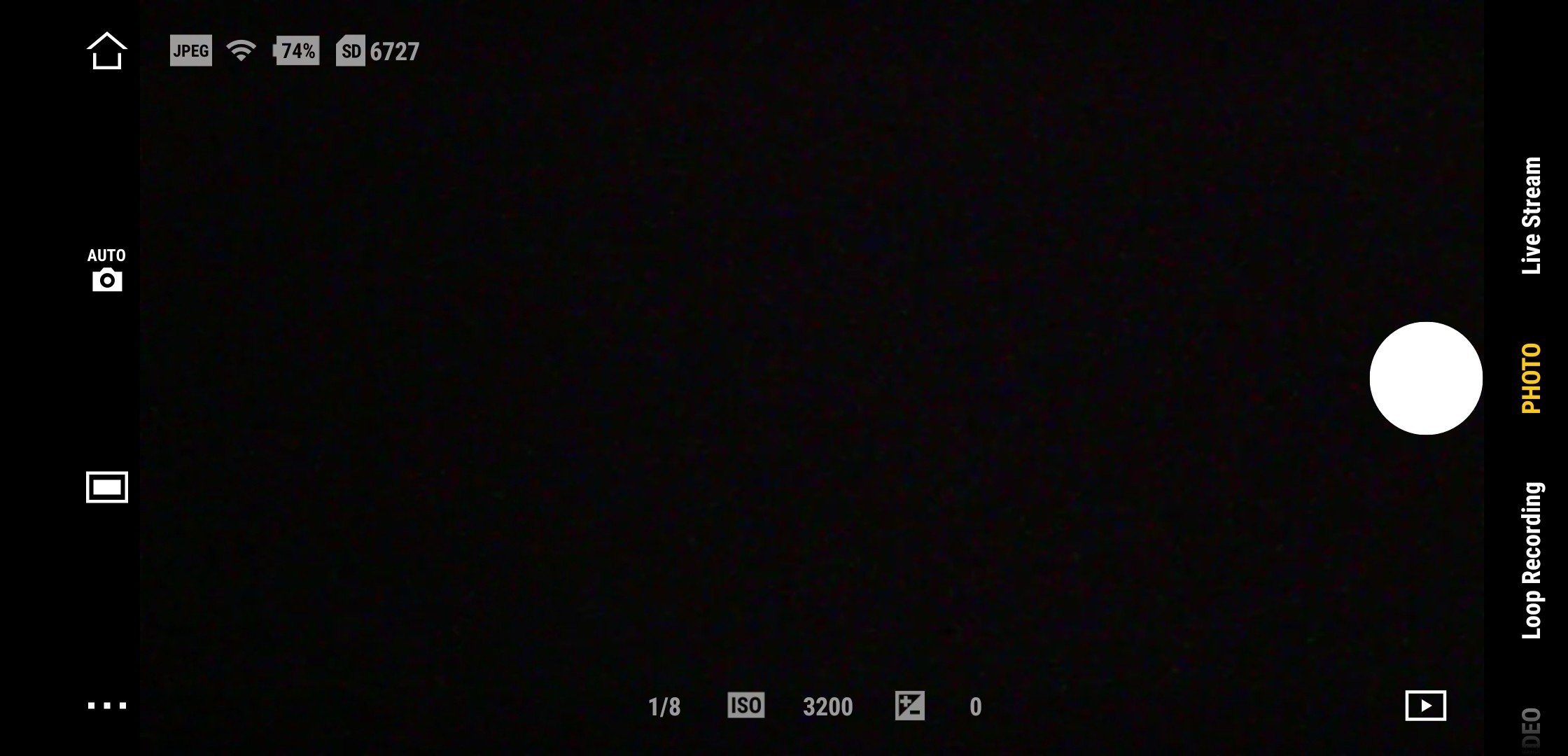
1. Connect Osmo Action to the DJI Mimo app and swipe across the screen to select the livestream function;
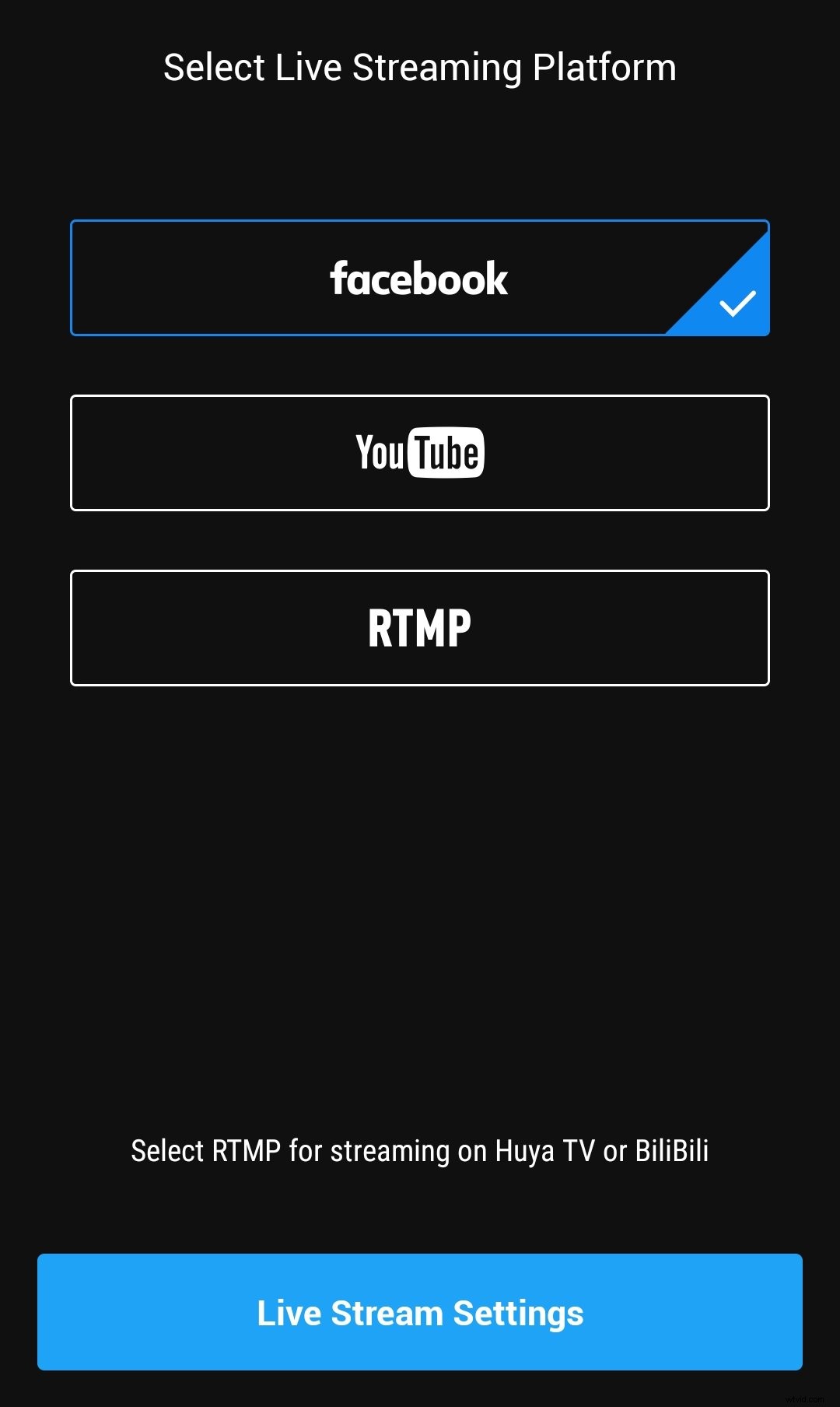
2. Select your livestreaming platform from Facebook, YouTube, and RTMP (custom URL for other platforms). The first time you sign in to Facebook and YouTube, you will be notified with a prompt to confirm this action;
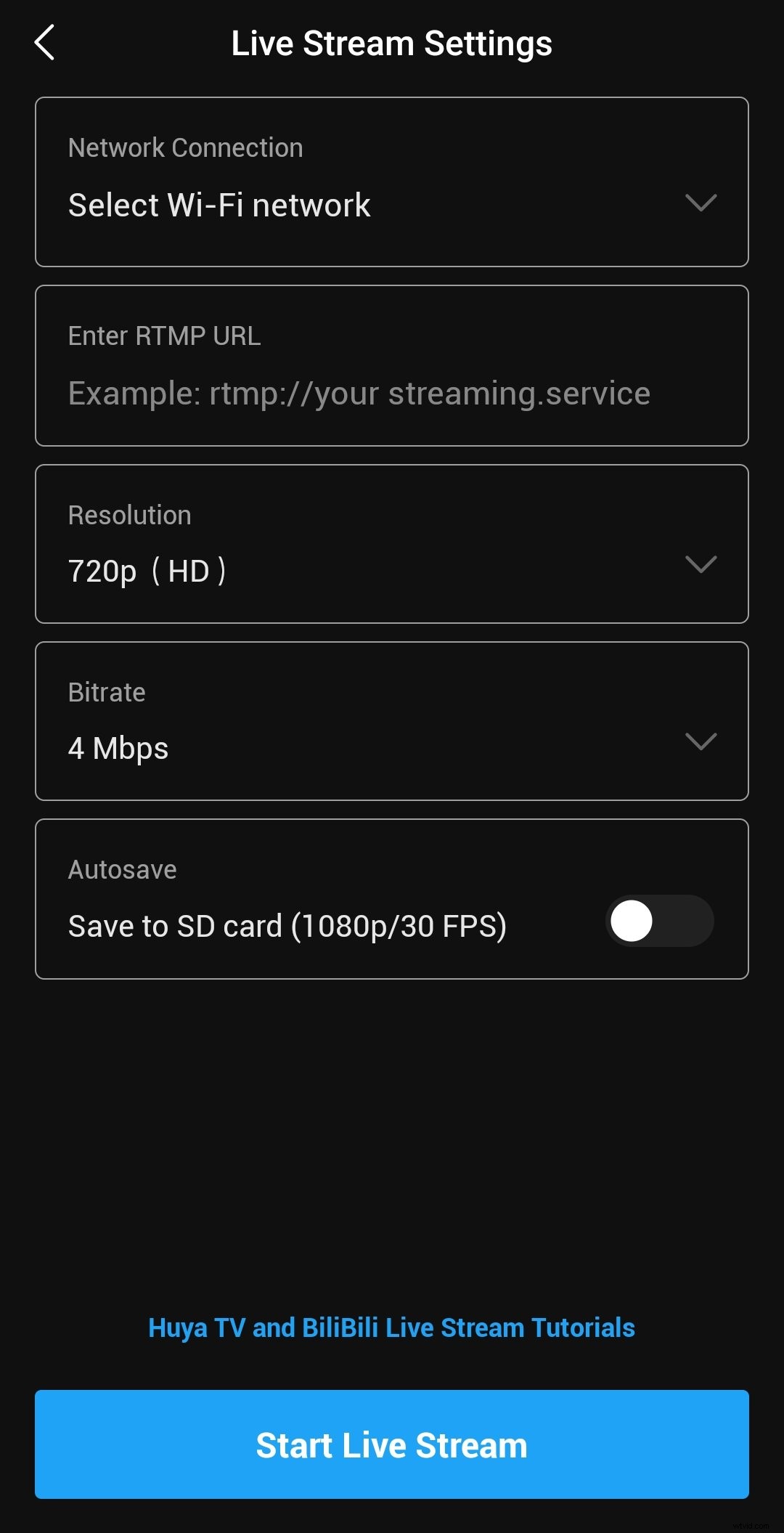
3. Click on the livestream settings to select options that include your livestream name, resolution, bitrate, and more. You can also set your livestream to public, unlisted, or private, depending on your preference. Using these settings, you can make sure all your settings are ready to go before you start broadcasting;
4. Start your livestream.
How to Setup DJI Osmo Action RTMP Livestreaming (Other Platforms)
- Prepare your livestream RTMP URL and copy it on your smartphone device;
2. Connect DJI Osmo Action to the DJI Mimo app and swipe across the screen to select the livestreaming function;
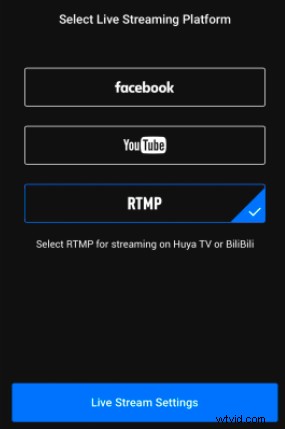
3. Select RTMP for a custom URL for other platforms;
4. iOS: Click on the livestreaming settings. Enter the SSID and password manually. If you wish to use your smartphone hotspot for livestreaming, set the personal hotspot as discoverable before entering the SSID and password manually;
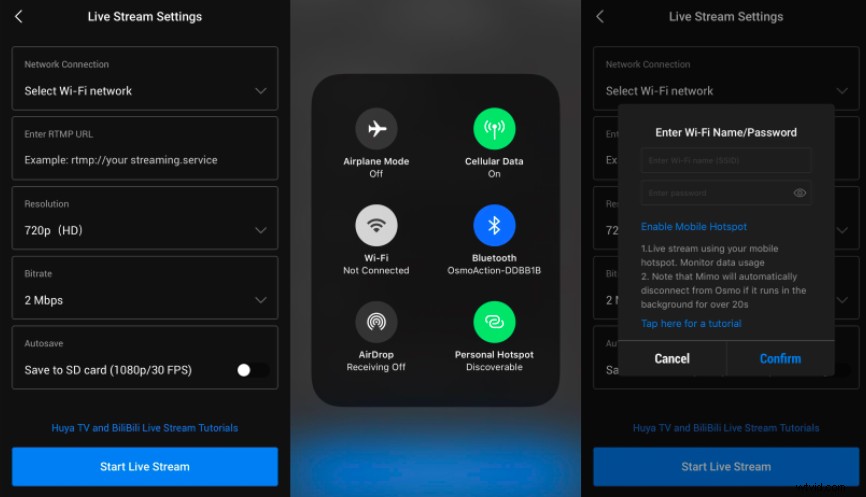
Android: Click on the livestreaming settings. Connect to the Wi-Fi. If you wish to use your smartphone hotspot for livestreaming, connect Osmo Action to DJI Mimo before you enable the hotspot. You might need to enter the SSID and password manually;
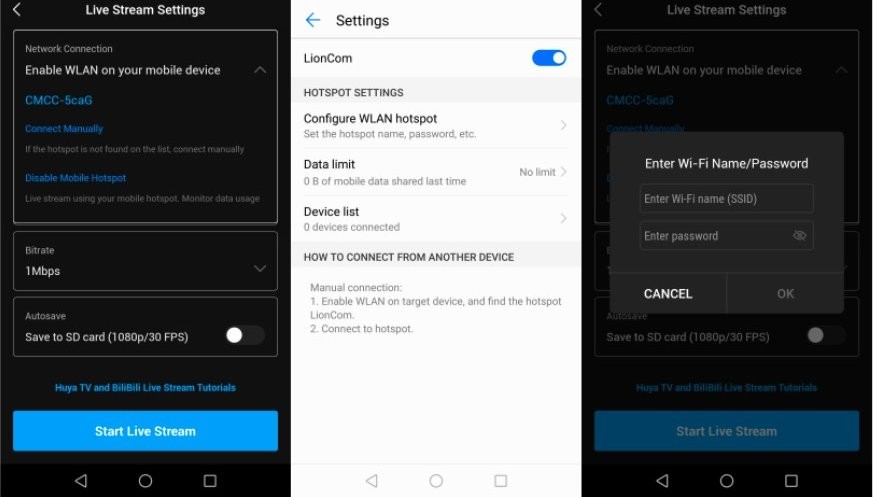
5. Input your RTMP URL. Select your bitrate, resolution, and other options.
6. Start your livestream.
Unique DJI Accessories for Livestreaming
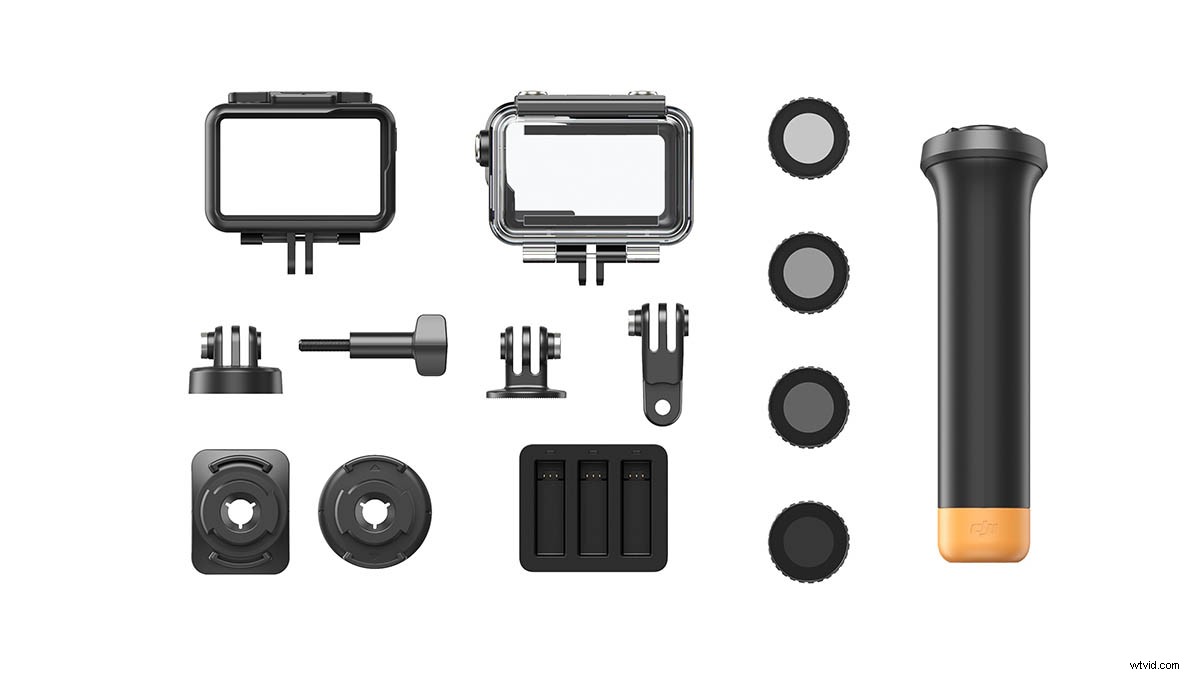
DJI Osmo Action accessories give you multiple options for creative livestreaming. The TELESIN Osmo Action Head Strap lets you livestream from a first-person perspective, which is a great idea if you are livestreaming in the great outdoors. How about taking things to the next level by attaching Osmo Action to unique places with the Osmo Action Adhesive Mount Kit? Whatever way you plan to livestream, Osmo Action accessories have got you covered!
DJI Osmo Action: Your Streaming Camera
From live Q&As to showing your setup at home, livestreaming opens up a new way to connect with your audience. Osmo Action takes your adventure to a whole new level, letting you capture and share your world like never before.
Buy Now
You May Also Like
Osmo Action Indoor Filmmaking Tips (Feat. Make.Art.Now.)
Osmo Action: Creative Tips for Filming Your Pets
Learn How to Use Osmo Action in 10 Minutes
10 Essential Osmo Action Accessories You Need to Get!
Osmo Action Top 10 FAQ