 Posted by: Lyle Schrock 10 months ago
Summer often means swimming, boating, and relaxing by the water, especially in Kosciusko County. However, one small splash or accidental drop can leave your phone soaked and malfunctioning.
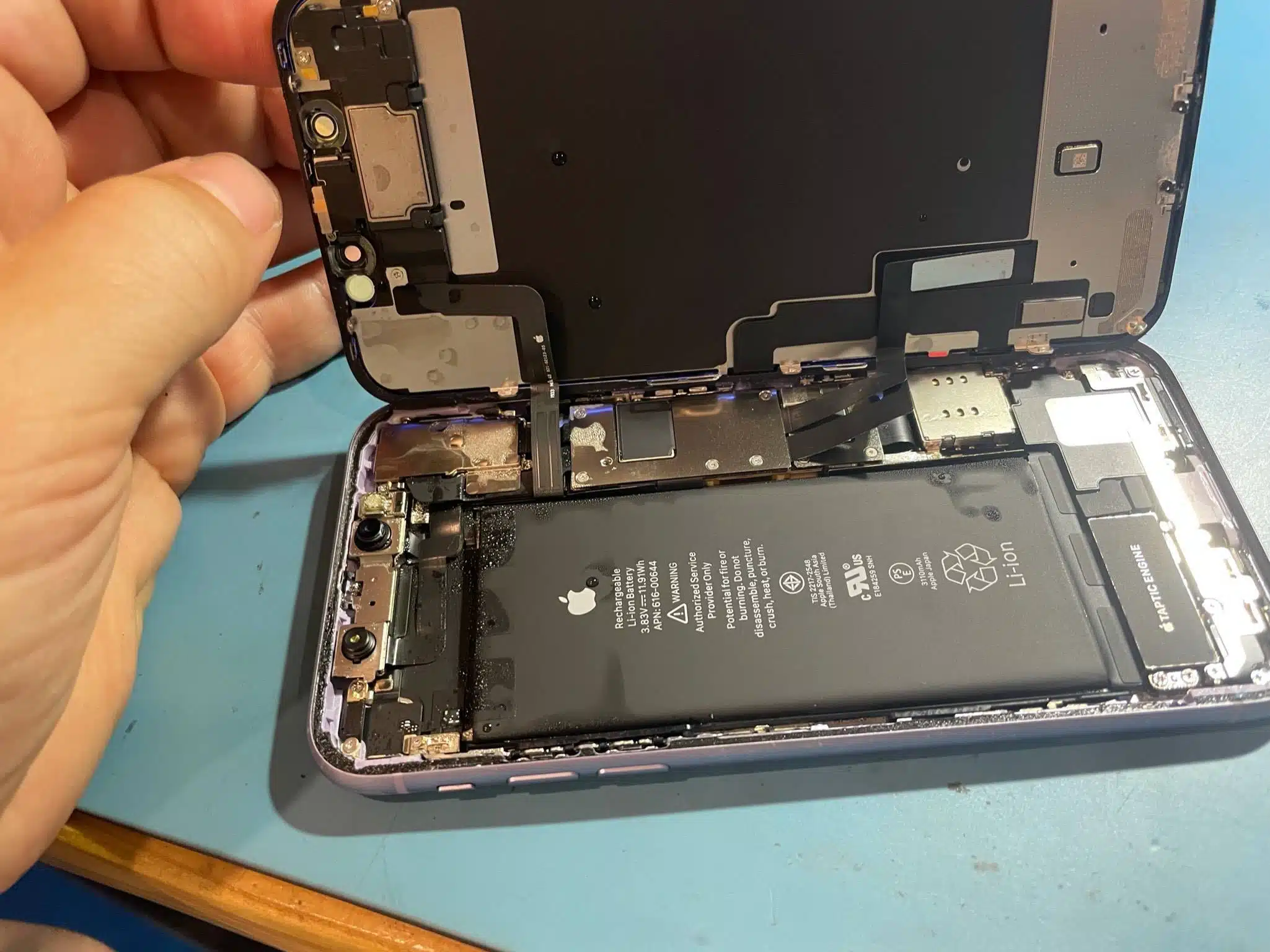
Whether your device slipped from your pocket into the lake or got splashed during a boat ride, water damage happens fast. The good news? You can often save your phone if you act quickly and follow the right steps to fix water damage.
Here’s how to handle water damage from lakeside accidents and what you should avoid.
Step 1: Get It Out of the Water Fast
The longer your phone stays submerged, the higher the risk of serious damage. Pull it out of the water immediately. Don’t waste time checking if it still works. Focus on getting it away from moisture.
Step 2: Power It Off
Turn off your phone right away. Keeping it powered on can cause short circuits. Resist the urge to check messages or see if the screen still lights up. Shut it down and leave it off.
Step 3: Dry the Outside
Use a clean towel or cloth to blot away water from the surface. Remove the case, SIM card, and memory card if your phone has them. If possible, take out the battery. Dry everything you remove.
Step 4: Skip the Rice Trick
Many people throw wet phones into a bowl of rice. While it sounds like a good idea, rice doesn’t absorb moisture effectively and can leave dust inside your phone.
Instead, place your phone in front of a fan or use a silica gel pack to draw out moisture more efficiently.
Step 5: Bring It to The Lab
Even if your phone seems fine after drying, water can corrode internal components over time. At The Lab, we can open your phone, clean the inside, and check for hidden damage.
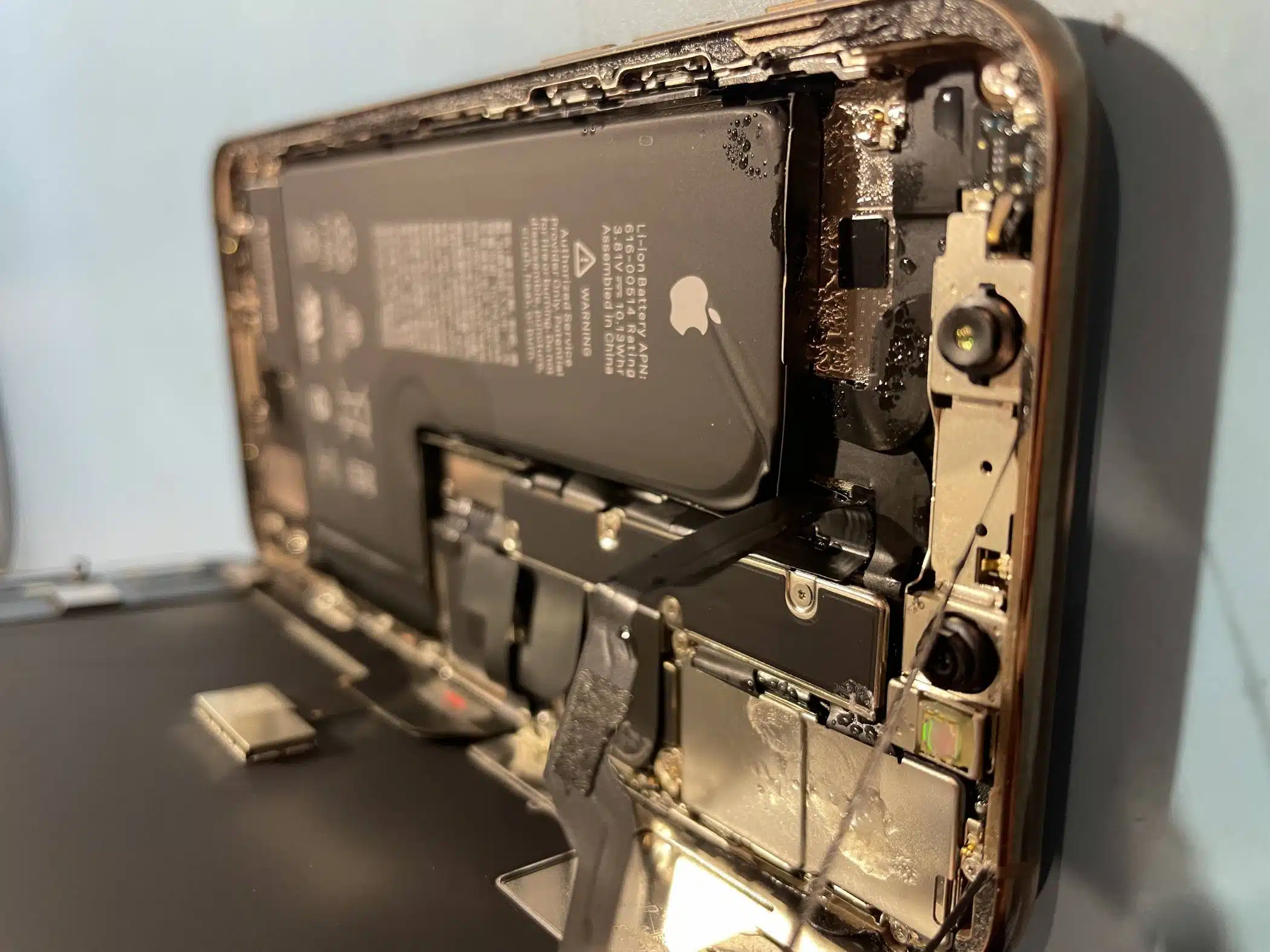
Acting early to fix water damage often saves your data and extends the life of your phone.
Avoid These Common Mistakes
- Don’t charge your phone. Plugging it in can make things worse.
- Make sure you have a backup. At a minimum, make sure your backup includes your photos, contacts, and passwords to avoid losing essential personal data.
- Carefully use heat to remove moisture. Hair dryers on a low setting can be helpful, just don’t let the phone get so hot you can’t touch it.
- Don’t shake it. Shaking spreads water to other areas inside the phone.
We Can Help This Summer
Lakeside and poolside accidents happen, but you don’t have to panic. Bring your phone to The Lab as soon as possible. Our team knows how to handle water damage and restore your device before the situation gets worse.
Enjoy summer by the water. Just keep your phone safe…or let us help when things go wrong!
Our Hours
Monday: 9am – 6pm
Tuesday: 9am – 6pm
Wednesday: 9am – 6pm
Thursday: 9am – 6pm
Friday: 9am – 6pm
Saturday: 10am – 4pm
Sunday: Closed

Previous Trade-In vs. Selling: What’s the Best Way to Get Value for Your Old Phone?
Next Avoiding Heat Damage: What to Do If Your Devices Overheat