

If you’re someone who enjoys discovering new songs, you may have wanted to listen to popular songs from around the world. Well, if you use Apple Music, let’s just say it’s going to be a whole lot easier from now on.
Apple has recently added a bunch of new playlists to Apple Music. What’s special about these new playlists is that they are city charts that showcase the most popular songs from around the world. Each playlist is for a specific city and includes the top 25 songs that are streamed by the Apple Music users in that city, making this a great way to find good music real quick. Want to use these city charts to find new songs on Apple Music? Then read on!
Discovering Popular Songs by City with Apple Music
Before you try to find these new playlists in the Apple Music app, make sure your iPhone or iPad is updated to iOS 14.5/iPadOS 14.5 or later. Once you’re done, here’s what you need to do:
- First of all, open the built-in Music app from the home screen of your iPhone or iPad.

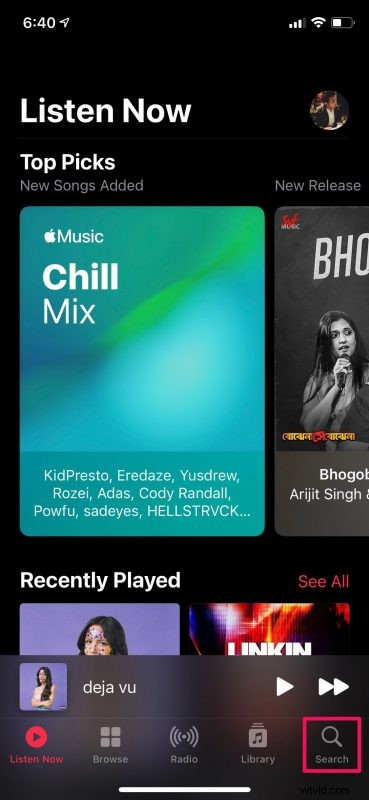
- You’d typically be in the Listen Now or Library section of the app. Tap on the “Search” option from the bottom menu.
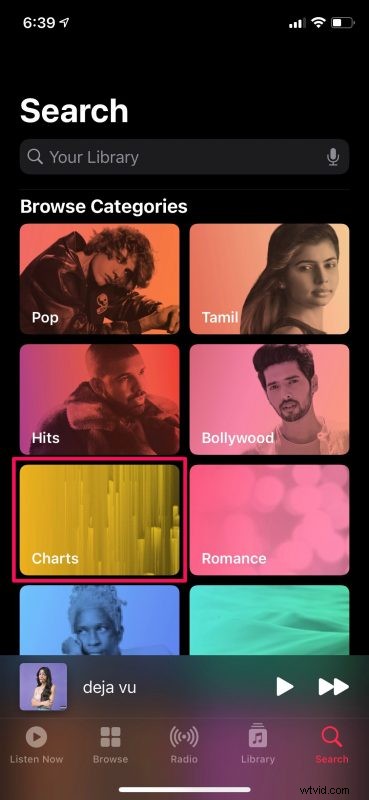
- Next, select “Charts” from the bunch of different categories that show up here.
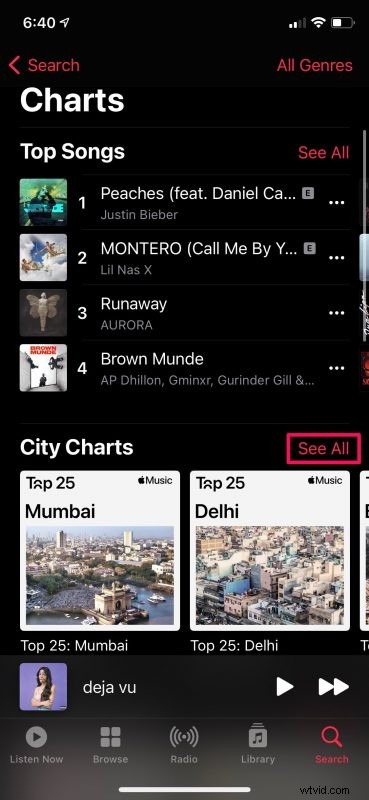
- Here, if you scroll down just a little bit, you’ll find the City Charts playlists as shown below. Typically, you’d see the cities that are closest to you first. Tap on “See All” to view every single playlist.
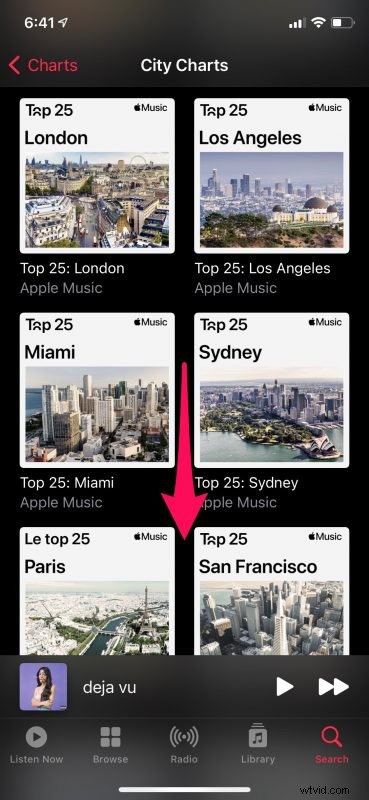
- Scroll down below and select the city that you’re interested in to view that playlist.
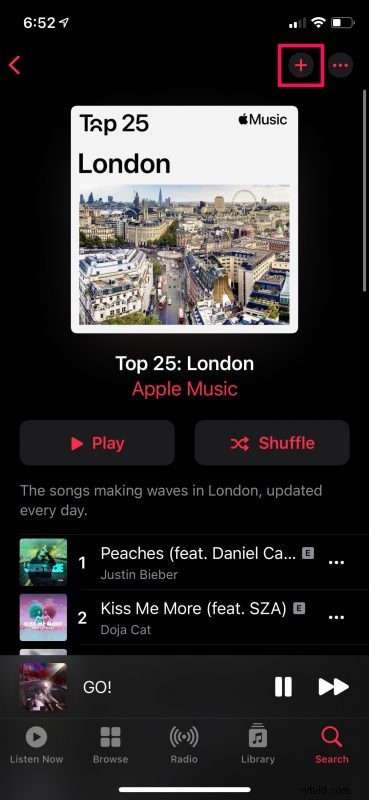
- Now, you’ll be able to view the top 25 songs that are streamed by Apple Music users in that city. To add the entire playlist to your main Apple Music library, simply tap on the “+” icon at the top-right corner of your screen.
These new playlists make it really easy to discover new music, and more importantly, find regional songs from all around the world. With over 100 playlists from around the world, you’re sure to find something you might like, or at least learn what is popular near you.
Likewise, if you use Apple Music on your Mac or iTunes on your PC, you will be able to find these new City Charts under the Browse section. It’s located just above the Daily Top 100 playlists, so you shouldn’t have any trouble finding them.
Apart from the new playlists that were introduced alongside the release of iOS 14.5, Apple has also slightly tweaked the Music app and added a feature that allows users to share song lyrics with other users or even post these lyrics as stories on Instagram.
Hopefully, you were able to find some great music with the help of these new city charts. What do you think of this interesting addition to Apple Music? How many new songs did you find and add to your music library? Share your experiences with us, let us know your personal opinions, and make sure to leave your valuable feedback in the comments section down below.