
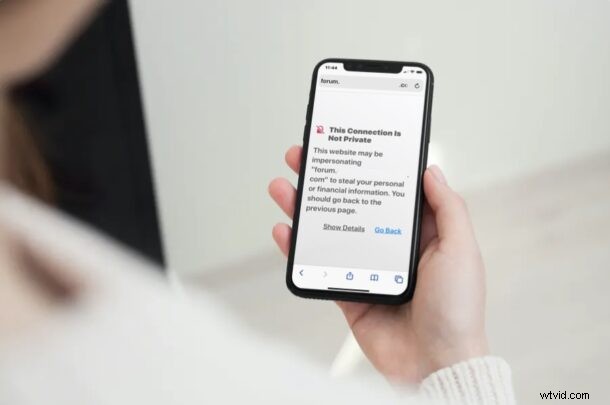
Are you receiving an error message saying “This connection is not private” when you’re trying to access a website in Safari from iPhone, iPad, or Mac? Many users have seen this error at some point as they browse the web, and this can be bypassed or ignored quickly fixed regardless of what device you use.
This message pops up when Safari’s security check on the website’s certificate fails. You’ll likely face this issue when you’re visiting a website that uses an expired certificate, or HTTP instead of HTTPS when it’s not configured properly. The difference between the two is that the older HTTP doesn’t have an SSL certificate, and therefore they aren’t ‘secure’ by default. However, SSL certificates aren’t valid forever, so you might still face this issue on HTTPS sites when the SSL certificate has expired, if it’s setup incorrectly, or if it’s not issued by a legitimate certificate authority. Finally, you can also face this issue if the device viewing the website has a clock that isn’t set to the proper time, since that breaks the certificate check too.
In any event, if you use Safari on an iPhone, iPad, or Mac, you can still bypass the “This connection is not private” warning and access the site.
Important note: if you encounter a “This connection is not private” error message on a banking website, financial services site, email site, or anything where critically important data is submitted or exchanged, there may be something else going on and you should not attempt to bypass the warning message. Instead, check the URL to make sure it is correct, try again later, or contact the company directly.
How to Fix Safari “This Connection Is Not Private” Warnings on iPhone & iPad
Bypassing this error is actually a pretty simple and straightforward procedure, but most people don’t seem to read the error message completely. Just follow the steps below to get started.
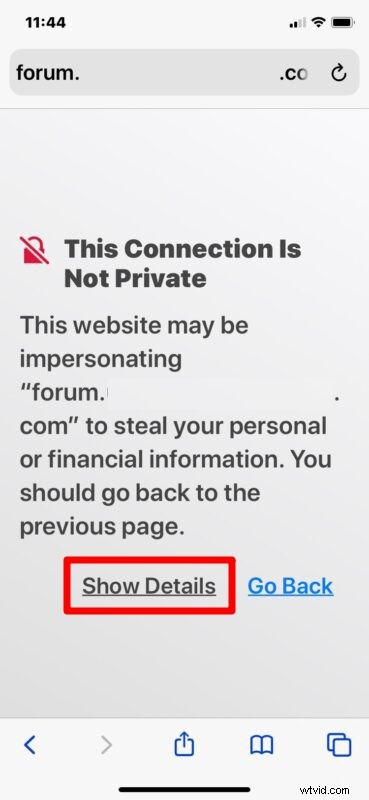
- When this message pops up on your iOS or iPadOS device, tap on “Show Details” located at the bottom, as indicated here.
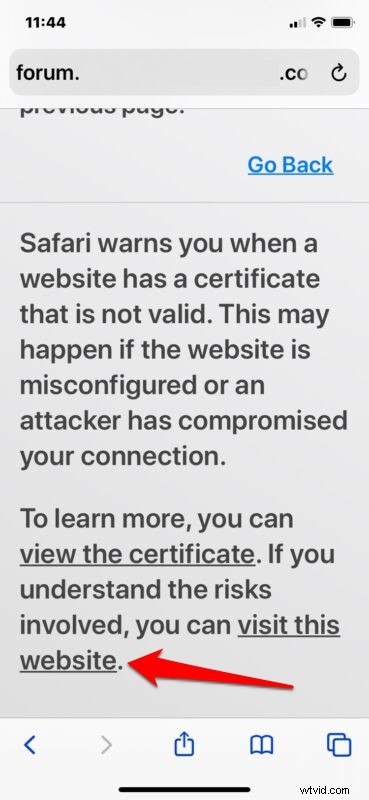
- This will give you a brief description of this warning. However, if you scroll all the way to the bottom, you’ll see the hyperlink to access the site anyway. Tap on “visit this website” to continue.
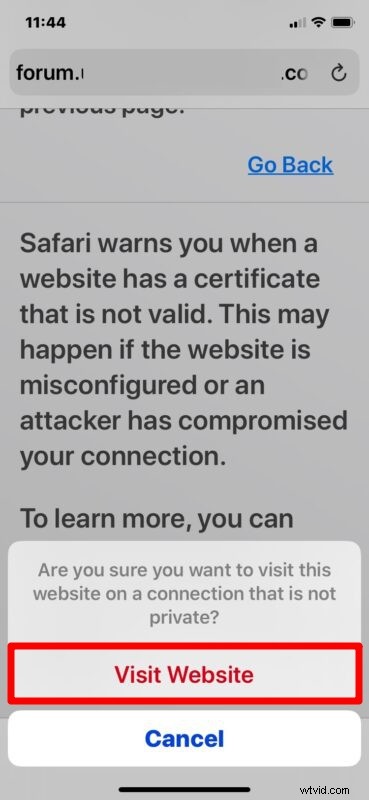
- When you’re prompted to confirm your action, tap on “Visit Website” again.
Now, you’ll be able to view all the contents of the website like normal, but you’ll notice a “Not Secure” notice in the address bar.
How to Fix Safari “This Connection Is Not Private” Warnings on Mac
The procedure to bypass the warning is pretty similar on a macOS system too. Here’s how it works:
- When you see the message on your screen, click on the “show details” option to read more information regarding this warning.
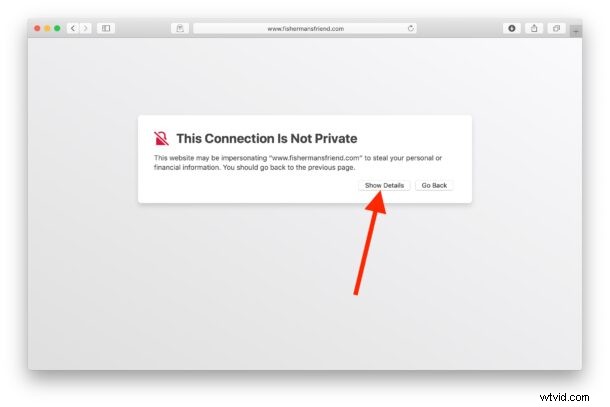
- Next, after you go through the description of the warning, click on the “visit this website” hyperlink located all the way at the bottom, as shown below.
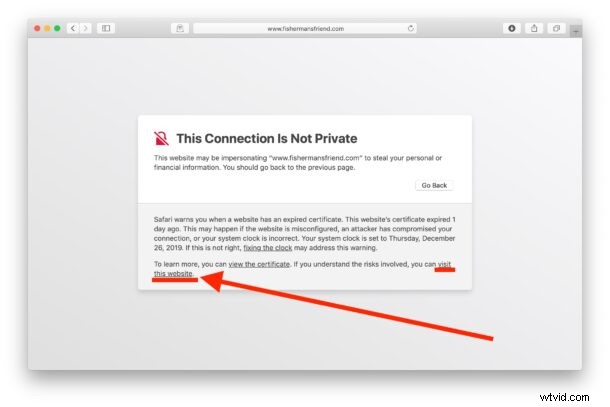
- Now, you’ll get a pop-up in Safari. Choose “Visit Website” to confirm your action and access the website.
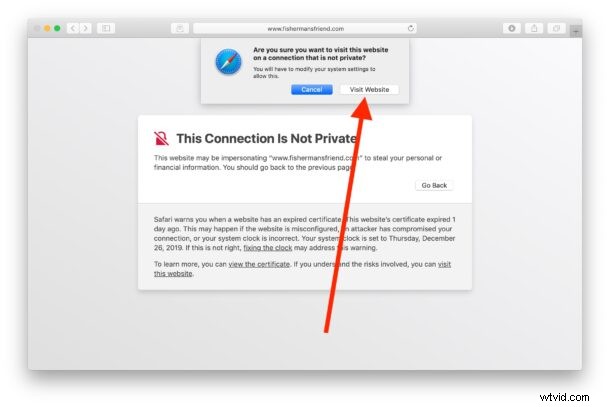
And there you have it, you’re viewing the site. Again on the Mac you’ll find the “Not Secure” website message in the address bar, indicating you should not transmit any important personal data like banking details, login information, etc on the URL. But if it’s simply an informational site where you are not inputting any personal data, there usually isn’t much concern.
Now you know how easy it is to fix “This connection is not private” warnings in Safari.
Although this warning is mostly a website-related issue, entering the wrong URL, an incorrect system clock, a VPN issue, or even corrupted browser cache can sometimes also be the reason why you see this warning. Therefore, you might want to double-check that you have the proper URL entered, that the device has the date and time and clock set properly (you can check in Settings on iPhone/iPad or System Preferences on Mac), and consider clearing your Safari browser cache. To do this on an iPhone or iPad, head over to Settings -> Safari and tap on “Clear History and Website Data”. For clearing the Safari cache on your Mac, just go to Safari -> Preferences from the menu bar. Additionally, if you’re using a VPN on your device, turn it off and visit the site again to see if you’re still getting the warning. If you read the warning message carefully, you’ll see that fixing your clock can also resolve this issue too.
You may see this error with or without browsing in Private mode in Safari too.
Similarly, you can run into a connection not private error in Google Chrome, with a similar resolution though the Chrome issue is almost always related to improper SSL certificates, expired certs, or a time/date error on the device itself.
We hope you were able to stop getting this error on your iPhone, iPad, and Mac. How often do you get these warnings while browsing in Safari? Share your experiences, thoughts, and advice in the comments.