
Apple’s AirPods generally work fantastic and trouble-free, but every once in a while you may encounter a strange issue where a single AirPod stops working, while the other continues to work fine. These sort of connectivity issues are rare but can happen. This tutorial will help to walk through how to troubleshoot and resolve an issue where a left or right AirPod or AirPods Pro is not working as intended.
If you experience this issue, you may find it randomly when you’re listening to music, or a podcast, or even on a phone call or video conference. Suddenly, one of your AirPods just stops working. This could be due to various reasons, ranging from battery drain, to Bluetooth being finicky with a faulty connection. Thankfully, this is pretty easy to resolve in most cases.
If you’re facing this annoying issue, don’t worry, as we’ll walk you through the troubleshooting steps to resolve issues where only a single AirPod works while the other does not.
Troubleshooting Left or Right AirPods Not Working
Let’s take a look at some of the basic troubleshooting steps you can try when one of your AirPods stops functioning. You’ll obviously want to make sure your AirPods or AirPods Pro are paired and working with your device, but if one of them is working then that is likely so.
1. Check AirPods Battery
Sometimes, one of your AirPods could drain faster than the other. This issue is more prevalent in an ageing pair of AirPods. It could also be due to the fact that you’re using one AirPod for voice calls or if you’re using the noise cancellation feature on just one AirPod. Simply follow the steps below to check the battery of your AirPods.
- Head over to the iOS Control Center and tap on the icon located at the top-right corner of the Music card, as shown below.
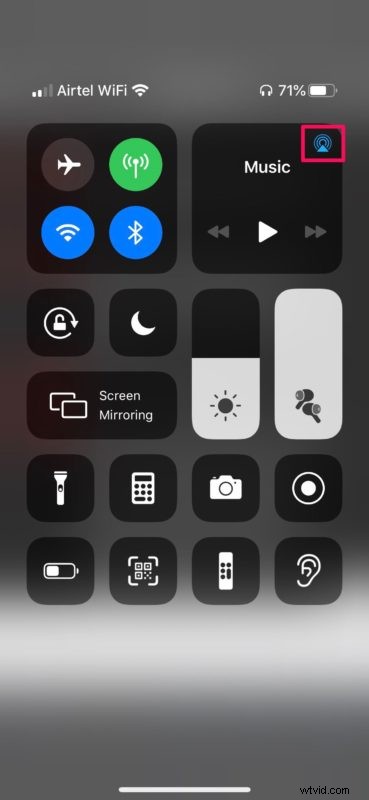
- Here, you’ll be able to check your battery percentage. If one of the AirPods stopped working due to low battery, only the other AirPod’s battery percentage will be shown.
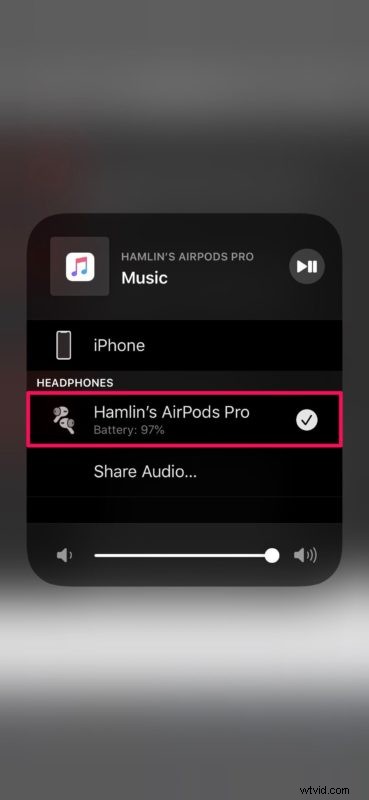
Put both of your AirPods back in the charging case and make sure the case has enough charge left in it. If not, connect it to a power source for an hour and then try listening to music on your AirPods to see if it’s working again.
2. Forget Device & Re-Pair AirPods with iPhone / iPad
In order to remove the paired AirPods from the list of Bluetooth devices on your iPhone or iPad, simply follow the steps below.
- Head over to Settings -> Bluetooth on your iOS device and tap on the “i” icon right next to connected AirPods.
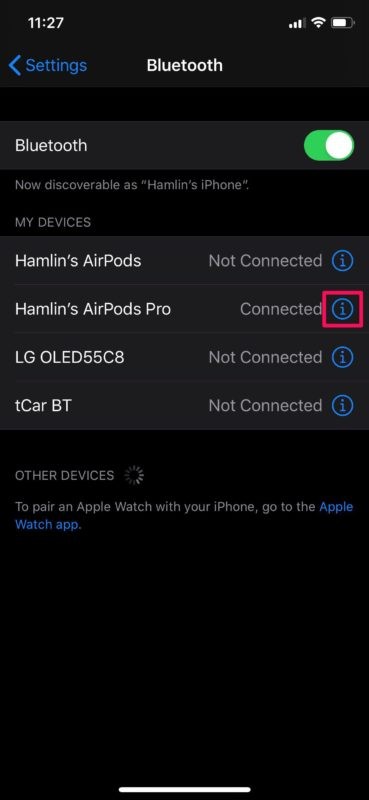
- Now, scroll down and tap on “Forget This Device”.
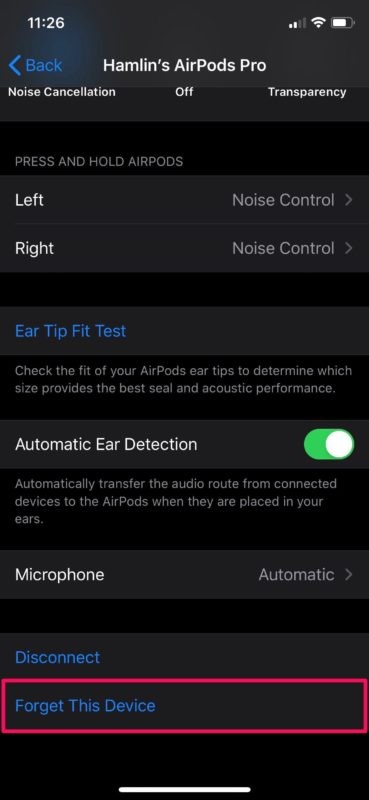
Once you’re done, you can proceed to re-pair your AirPods. Put both of your AirPods back in the charging case, open the lid and hold the physical button on the back of the case for a few seconds to enter pairing mode. You’ll see your AirPods show up in the list of available Bluetooth devices. Connect and see if both the left and right AirPods work properly now.
3. Reset Your AirPods
If the above step didn’t resolve the issue, you’ll need to reset your AirPods. Forget your device like you did in the previous step and put your AirPods back in the case. Now open the lid and hold the button on the back of your case for about 15 seconds until the LED light on the case starts flashing amber. Now, you’ll need to go through the initial setup process and see if both the AirPods are functioning properly.
4. Reset Network Settings
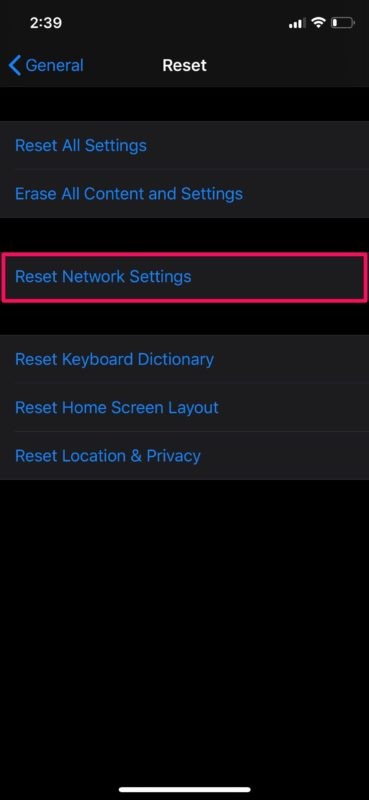
In rare cases, common networking issues with your iPhone or iPad could likely be the reason why you’re facing connectivity issues with one of your AirPods. However, this can be easily resolved by resetting your network settings. Be mindful that you’ll lose your saved Bluetooth connections, Wi-Fi networks and passwords once you reset these settings. In order to do this, go to Settings -> General -> Reset -> Reset Network Settings on your iOS device.
5. Reboot Your iPhone / iPad
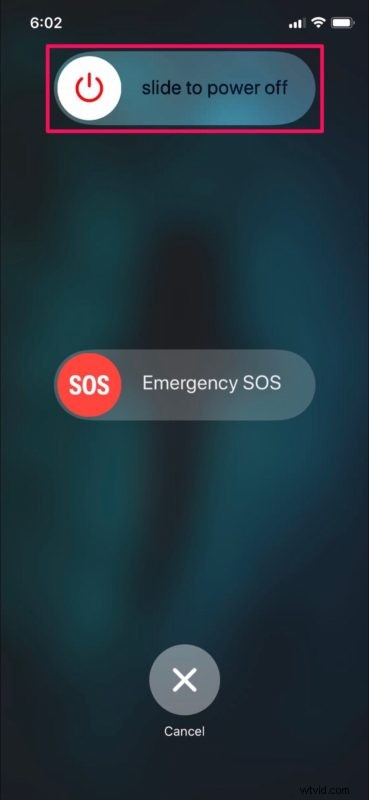
If none of the above methods worked for you, the issue could be your iPhone or iPad and not the AirPods itself. So, the last thing you’d want to try is simply to restart your iOS device. This can be done by just turning off your device and powering it back on again. If you’re using an iPhone or iPad without a physical home button, hold the side button and the volume up button to access the shut down menu. However, if you’re using an iPhone or iPad with a physical home button, you just need to hold the power button. You can shut down your iPhone or iPad through Settings too.
You can also try some more generic troubleshooting tips for if AirPods are disconnecting at random, which may come in handy during situations like this too.
Hopefully by now, you should’ve resolved the issue you were facing with one of your AirPods.
If none of these steps worked in your instance, there’s a pretty good chance that it’s a hardware-related issue. However, you could check the microphone and speaker meshes on each AirPod for debris and clean them, if necessary. Check for any signs of physical damage. If you dropped your AirPods in the pool or listened to music while walking in the rain recently, water damage could likely be the reason as well. For all hardware-related issues, make sure to contact Apple support for further assistance.
We hope you managed to fix your faulty AirPod. Which of these troubleshooting methods we discussed here worked for you? Did you find another solution instead? If not, did you contact Apple support to check for hardware-related problems? Share your experience and solutions in the comments section down below.