
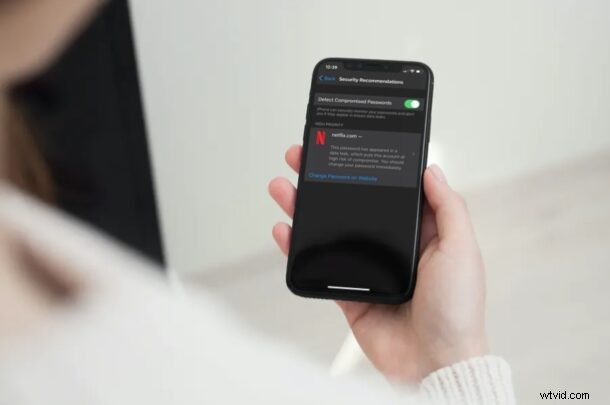
Have you ever wondered if the passwords to any of your online accounts have been compromised in a data breach? You’re certainly not the only one in that regard, but now you can now check for breached password security easily right from your iPhone and iPad.
In the latest versions of iOS and iPadOS (14 and later), Apple has added a security feature called “Security Recommendations” that would provide security alerts for the passwords stored on iCloud Keychain. If one or more of your accounts use a password that’s easy to guess, uses a sequence like 123, or a password that was previously leaked on the web due to a data breach, you will be alerted and prompted to change the password for those accounts.
Do you want to make sure that none of the passwords you use pose a security risk? This article will cover how to check password security recommendations on both your iPhone and iPad.
How to Check Password Security Recommendations on iPhone & iPad
Since this is a feature that was introduced alongside modern versions of iOS and iPadOS, make sure that your device is running iOS 14/iPadOS 14 or later before going ahead with the procedure. Assuming you’re on a modern system software version, here’s all you need to do next:
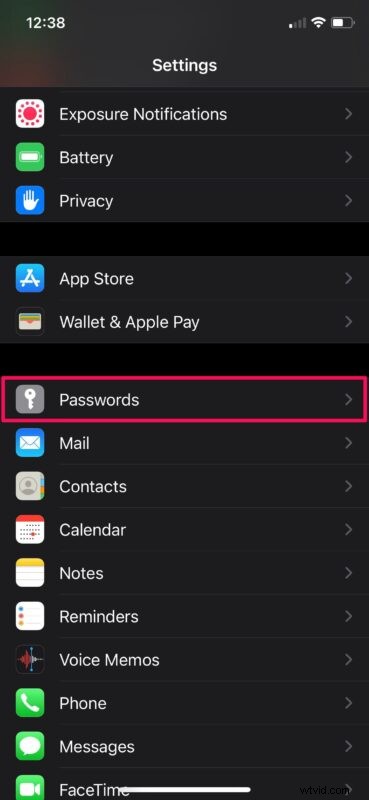
- Head over to “Settings” from the home screen of your iPhone or iPad.

- In the settings menu, scroll down and tap on “Passwords”.
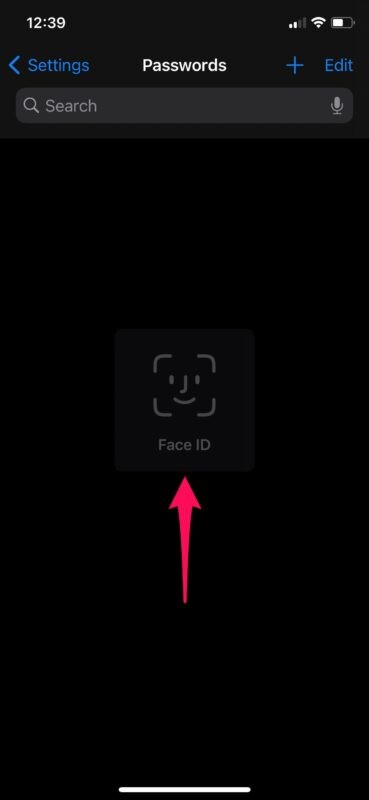
- Next, you will be asked to authenticate with Face ID or Touch ID depending on your device before you’re allowed to view the iCloud Keychain data.
- Here, tap on “Security Recommendations” located right above the list of passwords.
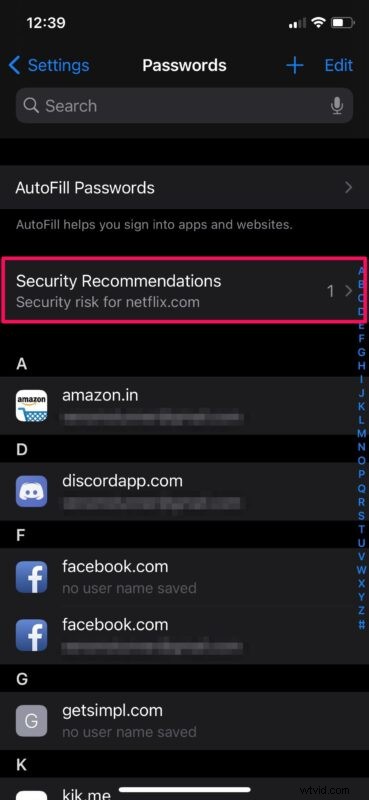
- If any of your accounts are using a password that’s weak, easy to guess, or appeared in a data leak, it will be displayed here. Tap on the account to view more details.
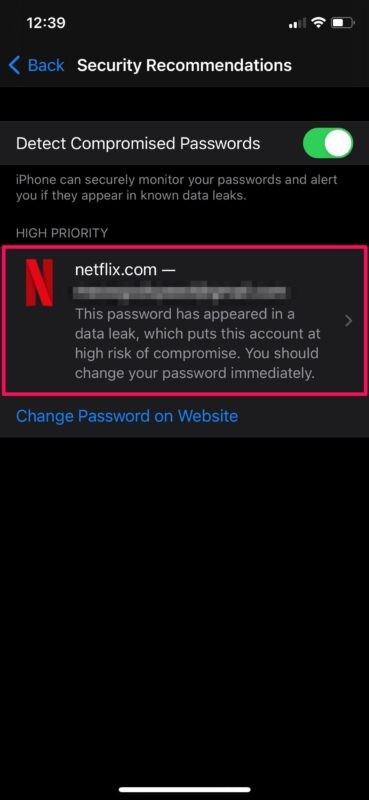
- You’ll be prompted to change the compromised password. Tap on “Change Password on Website” to continue with this.
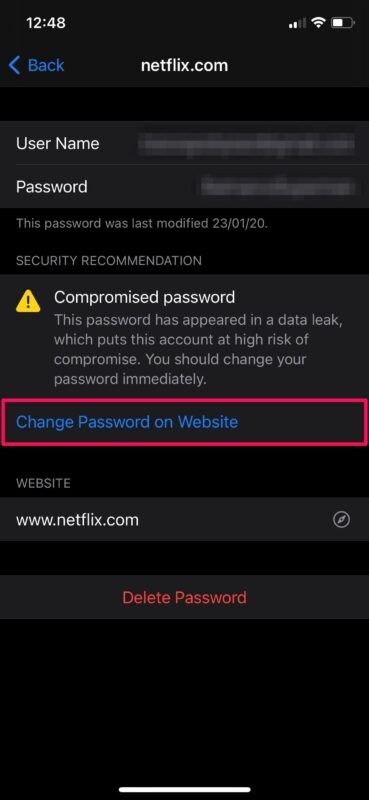
When browsing through the list, you may see a notice saying something like “This password has appeared in a data breach, which puts this account at high risk of compromise.” and if you do, that’s a good indicator to change passwords associated with that account or reused elsewhere.
Assuming you followed along, you’ve now learned how to check for Security Recommendations related to your online accounts stored on iCloud Keychain. That was pretty easy, right?
Thanks to this feature, you can easily make sure that none of the passwords that you use are weak, or compromised in a data breach. This helps to minimize the security risks associated with having online accounts, particularly if you share passwords between services (which is generally not recommended by security experts, but many users do it anyway out of convenience).
If you’re wondering how this feature works and the privacy implications of it, according to Apple; “Safari uses strong cryptographic techniques to regularly check derivations of your passwords against a list of breached passwords in a secure and private way that doesn’t reveal your password information — even to Apple.”
Don’t forget you can also manually add passwords and logins to Keychain on iPhone and iPad too if you want them to be checked by this feature.
In addition to this, Apple has made some huge improvements to privacy with modern iOS and iPadOS releases. Thanks to features like Approximate Location, Limited Photos Access, Privacy Report, and recording indicators, users now have complete control over what data third-party apps and developers are able to access from their iPhones and iPads. Check out more privacy specific tips and tricks here if the subject interests you.
We hope you were able to use Security Recommendations to check and update weak or leaked passwords. What’s your take on Apple’s game-changing privacy features? Have you been enjoying the other new additions to iOS 14 so far? Do share your valuable opinions and experiences in the comments section down below.